Aspecten
 Download (84 MB)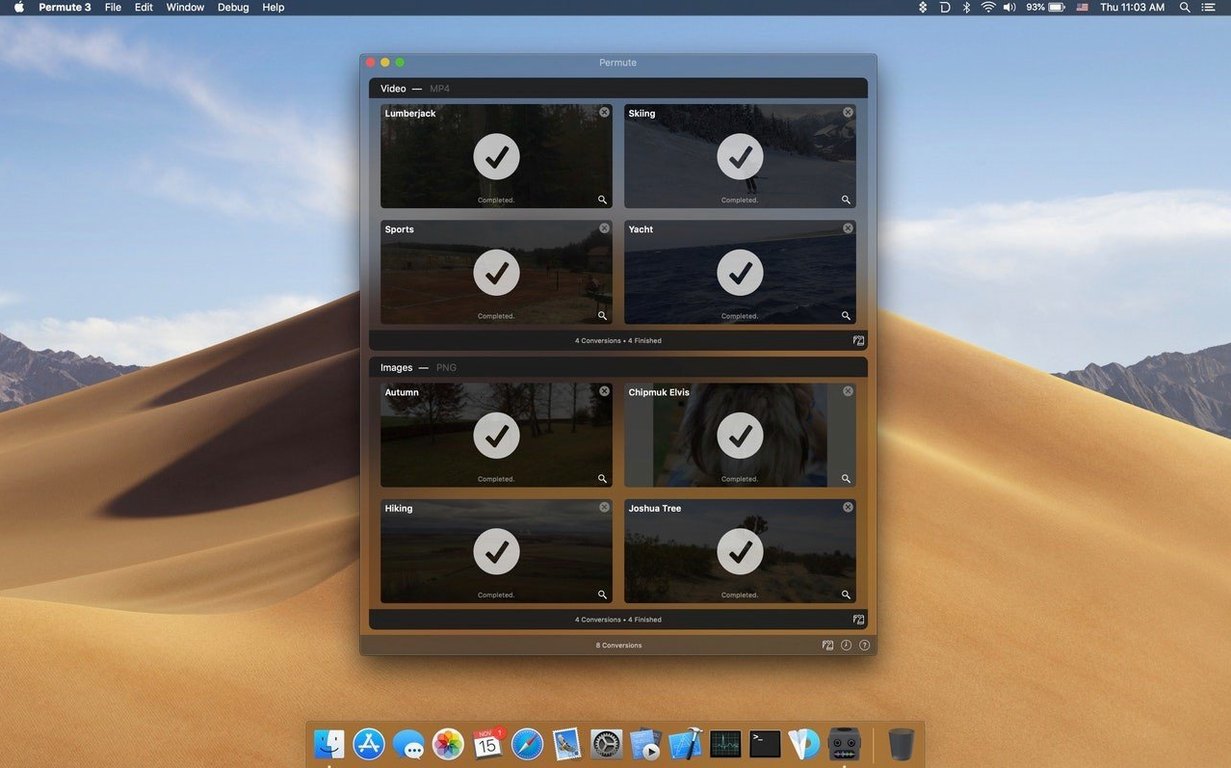
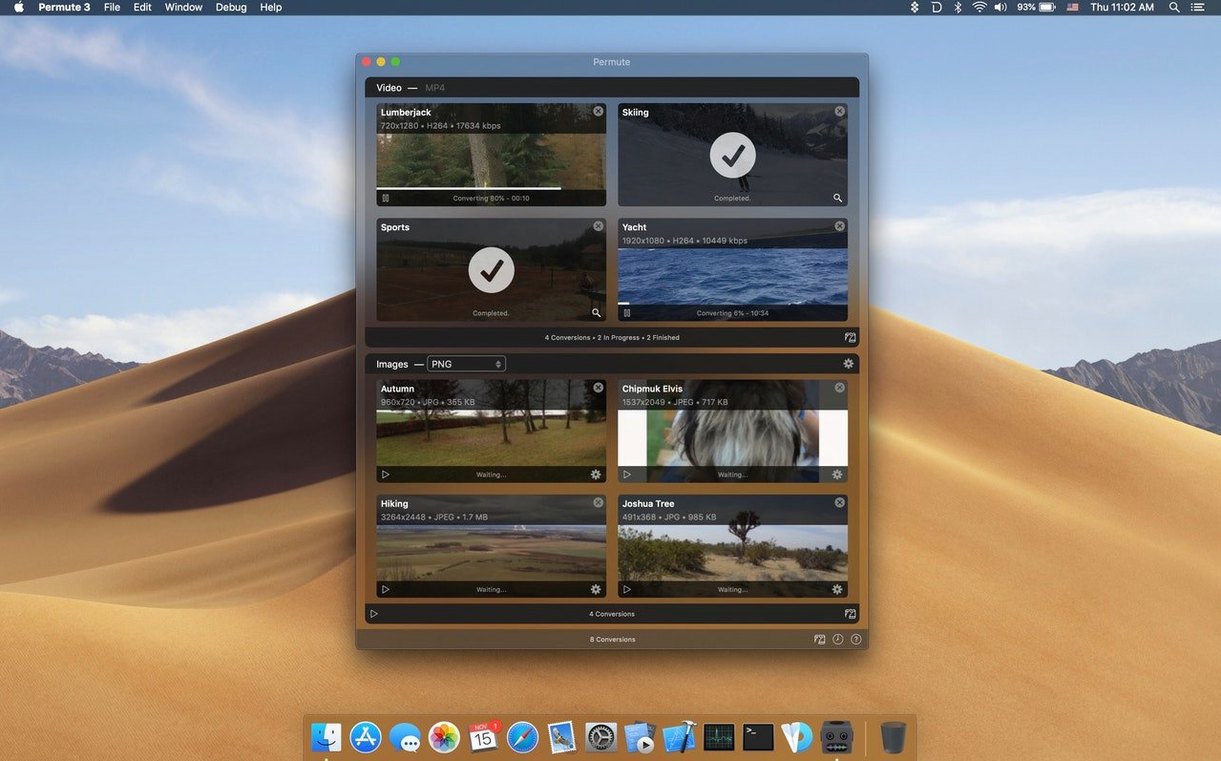
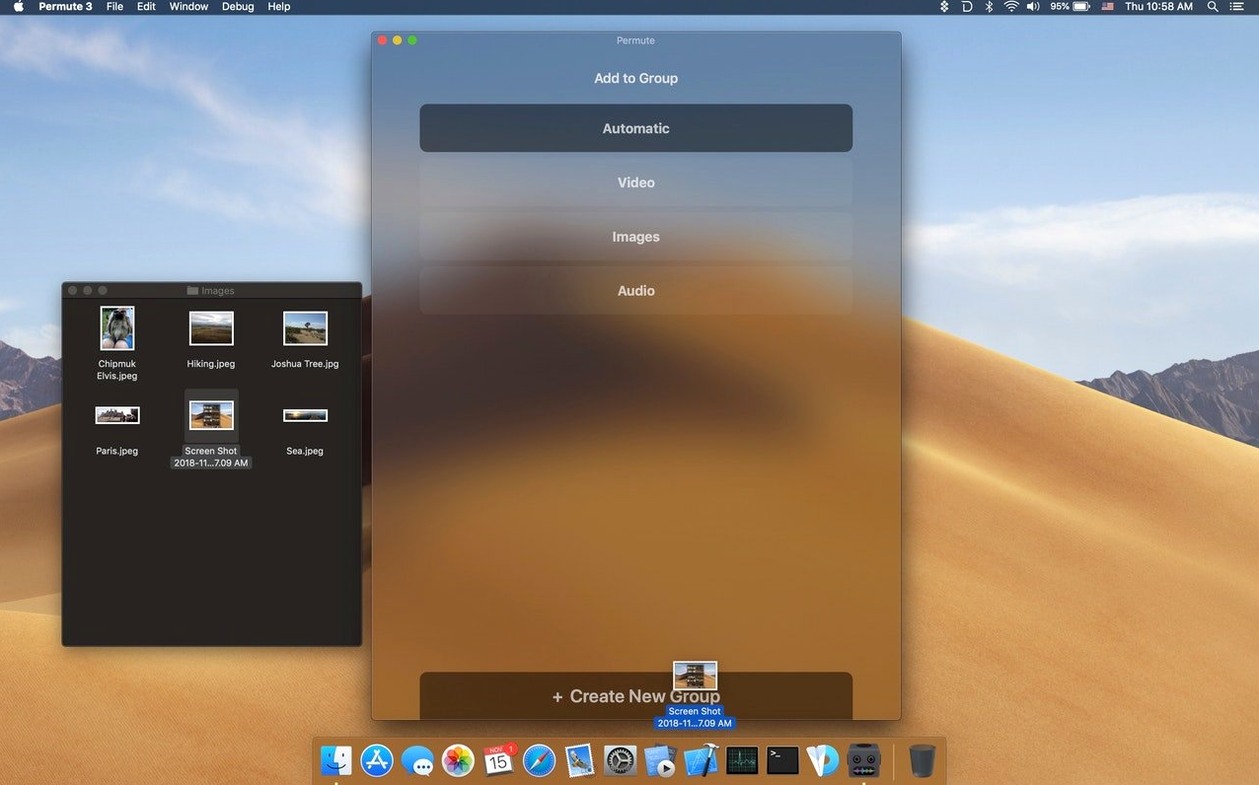
A folder holds a dozen clips from a phone, a few large PNG screenshots, and two short videos that belong together as one file. Permute 3 sits in the Dock, ready to turn each into the right format.
Convert a batch of videos
Dragging the clips into the window shows a list of formats to pick from. A single setting converts all files at once.
Shrink screenshots to JPEG
The same drop area accepts images. Choosing JPEG takes the PNG files down to a fraction of their size with little visible loss.
Merge two clips
First days with Permute 4
A fresh install leaves you with a blank window and a single drop area. The first few conversions set patterns you will repeat later, so spending ten minutes on preferences avoids small frustrations down the line.
Open the preferences pane straight away. Under General, set the output folder to something predictable — not the same folder as the source files, or you will hunt through a mixed list later. A dedicated Converted folder on the desktop works for most people. Under Quality, check the default video preset. The factory setting often favours speed over file size. If storage matters more than a few extra seconds of processing, switch the default to a higher-compression preset like HEVC or H.264 at a slightly lower bitrate. You can always override it per batch, but the default shapes most quick jobs.
Another early habit worth forming: use the scheduler. Permute 4 can queue conversions and run them while the Mac is idle, overnight, or after a set time. If your afternoons involve importing footage from a camera, set a schedule that triggers at 2 a.m. rather than converting during editing hours when the CPU is busy elsewhere.
Get familiar with the right-click menu on any queued item. You can duplicate a conversion with a different preset, pause a single large file without stopping the whole queue, or send a completed file straight to its enclosing folder. That last one saves a trip to Finder.
Also try dropping a folder rather than individual files. Permute 4 scans subfolders and preserves the structure in the output location, which matters when you convert an entire photo library or a project organised in dated directories. Check the “Keep folder structure” toggle in preferences if it is not already on.
Rosetta 2 removed, app wakes almost instantly
Version 4 brought Apple Silicon as a requirement, not merely a supported option. For daily work, that means the Rosetta 2 layer is out of the picture entirely. The app runs native on ARM, waking from background almost instantly and keeping memory pressure low even with a queue of twenty or thirty items. Users coming from version 3 on Intel machines notice the difference most when merging videos: what previously made the fans audible now finishes quietly.
The interface lost some of the floating-panel clutter of earlier versions. Presets now live in a collapsible sidebar rather than a popover, so switching between a video preset and an image preset during the same session feels less like digging through menus. The drop area also accepts more file types without a separate “add” dialogue — dragging a subtitle file onto a video entry in the queue presents the option to embed it directly, rather than requiring a trip to a settings panel.
One subtle but practical shift: the progress indicator now shows estimated time remaining per file, not just a bar. When you queue a dozen 4K clips for downscaling, knowing which one will finish next helps plan whether to start editing now or go make coffee.
The merge function gained a simple ordering control. Dragging to reorder clips in the queue before merging sets the sequence of the output video without needing to rename files or use a separate editor. That change alone turned a three-step workflow into one action for anyone combining drone footage with ground-level shots.
With macOS 26 as the minimum, Permute 4 also adopted the system-level colour profile handling more cleanly. HDR video converted to SDR retains brightness levels closer to the original than in previous versions, which matters for anyone delivering final cuts to platforms that still expect standard dynamic range.
A podcast producer’s afternoon
Every Monday, a freelance podcast producer records a two-hour session as uncompressed WAV from a mixer. The raw file sits around 1.2 GB — too large to upload to the hosting platform and useless to the editor who needs an MP3 reference track with chapter markers.
She opens Permute 4 and drops the WAV onto the window. A saved preset called “Podcast MP3” is already set to 128 kbps mono, with a high-pass filter applied through a custom FFmpeg flag. The preset also points to a chapters file in the same folder, so the converted MP3 carries embedded chapter metadata without extra steps. While that processes, she drags the cover art PNG into a second tab — Permute 4 lets her run separate queues for video, audio and images in parallel — and converts it to a 1400×1400 JPEG at 85% quality, matching the host’s requirements. Both files finish inside three minutes. She drags them into Transmit and the episode is live before lunch.
Fit for quick media conversion, not frame-by-frame encoding
The app fits a particular slot in a Mac user’s toolkit. It is not a replacement for HandBrake when you need frame-by-frame control over encoding parameters, and it is not a media player. It works best for people who move files between formats frequently enough that manual settings become a chore, but not so often that they want to write shell scripts around FFmpeg directly.
Photographers delivering client galleries benefit from the batch image conversion with size and format presets. A folder of TIFF exports becomes a web-ready JPEG gallery in one drag, with the original folder structure intact for easy uploading to a proofing site.
Video editors working with mixed source footage use Permute 4 to normalise everything to a single codec before importing into Final Cut Pro or DaVinci Resolve. That prevents timeline stuttering and colour shift issues that appear when mixing footage from different cameras. The merge function also suits anyone stitching B-roll into a single clip before editing.
Anyone archiving home media appreciates the ISO conversion option. Ripping old DVD folders and converting them to ISO for storage on a NAS keeps the full disc structure playable later, and Permute 4 handles that without extra tools.
Users who only convert one file every few months may find the interface too spare — they might want more hand-holding in choosing presets. But for anyone who processes media in batches at least weekly, the combination of a clean queue, saved presets and the scheduler turns what could be a forgettable utility into something that earns its place in the Dock.
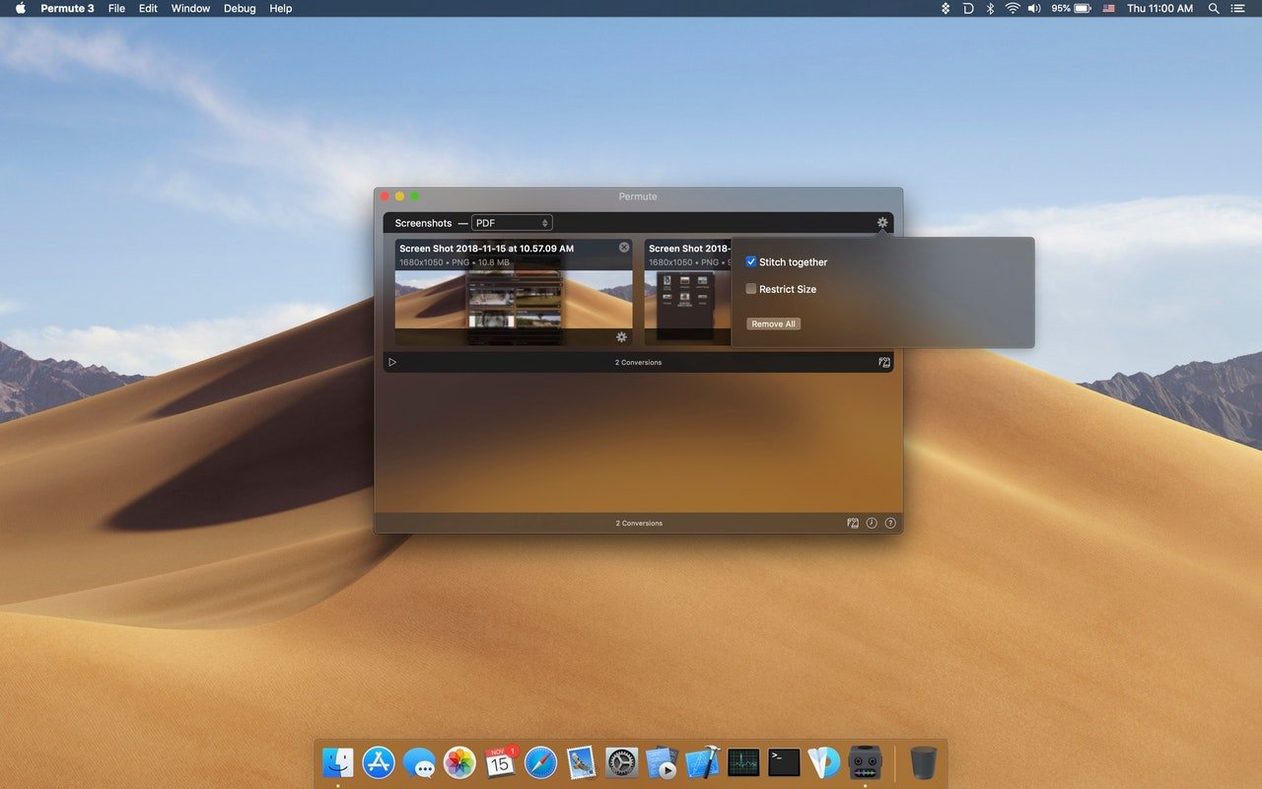
Selecting both videos and choosing a merge option produces one continuous file. The result needs no further editing before sending.