Aspecten
 Download (193 MB)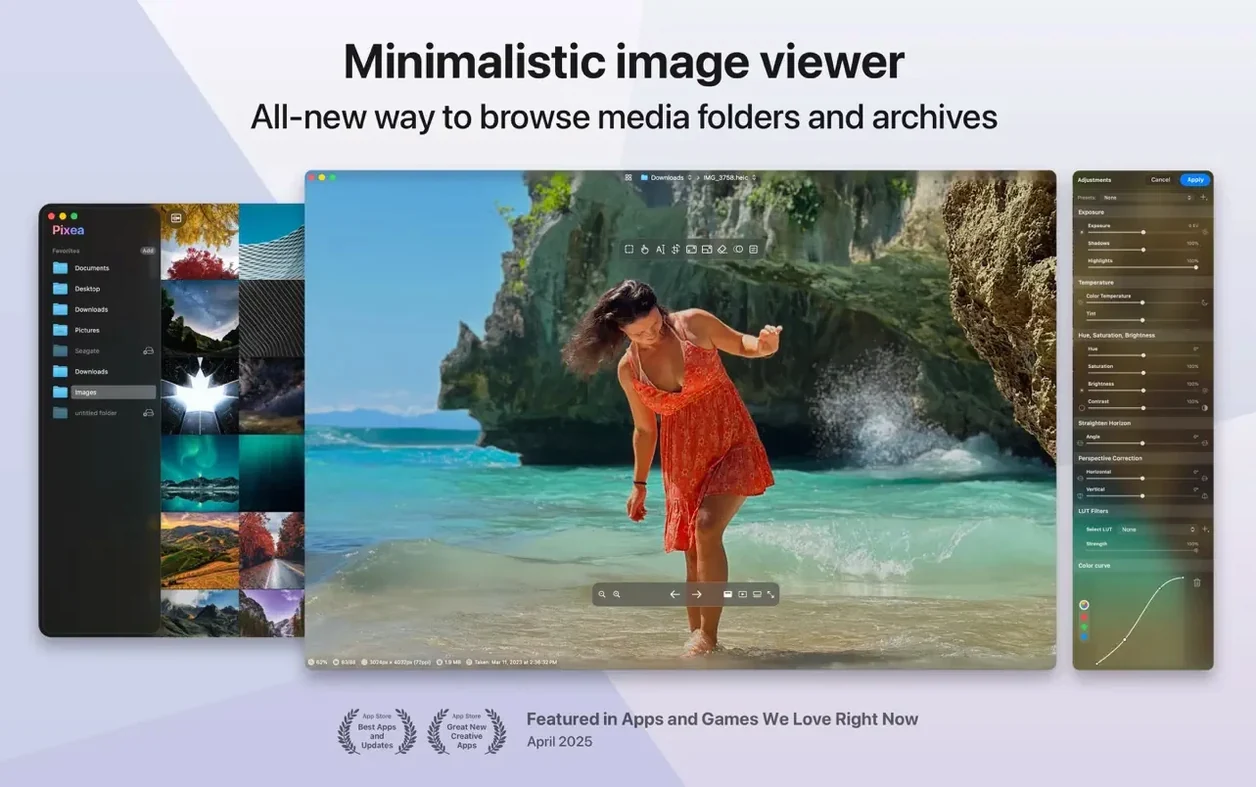
Photographers who need to skim through a mixed folder of RAW files and JPEGs without launching a heavy cataloguing application reach for Pixea Plus. It handles the common camera formats alongside Photoshop documents and web images in a single, straightforward window.
Browsing Leica, Sony, Nikon and other RAW formats mixed with JPEGs
You can point Pixea Plus at any folder and move between files with the arrow keys. It displays Leica, Sony, Nikon, Canon, Fuji, Olympus, Hasselblad and Minolta RAW formats alongside JPEG, HEIC, PNG, WEBP, GIF and PSD files without a separate import step.
What can you check about an image without leaving the viewer?
A right-click or sidebar panel reveals EXIF data, a colour histogram and other image information. This makes it practical to confirm exposure, camera settings and colour balance while culling a shoot.
Can you make quick corrections before handing images off?
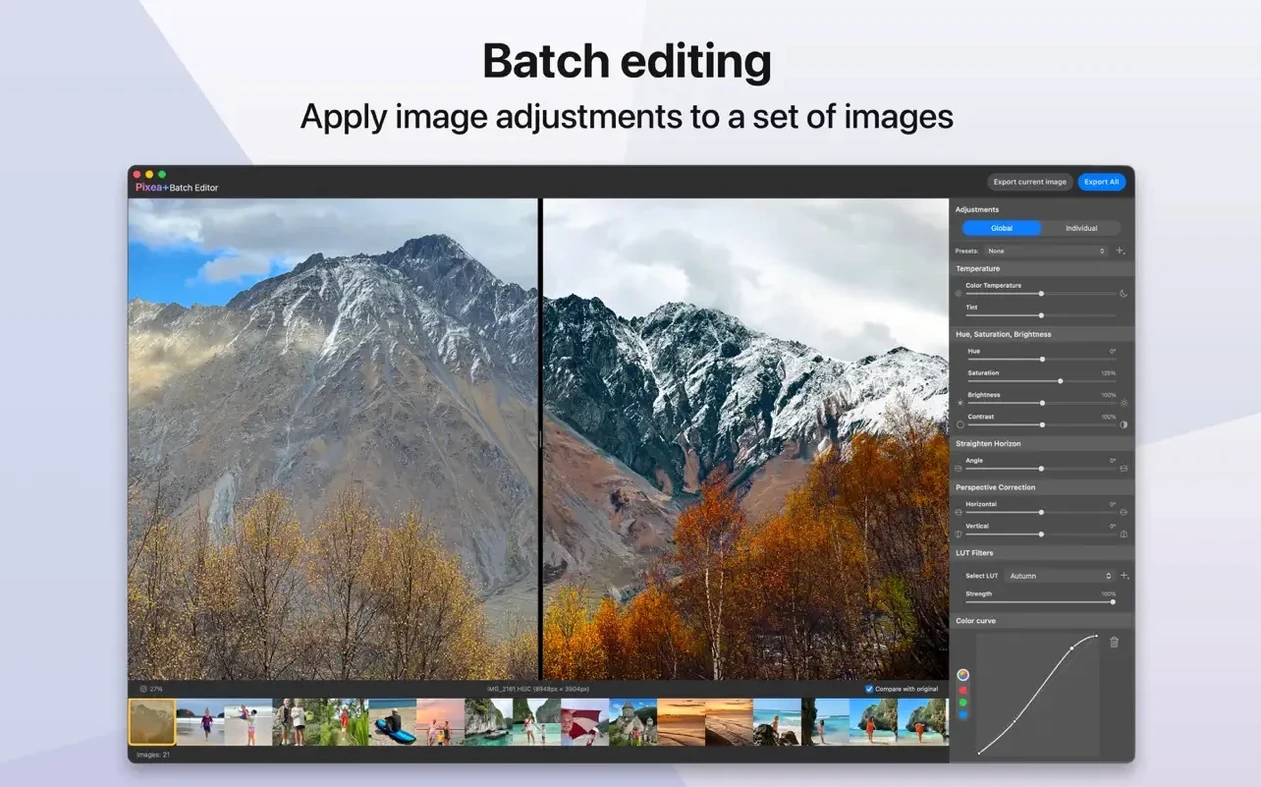
Basic flip and rotate operations are built in, and the current version adds undo, redo and mask support. These are not full darkroom adjustments, but they cover straightening and simple orientation fixes before the files reach a proper editor.
Opening images inside a ZIP without extracting the archive
Pixea Plus opens ZIP archives without extracting them first. You can browse the contents, open an image to check it, and decide whether to pull out just that file or leave the archive untouched.
Dragging an image into Pages or Keynote as the original file
Pixea Plus slots into the Mac workspace without demanding attention. Drag an image from the viewer straight into a Pages document, a Keynote slide or a Finder folder and it lands as the original file — no conversion step in between. The app also responds to the standard macOS Share menu, so sending a quick JPEG to Mail or Messages needs only a right-click. For photographers who round-trip images into an external editor, the Open With command points directly at the file on disk; you can hand a RAW file from the Pixea window into Affinity Photo or Photoshop, work on it there, and save back to the same location.
On the system side, Pixea Plus registers as a viewer for its supported formats. Double-click a WEBP file in Finder and it opens here rather than in a browser. The app also respects Dark Mode and follows the system accent colour, so it looks at home on a machine set to graphite or the default blue. Quick Look integration is limited — the app does not supply a Quick Look generator plugin — but the built-in preview that macOS provides for common formats still works from Finder. For HEIC files, which Apple’s own preview handles well, Pixea adds the histogram and EXIF panel that Quick Look omits.
Spotlight does not index inside ZIP archives, but once you have opened an archive in Pixea and pulled out a file, that extracted image appears in Spotlight searches normally. The app itself is lightweight enough that leaving it open in the background costs little memory, even with a folder of fifty RAW files loaded into the thumbnail strip.
A practical workflow: culling a memory card before import
Imagine a photographer returning from a day’s shoot with a card full of Sony RAW files and a handful of JPEG snapshots. The goal is to delete obvious misses before importing into a library. Here is one way Pixea Plus shortens that task:
- Insert the card and navigate to the DCIM folder in Finder. Right-click the folder and choose Open With > Pixea Plus.
- The app loads the first image and populates a vertical thumbnail strip. Press the right arrow key to step through the sequence.
- At any shot that looks soft or badly exposed, press
Command-Deleteto move the file to the Trash. The next image loads immediately — no confirmation dialogue interrupts the rhythm. - When a tricky exposure needs closer inspection, press
Command-Ito bring up the histogram and EXIF panel. Check the shutter speed and ISO to confirm whether blur is motion or misfocus. - Encounter a ZIP of resized previews the client sent earlier? Click the archive in the thumbnail strip and Pixea opens it inline. Browse the contents, keep what you need, close the archive.
- Once the card is culled, close Pixea and proceed with the import into Lightroom or Capture One. The Trash still holds the rejects; empty it whenever you are ready.
The whole pass happens in one window, without importing, cataloguing or waiting for previews to render in a database. The histogram is the unsung hero here — a glance at the curve tells you more about a borderline exposure than the screen preview alone.
Switching the background colour for images destined elsewhere
The default configuration works for quick browsing, but a few adjustments make Pixea Plus more comfortable for sustained use:
- Background colour. The default is a neutral grey, which works for most images. If you often check images destined for a white web background, switch the canvas to pure white in Preferences. Conversely, a black background helps when judging shadow detail in low-key shots.
- Zoom behaviour. By default, the app fits images to the window. In Preferences, set zoom to Actual Size if you regularly check sharpness at 100% and do not want to toggle it manually each time.
- RAW rendering. If colours look slightly off compared to the camera maker’s software, check whether Pixea is using the embedded JPEG preview or its own RAW engine. The embedded preview is faster but may not reflect the full dynamic range of the file. Switch between the two under the View menu to find the representation that matches your reference.
- Thumbnail position. The strip defaults to the left side. On a wide display, moving it to the bottom reclaims horizontal space for landscape-format images. Drag the divider or set the preference to suit your monitor shape.
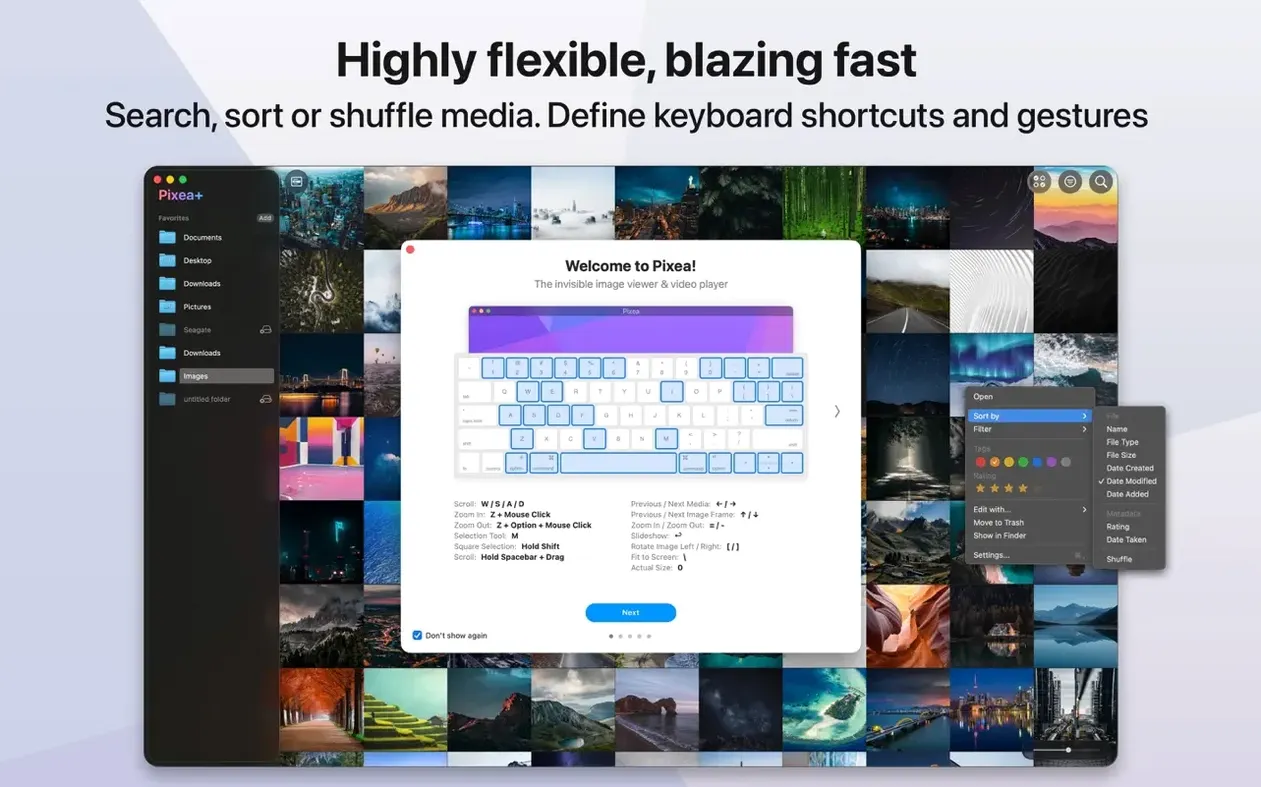
- Keyboard shortcuts. The defaults cover basic navigation, but you can reassign keys for flip, rotate and mask toggling if your muscle memory comes from a different viewer. Spend three minutes in the Shortcuts pane to align them with your habits.
Expecting edits to sync or survive a folder move
The most common misstep is treating Pixea Plus as a photo library. It has no catalogue, no albums and no searchable database. People who open a folder, make edits and expect those edits to sync across devices or survive a macOS reinstall are relying on a feature that is not there. Edits made with the built-in masks and adjustments live inside the Pixea Image format file; if you save only as a JPEG, the adjustment layers are baked in and non-destructive editing ends at that point.
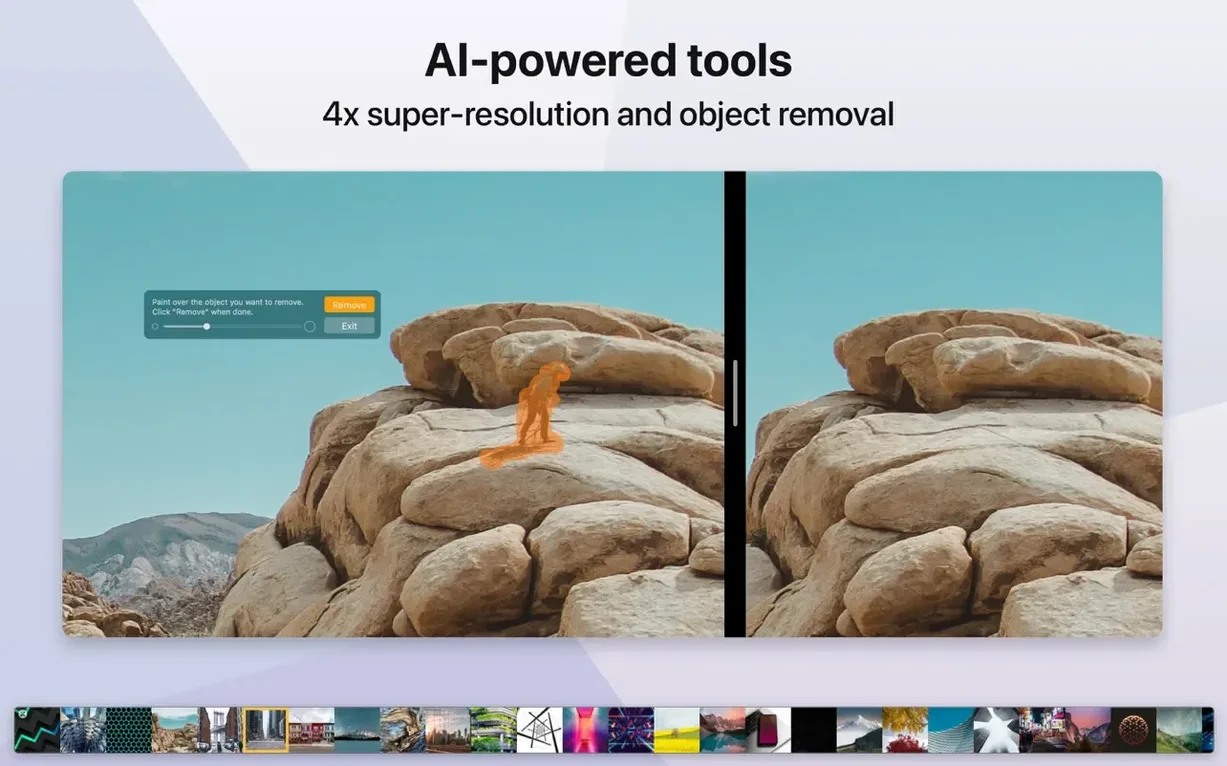
Another trap involves the mask tool. New users sometimes paint a mask, adjust exposure, and then forget to check the mask edge at full zoom. The feathering is subtle, and a poorly placed mask boundary can leave a visible transition on a smooth sky or skin tone. Zoom to 100% and inspect the edge before saving or exporting.
ZIP archive behaviour also surprises people. Dragging an image from an open archive to the desktop extracts it, but dragging it into another app may pass a temporary path that does not survive a restart. For any file you intend to keep, extract it properly before working on it elsewhere.
Finally, some users assume the histogram shows the RAW linear data. It reflects the rendered preview, so a file that looks fine in Pixea may still have recoverable highlights in a dedicated RAW converter. Use the histogram as a guide for culling, not as a final exposure judgement when the shot matters.