Aspecten
 Download (333 MB)
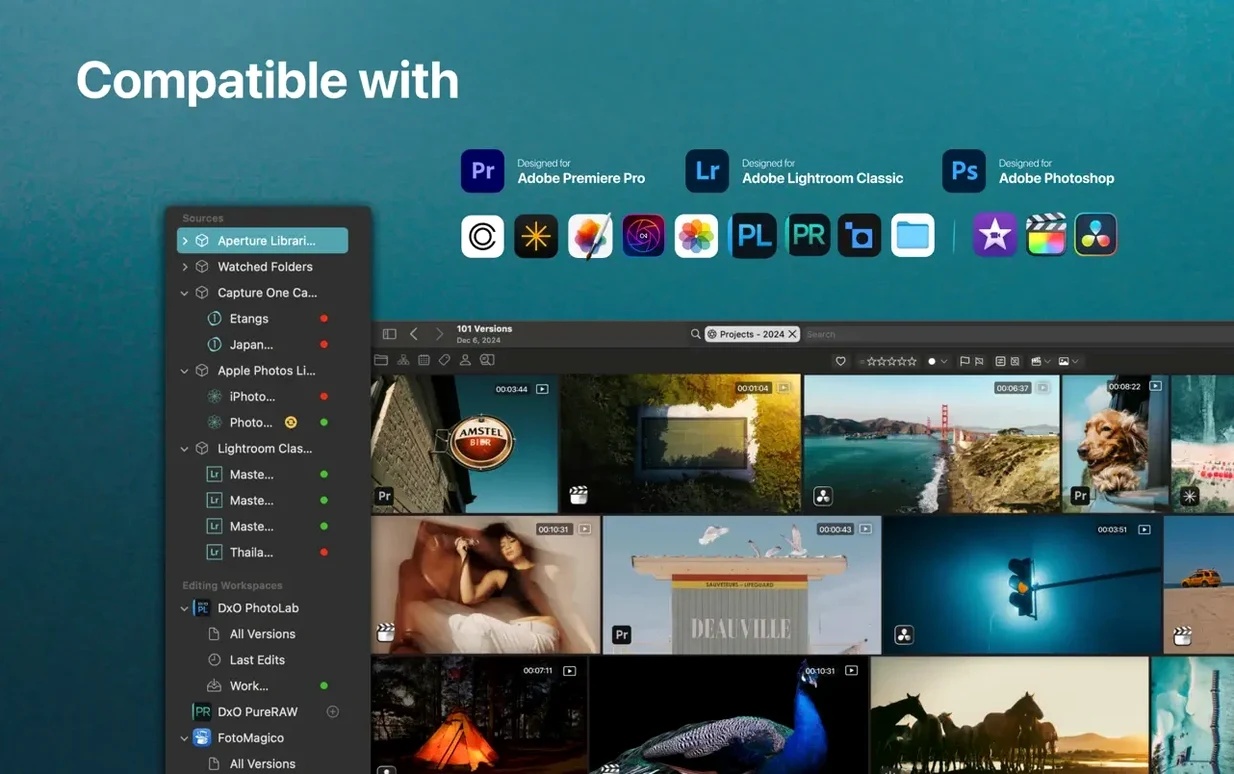

Peakto requires macOS 12.4 or later, runs natively on both Intel and Apple Silicon Macs, and expects at least 4 GB of memory (8 GB recommended) with 2 GB of free space. An SSD is recommended for the library files, although your media can live on external drives.
What kind of tool is Peakto?
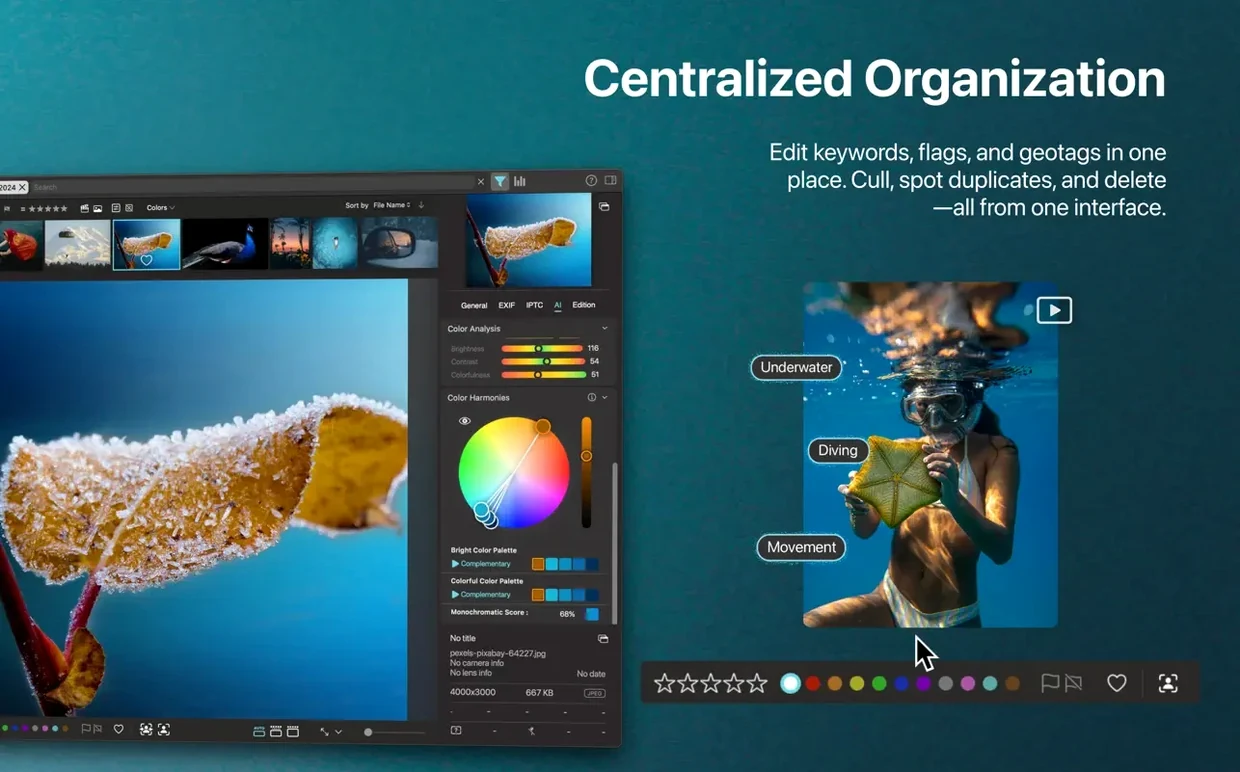
It is a media asset manager from CYME that brings photos and videos into a single interface. Rather than replacing your existing photo library, it sits above your folders and catalogues, using AI to make sense of scattered media without moving the originals.
How does the AI actually help?
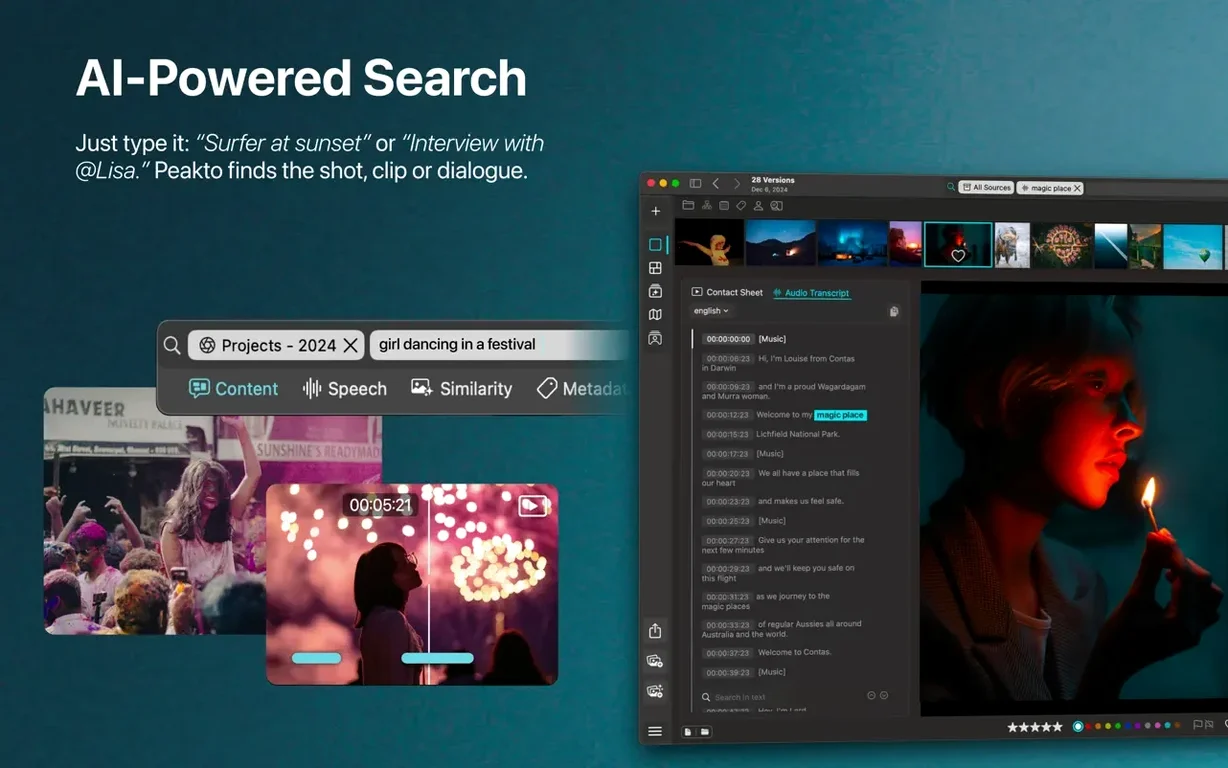
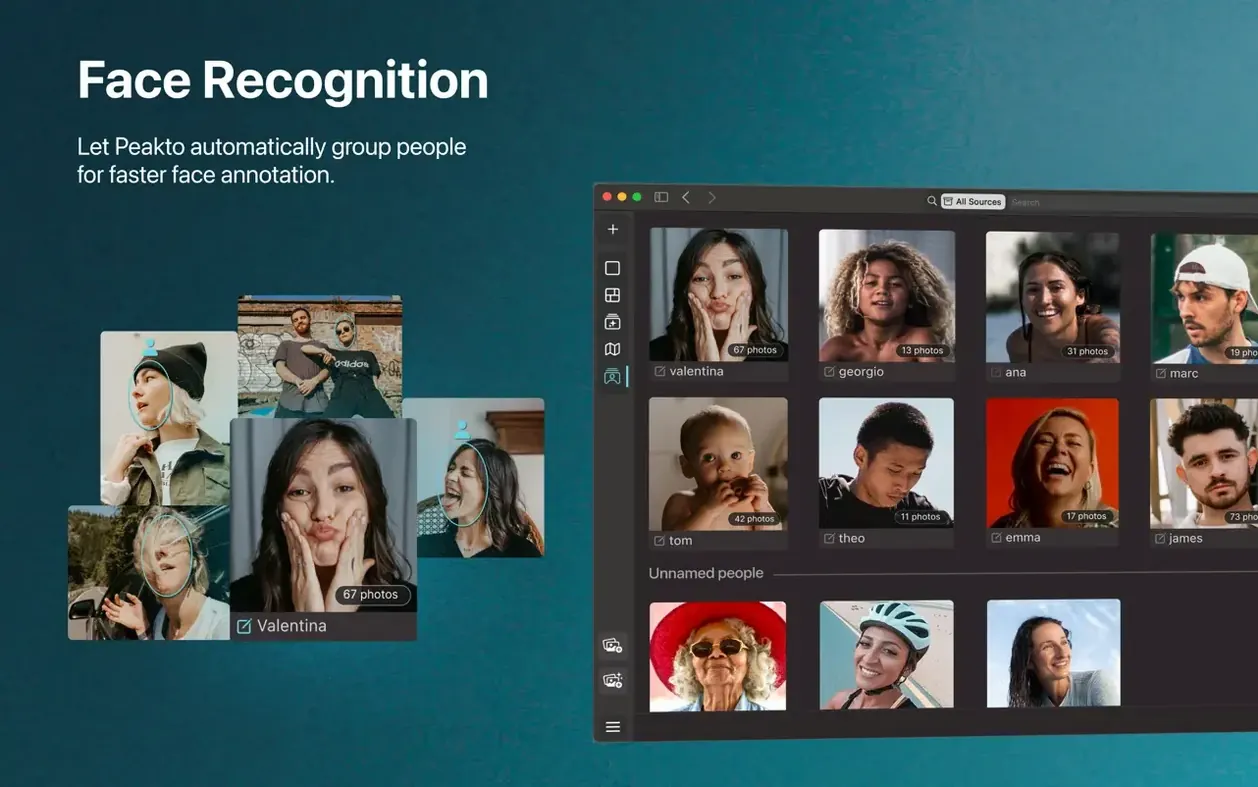
It handles AI-driven tagging and lets you search using everyday descriptions — think “dog on a beach” rather than filenames. It can also identify and group the same person across multiple sources, which is useful when you have images spread across different libraries and drives.
Browse on a map and export full-resolution batches
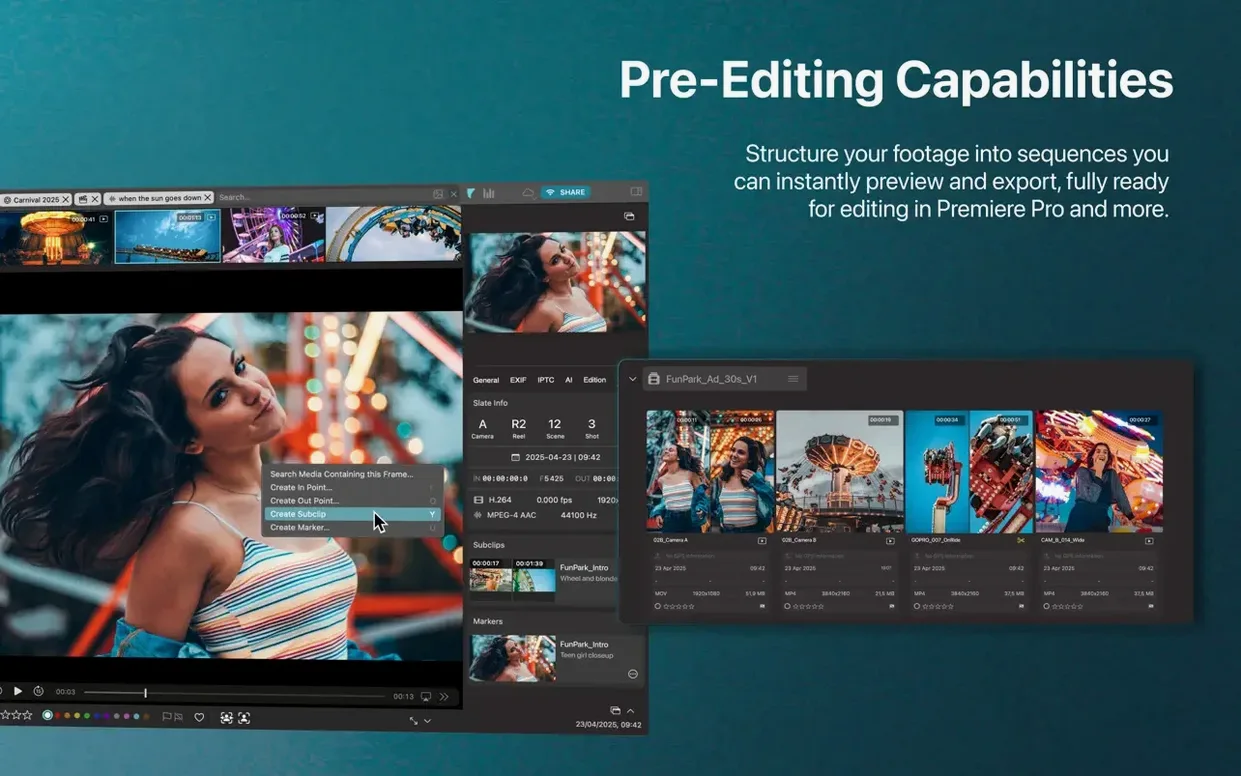
You can browse everything on a map view, export selected images in batches at full resolution, and work with whatever video formats macOS supports. The tool is built for organising and retrieving, not for editing, and it keeps your files where they are.
A session with Peakto, step by step
Imagine a Tuesday morning. You have just returned from a weekend shoot — two SD cards, a folder of drone footage on an external SSD and an older Lightroom catalogue from a project six months ago. None of it is in one place. You launch Peakto, which has already indexed the external drives overnight.
You open the Sources sidebar and see all four locations sitting there, greyed out when the drives are offline, solid when connected. The two SD cards are still in the reader. You drag their folders onto the Peakto window. A small progress bar appears while the AI scans the new arrivals, then the thumbnails begin to populate under Recent imports.
You type tent at dusk with string lights into the search field. Within seconds, a grid of twenty-three images appears — some from the SD cards, two from the drone folder, none from the old Lightroom catalogue. You select the best eight, add them to a new selection called Camp evening selects, then right-click to export full-resolution JPEGs to a client folder on your desktop.
Later, you switch to the timeline view. You drag the scrubber back to last October and spot a portrait session you had forgotten about. You click a face in one thumbnail, and Peakto pulls up every other frame with the same person across all connected sources. You add those to a second selection, ready to revisit after lunch.
By the end of the session, nothing has moved from its original location. Peakto simply remembers where everything lives and keeps its own lightweight index up to date.
It never duplicates or moves your original files
Does Peakto duplicate my media? No. It never copies or moves your original files. It builds a catalogue of previews and metadata, stored separately from your images and videos. Your folder structure stays exactly as you left it.
Will it slow down my Mac? The initial indexing can be noticeable, especially if you point it at tens of thousands of files across slow spinning drives. Once the catalogue is built, the app idles quietly. On Apple Silicon Macs the AI processing is brisk; on Intel machines with a capable GPU it remains usable, though large video imports take longer.
Can it work alongside Lightroom or Capture One? Yes. Peakto reads the catalogues from both applications and surfaces their contents alongside loose folders of images. It does not write changes back into those catalogues — it is strictly a read-only meta-cataloguer for them — so there is no risk of corrupting your editing workflow.
What happens when a drive is disconnected? The thumbnails remain visible, and you can still browse, search and organise selections. You simply cannot export full-resolution versions until the drive is reconnected. The interface greys out the source name as a clear reminder.
AI tags stay broad like “bird” instead of “grey heron”
The AI tags feel too broad or miss the mark. Peakto’s auto-tagging is based on general image recognition models, not a custom-trained set. A photo of a heron might be tagged “bird” but not “grey heron.” The search-by-description feature usually works better if you keep phrases simple and visual — red bicycle against brick wall rather than vintage Raleigh parked in Soho. Combining description search with date filters often narrows results quickly.
Video thumbnails take a long time to generate. Peakto leans on macOS for video decoding. If you import a large folder of 4K footage, expect the thumbnail generation to lag behind the stills. Let the batch finish before you start searching; pausing and resuming the import does not help. Closing other apps that use the GPU can speed things up a little.
Face grouping mixes up two similar-looking people. The face recognition works well across sources but can occasionally merge siblings or people with similar bone structure. You can manually split a person group by selecting the mismatched thumbnails and choosing Remove from person, then creating a new named group. Peakto learns from those corrections for future scans.
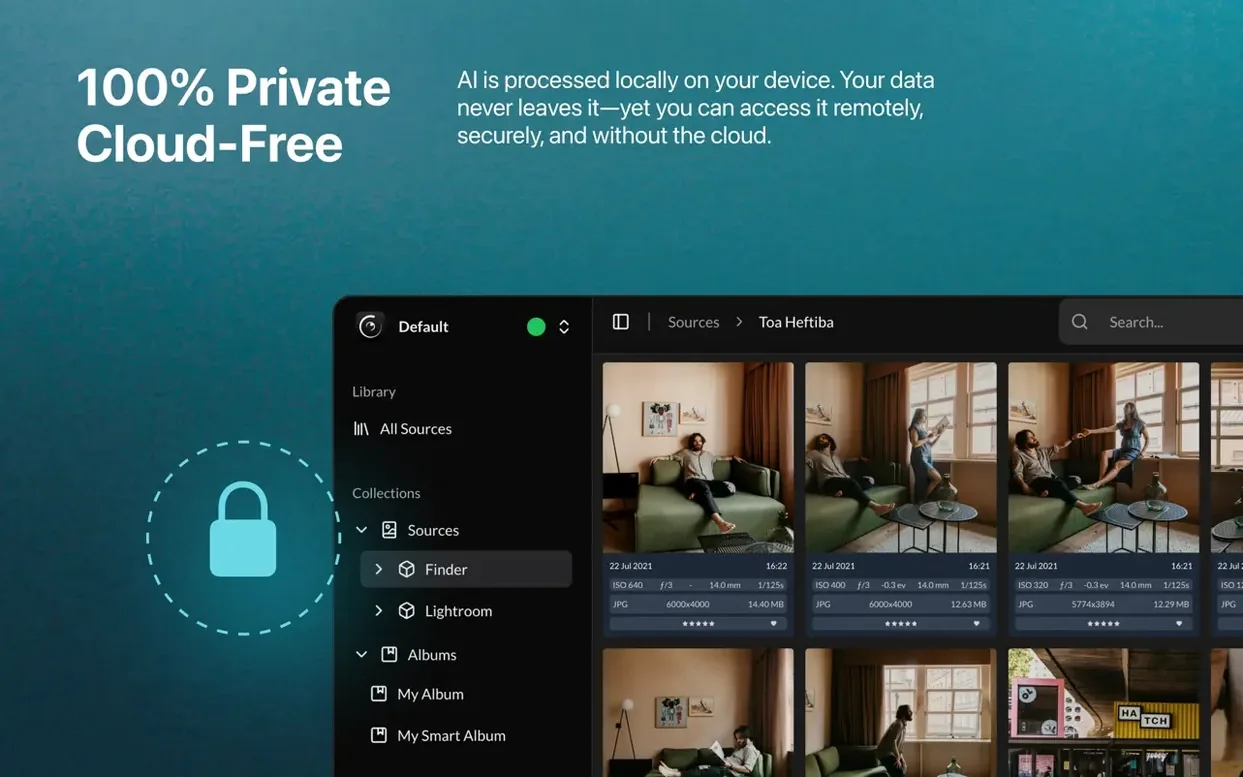
Peakto Connect seems unresponsive. Since version 2.7.10, the Connect UI was simplified, but the first connection between two Macs sometimes stalls if both are on different subnets. Check that Bonjour is not blocked by your firewall and that both machines are on the same local network segment. Relay Mode, introduced in the same update, offers a workaround for trickier network setups without moving media to the cloud.