Aspecten
 Download (28 MB)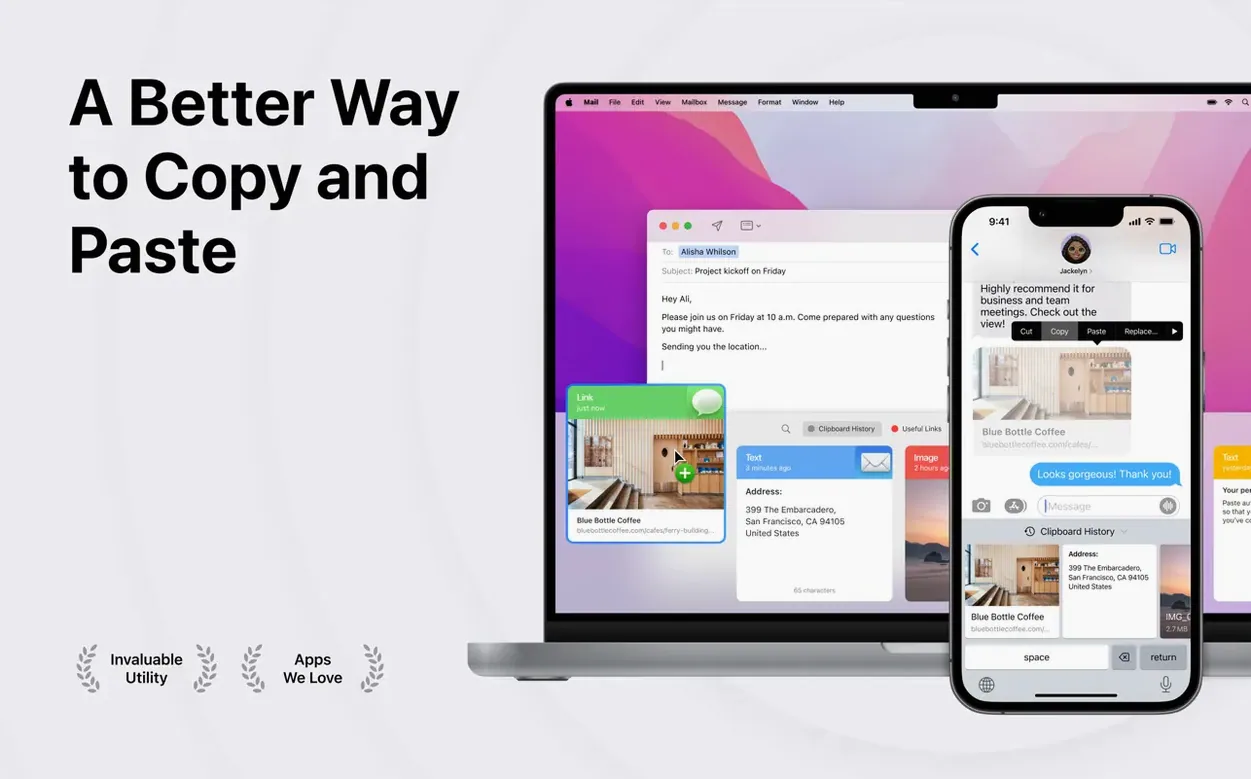
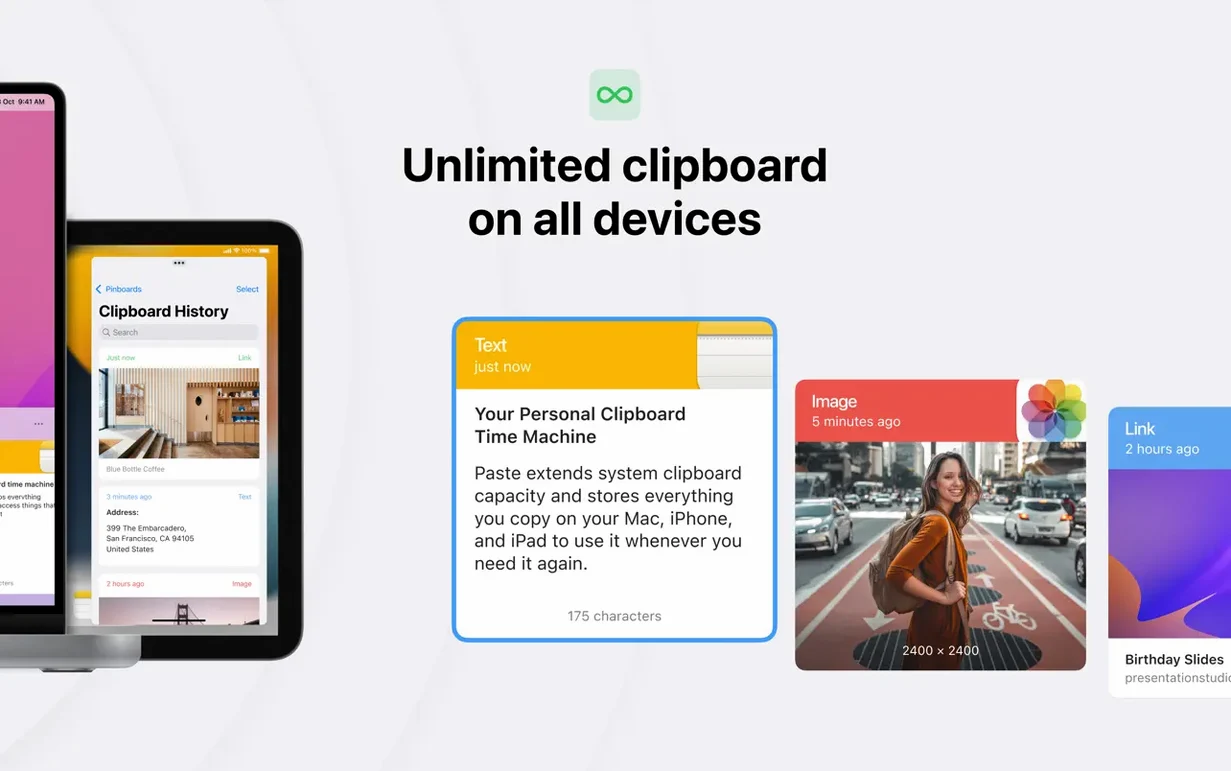
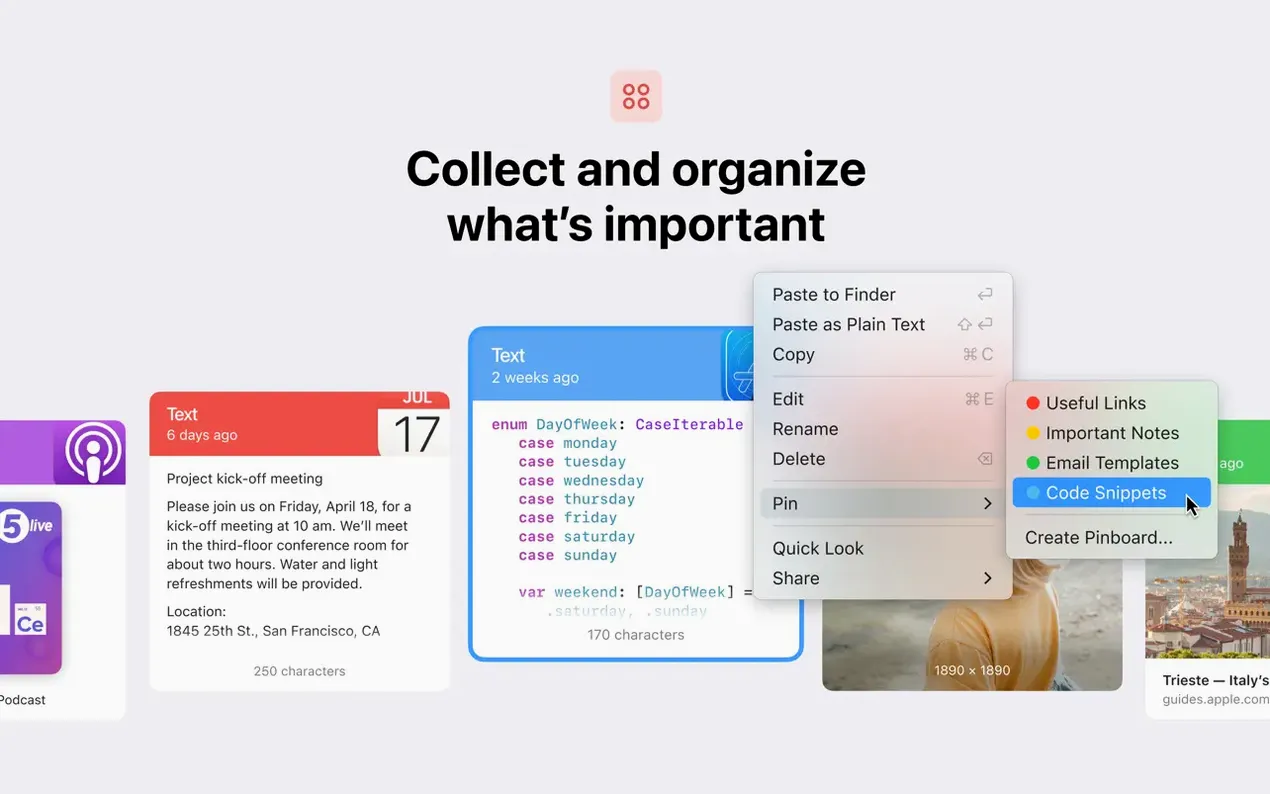
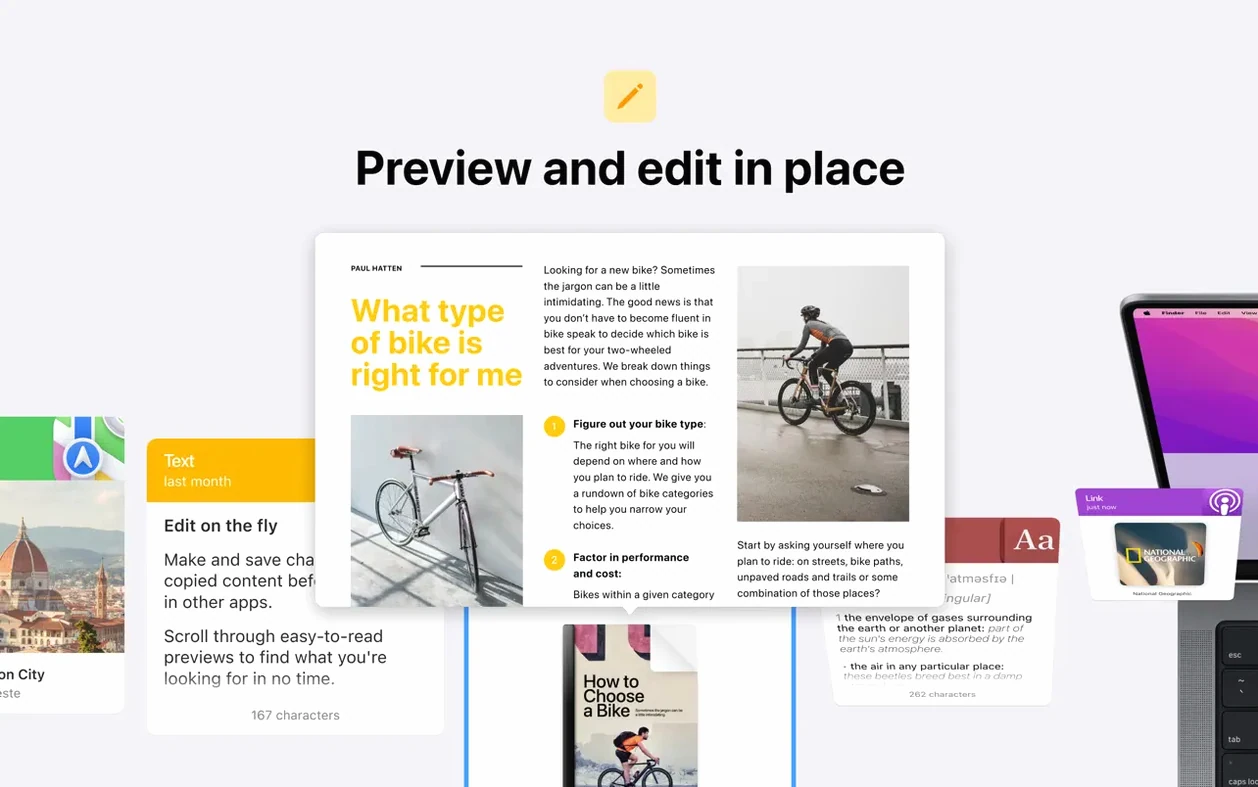

Paste is a clipboard history manager that stores everything you copy and keeps it available for later use.
Copying and retrieving a set of research notes
- Open a long article in Safari and copy a standout phrase with ⌘C. Paste saves it silently in the background.
- Continue reading and copy two related statistics, one product screenshot, and a web link. Each item joins a growing visual timeline at the bottom of the screen.
- Press ⇧⌘V to open the history panel. The five items sit in order, each showing a preview — text snippets, the image thumbnail and the link title.
- Hold ⌘ and click the three text fragments to select them together, then press Return. All three land in your document at once, separated by line breaks.
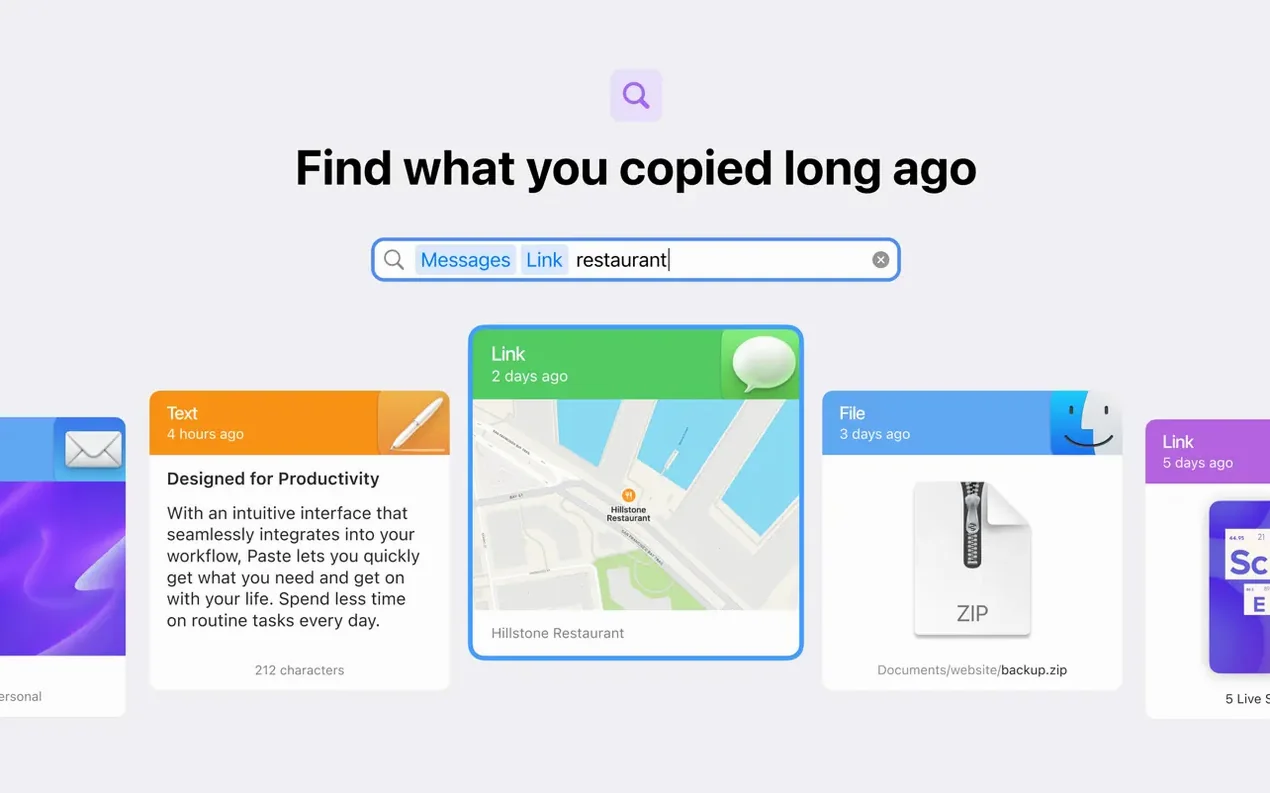
- Type a keyword into the smart search field to find the screenshot from two hours ago. Drag it straight into a Keynote slide without re-copying.
- Select the web link, click the share button and send it to a colleague via AirDrop. The transfer completes on their Mac with the link ready to paste.
Custom shortcuts let you pin frequently used items so they never leave the history. Because Paste stores images, screenshots and links alongside plain text, switching between a design mock-up and a text draft feels like one continuous workspace. The app supports Universal Clipboard, so a phrase copied on a Mac appears on an iPad nearby with no extra steps.
Password managers leave no trace in your history
Does Paste store passwords or sensitive data from password managers? Not by default. The app respects the standard macOS clipboard privacy markers that password managers set, so credentials copied from tools like 1Password or Apple’s built-in password autofill never appear in the history. If you copy a password from a plain text field, however, it will be stored. You can exclude specific apps entirely in Preferences under Ignore applications — add your banking app or password tool and Paste will simply sleep whenever those windows are active.
What about system resources? Paste runs as a lightweight menu bar utility and uses a few hundred megabytes of memory under normal load. The history database grows, but the app prunes older entries after a configurable period — one day, one week, one month, or never. Even with thousands of stored clips, the search index stays responsive on both Intel and Apple Silicon machines.
Another common concern is iCloud sync. Clipboard data, including pinboards and list arrangements, syncs end-to-end encrypted across Macs, iPhones and iPads signed into the same Apple Account. There is no separate account to create, and the sync happens independently of Universal Clipboard — your history appears as a proper searchable log rather than a single ephemeral clipboard transfer.
Some users ask about formatting. Paste captures rich text by default but can paste as plain text with a configurable shortcut, which is useful when moving content between apps with conflicting style sheets. A quick search for paste crack or paste mac crack sometimes turns up people looking for a way around the built-in purchases, and the app is fully functional for basic clipboard history without any payment. The optional extras unlock pinboards and iCloud sync; the core clipboard queue works indefinitely on the free tier.
Researchers and designers keep a running trail of fragments
The clearest beneficiaries are people who shuttle information between several sources throughout the day. Researchers compiling notes from PDFs, web pages and emails can keep a running trail of fragments without switching windows to re-copy. Designers collecting colour codes, mock-up screenshots and client feedback find the visual previews especially useful — an image thumbnail in the history is faster to identify than a text label. Developers copying function names, error messages and configuration snippets appreciate the plain-text paste shortcut and the ability to pin a stack of boilerplate code that never scrolls away.
Writers and editors who juggle multiple drafts, style guides, and reference links build a temporary scrapboard that survives restarts. Translators working across a source text, a glossary and a target document use the search field to pull up a term copied half an hour earlier without hunting through windows. Anyone who has ever lost a carefully copied paragraph because they absent-mindedly copied something else in between will feel the difference within an hour.
Paste is less compelling for users who rarely copy more than one thing at a time or who work inside a single application all day. If your workflow never requires retrieving something you copied ten minutes ago, the system clipboard may be enough. A search for paste mac download will bring you to it either way; the install is small and unobtrusive enough that trying it carries little risk.
A translator’s morning
Consider someone translating a product manual from German into English. They open the source PDF, a terminology spreadsheet, a bilingual glossary website and their working document in Pages. As they read a sentence in the PDF, they copy the German term, then copy its equivalent from the glossary, then a style note from the spreadsheet. All three sit in the Paste history panel, which is pinned to the right edge of the screen.
Rather than bouncing between windows for each term, they press the Paste shortcut and see the three items stacked together. Selecting the English term and the style note at once and pressing Return drops them into the draft with a single action. Later, when an editor asks why a particular phrasing was chosen, they scroll back to the morning’s history, find the style note they copied four hours earlier, and forward it in a reply. The history turns out to be a lightweight audit trail as much as a productivity tool.
Assembling a newsletter from three scattered sources
A content writer is preparing a newsletter. They have a browser tab open with analytics data, a Numbers spreadsheet with subscriber counts, and a draft email in Mail.
First they copy three percentage figures from the analytics dashboard. Paste captures each as a separate entry. Then they switch to Numbers, copy a chart as a screenshot with ⇧⌃⌘4, and the screenshot appears in the history as a thumbnail. They open the draft email, press the Paste shortcut, and pick the three percentages — selecting them together and pasting them into a bulleted list in one motion.
The chart screenshot can wait. They continue writing, copying two sentences from a previous newsletter for reference. An hour later, the editor messages asking for the raw subscriber numbers. The writer opens Paste, types a date keyword into the search field, and immediately sees the three figures from the morning. They drag them into a reply.
Before finishing, they pin the chart screenshot so it stays available for the next edition. Then they copy the final subject line, which automatically joins the queue. The whole session leaves a traceable, searchable trail of every fragment they touched — no re-navigation required.