Aspecten
 Download (26 MB)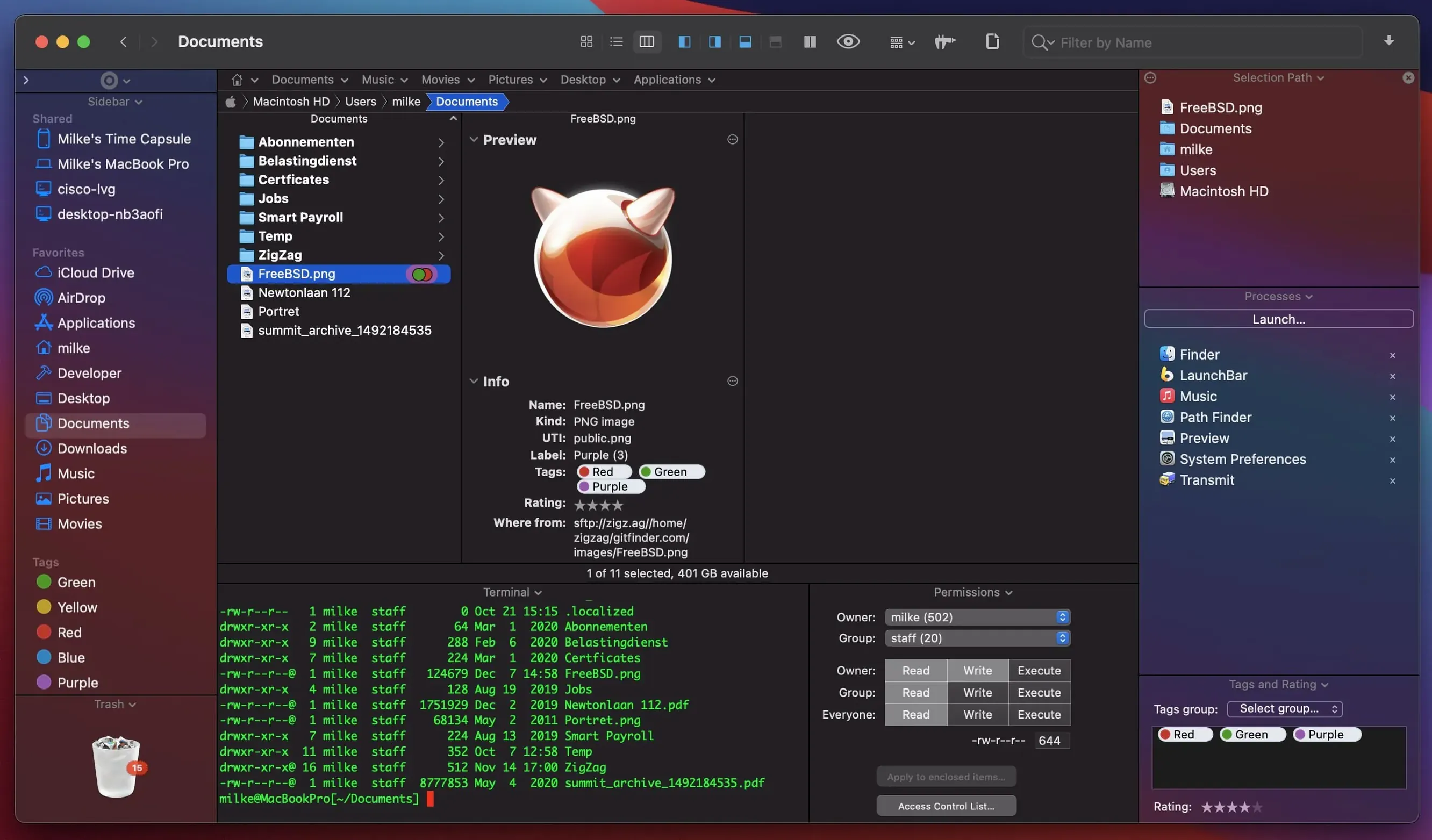
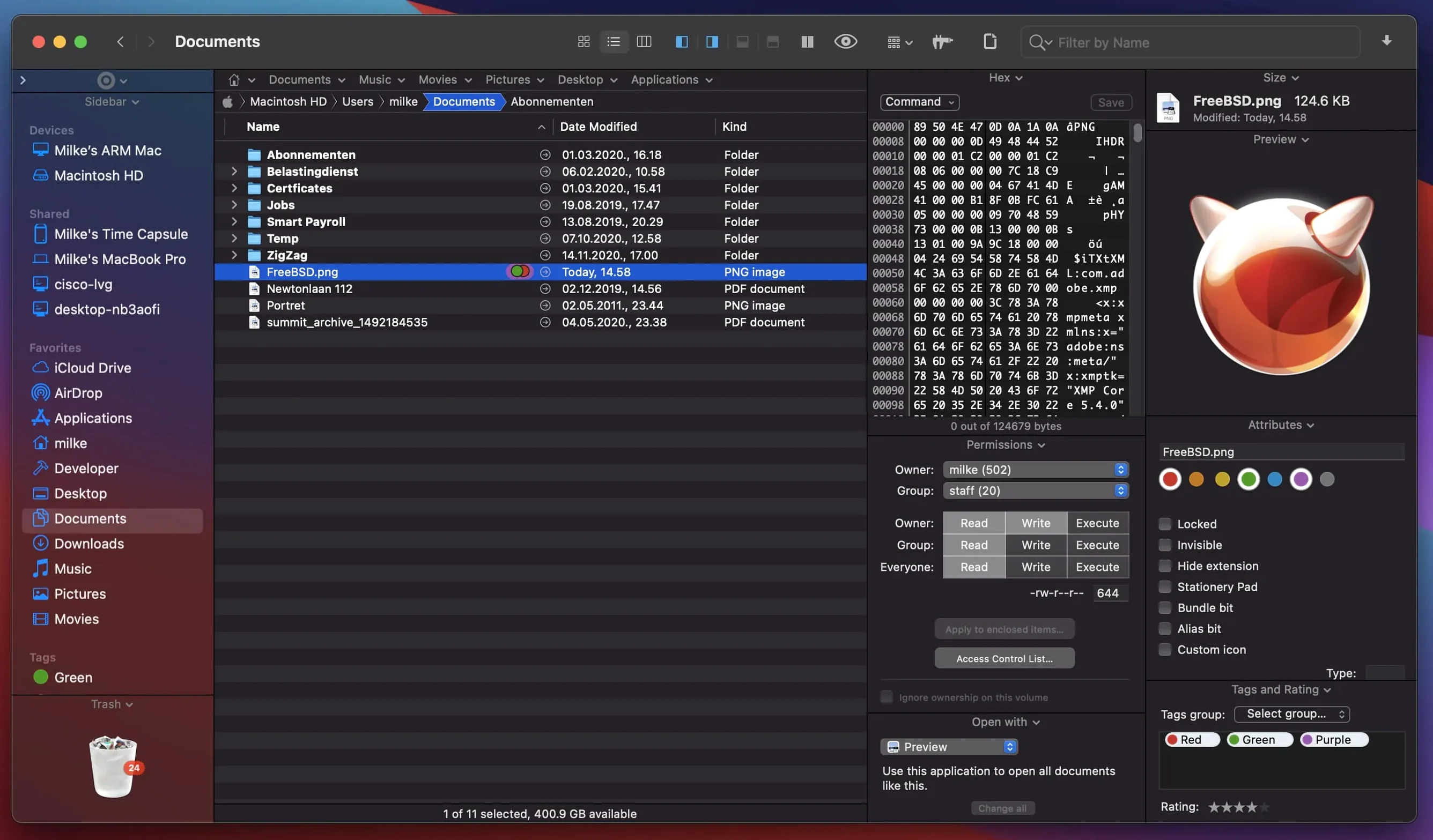
If you spend your day in the standard macOS Finder, you know its rules. Path Finder from COCOATECH keeps the familiar spatial logic but adds layers a power user will notice within minutes. Rather than list every module, here are three aspects a newcomer can try straight away.
Set up a dual-pane workspace
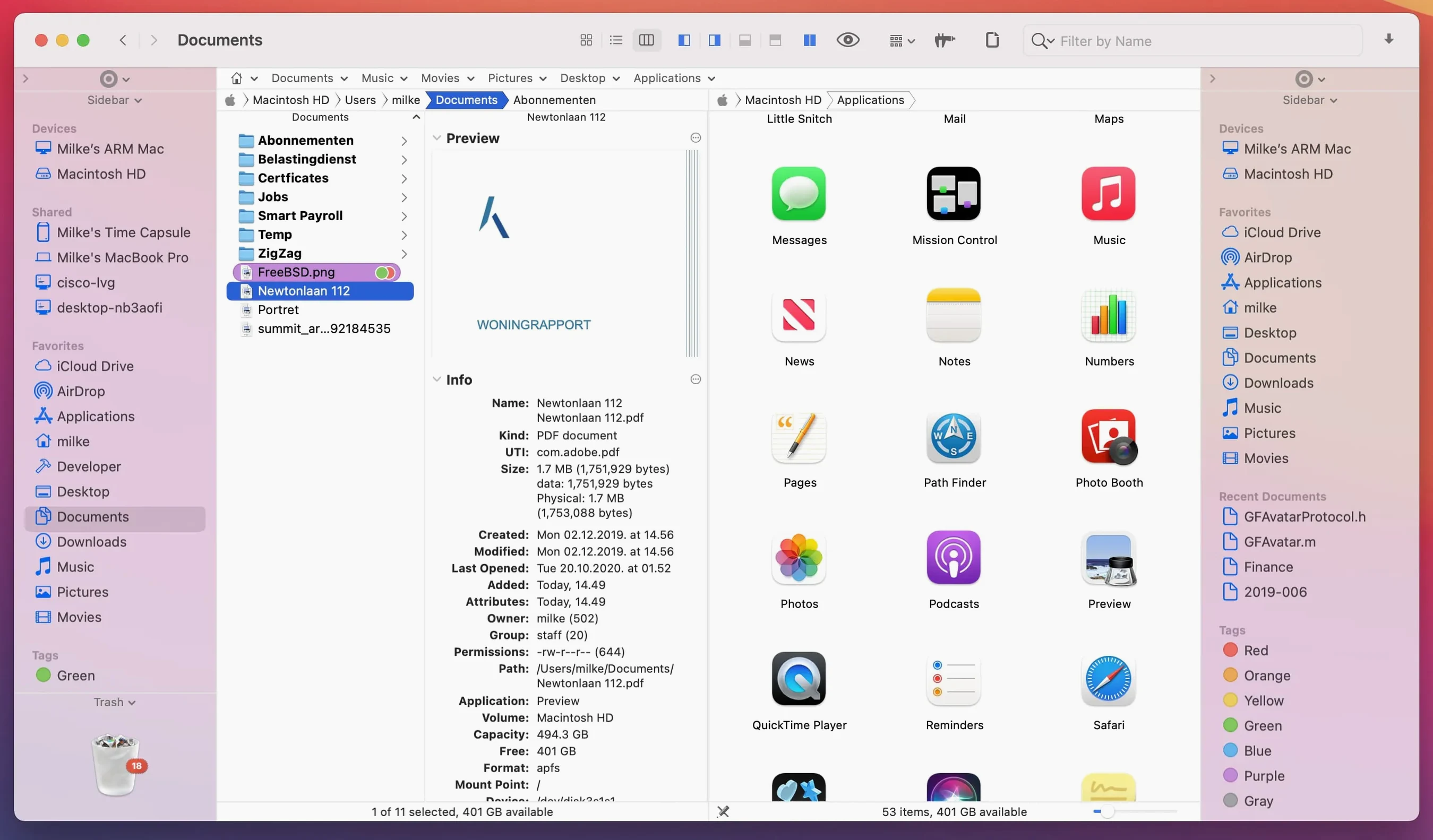
Open a second pane with a keypress and arrange two folders side by side. Copy or compare files between locations without switching windows or stacking tabs. The layout remembers its proportions between sessions.
Browse a folder with the keyboard
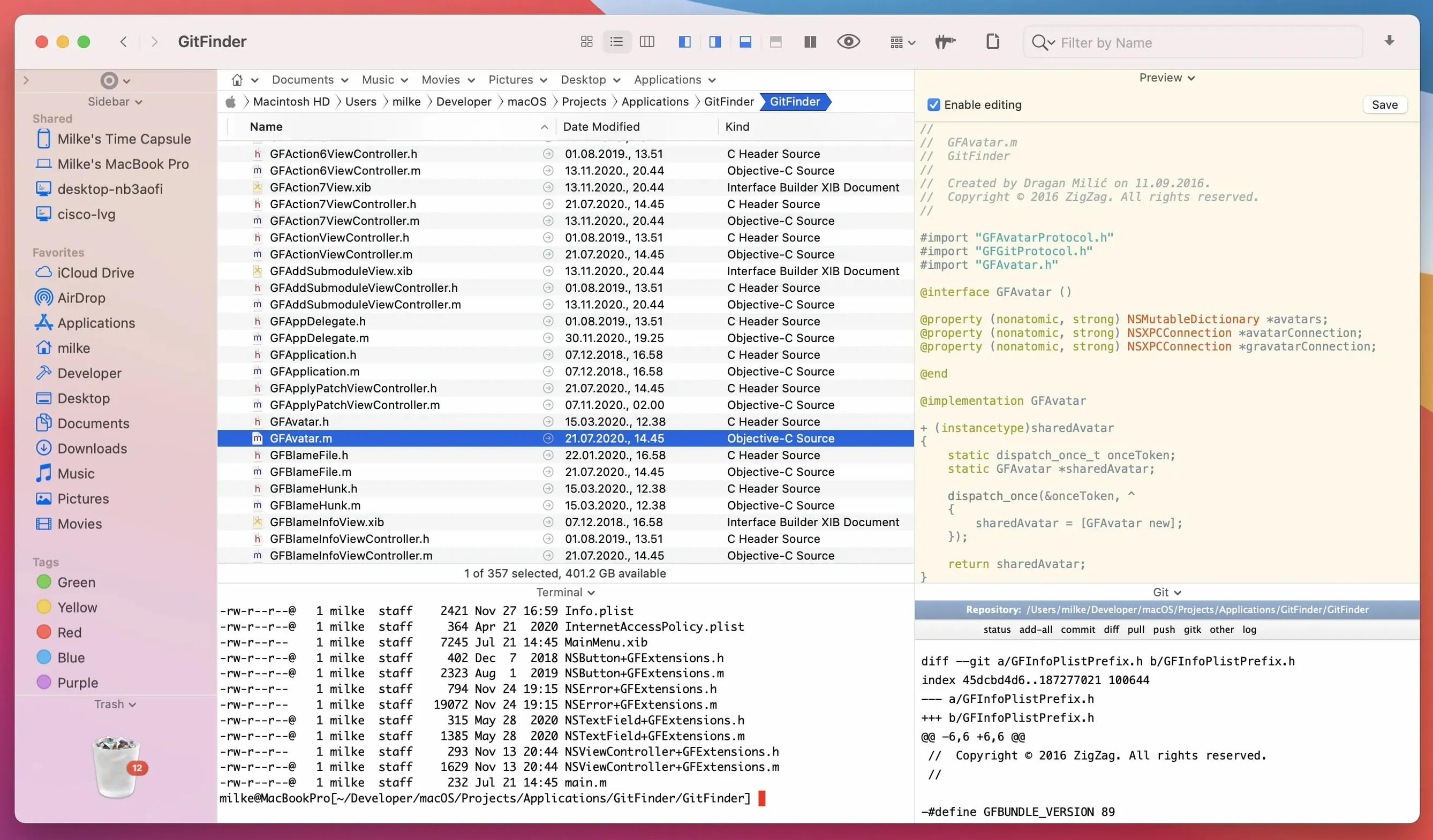
Turn on keyboard browsing and move through any directory using arrow keys and a few modifiers. Select a file, preview it, and open it without reaching for a mouse. The workflow feels closer to a text-based file manager but keeps the visual thumbnails and metadata columns.
Preview a file while you work
Press space on a document, image, or video to see its contents in the built-in preview panel. The preview stays put while you navigate other files, so you can check a PDF or play an audio clip without launching a separate application.
Where Path Finder sits among other tools
A file manager does not work in isolation. Path Finder grabs the spotlight when you press cmd-opt-space, but it also respects what macOS already provides. The sidebar populates with the same Favorites and iCloud locations you set in Finder. Tags you apply in one app appear in the other. Quick Look works inside Path Finder just as it does on the desktop — highlight a file, tap the space bar, and the system-level preview opens without a pause. The difference is that Path Finder keeps a second preview panel available while you continue browsing, something the standard Finder does not offer.
Drop an archive onto the window and the built-in Archive module handles extraction or creation without a separate utility. Connect to an FTP server through the Go menu and the remote directory appears in a pane that behaves like a local folder — drag files in, drag them out, no third client needed. For users who already rely on Hazel or Keyboard Maestro, Path Finder fits underneath as the manual layer: you automate the repeatable tasks elsewhere and use Path Finder for the odd jobs that need a human eye, such as comparing two versioned folders or hunting down a file by its extension while scanning previews.
The process manager module taps into the same activity data as Activity Monitor, but presents it as a sortable list inside the file browser. Terminating a stuck process or checking which application locks a file happens without switching contexts. It is a small integration, but one that saves a trip to another utility.
Remote server folders alongside local projects
Three groups tend to stick with Path Finder once they try it. The first is anyone who administers remote machines through FTP or SFTP. Having the server tree in the right pane and the local project folder in the left cuts out the step of shuffling between a dedicated client and Finder. A web developer pushing updated assets to a staging server will see the value within a single afternoon.
The second group covers researchers and writers who collect source material across scattered directories. The dual-pane view combined with the persistent preview panel means they can read a PDF on one side while dragging cited images into a project folder on the other, all without opening Preview or Photos. The keyboard-browsing option appeals especially to those who prefer keeping hands on the home row.
The third group is perhaps the quietest: people who simply hit the limits of Finder’s column view when directories grow deep. Path Finder’s list view with collapsible folders, combined with its filtering by kind or extension, keeps a sprawling document archive manageable. These users may never touch the FTP client or the application uninstaller, and that is fine — the software scales down as naturally as it scales up.
Culling from two SD cards in dual panes
Consider someone returning from a shoot with two SD cards and a habit of culling images before import. They mount both cards and open Path Finder. The left pane shows card A, the right pane shows card B. They set both panes to icon view with large thumbnails and turn on the preview panel. Arrow-key browsing lets them step through RAW files, check focus at full size in the preview, and tag the keepers with colour labels. Bad shots get moved to a reject folder on the desktop. The batch rename module waits in the toolbar for the moment they want to apply a sequence name to the surviving files. No extra application launched yet.
When the selection is final, they drag the tagged folders into a Lightroom watched directory. The whole cull happened inside one window, with the same keyboard shortcuts they already know from Finder. That kind of session, repeated every few days, is where the software earns its place.
Dual-pane philosophy versus ForkLift and others
Several file managers compete for attention on macOS, but they split along different philosophies. ForkLift shares the dual-pane layout and FTP support, and it adds a sync engine for comparing folders. Its interface feels closer to a classic transfer client than a Finder replacement. Path Finder casts a wider net — the module system brings a text editor, image converter, and process list into the same window, while ForkLift stays focused on file operations and remote connections. A user who only needs SFTP and folder sync may lean toward ForkLift; a user who wants to replace Finder outright will find more under Path Finder’s roof.
Commander One draws from the orthodox file-manager tradition, with a two-panel design and a function-key command bar that will feel familiar to anyone who used Norton Commander or Midnight Commander. It handles archives and FTP well, and its Pro edition adds cloud storage mounts. Where Path Finder tries to extend the macOS spatial model, Commander One imports a different paradigm entirely. The keyboard shortcuts and panel logic differ enough that switching requires unlearning some habits. Path Finder’s approach — keeping the sidebar, spring-loaded folders, and column view intact — means the transition from Finder takes less rewiring.
Fman targets keyboard-first users with a minimal interface and a plugin system written in Python. It is fast and scriptable, but it does not attempt the breadth of built-in modules that Path Finder offers. Previewing a raw image, editing a text file, or uninstalling an application are not part of its scope. Fman suits a developer who wants a lightweight directory browser they can extend with code. Path Finder suits someone who wants the tools preassembled and reachable without touching a terminal or a config file.
None of these alternatives matches Path Finder’s module count in a single download: text editor, image editor, archive handler, application uninstaller, process viewer, disc image converter, and batch rename. The trade-off is visual density — new users can find the toolbar busier than ForkLift’s or Fman’s. But for those who prefer to strip back what they do not need, Path Finder’s view options and module toggles let them remove what they will not use. The result can be as sparse as a two-pane Finder or as rich as a command centre, depending on the user’s patience for configuration.