Aspecten
 Download (38 MB)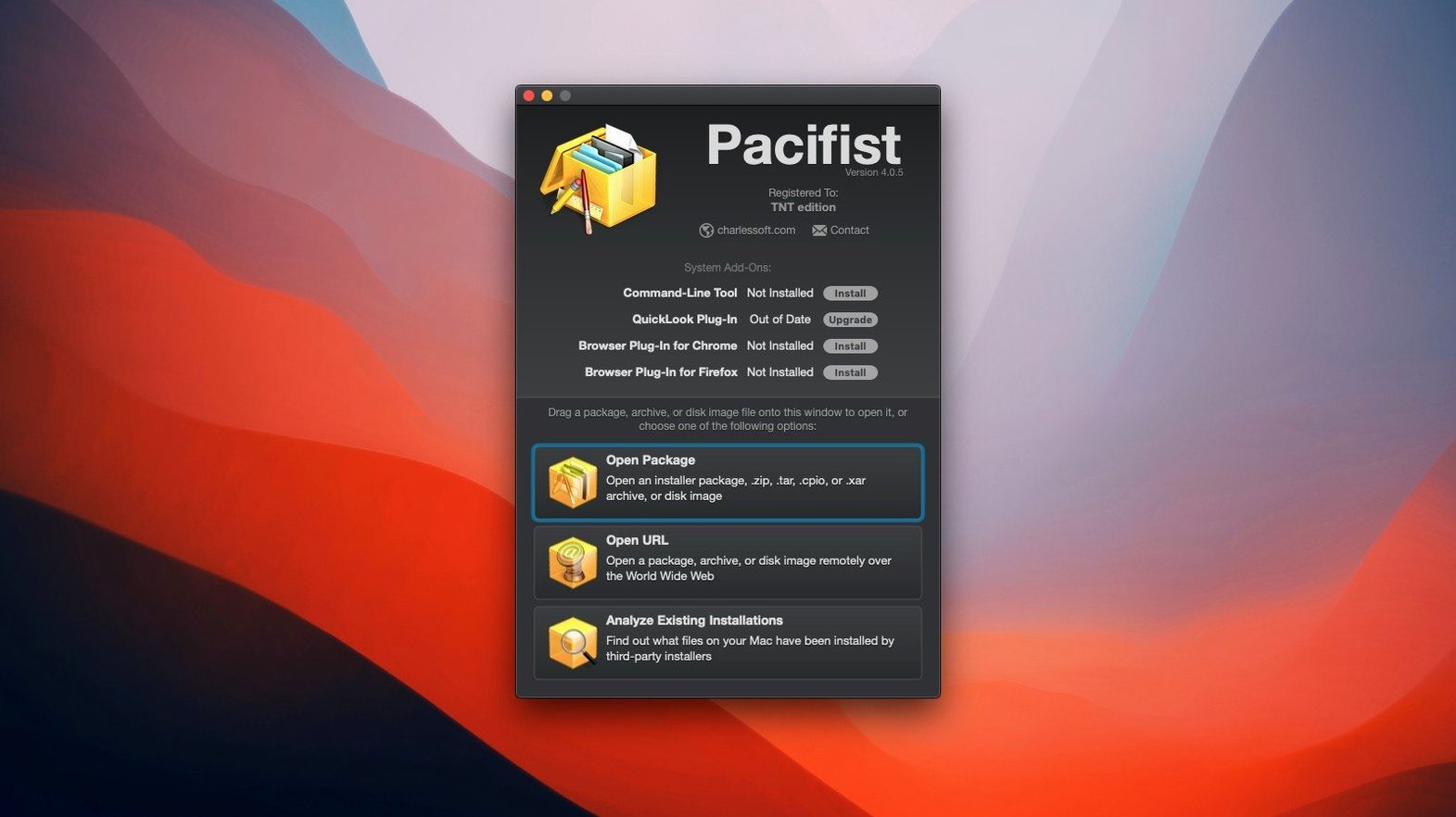
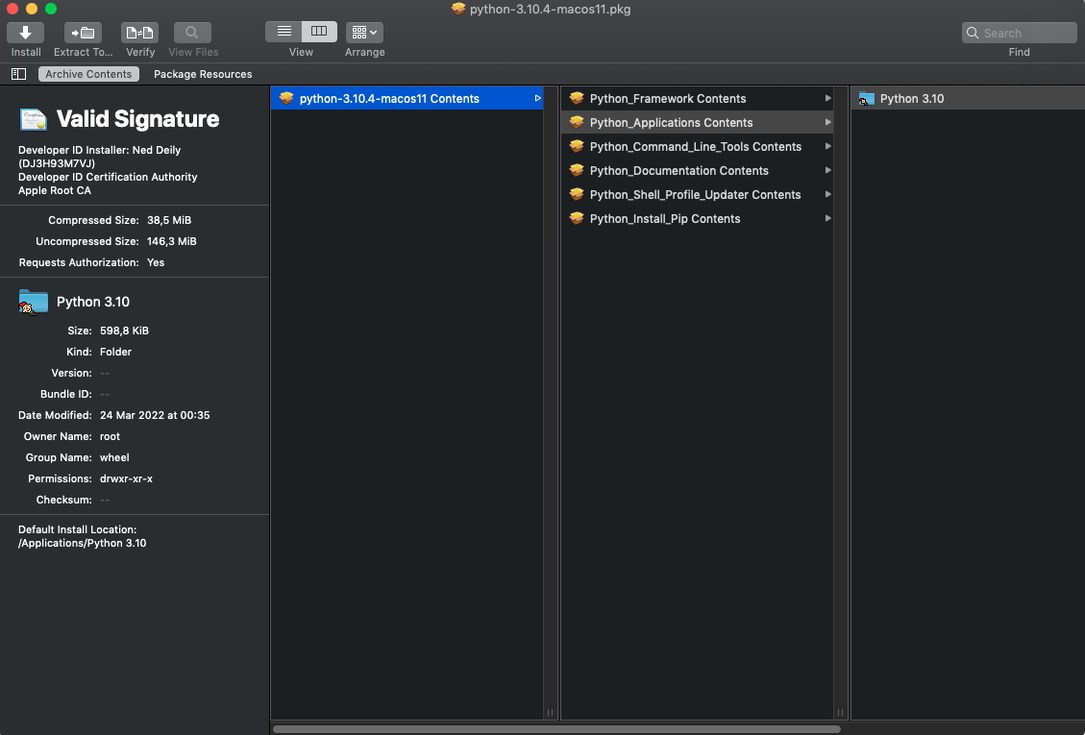
An .xar archive can hold thousands of items, yet Pacifist lets you pull out a single plist without touching the rest. It works as a reader for macOS package files, disk images and common archives, giving you control over what gets extracted and where it goes.
Inspect a package before installation
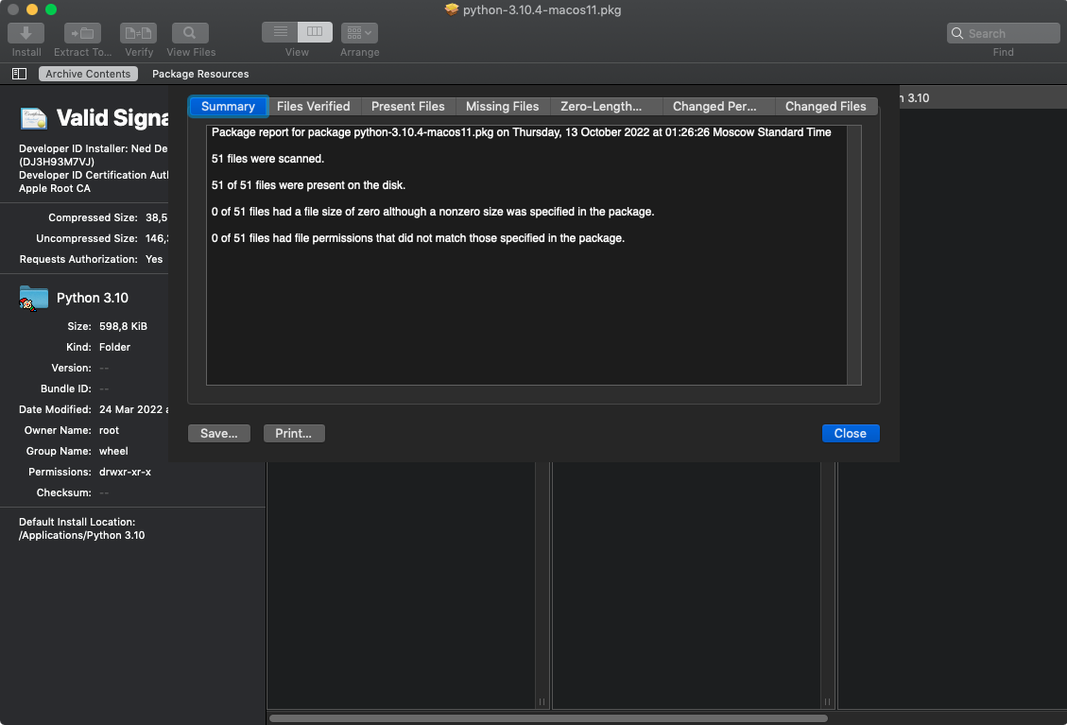
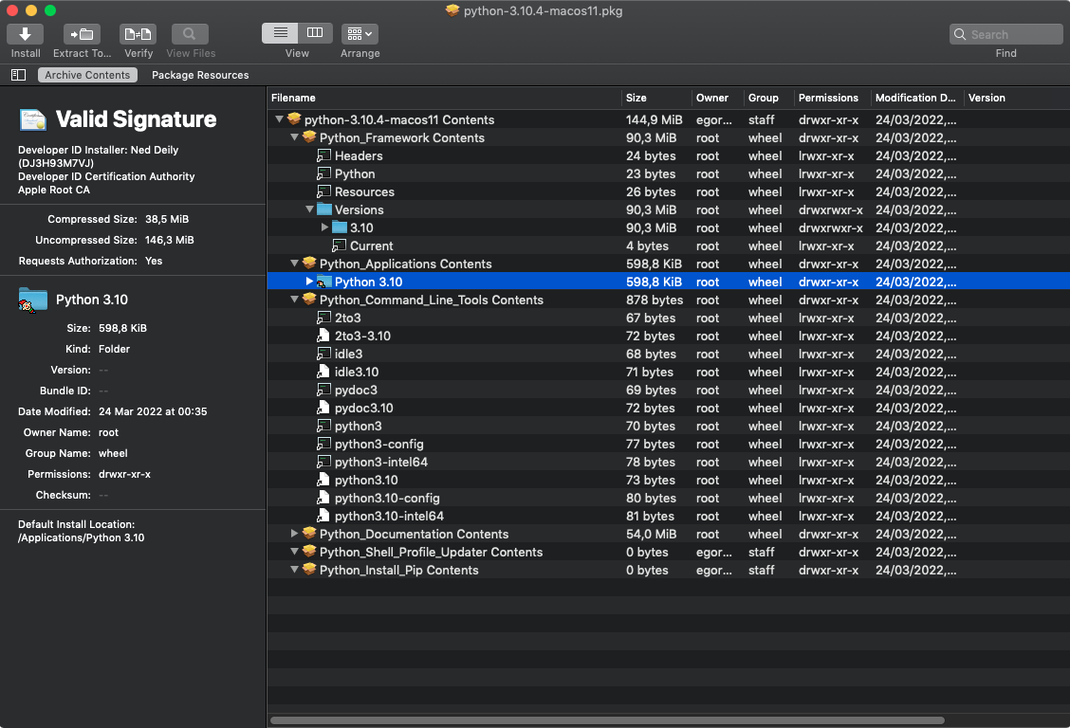
Open a .pkg file to see every script, receipt and payload item it contains. This is useful when you want to know what an installer will place on your system before you commit to running it.
Extract one file from a large archive
Rather than unpacking a whole .zip or .tar.gz file, you can browse its contents and extract a single folder or document. For some archive types, Pacifist can even download just the file you need over HTTP.
Check kernel extension origins
The app can identify which installer placed a kernel extension on your Mac and whether it came from Apple or a third-party developer, helping you trace software that reaches deep into the system.
Compared with similar utilities
Three Mac apps occupy roughly the same space as Pacifist, though each leans in a slightly different direction.
Suspicious Package goes all-in on pre-installation inspection. Drag a .pkg onto it and you see scripts, bill-of-materials entries and file destinations in a clean browser window — but it does not touch .dmg, .zip or .tar archives. Pacifist handles those formats alongside packages, so it doubles as a general archive reader. If your work stops at vetting .pkg files before running them, Suspicious Package is narrower and simpler. If you also need to rescue a single font from a 900 MB .tar.gz, Pacifist covers both jobs.
Unarchiver excels at unpacking formats that most people encounter — .rar, .7z, .sit and dozens of others — and integrates with Finder via a right-click menu. What it lacks is any awareness of macOS installer packages. Pacifist treats .pkg as a first-class format, showing you preinstall scripts, postinstall scripts and the exact paths where files land. The two apps complement each other well: Unarchiver for everyday archive extraction, Pacifist when an installer or a partial extraction enters the picture.
BetterZip is the closest in spirit, offering selective extraction and archive browsing in a polished window. It supports many archive formats and adds editing capabilities — you can add or remove files inside an archive without recompressing the whole thing. Pacifist cannot edit archives, but it knows package internals and kernel extension provenance, which BetterZip does not address. For pure archive manipulation, BetterZip does more. For anything involving .pkg files, Pacifist has no equivalent in BetterZip's feature set.
Type .nib to jump straight to bundle resources
Several Pacifist behaviours hide in plain sight. The search field at the top of the main window filters entries in real time as you type, which is faster than scrolling through a long file list. Type .nib or executable and the tree collapses to matching items within a second.
When examining a .pkg, holding the Option key while clicking a disclosure triangle expands every nested folder at once. The same shortcut works in the Finder, but many people forget it applies here too. It turns a twenty-click exploration into a single gesture.
Double-clicking a text file inside an archive opens it in a read-only viewer without extracting it first. You can glance at a script, a ReadMe or a plist directly, then close the window and move on. The file stays inside the archive.
The toolbar button labelled Extract To… remembers the last directory you used, so repeated extractions to the same folder require only a click and an Enter press. If you are pulling several items from a single archive in sequence, this saves a surprising number of mouse movements.
Keep resource forks intact for classic Mac files
Open the Preferences window after the first launch. Under the Extraction tab, there is an option labelled Preserve resource forks — leave it enabled if you work with older Mac files that carry type and creator codes. The setting is off by default and easy to overlook until you notice a vintage font suitcase arriving stripped of its resource fork.
The General tab includes a checkbox that controls whether Pacifist verifies checksums during extraction. Turning it on adds a few seconds to large operations but catches corruption that can creep in from a faulty download. For files you plan to archive or redistribute, the extra time is well spent.
If you often open archives by dragging them onto the Dock icon, consider enabling Show Pacifist in Finder’s “Open With” menu from the same tab. Once active, right-clicking a .pkg, .dmg or .tar.gz file offers Pacifist as a direct option, which is faster than launching the app first and navigating to the file.
Rescue Menlo from a botched system update
A designer writes in about a missing system font that disappeared after a macOS update. The font, Menlo, still shows in Font Book but the file itself returns an error when any app tries to load it. The original installer package from Apple contains a fresh copy — if you can get to it.
She launches Pacifist and clicks Open Package. From the file dialog she selects the macOS installer app, right-clicks it and chooses Show Package Contents, then drills into Contents/SharedSupport and opens SharedSupport.dmg. Pacifist mounts the disk image internally and displays its folder tree. Inside, she navigates to Packages and opens Essentials.pkg. The window populates with thousands of files.
She types Menlo.ttc into the search field. The list collapses to a single result, showing the file path inside the package and its size. She selects it, clicks Extract To… and points the save dialog at ~/Library/Fonts/. Pacifist prompts for an administrator password because the destination is a system-owned folder. She enters it, and within two seconds the font file sits in place, identical to the one that came with the original OS build.
Before closing the app, she checks the kernel extension tab out of curiosity. A recent third-party disk utility left a kext behind. Pacifist identifies it by installer name and marks it as non-Apple. She makes a note to contact that developer's support, closes the window and gets back to her layout work with Menlo rendering cleanly again.