Aspecten
 Download (7 MB)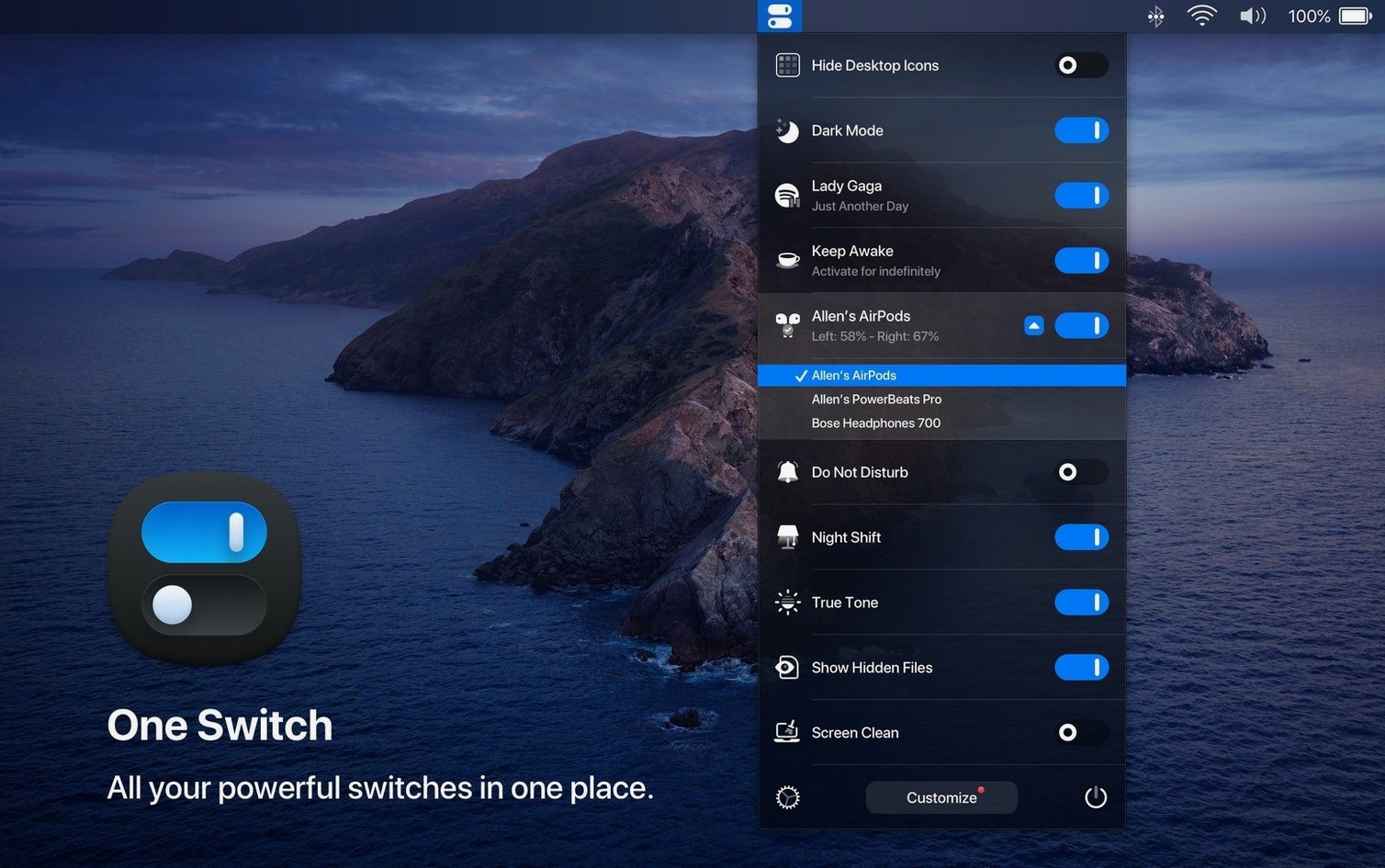
Toggle Dark Mode without digging into System Settings
Flicking the Light/Dark switch from the menu bar changes the entire system appearance instantly. It is a simple binary toggle, but its proximity saves the trip through multiple preference panes several times a day.
Hide desktop clutter for a clean recording or screenshot
The Hide Desktop Icons switch clears the screen in a moment. Files and folders disappear from view without being moved, which suits screen sharing, presentations, or simply a calmer workspace before focus work begins.
Trigger Do Not Disturb and screen saver from one place
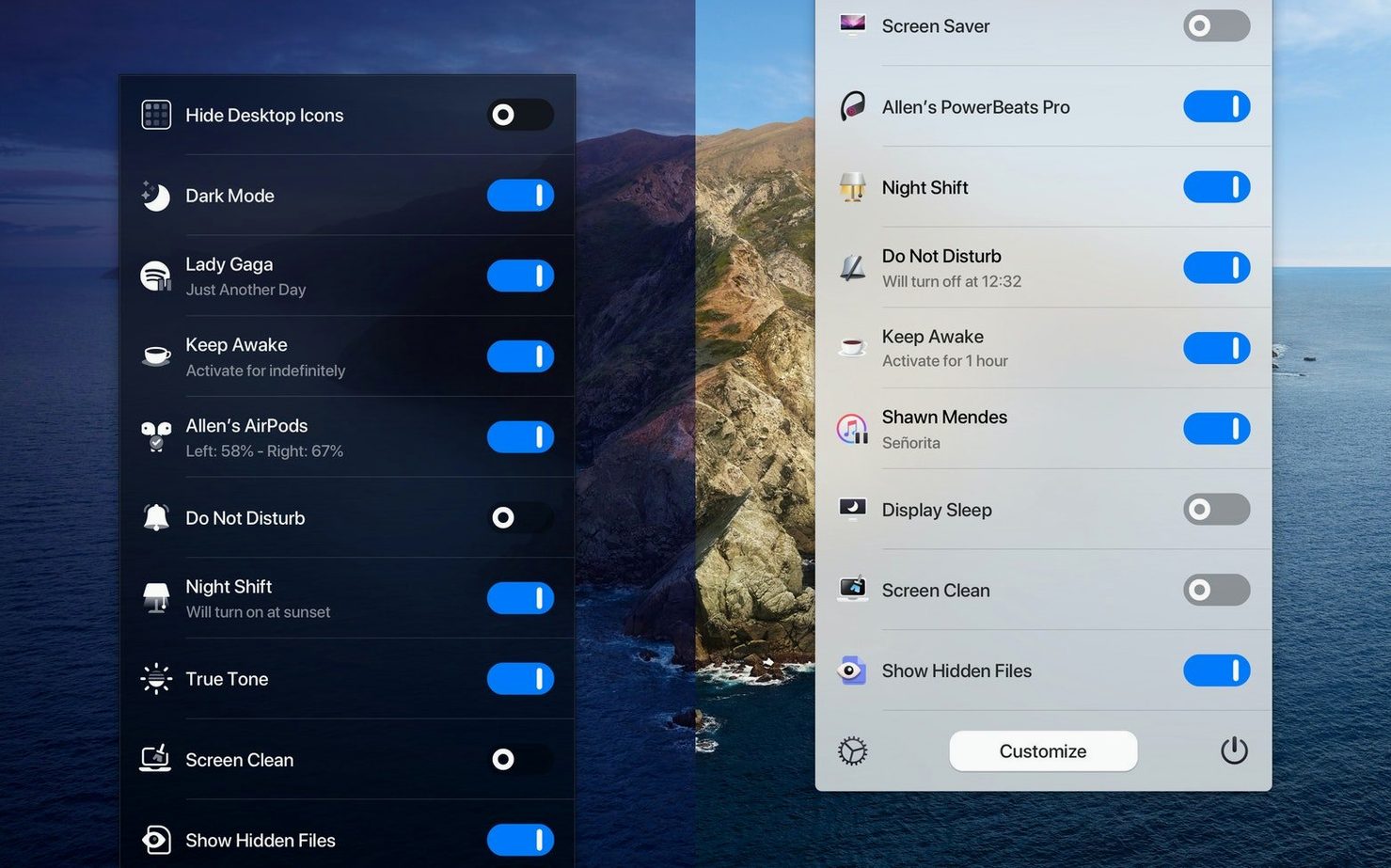
Two separate switches handle Do Not Disturb and the screen saver. Toggling Do Not Disturb silences notifications before a meeting; starting the screen saver manually locks the display with whatever hot corner or idle timer you normally rely on bypassed.
One Switch alongside other Mac convenience tools
Three apps tend to appear in the same conversation: One Switch, Bartender, and OnlySwitch. They share a menu bar home but solve different problems, and mixing them up leads to odd expectations.
Bartender manages menu bar icons — hiding, rearranging, and surfacing them on demand. It does not toggle system states. Someone who needs a tidier menu bar but never touches Dark Mode or desktop icons will find Bartender the more natural fit. One Switch, by contrast, keeps its own compact dropdown and does not touch the rest of the bar. The two can run side by side without conflict.
OnlySwitch comes closest in spirit. It also sits in the menu bar and exposes quick toggles for Dark Mode, desktop icons, and a handful of other macOS behaviours. The overlap is real, but the scope differs. OnlySwitch spreads wider into niche controls — hiding notch on MacBook Pro models, muting the mic with a click, and a built-in Pomodoro timer — while One Switch stays narrower and more polished. The seven-switch limit in One Switch is a deliberate constraint; OnlySwitch lets you pile on as many toggles as you like, which some find liberating and others find cluttered.
A third comparison worth making is with the Shortcuts app built into macOS. A 3 position rotary switch guitar modeller or an audio interface toggle can be scripted there, and Shortcuts can flip Dark Mode at sunrise. But Shortcuts demands setup time and a willingness to build or find workflows. One Switch asks for none of that. It ships ready, with switches that work the moment the app is launched. For users who want a handful of controls always visible and never want to open the Shortcuts editor, One Switch replaces that effort with a pre-built row of toggles.
Clearing desktop clutter with five morning toggles
The workday starts at a desk cluttered with yesterday’s screenshots and a half dozen loose files spread across the desktop. The menu bar shows a small toggle icon; clicking it opens the dropdown with five switches enabled.
The first move is Hide Desktop Icons. The mess vanishes, replaced by a plain wallpaper. There is no lag, no animation, just an immediate clean surface. Next, Dark Mode gets toggled on — the room is still dim, and Light Mode would glare. A quick glance at the dropdown confirms Do Not Disturb is already active from the night before, so notifications stay silent during the first hour of deep work.
Mid-morning, a video call approaches. The screen saver switch is clicked to lock the display while stepping away to make coffee. Returning, the one switch mac app dropdown opens again; Do Not Disturb is toggled off so calendar alerts can come through, and Hide Desktop Icons is switched back on because screen sharing will happen during the call. No System Settings window ever opened, no Terminal command typed, no separate utility launched.
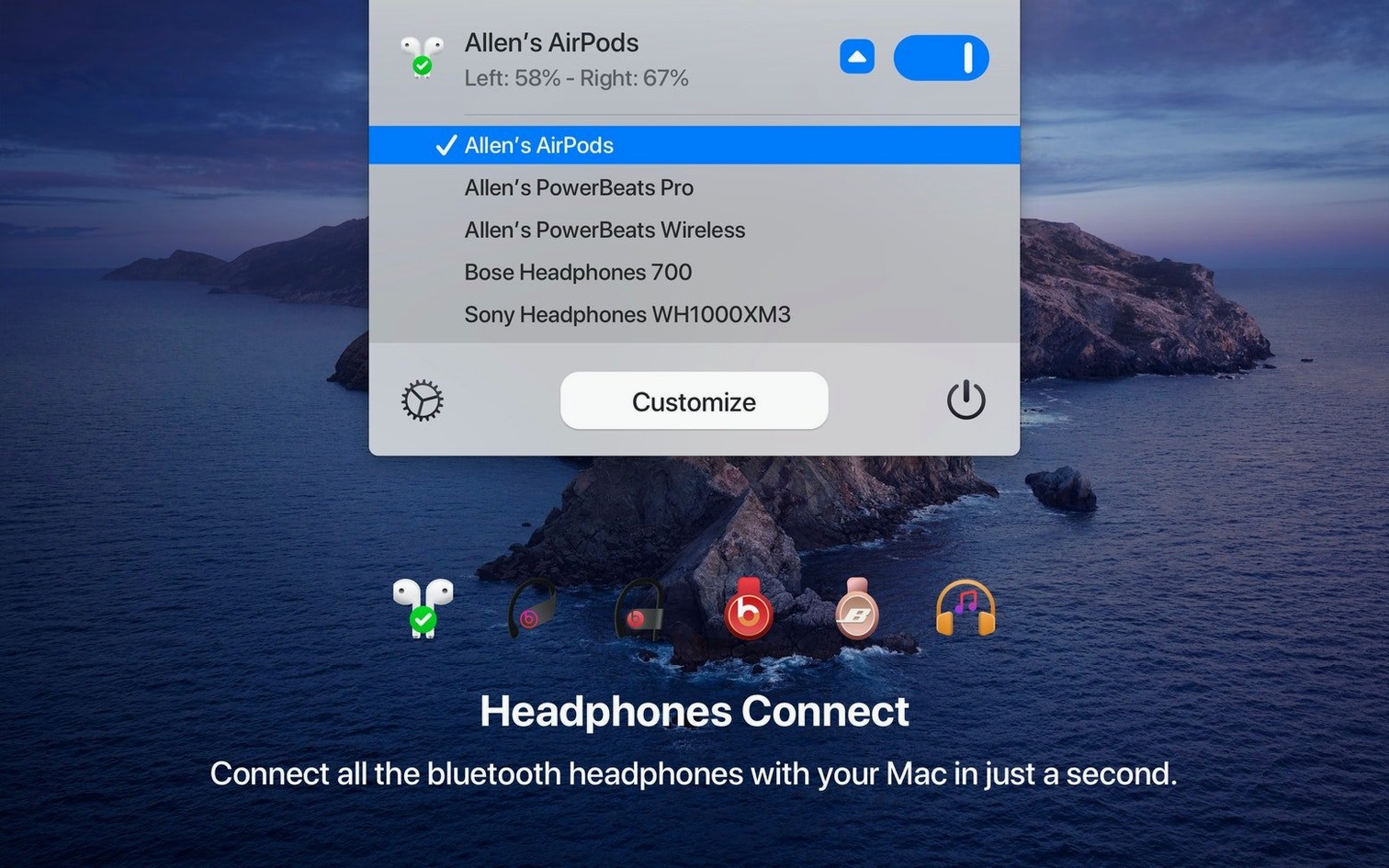
Later in the afternoon, AirPods need connecting for a quick call. The AirPods switch in One Switch triggers the connection without opening Bluetooth settings or the volume menu bar item. It is one click from the same dropdown, not a separate app or a multi-step pairing ritual. By evening, the automatic Dark Mode scheduler has already flipped the appearance back to Light, and the Mac is set to sleep at a fixed time via the sleep schedule toggle — two behaviours that run on their own once configured.
The whole day, One Switch remained a single dropdown. It never demanded attention, never popped a notification, and never broke its seven-switch structure. The session felt less like using a utility and more like having a row of light switches mounted directly on the desktop.
The three switches to enable first instead of all seven
The instinct after installing one switch mac free download is to enable all seven switches at once. Resist it. Start with three: Dark Mode, Hide Desktop Icons, and Do Not Disturb. These three alone replace the most frequent trips into System Settings, and they give a feel for how the dropdown behaves without overwhelming the menu bar click.
Next, open the app preferences and disable every switch you do not use daily. The Headphone switch, for instance, matters only to people who own AirPods or Beats with the H1 chip. If you use wired headphones, disable it and reclaim the slot. The same goes for the screen saver switch — if you already use a hot corner, you may not need a menu bar duplicate.
The automatic Dark Mode scheduler deserves attention early. It toggles appearance at sunrise and sunset or at custom times. Set it once, then forget it. The switch itself can even be hidden from the dropdown; the scheduler runs regardless. That frees up one of the seven slots for something more interactive.
Finally, place the menu bar icon where your eyes already go. Many users tuck it next to the clock or the battery indicator. Muscle memory forms quickly — after two or three days, clicking the one switch download icon becomes as automatic as checking the time.
A cramped dropdown loses its speed when switches go untrimmed
- Enabling every switch and then ignoring the app. A crowded dropdown defeats the purpose. Seven switches in a tall list take longer to scan than three well-chosen ones. Trim early, and trim often.
- Forgetting that Hide Desktop Icons hides everything, not just files. External drive icons, mounted disk images, and folder aliases all vanish. A beginner sometimes panics thinking files were deleted. A second click brings them back exactly as they were.
- Assuming the Sleep switch puts the Mac to sleep immediately with no confirmation. It does, and that can mean losing an unsaved note if muscle memory triggers it by accident. Place this switch at the bottom of the dropdown or disable it unless the habit is solid.
- Overlooking the scheduler for Dark Mode. Manually toggling appearance twice a day is exactly the kind of small friction One Switch exists to eliminate. The scheduler, once set, removes the need for the manual switch entirely.
- Not realising the seven-switch limit is firm. People coming from other launchers sometimes expect to add a custom script or a third-party toggle. One Switch does not accept plugins or user-defined switches; it does its chosen set and stops there. Accepting that boundary early prevents frustration later.