Aspecten
 Download (78 MB)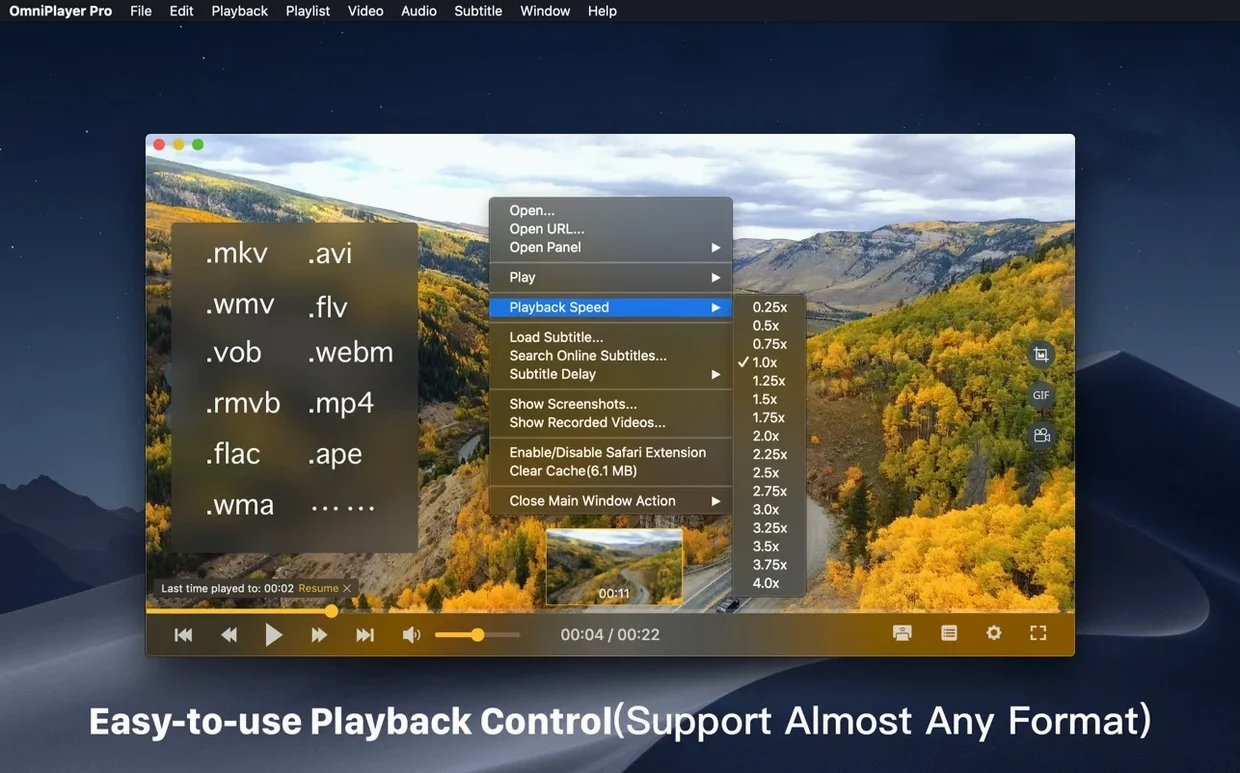
The release notes for version 2.1.22 mention a fix for loading a 30GB MKV file. That is a practical starting point if you often find yourself with large video files from torrents and want to know whether OmniPlayer handles them.
- Open the file. Drag an MKV onto the window or use File → Open. The app begins playback without additional codec packs.
- Check the progress bar. During local playback, preview images appear as you hover along the bar—useful for finding a scene in a long file.
- Adjust speed and image. Playback speed ranges from 0.25x to 4x. Controls for brightness, contrast and saturation sit within the player, so you can correct a dark encode without leaving the window.
- Handle subtitles. If a bundled subtitle track shows garbled text, you can switch the encoding to match the language. The app also lets you adjust the window size and aspect ratio.
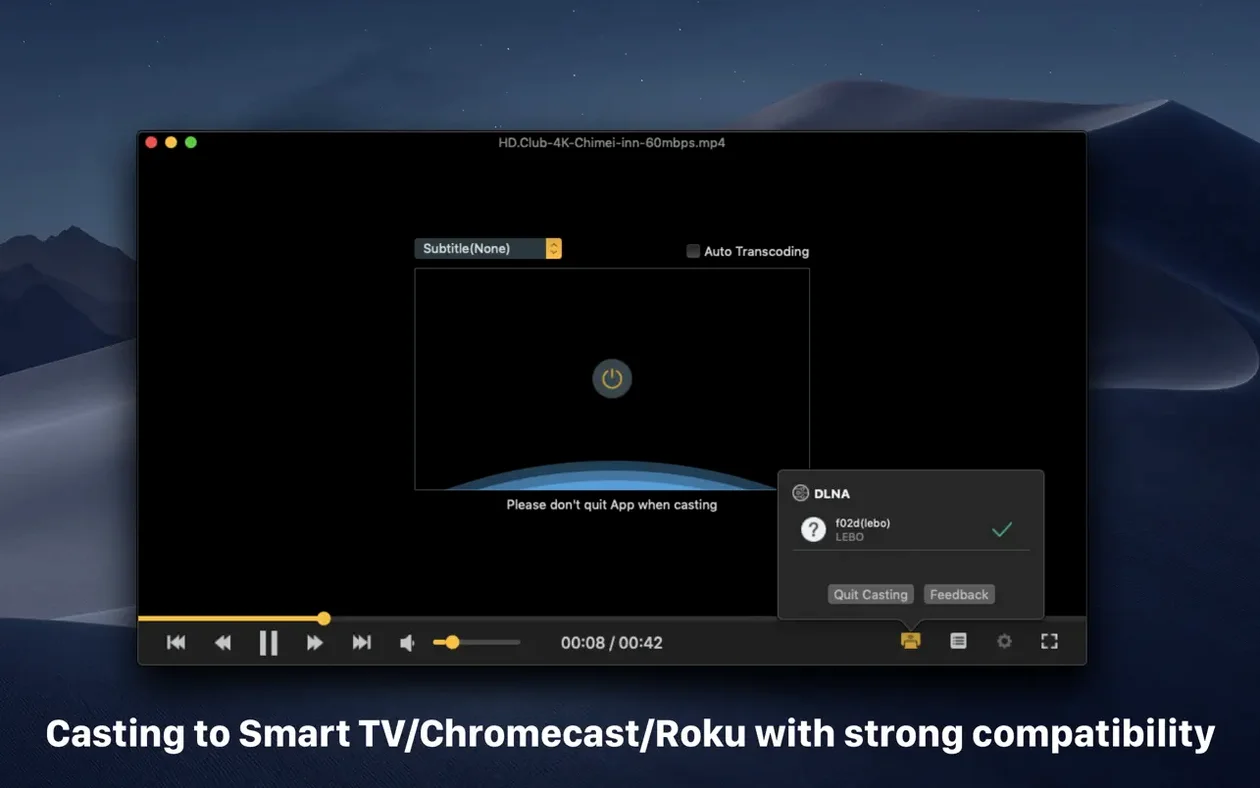
- Cast if needed. OmniPlayer supports DLNA, Chromecast and Roku for sending the picture to a television or speaker.
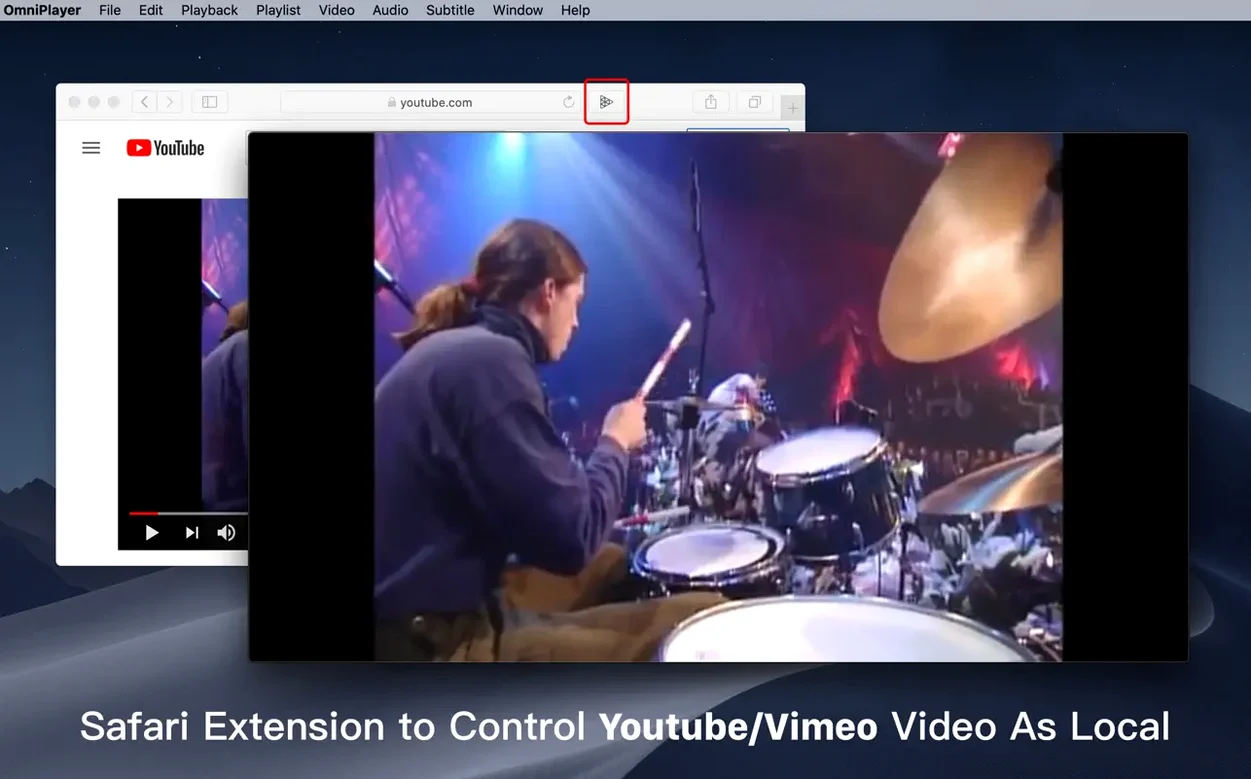
Controls auto-hide during playback, keeping the frame clean. Screenshots can be saved in different formats, and online streams over HTTP and HTTPS load directly. The interface supports English, German, French, Italian, Japanese, and both Traditional and Simplified Chinese.
First days with OmniPlayer
After installing OmniPlayer, a few adjustments make the experience smoother. The player saves your last playback position when auto-stop engages, but you need to know where that setting lives. Open Preferences and look under the General tab—the toggle is labelled Remember last playback position. Leave it checked.
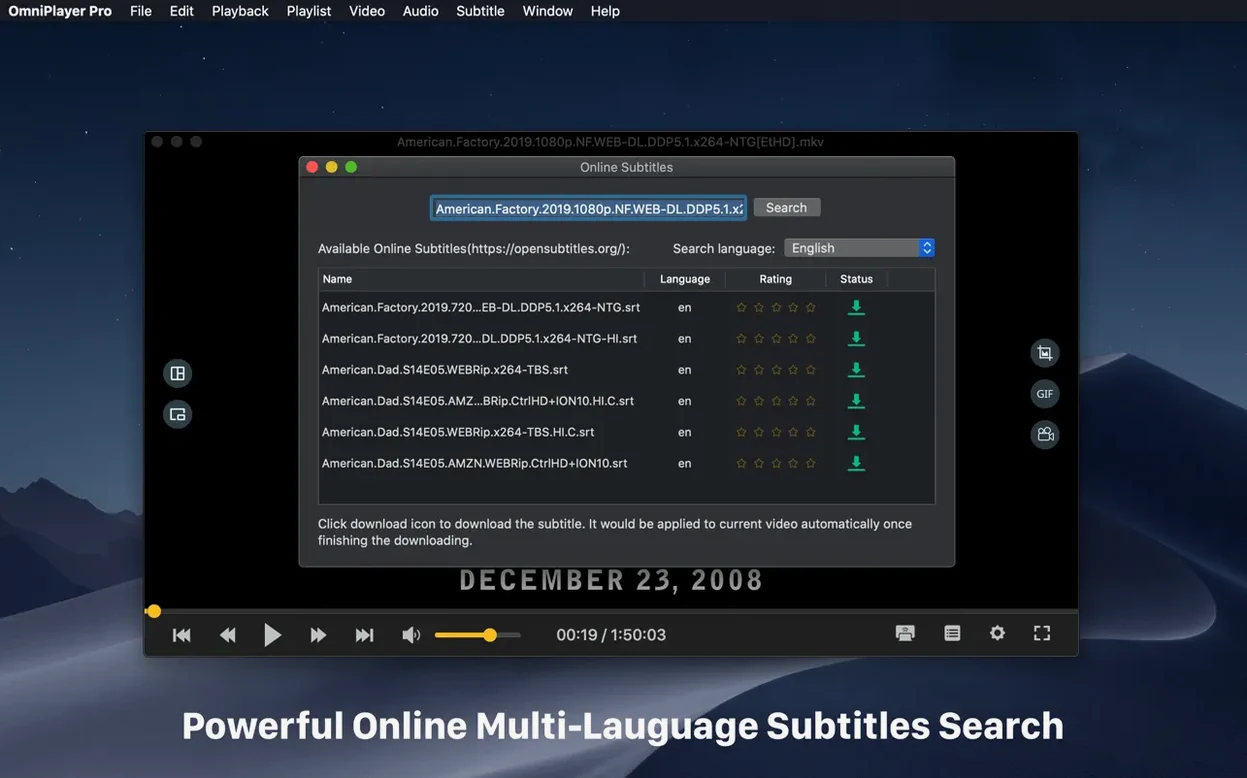
For anyone who works with subtitle-heavy material, the online subtitle search deserves attention early on. The app can pull subtitles by video title or by hash. In practice, hash-based lookup is more precise. If you have a file named something generic like episode-04.mkv, the title search may return mismatches; the hash search ties the query to the actual file content and usually finds the correct track on the first attempt.
A less obvious setting governs the preview thumbnails on the progress bar. These generate only during local video playback, not for network streams. On a machine with limited disk space, the thumbnail cache can grow. OmniPlayer does not surface a cache-size control, but you can clear it manually by removing the thumbnail folder inside the app’s container in ~/Library. Worth remembering if you play through a large queue of video files in a short period.
Nudge audio sync in 50 ms steps with J and K
- Audio delay via keyboard. The menu offers a slider for audio sync correction, but the
JandKkeys nudge audio forward or backward in 50-millisecond increments. This is quicker than opening the panel mid-playback when lip sync drifts. - GIF length limit. The GIF creator accepts clips up to 60 seconds. Press
⌘Gto open the capture tool, set start and end points on the timeline, and export. The file size grows quickly with colour-rich footage, so shorter segments tend to produce more usable results. - Playlist repeat modes. Right-click any item in the playlist sidebar to cycle through single repeat, list repeat, and shuffle. The mode icon appears small next to the track title, and it is easy to overlook if you are used to finding repeat controls in the main playback bar.
- Subtitle timing from local files. When you load an external subtitle file, the app applies it instantly, but you can also adjust the subtitle delay independently of the audio. The slider sits in the subtitle panel—handy when the subtitle file itself carries a time offset.
- Rotation shortcuts. The menu lists rotation options for all four directions.
⌘Rrotates clockwise; add⇧Shiftto go counter-clockwise. Useful if you receive phone-shot video that was recorded in the wrong orientation.
A translator’s afternoon with a foreign-language rip
Consider someone who downloads an MKV torrent of a French documentary and needs to watch it alongside a translated subtitle track they found separately. They drag the file into OmniPlayer, and the French audio track loads by default. The embedded French subtitles are present but too fast, so they switch to the external .srt file via the Subtitle menu. The encoding defaults to UTF-8, which matches the file, and the text renders cleanly.
They notice the subtitle timing is slightly early. Instead of editing the .srt in a text editor, they open the subtitle panel and push the delay slider forward by 0.3 seconds. The change applies in real time without restarting playback. Halfway through, a line of dialogue references a street name they want to screenshot. They press ⌘S, pick PNG as the format, and the frame saves with the subtitle text burned into the image—something the screenshot tool offers as an option.
Later, they need to check a specific scene for a transcription. They hover along the progress bar, spot the preview thumbnail that shows the interviewee’s face, and click to jump there. The auto-hide controls stay out of the way during the actual viewing, so the frame remains uncluttered while they take notes in a separate window.
One working session, step by step
A user launches OmniPlayer on a Tuesday evening. The playlist sidebar is empty because the app clears it on exit by default. They open a folder of four MKV files through File → Open Multiple, and the playlist populates in order. They click the first title and press play.
The video is a 28GB rip with three audio tracks. They switch to the commentary track using the audio menu in the control bar. The switch is immediate—no buffering pause. A few minutes in, they want to skim a slow section, so they tap L twice to reach 2x speed. The audio pitch holds steady; the app does not introduce chipmunk distortion at faster rates.
Midway through the second file, the picture looks washed out. They open the video adjustments panel and raise contrast by two notches and saturation by one. The change stays for the remainder of the file but resets when the next item in the playlist begins—something to keep in mind if you expect persistent image corrections across a queue.
For the third video, a live concert recording, they decide to cast to the living-room television via Chromecast. They click the cast icon, select the Chromecast from the list, and the video appears on the TV within a few seconds. Playback controls remain responsive from the Mac, and the laptop screen dims to a simple status indicator while the stream runs.
Before closing the app, they take a 12-second GIF of a short drum solo using ⌘G. The resulting file is about 4MB—small enough to share in a messaging app. They quit the player. The playlist clears, the cast session ends, and the last-played position of the concert video is stored for next time.