Aspecten
 Download (100 MB)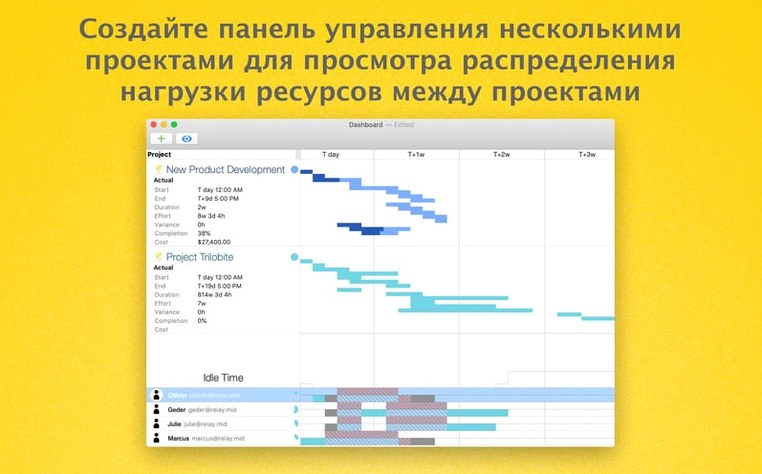
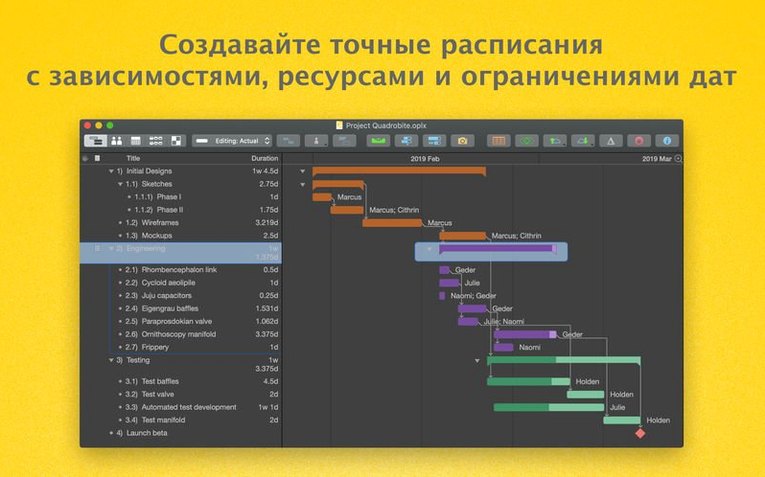
OmniPlan Pro is a Mac project management tool that breaks work into tasks, balances resources and tracks progress against a timeline. For someone opening it the first time, a few deliberate actions show how the pieces fit together.
| Detail | Note |
|---|---|
| Current Mac version | 4.11.0 |
| Architecture | ARM and x86 64-bit |
| Pro exclusives | Microsoft Project import/export, change tracking, HTML reports, automatic effort estimation |
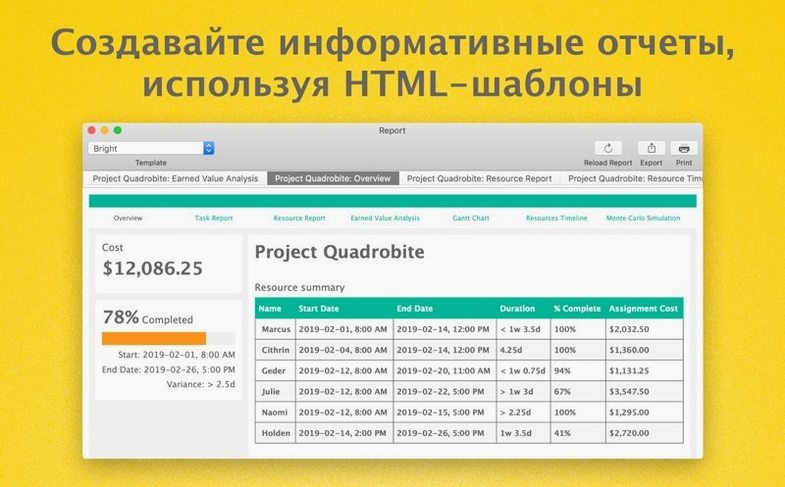
Start by outlining four or five tasks in the Gantt view — name them, set durations, then link two with a finish-to-start dependency. The critical path highlights immediately, showing which chain of tasks determines the project end date. That one small exercise makes the logic of the timeline visible. Next, assign a resource to a task and open the resource view. Drag the resource’s allocation bar and watch the original task duration recalculate. The Pro version’s automatic effort estimation works here: when you adjust hours, the app proposes a new duration based on the resource’s availability rather than leaving you to guess. After a few adjustments, generate an HTML report. The report collects task summaries, resource loads and milestone dates into one scrollable document you can share outside the app — a quick way to see what a stakeholder would receive. Switch on change tracking before your next editing session. Every move — a shifted date, a reassigned resource — logs in the tracking history, which makes it easier to review decisions later. Each of these steps touches a different part of the application: structure, resources, output and accountability. Together they form a practical first tour.
Opening last week's website rebuild and adjusting three task bars
Tuesday morning. You open the project file from last week — a website rebuild with eighteen tasks spread across design, content and development. The Gantt chart fills the main window, coloured bars stretching across a grid of weekdays. Three tasks show amber warning triangles: their assigned resources are overallocated.
You click the first warning. The resource view opens below the timeline, showing that Alex, the lead developer, has 14 hours of work scheduled for a single Tuesday. You drag the task bar two days to the right, splitting the effort across Wednesday as well. The amber triangle disappears. The second warning is a content task that slipped because of a late draft; you select it, press the spacebar for the task inspector and mark it 60% complete. The Gantt bar fills accordingly, a darker shade creeping across the lighter outline. The third warning resolves itself when you link the task to its predecessor — OmniPlan recalculates the start date and the allocation conflict vanishes.
Before lunch, you open the multi-project dashboard, a Pro feature that pulls data from two other active project files. One shows a mobile app sprint; the other tracks an internal documentation effort. The dashboard aggregates resource loads across all three projects. You notice the technical writer appears overbooked on Thursday and adjust her documentation task by a day. Because the files are linked through the dashboard, the change writes back to the source project. A small thing, but it saves switching windows and repeating the same fix.
200-task project loads in under three seconds on Apple Silicon
OmniPlan 4.11 loads a project with 200 tasks in under three seconds on Apple Silicon hardware. Scrolling through the Gantt chart remains smooth even with all task rows expanded and the timeline zoomed to show six months of daily columns. On an Intel Mac, the same file takes slightly longer to open — closer to five seconds — but navigation feels equally responsive once the document is in memory.
Editing a task with many assigned resources used to provoke a noticeable pause. Version 4.11 addresses that directly: the developer notes a specific performance improvement for this scenario, and in practice, selecting a task with twelve resource assignments now opens the inspector without the half-second lag that earlier versions showed. The change is modest but noticeable when you work through a long resource-loading session.
Memory use sits around 200–300 MB for a single medium-sized project. Opening the multi-project dashboard with three linked files pushes that closer to 500 MB. CPU activity spikes briefly during recalculation — changing a dependency, adjusting a resource allocation — then drops back to idle. The app does not poll in the background or run scheduled processes when left open overnight. Stability has been predictable: autosave fires every few minutes, and force-quitting mid-edit recovers the document cleanly on relaunch, with the change-tracking log intact.
MPP file import brings over task names and dependencies but not macros
Does it open Microsoft Project files without losing data? The Pro version imports and exports MPP files, but the translation is not lossless. Task names, durations, dependencies and resource assignments come through reliably. Custom fields, macros and certain formatting details do not. For exchanging a work breakdown structure with a client who uses Project, the round-trip is functional. For preserving every metadata field in a complex enterprise template, it is not.
Can two people edit the same plan at once? Not in real time. OmniPlan uses a publish-and-subscribe model through Omni Sync Server or a WebDAV server. One person publishes changes; another subscribes and sees them on next sync. Change tracking records what moved and when, so merging edits is deliberate rather than automatic. Teams that need simultaneous live editing often pair OmniPlan with a shared calendar export instead.
How steep is the learning curve for someone coming from a spreadsheet? Flat for the basics, then a hump at resource levelling. A former Excel user can enter tasks, set dates and link dependencies within ten minutes — the Gantt chart behaves like a visual spreadsheet with rows you can drag. The hump comes when you start assigning resources and the app begins recalculating durations based on availability. Understanding why a task stretched from three days to five because a resource works half-time takes some mental adjustment. After one or two projects, it becomes second nature.
Does the Monte Carlo simulation require statistics knowledge? The simulation runs on any task with a duration range. You set a minimum and maximum estimate, choose a confidence level, and OmniPlan generates a chart showing the probability of hitting each completion date. Reading the output — a curve with percentiles — asks for basic numeracy but not formal statistics training. The value lies in spotting tasks where the gap between best-case and worst-case is wide enough to matter.
A specific workflow: preparing earned value data for a status meeting
You have a 40-task project three weeks into an eight-week schedule. The steering group wants a cost-and-schedule summary by Thursday, and the project sponsor asks specifically whether the team is getting value for the hours spent. This is the kind of request that the earned value analysis in OmniPlan Pro handles directly.
First, open the project and confirm that every task has a baseline set. Select the top-level task group, open the inspector and choose Set Baseline. OmniPlan captures the planned start, finish and effort for every task in the hierarchy. Without a baseline, earned value calculations have no reference point.
Next, enter actual costs. You have been tracking hours in a separate timesheet, so you work task by task through the resource view, entering actual effort for completed work and estimated remaining effort for tasks in progress. For the design phase, four tasks are complete; you mark each as 100% and enter the logged hours. For the two development tasks underway, you estimate 40% and 70% completion and enter the hours the team has booked so far. OmniPlan recalculates the planned value, earned value and actual cost for each task and rolls them up through the work breakdown structure.
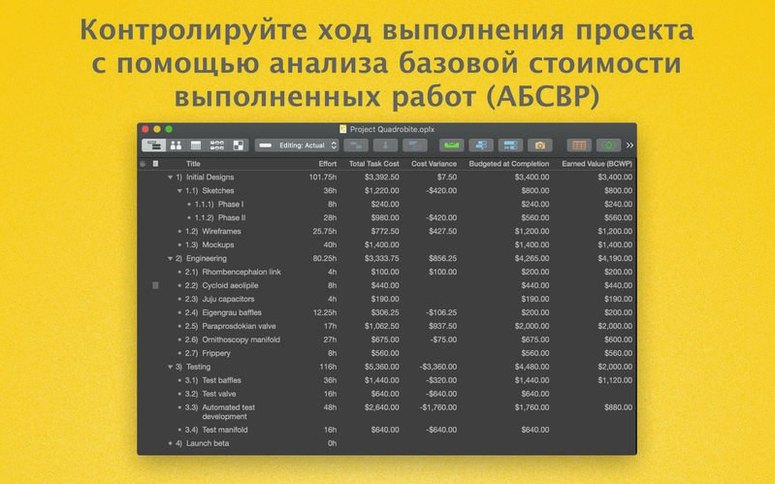
Now open the earned value report. The Pro version presents three curves on one chart: planned value climbing steadily over the weeks, earned value tracking slightly below it, and actual cost running slightly above. The cost variance and schedule variance figures appear in the summary table next to the chart. A negative schedule variance of minus two days confirms what you suspected: the development phase started late. The cost variance is small but negative — the team is spending slightly more hours than planned for the work completed.
You export the chart and table as an HTML report, add a two-paragraph commentary in an email, and attach the file to the meeting agenda. The steering group receives a one-page summary with numbers that answer the sponsor's question directly: the project is slightly behind schedule and marginally over budget, with a cost performance index of 0.94. No spreadsheet was opened, no formula was typed. The entire workflow — baseline, actuals, variance calculation and report — ran inside OmniPlan.