Aspecten
 Download (472 MB)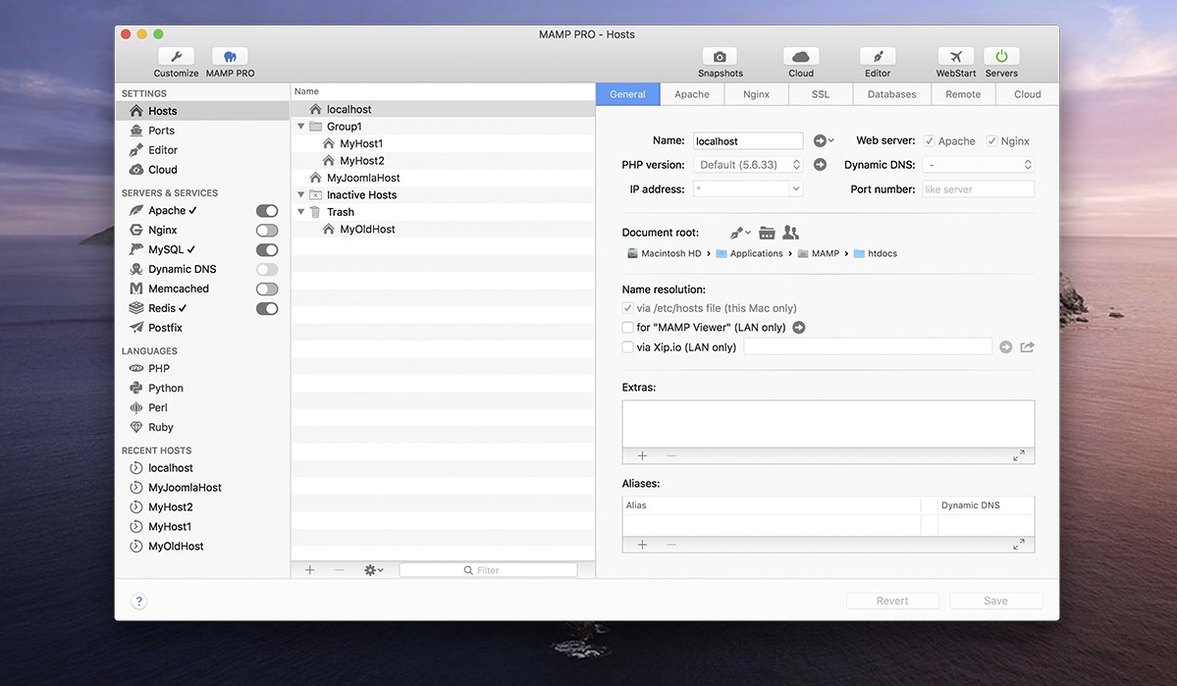
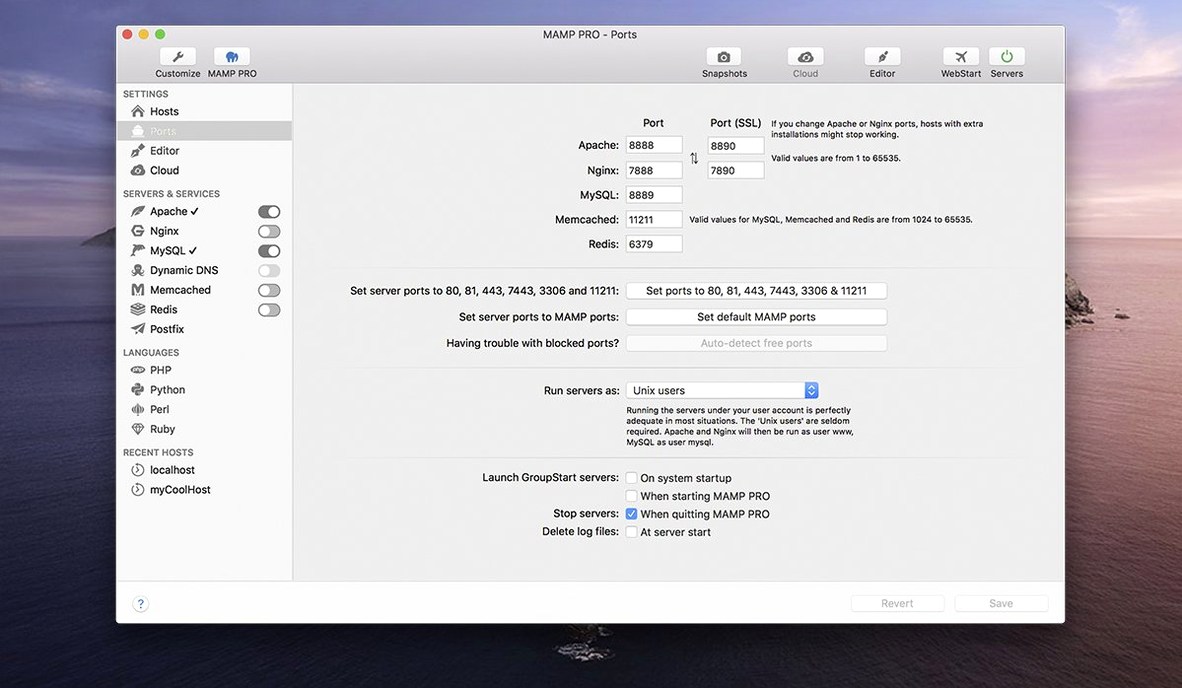
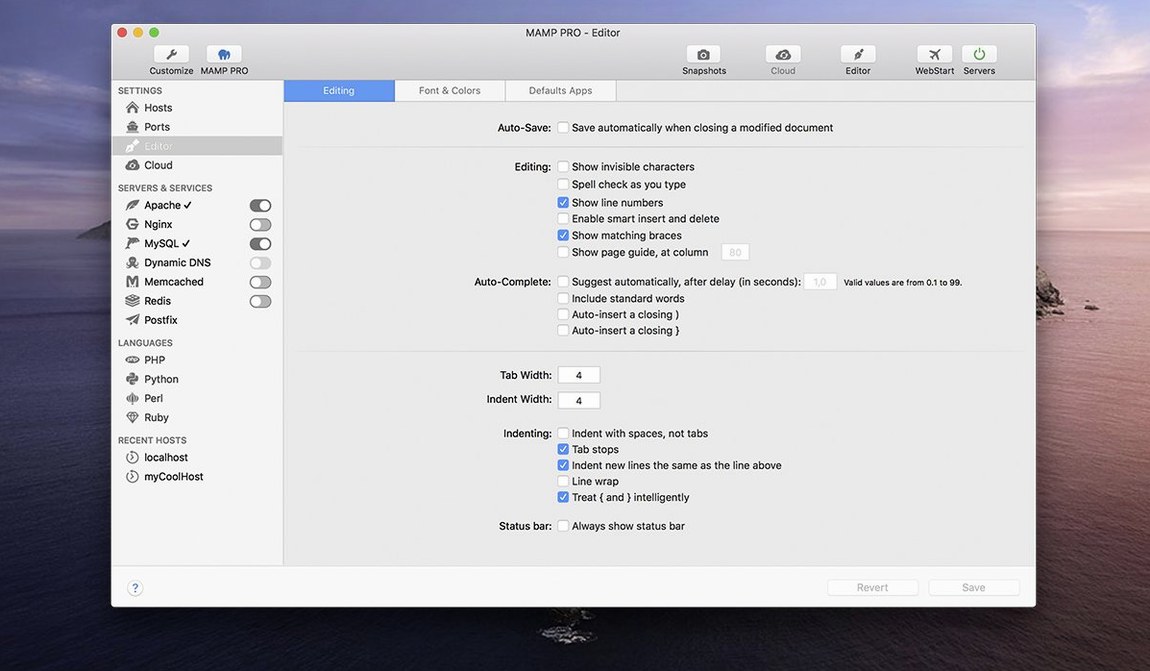
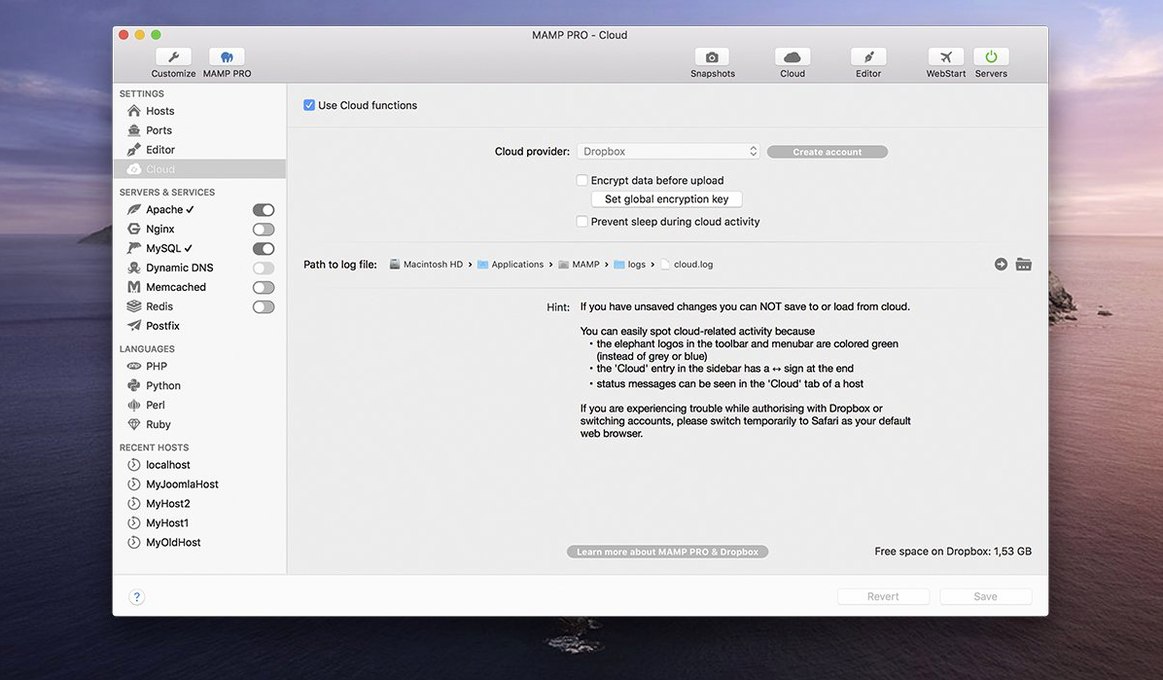
Version 6.9.0 arrived with a handful of targeted fixes. Editing host-specific server configurations no longer crashes the program, several network hiccups in the MAMP Cloud feature have been ironed out, and installing additional PHP versions is a smoother process. The release also mended the alias for opening phpMyAdmin 5. These changes matter most when you are running a complex local setup and cannot afford a broken configuration dialog.
Server stack and caching layers
The app gives you direct control over Apache or Nginx, MySQL 5.7 and 8.0, Redis, and Memcached. For an experienced user, the Redis integration is the quiet workhorse — useful when your local environment mirrors a production stack that relies on object caching. Switching between MySQL versions lets you test schema behaviour without juggling separate virtual machines. Each host can have its own server and PHP configuration, so a legacy project and a current one sit side by side without conflict.
Moving sites and inspecting output
WordPress migration from one server to another is built in, which removes a repetitive task when you are staging a site locally before pushing it live. The host creation dialog has been optimised, trimming the time it takes to spin up a new test domain. A small but practical inclusion is screenshot capture — useful when you need to document a rendering bug or share a visual reference without reaching for a separate tool.
Idle memory around 300 MB with two hosts on Apple Silicon
On an Apple Silicon Mac, MAMP PRO sits lightly. With two hosts running — one Nginx with PHP 8.2, one Apache with PHP 7.4 — the combined Apache and MySQL processes hover around 300 MB of RAM in idle state. Under load, running a WordPress import or a batch of PHPUnit tests, memory climbs naturally but releases cleanly afterward. The app itself, the management front end, rarely draws more than 120 MB. That leaves plenty of headroom for a browser with twenty tabs and a code editor.
Startup time for a stopped server is around three seconds on a recent machine. Switching a host from one PHP version to another takes about the same, and the restart is handled without touching other hosts. The 6.9.0 release removed a crash when editing host-specific server configurations, and in practice that means you can tweak an .htaccess override or adjust a php.ini directive mid-session without a nervous save-before-click habit.
Stability over longer sessions holds up. Leaving the stack running overnight while a cron job simulates scheduled tasks on three hosts produced no stalled MySQL threads or memory creep worth noting. The one soft spot is the MAMP Cloud feature: network interruptions, even brief ones, could previously leave a transfer in limbo. The 6.9.0 fixes addressed the worst of it, and a dropped connection now produces a clear error rather than a silent hang. For anyone who skips the cloud functions and works purely locally, stability is uneventful — which is exactly what you want from a local server.
A workflow: staging a WordPress site from local to live
Suppose a client has an existing WordPress site on a shared host, and you need to redesign it locally before pushing changes live. Here is how the whole task flows inside MAMP PRO.
First, create a new host. The optimised host creation dialog asks for a domain name — something like client-redesign.local — and a document root. Choose Nginx, PHP 8.2, and MySQL 8.0. The host appears in the sidebar within seconds. Tick the WordPress checkbox in the host settings; the one-click installer fetches the latest version, creates the database, and hands you the admin credentials. You now have a blank WordPress site running locally.
Next, import the live site. Under the host’s Extras tab, select the import function and point it at the live server — hostname, SSH or FTP credentials, and the remote path. MAMP PRO pulls down the files and database, rewrites the URLs, and places everything in the local document root. The import on a medium-sized site (around 400 MB of uploads) completes in under four minutes on a stable connection. Once it finishes, open the local domain in a browser and log in. The site runs identically to the live version, down to the permalink structure.
Now do the redesign work. Because the host uses its own PHP configuration, you can raise memory_limit and max_execution_time without affecting other projects. When the redesign is ready, use the built-in screenshot capture to grab before-and-after views of key pages for the client. Finally, publish directly from MAMP PRO back to the live server. The publish tool compares local and remote files, uploads only what changed, and runs a database sync. The whole round-trip — import, redesign, publish — stays inside one application, without exporting SQL dumps by hand or wrangling an FTP client.
Servers warm at login, menu bar icon glows green
You arrive at the desk with coffee. MAMP PRO is set to start its servers automatically at login, so Apache and MySQL are already warm. The toolbar icon in the menu bar shows green — all services running.
First task of the morning: check a bug report on a Laravel project. Click the host in the sidebar labelled laravel-app.local. The host-specific settings show it is using PHP 8.3 with Redis enabled. Open the terminal button next to the host name; it drops you into the project’s document root with the correct PHP binary already in the path. Run php artisan cache:clear and then reproduce the bug in the browser. The Redis integration means cached keys from the previous session are still there, so the bug behaves exactly as reported.
Mid-morning, a colleague sends over a database dump from a staging server. Switch to the host for that project, open phpMyAdmin via the alias — the 6.9.0 fix made the phpMyAdmin 5 alias reliable again — and import the dump in a few clicks. The import runs faster than it did under MySQL 5.7 on last month’s setup, thanks to MySQL 8.0’s improved handling of large inserts.
After lunch, you need to test a script that sends email. MAMP PRO’s built-in mail catcher intercepts all outbound mail and displays it in a simple log. No mail actually leaves the machine. Run the script, check the log, confirm the headers and body are correct, and move on. No configuring Postfix, no accidental emails to real addresses.
Late afternoon, the cloud feature earns its keep. A client wants to review a WordPress staging site. Select the host, choose the Cloud function, and generate a temporary public URL. The 6.9.0 network fixes mean the tunnel stays up reliably for the hour the client needs. When they sign off, revoke the link. The local site never left your machine.
Before shutting down, glance at the host order in the sidebar. Dragging the most-used hosts to the top keeps the workspace tidy. The servers stop automatically when you quit the app, or you can leave them running. Either way, the next session picks up where this one left off.
Point the default document root at ~/Sites early
After dragging the app to the Applications folder and launching it, spend ten minutes on housekeeping. These steps prevent friction later.
Set the default document root to a folder inside your home directory — ~/Sites works well — rather than the default inside /Applications/MAMP. It keeps project files in a place that is easy to back up and reach from a code editor. Next, decide on a naming convention for local domains. Using .local as the TLD avoids conflicts with real domains and works reliably with the self-signed SSL certificates MAMP PRO can generate per host.
Install the PHP versions you actually need. The improved PHP installation in 6.9.0 fetches and configures each version with a single click. Resist the urge to install every available version; pick the two or three that match your production targets. Each installed version occupies around 200–300 MB, so being selective saves disk space and keeps the PHP version switcher uncluttered.
Configure MySQL once properly. Under the MySQL tab, set a root password, then create a separate database user with limited privileges for day-to-day work. This mirrors good production practice and avoids the habit of using root for everything. Tick the box that allows network access only if you genuinely need to connect from a virtual machine or another device on the local network.
Test the mail catcher early. Write a short PHP script that calls mail() and run it. Confirm the output appears in the mail log. Knowing mail is captured and not sent spares you the cold dread of wondering whether a test message reached a real inbox.
Finally, back up your host configurations. The export function saves all host settings — domains, PHP versions, document roots — as a single file. Save it outside the application folder. If you ever move to a new Mac, that file plus your project folders is all you need to recreate the exact local environment.
Any editor opens a host folder directly from disk
MAMP PRO fits into a larger toolset without demanding to be the centre of it. The document root of each host is a plain folder on disk, so any code editor — Nova, PhpStorm, VS Code — opens it directly. Changes to a PHP file are reflected on the next browser refresh with no extra build step, which suits the kind of rapid iteration that local development thrives on.
Terminal integration is straightforward. Clicking the terminal icon for a host launches the default macOS terminal app with the working directory set to the host’s document root and the correct PHP version first in the $PATH. This means running Composer, WP-CLI, or Laravel Artisan commands requires no manual environment switching. You can also add the MAMP PHP binaries to your shell profile if you prefer working entirely outside the GUI; the paths are documented and stable across restarts.
For database work beyond phpMyAdmin, the MySQL socket is accessible to native macOS tools. Sequel Ace, TablePlus, and the mysql command-line client all connect using the socket path shown in the MySQL tab. The Redis and Memcached ports are similarly open to any client that speaks their protocols, which helps when you are debugging cache keys with a tool like Medis.
macOS Spotlight and Time Machine treat the document root folders like any other directory. Searching for a function name across a project works without special configuration. Backups happen automatically if the document root sits inside a Time Machine-included volume. Just remember to exclude the MySQL data directory from backups — it is listed in the settings — or Time Machine will churn through binary database files that change constantly.
The menu bar icon deserves a mention. It shows server status at a glance and offers quick access to start or stop individual services. Right-clicking it reveals a list of hosts, each clickable to open in the default browser. This small touch removes the need to switch back to the main window just to open a site. Combined with macOS’s ability to hide the menu bar icon of apps you rarely configure, the toolbar keeps the app present but unobtrusive.
Those who arrive at MAMP PRO via a search for mamp pro crack mac or mamp pro torrent often do so after hitting the limits of the free MAMP package. The manual virtual host configuration that MAMP requires becomes tedious around the third project. MAMP PRO automates exactly that — DNS entries, SSL certificates, PHP version pinning per host — and the time saved on those tasks alone justifies the switch. A mamp pro nulled search may surface older versions, but 6.9.0 carries fixes for crashes and cloud networking that earlier builds lack. Similarly, mamp torrent downloads tend to bundle outdated PHP versions that the 6.9.0 installer now fetches directly and cleanly. To get the smoothest experience, make sure the downloaded build is complete and all its components are properly aligned.