Aspecten
 Download (7 MB)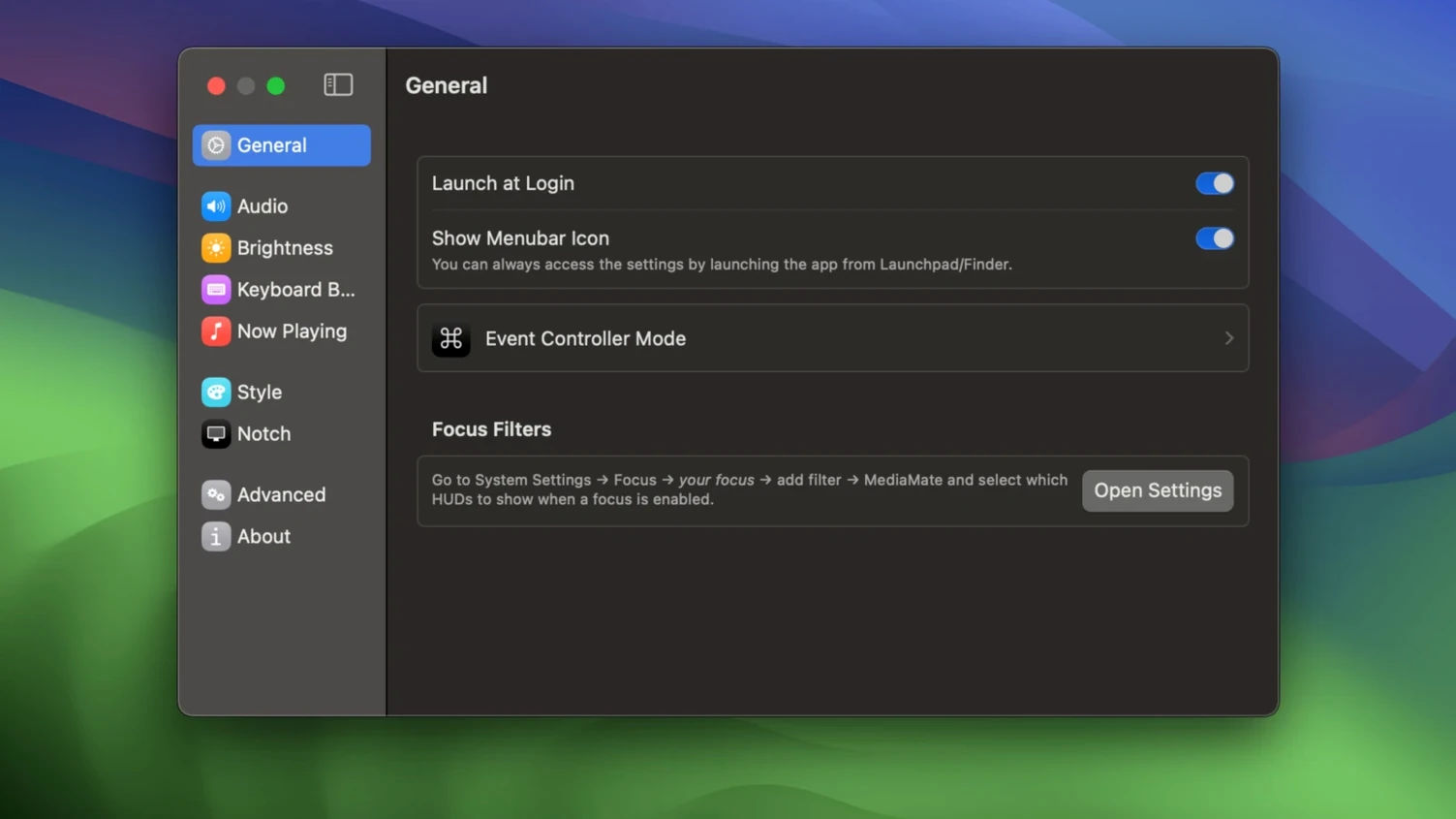
Tap a volume key on a MacBook. A chunky translucent block appears centre-screen, blocking the paragraph you were reading. MediaMate was built for people who find that interruption unnecessary.
Replacing the volume HUD
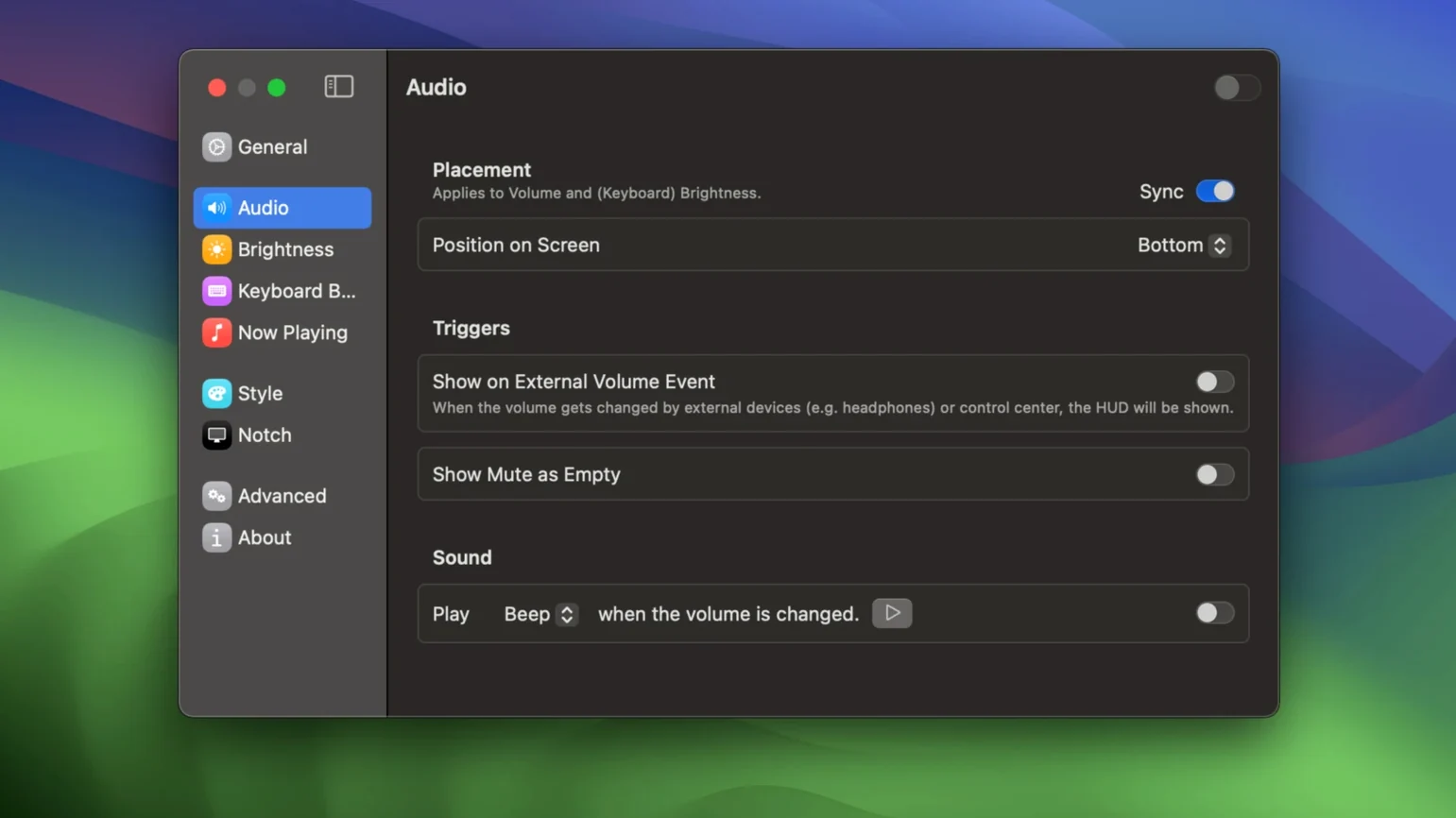
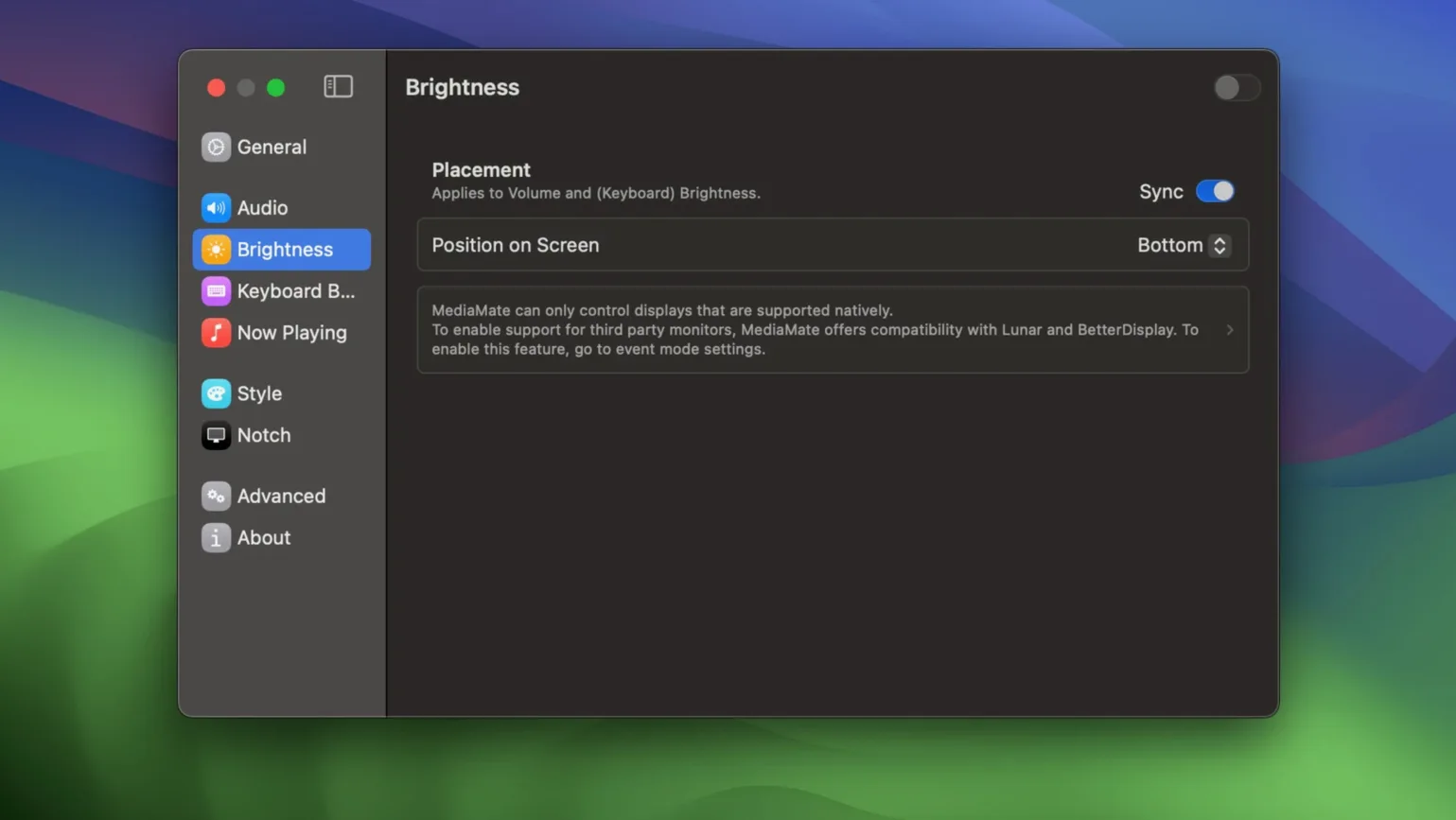
MediaMate swaps the built-in volume overlay for a slim indicator that sits closer to the edge of the display. The same approach applies to the brightness HUD.
Adding a now playing indicator
When a track changes, a small overlay shows the artist and title without pulling focus from the current app. It complements the existing media key behaviour rather than replacing a control panel.
Including keyboard backlight control
The app also surfaces on-screen feedback for keyboard backlight adjustments, something macOS does not provide on its own. Touch Bar Macs need a separate mode to work correctly.
HazeOver dims windows but ignores the volume HUD
Three other apps overlap with MediaMate's purpose, each taking a different path. HazeOver dims background windows when brightness changes but does not touch the volume HUD at all — it is a distraction-reduction tool, not a HUD replacement. People who try it for the same reason quickly discover it solves a different problem.
Background Music handles per-app volume and auto-pauses one audio source when another starts. Its overlay controls are functional but visibly utilitarian, and it has no brightness or keyboard backlight component. It suits someone who juggles multiple audio outputs more than someone who simply dislikes the standard overlay.
MonitorControl adjusts external display brightness and volume via native keyboard keys, and its on-screen feedback is minimal but limited to external screens. It does nothing for the built-in MacBook panel and offers no now-playing indicator. MediaMate covers the internal display and adds media feedback, making MonitorControl a complement rather than a competitor if you use an external monitor alongside a MacBook.
FeatureMediaMateBackground MusicMonitorControl Volume HUD replacementYesPartialExternal only Brightness HUD replacementYesNoExternal only Now playing indicatorYesNoNo Keyboard backlight feedbackYesNoNoIdles under 40 MB until you press a key
MediaMate runs as a lightweight menu bar agent. On an Apple Silicon Mac it typically idles below 40 MB of RAM and registers negligible CPU activity until a volume or brightness key is pressed. The overlay appears without measurable delay — it draws faster than the system HUD it replaces, partly because it renders a simpler shape.
Over a full workday with constant media switching and brightness adjustments, the memory footprint stays flat. No gradual creep was observed across eight-hour sessions. The now-playing component wakes briefly when a track changes and releases its resources immediately.
One edge case worth noting: if another app also hooks into media key events without proper event-chain handling, the overlay can flicker or appear twice in quick succession. The developer documents this in the troubleshooting notes. Closing the conflicting utility resolves it.
Stability across sleep-wake cycles is solid on Ventura and Sonoma. The agent reconnects to system events reliably after the Mac wakes. On earlier builds of version 3.7, some users reported the now-playing indicator disappearing after display sleep; the issue does not reproduce in 3.8.4.
Long classical tracks now truncate sooner in the pill
Version 3.8.4 tightened the now-playing indicator's text truncation. Long artist-track combinations that previously overflowed the pill shape now receive an ellipsis sooner, keeping the overlay compact on narrower displays. The change is small but noticeable when listening to classical music with lengthy movement titles.
Version 3.8.3 reworked the Touch Bar mode detection. On MacBook Pro models with a Touch Bar, the app now asks explicitly whether to enable Touch Bar-specific rendering instead of guessing from hardware flags. This fixed a handful of cases where the overlay drew behind the Touch Bar strip instead of above it.
Earlier in the 3.8 cycle, keyboard backlight feedback received a timing adjustment. The on-screen indicator now fades out half a second faster than it did in 3.7, matching the duration of the volume and brightness overlays more closely. Consistency across all three HUD types improved noticeably with that change.
Volume-free podcast mornings with a quick now-playing glance
Imagine starting a morning with a long podcast episode. You want the volume overlay out of the way, the brightness low enough for a dim room, and a quick glance at what is playing without switching to the podcast app.
- Launch MediaMate from Launchpad after the disk image installation. The menu bar icon appears as a small speaker silhouette.
- Open the app's preferences from the menu bar icon. Under the Volume HUD tab, choose the Compact style and set the position to Bottom so it aligns near the Dock area rather than centre-screen.
- Switch to the Brightness HUD tab. Enable Show on internal display and select the same Compact style. Lower the screen brightness using the keyboard — the slim indicator confirms the level without obscuring the podcast app's episode notes.
- Move to the Now Playing tab. Toggle on Show when track changes and set the display duration to 3 seconds. This keeps the overlay brief enough not to linger but long enough to read the episode title.
- Open the podcast app and start playback. Press the volume key once. The compact HUD slides in at the bottom edge, shows the new level, and fades within a second and a half.
- Press the keyboard backlight key to reduce key brightness. MediaMate shows the backlight level on screen — no guesswork about the current setting in a dark room.
- When the next episode auto-plays, the now-playing indicator confirms the new title near the top of the screen and disappears. No window focus was lost, and the podcast app remained in the foreground the entire time.
This sequence takes under a minute to configure once and then works transparently. The three HUD types — volume, brightness, keyboard backlight — behave with the same animation timing and visual weight, so the system feels coherent in a way the default macOS overlays never quite managed.