Aspecten
 Download (6 MB)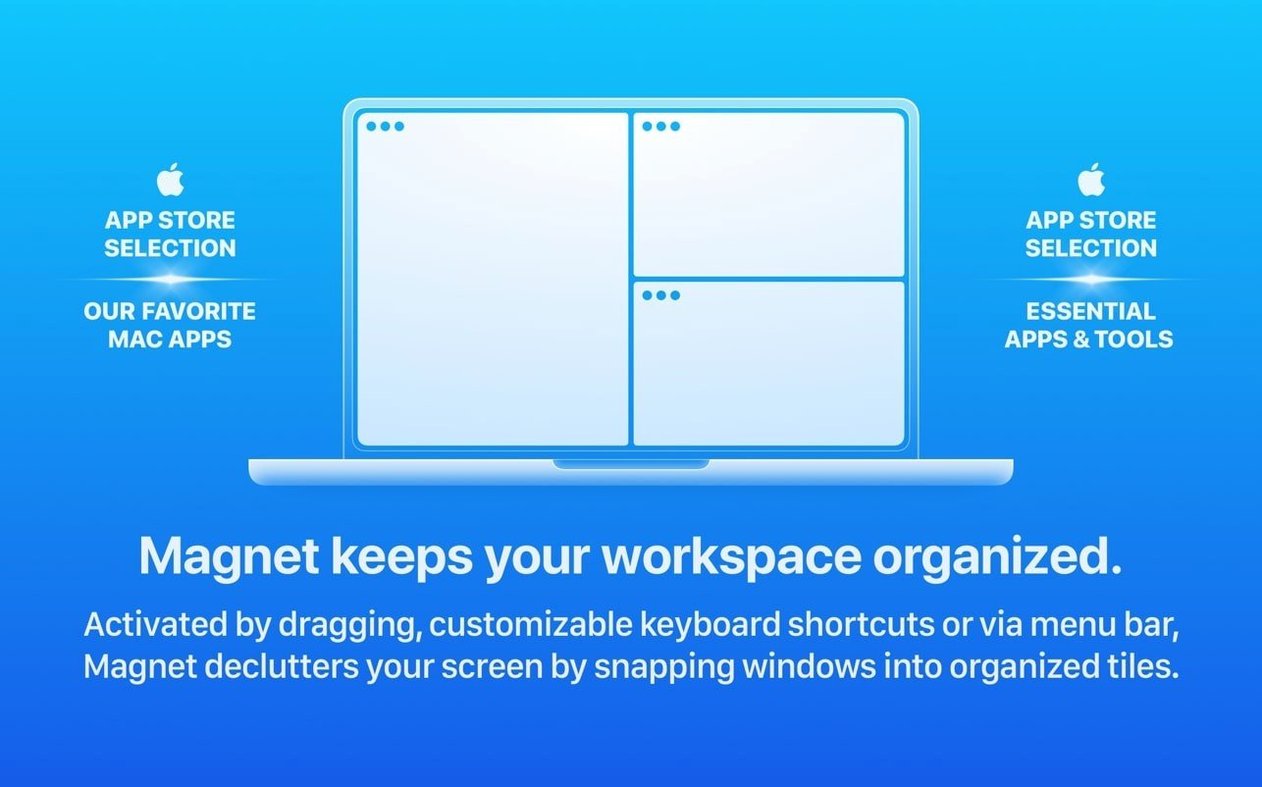
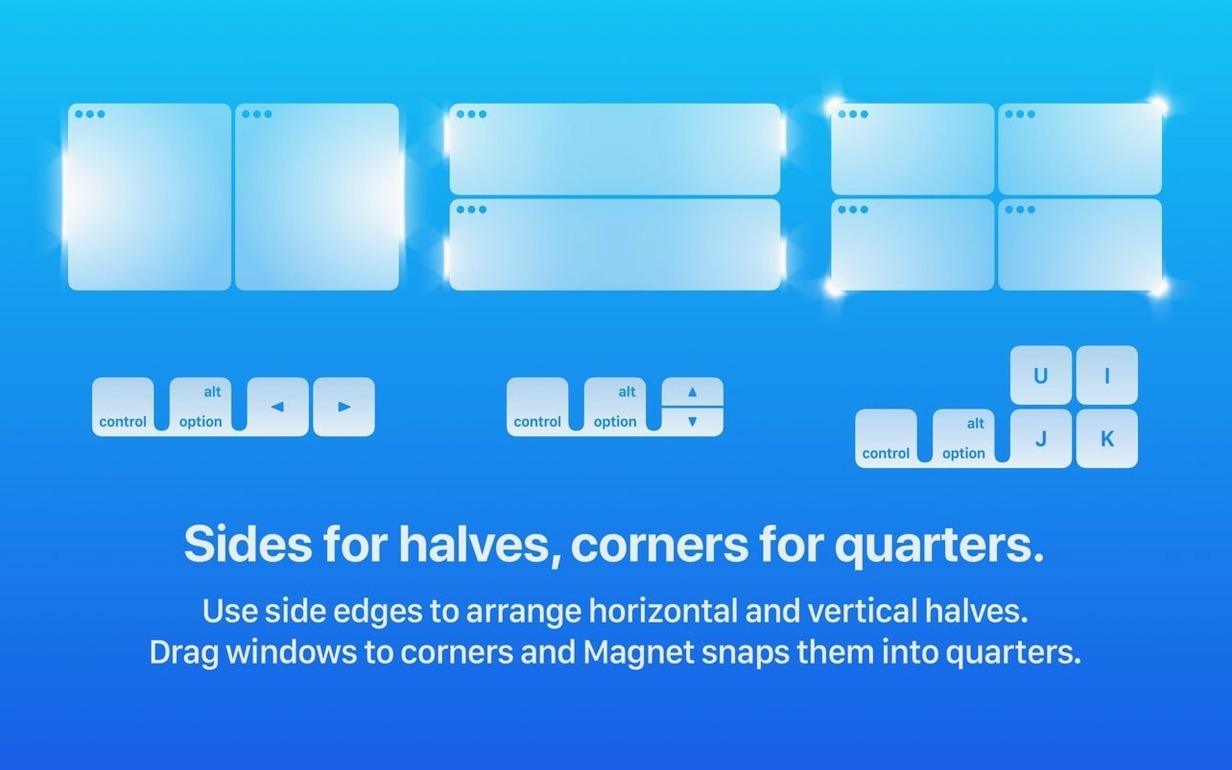
Snap a window with a shortcut
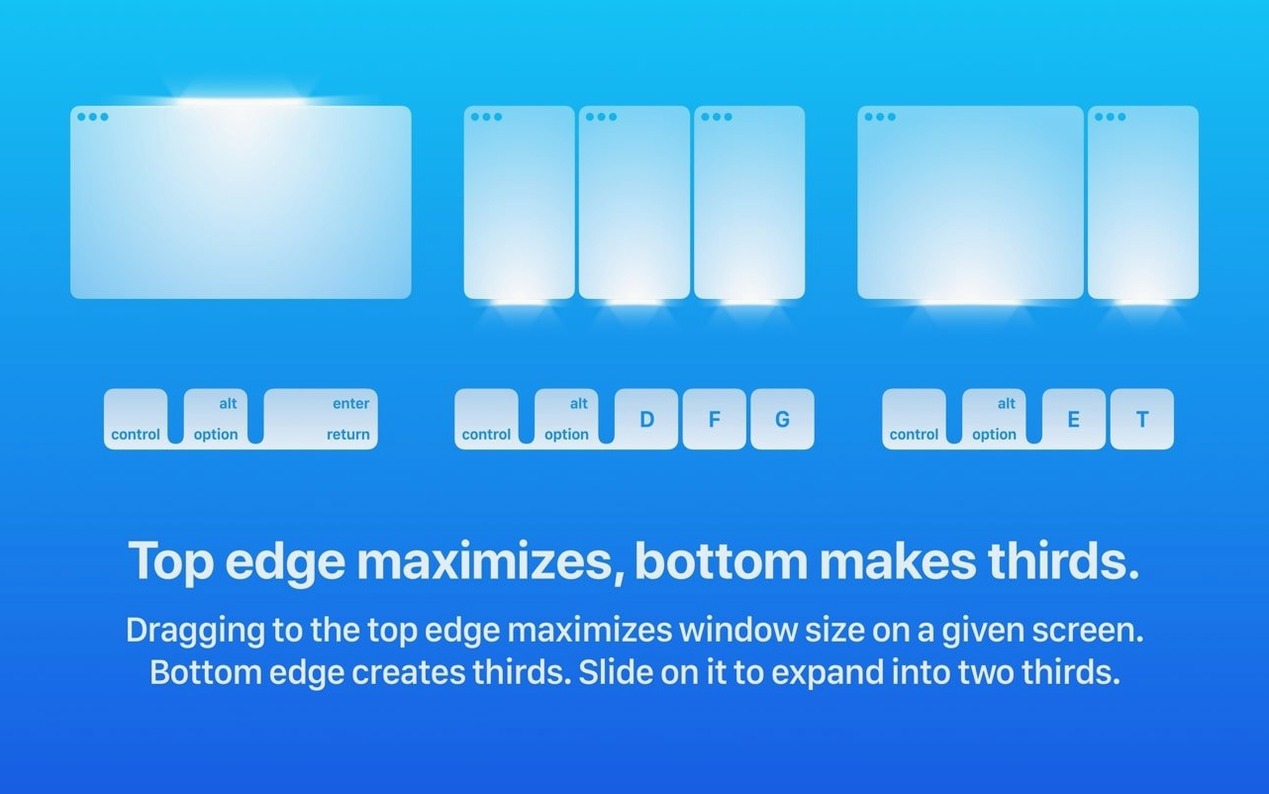
Magnet lets you pull a window to any edge or corner of the screen, or push it with a hotkey. The default set covers halves, thirds and quarters, and you can assign your own combinations from the menu bar.
Work across several displays
The app supports up to six external monitors, mixing Retina and non-Retina screens without extra configuration. Dragging a window past the edge of one display snaps it neatly onto the next.
Switch the language you see
Swap the Ctrl+Option shortcuts before they clash
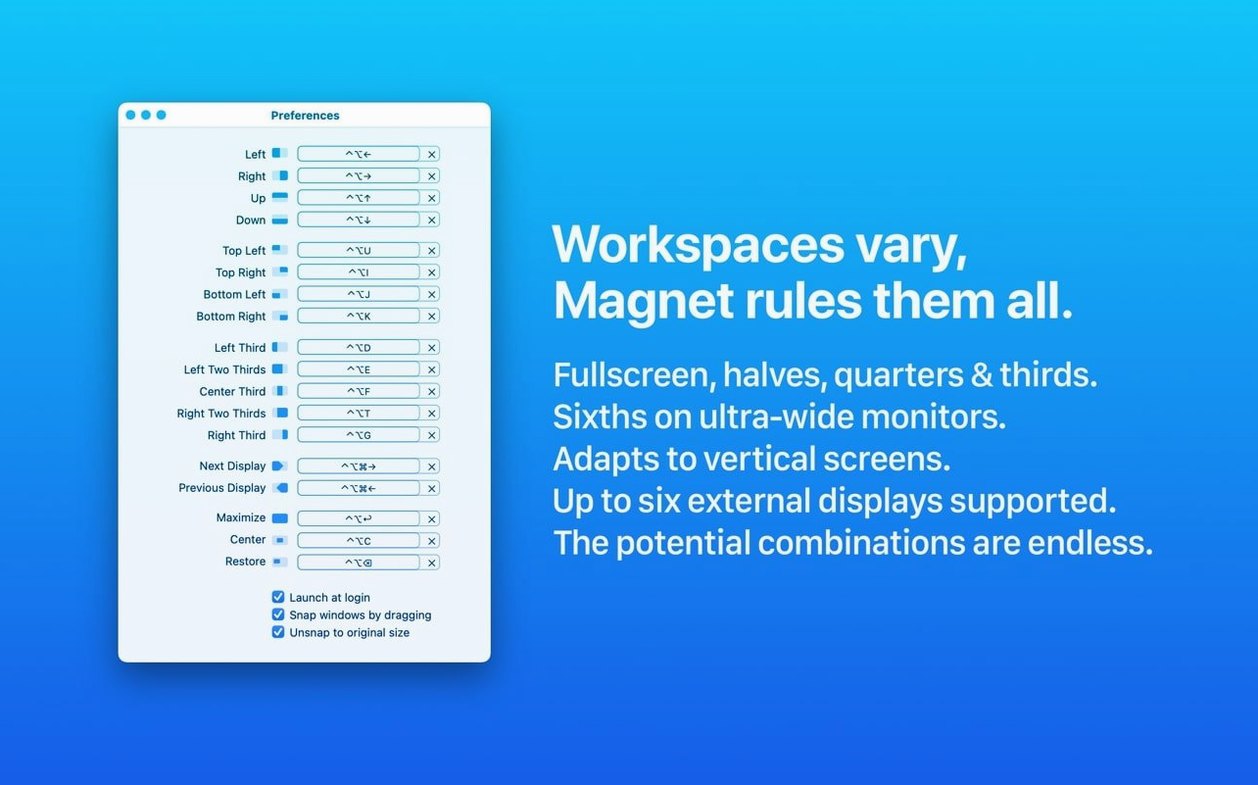
Out of the box, Magnet picks a set of default shortcuts that may clash with other apps — particularly anything involving Ctrl+Option. Spend two minutes in the preferences panel and you will avoid frustration later.
Three changes that pay off immediately:
- Remap the left/right half shortcuts if you use a code editor or terminal that already claims
Ctrl+Option+Left ArroworCtrl+Option+Right Arrow. The function keys (F7throughF12) are rarely claimed by other software and make reliable alternatives. - Enable “Snap windows by dragging” and set the drag-to-snap sensitivity to something comfortable. The slider sits halfway by default; nudging it toward the lower end means you do not need to drag a window all the way to the screen edge to trigger a quarter or half layout.
- Turn on “Restore windows to their original size.” When you drag a snapped window away from its position, Magnet can return it to the dimensions it had before you arranged it. The toggle is off by default, and leaving it off means every unsnapped window stays at its snapped size. It is a small detail that shapes how the whole desktop feels.
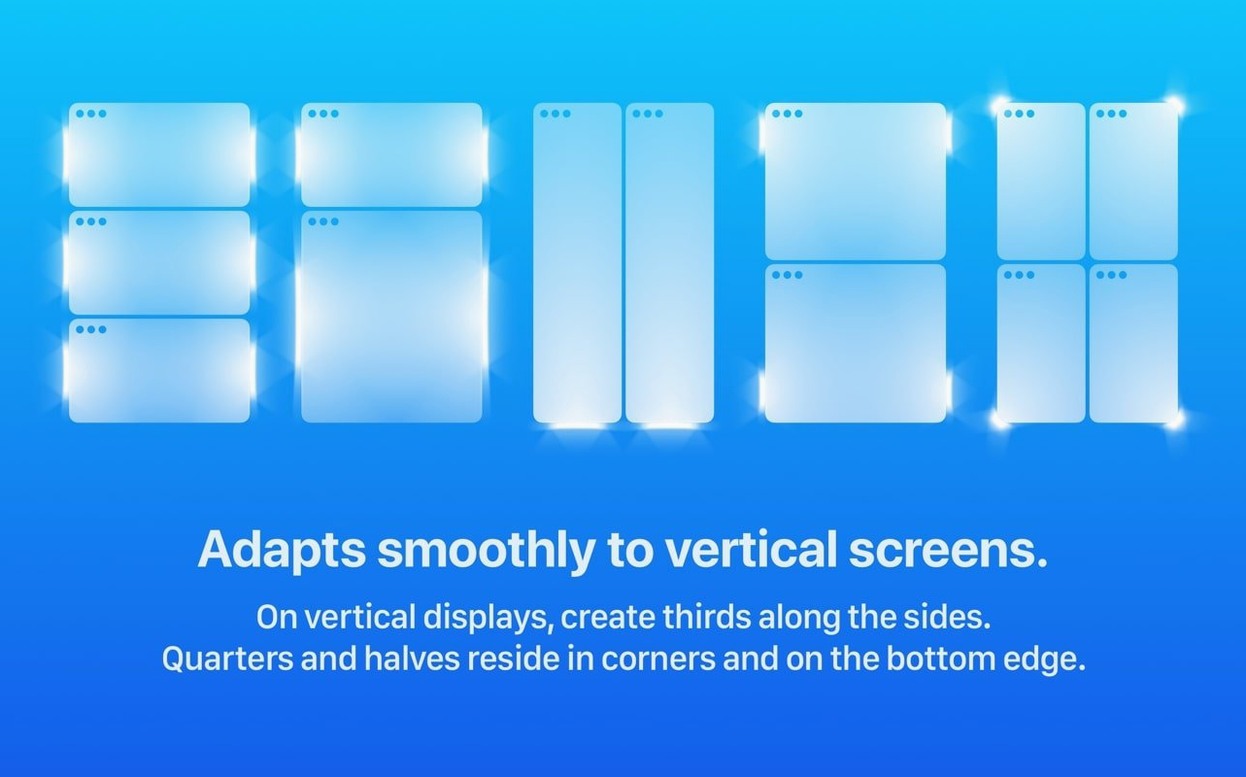
If you work with an ultrawide display or a portrait-oriented monitor, assign the third and two-thirds shortcuts early. The default keys are not set for those, but the menu bar icon lets you bind them inside a minute.
Expecting it to auto-arrange every new window
The most common slip is treating Magnet like a full tiling window manager. It is not one. It will not automatically arrange every new window or enforce a layout across workspaces. Someone coming from a Linux tiler or from a tool like yabai may expect windows to stay locked in their zones. They won’t — Magnet arranges on demand, and the window stays put only until you move it or the app resizes it.
Another early mistake is ignoring the menu bar icon. First-time users often hunt for a Dock window or a separate app panel. Nearly all configuration — custom shortcuts, snap behaviour, launch-at-login — lives behind the tiny Magnet icon in the menu bar. Click it once and the full shortcut map appears, colour-coded by screen region.
Beginners also tend to fight against apps that define their own minimum window sizes. A Finder window will not snap to a vertical quarter if its minimum width is wider than a quarter of the screen. Magnet cannot override an app’s internal size constraints, and users sometimes assume the shortcut is broken when it simply cannot be honoured.
Drag-to-snap feels more polished than Rectangle’s
Rectangle sits closest in spirit. It is free, open-source, and covers the same snapping actions with a near-identical shortcut model. The difference is polish around the edges. Magnet’s drag-to-snap feels more refined — the translucent preview frame slides in more smoothly, and the cursor feedback is subtler. Rectangle offers a few extra actions (like moving a window to the next display without snapping) but Magnet’s menu bar interface is easier to scan at a glance. If you want something you can set up in a minute and never think about, the trade-off tilts toward Magnet.
Moom takes a different approach: it is a grid-based layout tool with a floating palette. You can save window positions as named layouts and recall them later. That is useful for complex multi-app arrangements, but the interaction is heavier — you either hover over the green traffic-light button or summon a palette. Magnet wins on speed for the eight or nine positions most people use every day. Moom wins when you need to place five windows in a precise grid across two displays and recall that arrangement tomorrow.
BetterSnapTool gives you far more control over snap areas and sizes, letting you define custom zones anywhere on the screen. The interface is busier, and the preferences window has enough tabs to feel like a cockpit. People who want to fine-tune every pixel of a snap zone will like it. People who want to press a key and have the window jump to the left half will prefer Magnet’s simplicity.
Accessibility permission vanishes after a macOS update
One recurring snag is Magnet not responding after a macOS update. The cause is usually the accessibility permission being revoked — something Ventura and later versions do more aggressively. Open System Settings > Privacy & Security > Accessibility, find Magnet in the list, toggle it off and on again, then relaunch the app. That restores the hook into the window server.
Another annoyance: some full-screen apps block Magnet shortcuts entirely. A game running in exclusive full-screen mode, or a virtual machine that captures keyboard input, will swallow the hotkey before Magnet sees it. There is no fix for this — it is the expected behaviour when an app takes full control of input. Switch to windowed mode if you need window management alongside such apps.
Users with six external displays sometimes report that the shortcut for “next display” skips a monitor or lands on the wrong one. The display ordering in System Settings > Displays > Arrange dictates how Magnet numbers the screens. If a monitor seems to be missed, drag its thumbnail into the correct relative position in the arrangement pane. Magnet reads that layout on launch and does not offer its own display-ordering override.
When a keyboard shortcut simply does nothing, check whether another menubar app has claimed the same combination. Bartender, BetterTouchTool and some screenshot utilities are repeat offenders. You can either change Magnet’s shortcut or hunt down the conflict by quitting other menubar apps one by one.
Snapping is instant, with zero bounce or easing
Snapping feels instantaneous. There is no perceptible delay between pressing a hotkey and the window slotting into place — the animation is brief and linear, with none of the bounce or easing that some tiling tools add. On an Apple Silicon Mac, the CPU time spent by Magnet over a full working day is trivial. Activity Monitor typically shows it idling at 0.0% to 0.1%, with occasional spikes to 0.3% when snapping several windows in quick succession. Memory usage hovers around 25–35 MB.
Stability is uneventful, which is what you want from a utility that hooks into the window server. Crashes are rare enough that many users go months without seeing one. When a crash does occur, it tends to be triggered by a display configuration change — unplugging a monitor while several windows are snapped across it, or waking from sleep with an external display that did not renegotiate properly. The app relaunches in under two seconds and windows return to their last positions.
Drag-to-snap introduces a tiny overhead on older Intel Macs, particularly those driving a 5K display. The translucent overlay that previews the snap zone can drop a frame or stutter when the system is under GPU load. Turning off the preview in preferences removes the stutter entirely, though you lose the visual cue that shows where the window will land.
For people who search for a magnet mac free experience, the app is a paid utility through the usual channels, though some look to a magnet download mac route to try it. Those who grab a magnet torrent mac package can work with version 3.0.7, a K’ed build requiring a Gatekeeper bypass at install time. A straightforward download magnet for mac from the developer’s distribution keeps things simpler, but the magnet app free expectation is not how the product is offered.
The interface ships in fourteen languages — including Dutch, Korean and Czech — and follows the system setting. No separate language pack is needed.