Aspecten
 Download (28 MB)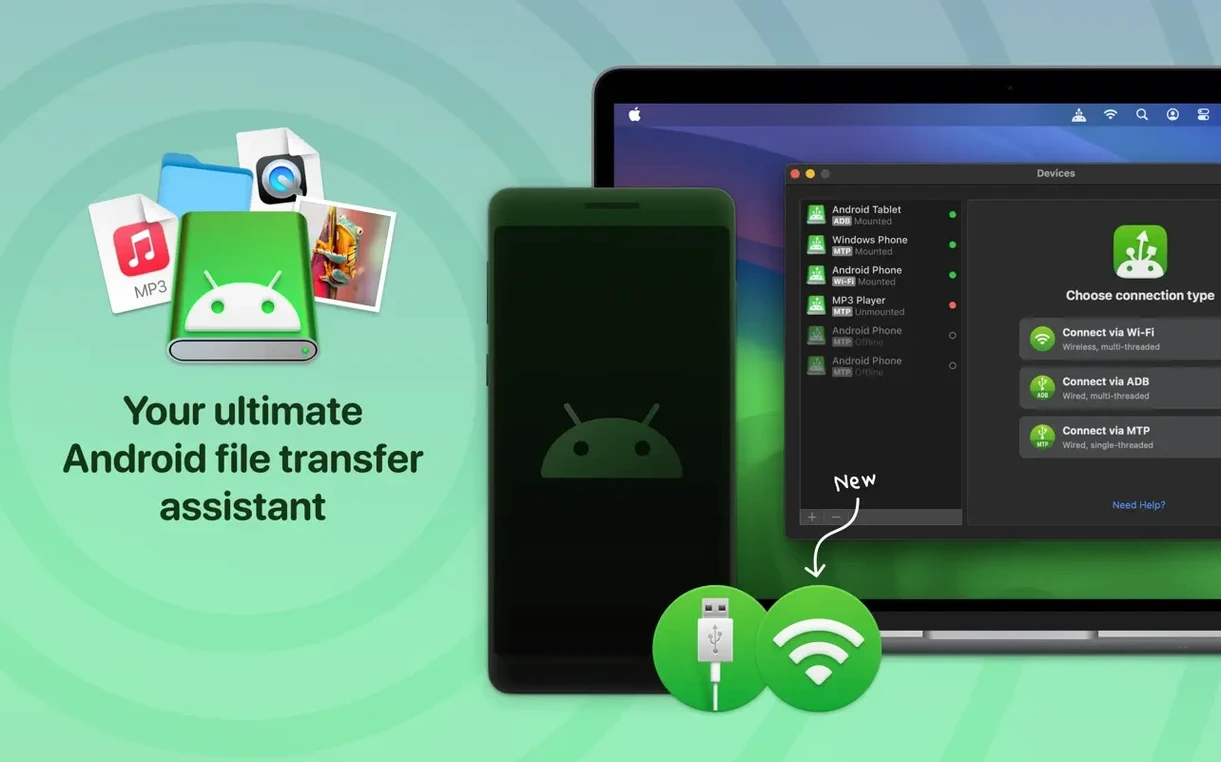
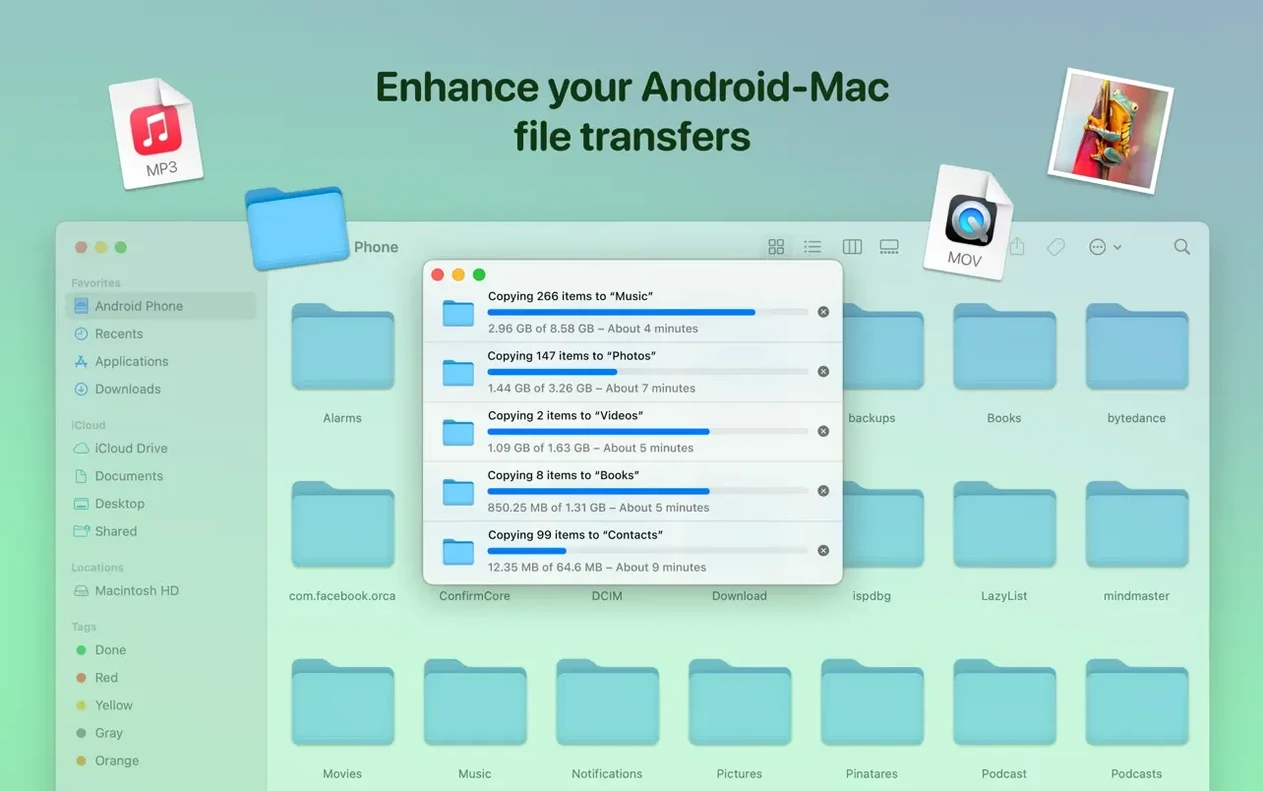
Edit in place
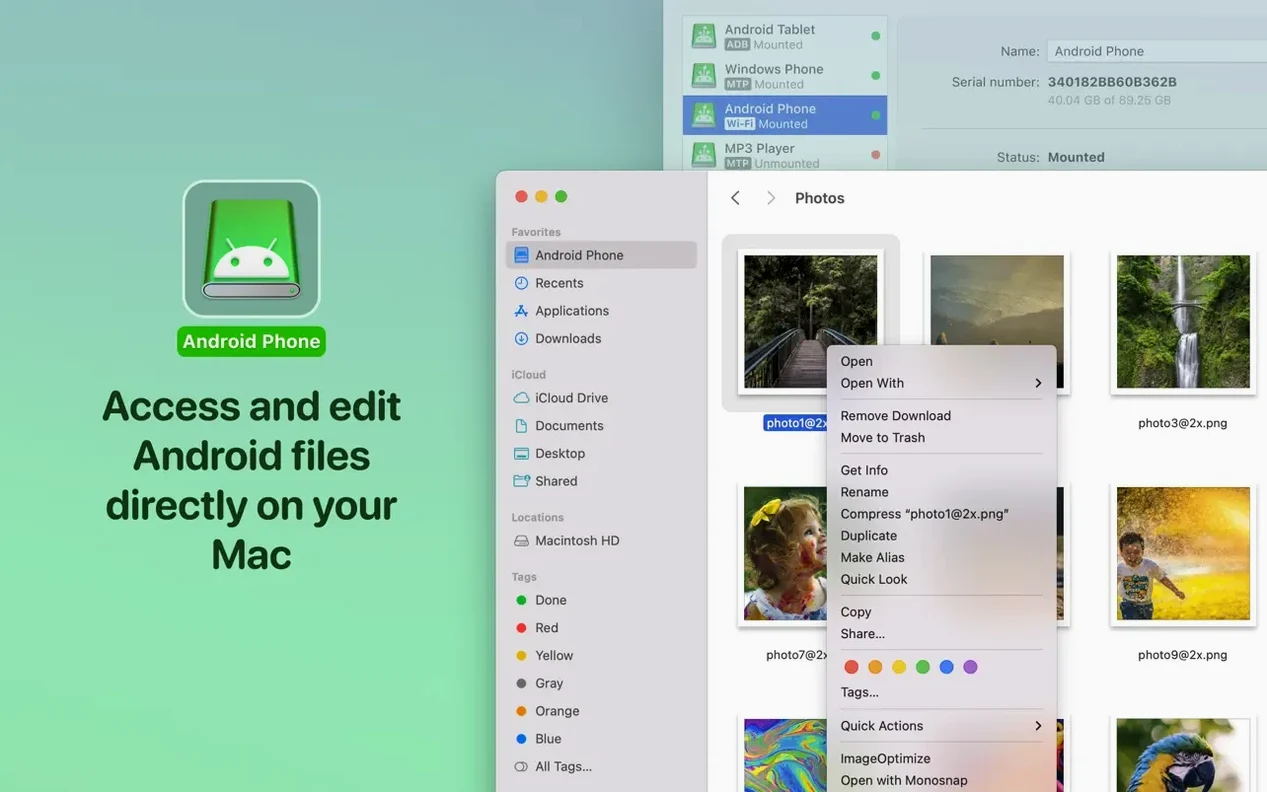
Working with Android files on a Mac usually means copying them to the desktop, editing, then sending them back. MacDroid Pro lets you skip that round trip. Open a document straight from the phone or tablet, make changes, and save. The file stays on the Android device the whole time. The app mounts the device as a regular disk drive in Finder, so any Mac application that can open a file from a folder can work with it directly. Text files, spreadsheets, images — the workflow is the same as editing from an external SSD.
- Connect the Android device via USB.
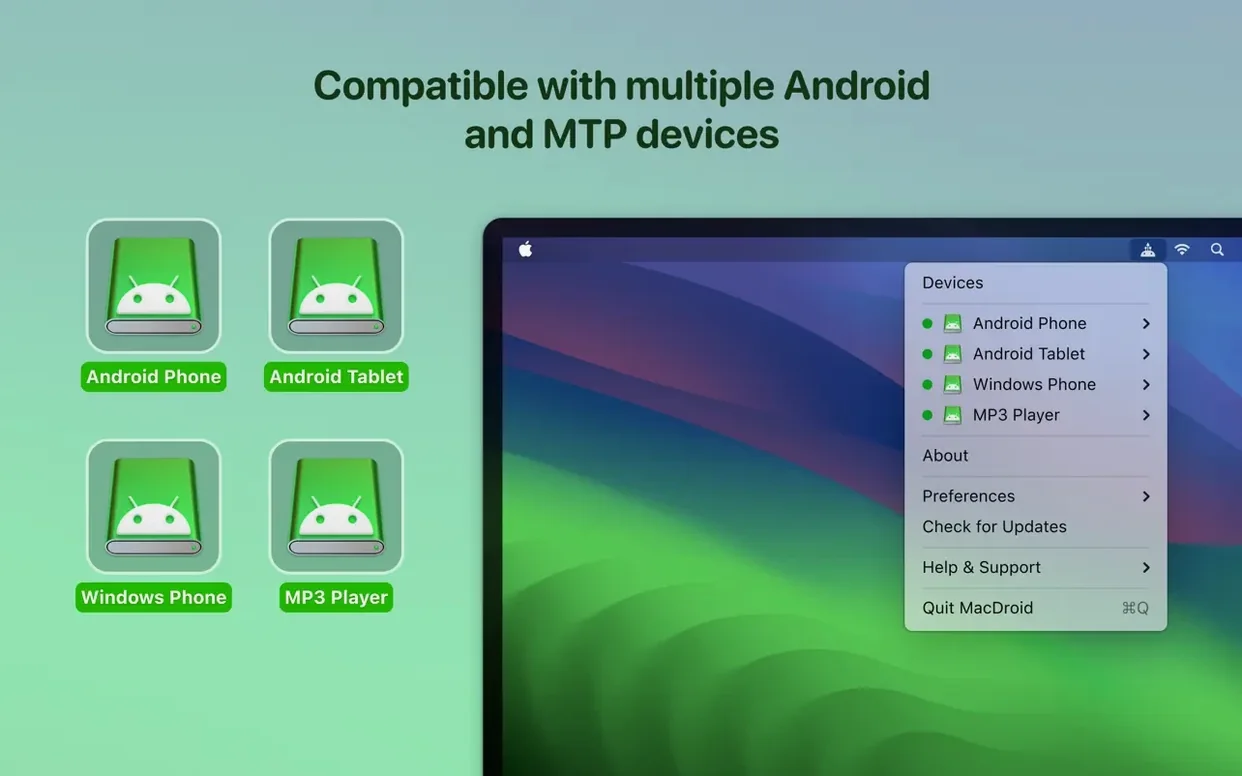
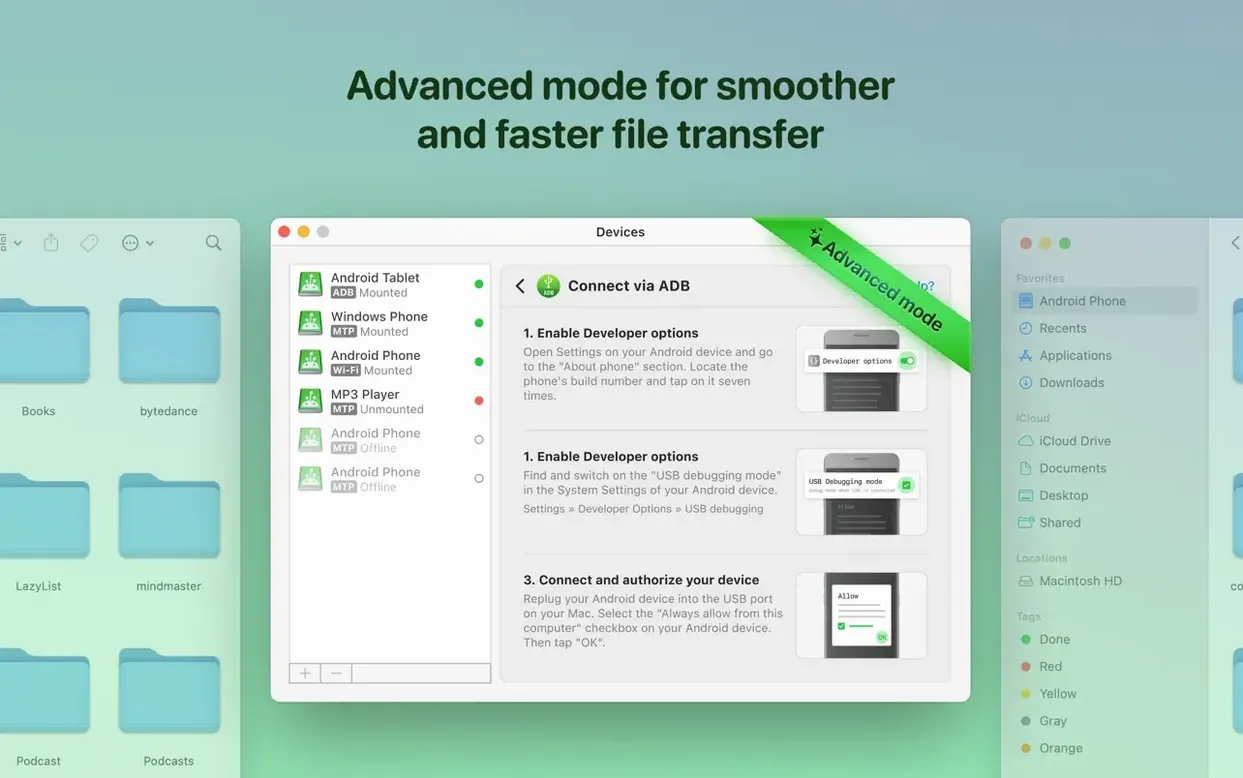
- Choose MTP or ADB mode from the MacDroid menu bar icon.
- Wait a moment for the device to appear as a mounted volume in Finder.
- Navigate into folders and open a file with its default Mac app.
- Edit and save normally — the file is written back to the Android device immediately.
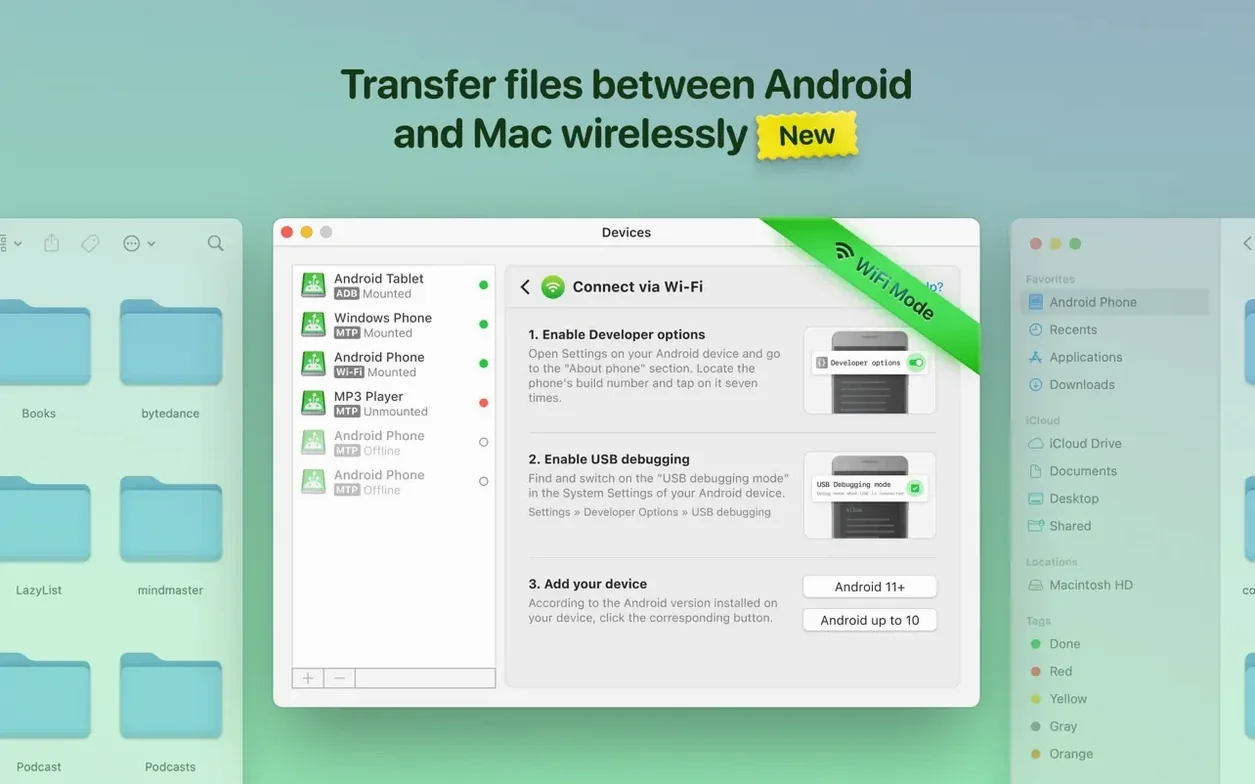
For wireless sessions, switch to Wi‑Fi mode. It is slower with large folders of video, but practical for pulling a handful of photos or adding a music folder without reaching for a cable. The 2.10.1206 update tightened MTP reliability and made folder listings load noticeably faster, so browsing a phone with thousands of images feels less sluggish than it did in earlier builds.
Mounts as a local disk any Mac app can browse
MacDroid Pro does not try to be a media library or a sync engine. It hooks into Finder at the volume level, so almost any Mac application treats the Android device like a local disk. A folder of RAW photos on a phone shows up in Adobe Bridge without an import step. A music folder plays directly in VLC or IINA. For people who already manage files with ForkLift or Path Finder, the mounted volume appears in the sidebar like any other drive — dual-pane workflows carry over unchanged.
macOS services recognise the mounted volume too. Spotlight indexes the Android folders while the device is connected, so searching for a filename from the menu bar finds results on the phone alongside results on the Mac. Quick Look previews work for common formats: press the spacebar on a photo or a PDF stored on the Android device and the preview pops up without opening an application. The share sheet in Preview or Photos can send a file straight into an Android folder, provided the device is mounted.
Automator and Shortcuts see the mounted volume as a writeable location. A simple Automator workflow can watch a folder on the Mac, resize any image dropped into it, and save the result to a Pictures subfolder on the Android device. No scripting knowledge required. The same applies to backup routines: Carbon Copy Cloner or ChronoSync can include Android folders as a destination, though performance over ADB is slower than a direct Thunderbolt drive. For moving a handful of project files between a Mac and a phone at the end of the day, it is enough.
The app sits quietly in the menu bar. It does not install a kernel extension, which means less friction with macOS security policies. When you do not need Android access, quit the app and the volume unmounts cleanly. No leftover daemons, no background processes chewing battery while the phone is unplugged.
Drag a layered TIFF from an Android phone straight into Photoshop
Imagine a graphic designer who mocked up a poster on an iPad and exported it as a layered TIFF to an Android phone for a quick review during a commute. Back at the desk, the phone goes into a USB-C hub alongside the external monitor.
- Plug the phone in. The menu bar icon spins for a couple of seconds, then steadies.
- Click the icon, pick ADB mode. The phone appears as a volume named after the device model.
- Open Finder. In the sidebar, under Locations, the phone sits between the internal SSD and a network share.
- Navigate to
Downloadon the phone's internal storage. The TIFF file is there, timestamped from earlier in the day. - Press the spacebar. Quick Look renders the full poster at screen size — layers and all — without launching an editor.
- Decide a tweak is needed. Double-click the file. It opens in Affinity Photo, which reads it directly from the mounted volume.
- Adjust the typography, flatten a layer, save. The progress bar in Affinity Photo writes the file back to the phone over the USB connection. It takes about as long as saving to a slow USB stick.
- Close the file. Eject the volume from the Finder sidebar or choose Disconnect from the menu bar icon. Unplug the phone.
The whole sequence added one extra click — choosing ADB mode — compared to working from a USB drive. No import dialog, no export step, no duplicate files left behind on the Mac desktop.
Copy a photo on the phone and ⌘V it into a Mac folder
Several details sit just below the surface and go unnoticed unless you poke around.
- Copy-paste between Finder windows. Select a photo on the Android volume, press
⌘C, switch to a Mac folder, press⌘V. The file transfers in the background. The progress appears as a standard Finder copy bar, not a separate modal window. - Column view path bar. With the Android volume open in column view, the path bar at the bottom of Finder shows the full Android file path, starting with
/storage/emulated/0/. Clicking any segment jumps to that folder. Useful for navigating deep folder trees inside a game's data directory or a podcast app's download cache. - Favourites sidebar entry. Drag a subfolder from the Android volume into the Finder sidebar Favourites section. It persists across connections. Next time the phone mounts, the shortcut is live again.
- Menu bar status at a glance. The icon changes subtly: a green dot means connected and mounted, an orange dot means connected but not yet mounted, no dot means idle. It saves opening the menu to check the state.
- Right-click new folder. Inside any Android folder in Finder, the standard
⌘⇧Nshortcut creates a new folder on the device. The same command works from the Finder File menu — no need to switch to a phone file manager for basic folder housekeeping.
One less obvious trick: multiple Android devices can mount at once. A phone and a tablet appear as two separate volumes, each with its own folder structure. Moving a video from one device to the other by way of the Mac works without intermediate storage on the computer itself, though the file travels through the Mac's memory and the speed depends on the slower of the two connections.
Skipping eject can leave files truncated on the Android side
The most common stumble is treating the mounted volume like a permanently attached drive. Unplugging the phone without ejecting the volume first leaves Android's media scanner in an inconsistent state — files that were being written may appear truncated or missing temporarily. The fix is usually a phone reboot or running a media rescan, but the simpler habit is to eject from Finder or the menu bar before pulling the cable.
Another frequent error is assuming Wi‑Fi mode matches USB speed. Over a congested 2.4 GHz network, a folder of two hundred RAW images can take many minutes. Beginners sometimes start a large wireless transfer, see the Finder progress bar barely move, and force-quit MacDroid, which can leave partial files on the Android device. If Wi‑Fi is the only option, small batches are the pragmatic choice.
People occasionally download a MacDroid torrent or hunt for a MacDroid crack expecting to unlock features that are already present in the current version. The app's ADB and Wi‑Fi modes are available from the first launch; there is no hidden tier that a MacDroid cracked build would expose. A MacDroid Pro search often lands users on builds that may need a version check against 2.10.1206, where connection reliability and folder listing speed were noticeably improved.
New users sometimes expect the Android device to charge at full speed while mounted. ADB mode can negotiate lower power draw on some Android implementations. If the battery percentage is creeping down during a long session, switching to a powered USB‑C hub that delivers enough wattage makes a difference. A direct motherboard port on a MacBook may not supply the same current as a dedicated charger.
Finally, there is the expectation that every Android folder is writable. Android's permission model restricts access to certain system directories. A folder like /data may appear empty or refuse writes even though Finder shows it. Moving files into user‑accessible folders — Download, Music, Pictures — avoids the frustration.
Pull sixty timestamped WAV files off a tablet microSD card
A wildlife sound recordist spends the morning in a forest with a portable recorder that saves WAV files onto a microSD card inside an Android tablet. By midday the card holds sixty recordings, each named with a timestamp. Back at a cabin with a MacBook Air, the recordist connects the tablet via USB and opens MacDroid Pro in ADB mode.
The tablet's microSD card shows up as an external storage volume alongside the internal memory. The recordist opens the folder in Finder, sorts by date modified, and selects the morning's batch. A drag to a project folder on the Mac desktop copies all sixty files in one go. While the transfer runs — eight gigabytes, roughly four minutes over ADB — the recordist previews a few files with Quick Look to tag the ones worth editing later. The Finder tags stick to the files on the Mac side, so the colour-coded WAVs are ready for the DAW session that evening.
Before leaving the table, the recordist opens the tablet's Recordings folder through Finder and deletes the files that were already copied. No need to unlock the tablet screen and tap through a file manager. The whole cleanup takes thirty seconds. The tablet stays mounted for a final check — free space has jumped from 2 GB to 10 GB — then the volume is ejected and the cable coiled up.