Aspecten
 Download (39 MB)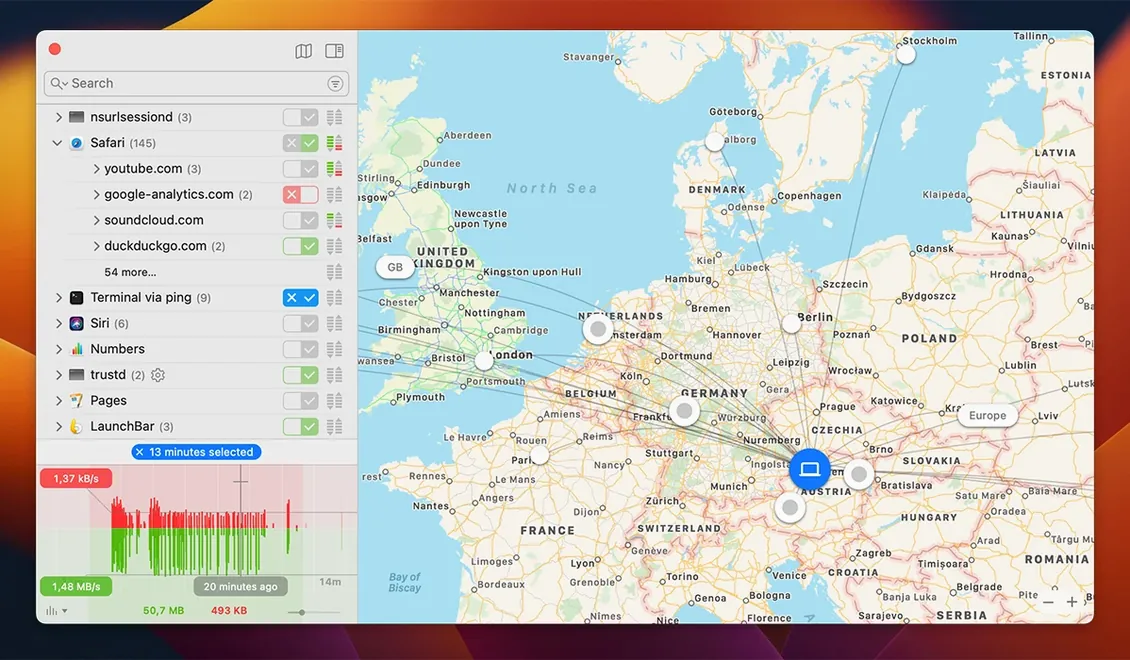
Every Mac runs processes that reach the internet without asking. Some are expected—mail clients, updaters. Others arrive unannounced when a free utility phones home or an app pushes analytics in the background. Little Snitch intercepts these moments and puts the decision back in front of you, one connection at a time.
What happens when an app tries to connect?
A dialogue appears with the app name, the destination server, and the port. You can allow or deny the connection once, until the app quits, or forever. The alert stays on screen until you decide, so nothing slips through while the machine is unattended.
How do you turn a one-off alert into a standing rule?
Choose “Forever” from the alert’s duration menu. The rule moves to the configuration list, where you can later adjust the port range, protocol, or target domain without re-creating it from scratch.
Where do you review past decisions?
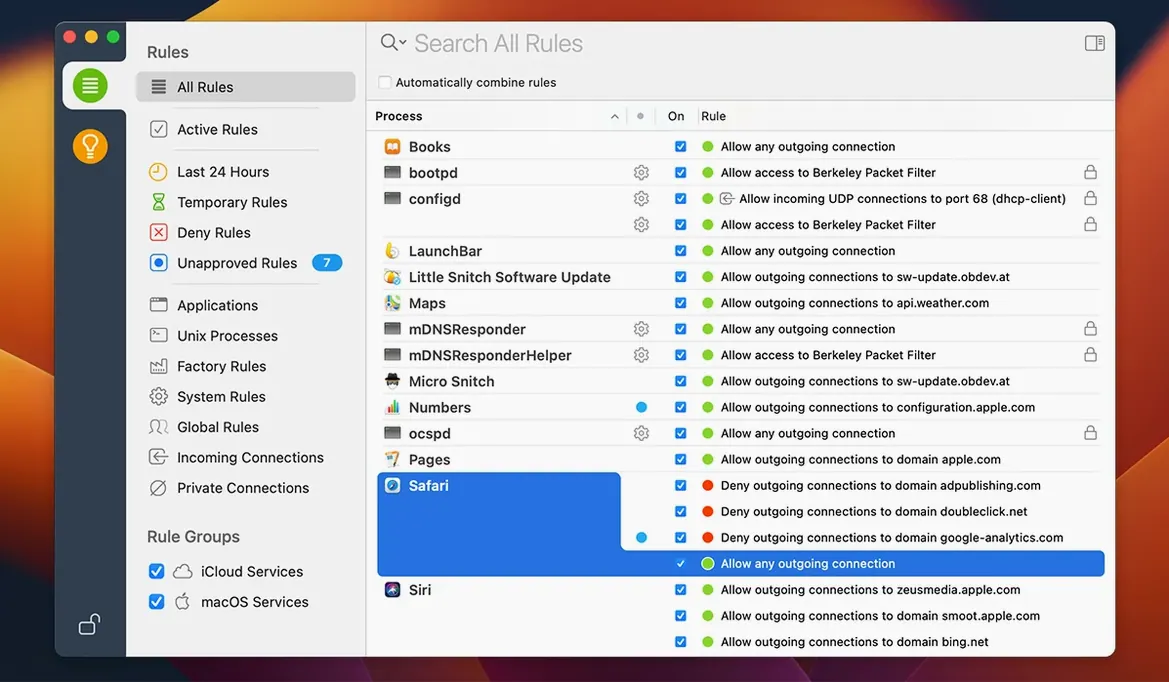
The Network Monitor window shows a live list of connections grouped by app, along with a world map and an hourly traffic graph. Every rule you set appears in the rules list, searchable by process name, and can be toggled off temporarily without deleting it.
What if the alerts become distracting?
Quiet Mode postpones all network-connection dialogues until you switch it off. The rules engine keeps working in the background, and the Silent Mode log lets you inspect what was blocked or allowed while the interruptions were paused.
Menu bar utility hits an analytics endpoint on launch
You install a small menu-bar utility you picked up on GitHub. Nothing in its README mentions network activity, but the moment it launches, a Little Snitch alert fades onto the screen. The connection is headed to an analytics endpoint you do not recognise, on port 443. The alert lists the full path to the binary, so you can confirm it really is the tool you just opened and not something masquerading under the same name.
You click the duration pop-up and choose Forever, then Deny. The alert dismisses and the rule is saved. The utility continues working fine without the analytics call.
Later that afternoon, you open Network Monitor out of curiosity. The connection map shows a cluster of recent requests dotted around Frankfurt—your mail client syncing with its IMAP host. The traffic-volume graph at the bottom of the window shows a small spike around lunchtime when a backup tool uploaded its daily snapshot. Nothing unexpected, but seeing it laid out geographically makes the pattern easier to read.
Before a two-hour stretch of focused work, you enable Quiet Mode from the menu bar. The small icon changes to indicate alerts are paused. When you return and switch Quiet Mode off, you open the Silent Mode log. Three connection attempts were blocked while alerts were suspended—all matching existing deny rules, so no decisions were missed.
That evening you tweak one rule in the configuration window: a video editor you allowed on the local network now also tries to reach a public tracking server. You edit the rule’s domain field to restrict it to .local addresses only. The change takes effect immediately; no restart needed.
Knowing what leaves your Mac, not just what tries to enter
Little Snitch suits a particular kind of Mac user—someone who wants to know what leaves the machine, not simply whether malware is kept out. System administrators running macOS fleets often deploy it to enforce per-app network policies that go beyond what the built-in firewall offers. Developers testing networked applications use it to simulate blocked endpoints or to verify that analytics calls are only made when consent is granted.
Privacy-conscious users who audit every background process also find it a natural fit. When a new app silently phones home to three different trackers on first launch, the alerts make that visible immediately. The same applies to anyone running older or niche software obtained outside the App Store—a category that includes many open-source tools, emulators, and media converters. A little snitch serial search may surface in forums where users discuss activation, but the real value of the tool lies in the transparency it gives over network traffic, not in the licence key itself.
Users who prefer a set-and-forget approach tend to find the initial flood of alerts off-putting. The software rewards patience: the first few days involve many decisions, after which the rule set stabilises and interruptions drop to near zero. People who run a small, curated set of well-known applications may see fewer benefits than those who regularly try new utilities.
Alert response feels snappier after the kernel-extension swap
The filtering engine introduced with version 6 replaces the older kernel-extension approach. In daily use on a machine running macOS 14 or later, the difference is subtle but tangible. Alerts appear faster after an app launches, and the firewall backend feels less entangled with low-level system operations. The menubar agent and Network Monitor together typically sit under 120 MB of memory during normal activity, though the figure climbs modestly when the connection map is open and animating live traffic.
CPU use stays near zero when the machine is idle. Bursts of network activity—restoring a large browser session with dozens of tabs, for instance—produce a brief, visible uptick in the monitoring process while it resolves and displays server locations. The impact is small enough that it rarely registers against background tasks like Spotlight indexing or Time Machine snapshots.
Stability has been uneventful in the best sense. Across days of mixed use—development tools, media playback, large file transfers—the firewall service does not hang or drop rules. A user who once searched for a little snitch 6.2.3 crack may want to check that any build they run includes the engine improvements that make the current release operate cleanly on Apple Silicon and recent macOS builds. No kernel panics, no mysterious network stalls.
App identity now checked continuously while the binary runs
Version 6.5 arrived alongside macOS 27 Golden Gate and added several targeted refinements. The most practical is app bundle integrity monitoring at runtime. Previously, Little Snitch identified an application by its code signature at the moment a rule was created. Now it can detect if the running binary has been tampered with since that point, flagging the process so an existing allow rule does not silently apply to a modified executable.
The experimental NAT64 implementation matters for networks that use IPv6-only connectivity with DNS64 translation—still uncommon in home setups, but increasingly seen in corporate and mobile-broadband environments. In those contexts, the firewall can now correctly map IPv4 address literals through the NAT64 gateway instead of blocking them as unroutable.
Encrypted DNS handling received an overhaul. The software better distinguishes between plaintext and encrypted DNS traffic, which means rules that target specific DNS servers work more predictably when an app or the system resolver uses DNS-over-HTTPS or DNS-over-TLS. A small but welcome label change in the interface replaced traffic amount with traffic volume, aligning the wording with common usage.
Two bug fixes addressed edge cases that a subset of users encountered. Expired temporary rules now correctly appear under the Suggestions > Expired section, where they can be reviewed or discarded. A rare crash during exact-match process searches in the rules list—triggered by a specific combination of search terms and rule names—has been resolved.
Taming the flood of first-hour connection alerts
Alert fatigue in the first hours. A freshly installed Little Snitch on a busy Mac can feel noisy. The simplest remedy is to spend ten minutes working through the initial alerts with “Forever” decisions, then enable Quiet Mode for the rest of the day. The Silent Mode log catches anything that would have triggered a dialogue, and you can bulk-review it later to create permanent rules without the interruptions.
An app breaks after a deny rule. Some applications bundle multiple network functions—updates, licence checks, cloud sync—into a single process. Denying one destination may block a function you actually need. The Network Monitor helps here: sort by process name, note the different hosts the app contacts, and refine the rule to deny only the unwanted domains while leaving the rest untouched. The rule editor lets you specify domain suffixes, so blocking *.telemetry.example.com while allowing api.example.com is straightforward.
Rules stop matching after an app update. When an application is replaced by a new version, its code signature changes. Little Snitch may treat it as a new, unrecognised process and start asking for fresh permissions. If you see a flood of alerts for an app you already approved, check whether the old rule still references the previous bundle. Deleting the stale rule and creating a fresh one from the new alert usually clears things up. The bundle integrity monitoring in 6.5 adds a layer of protection here but does not change the workflow for legitimate updates.
Misplaced trust in a cracked version. Forums where users discuss a little snitch license key reddit thread or search for download little snitch mac crack often host modified binaries that strip the activation check. Those altered builds can introduce their own network behaviour—ironically, exactly the kind of hidden traffic the software is meant to expose. A patched firewall binary phoning home to a sketchy server is not unheard of. Using an unmodified build with the developer's activation mechanism lets you verify exactly what connections the binary itself makes.
Inbound connection noise. Starting with 6.5, the software no longer uses hostnames for inbound connections, which reduces some of the false-positives that appeared when a local network device broadcast its hostname in a way the firewall could not resolve. If you still see a stream of inbound alerts from a printer or a smart speaker, create a rule scoped to the local subnet and set it to allow. The alert will stop and the device will keep working.
Little Snitch itself cannot reach the internet. On rare occasions, overly broad rules accidentally block the firewall’s own helper processes. If the world map in Network Monitor shows an error or stops updating, check the rules list for any deny rules that target obdev.at or related domains. Removing or narrowing those entries restores the map’s geo-location lookups.