Aspecten
 Download (6 MB)
Check if it runs on your Mac
Linguist requires macOS 10.11 (El Capitan) or a later version and runs natively on both Intel and Apple Silicon Macs. The app needs an internet connection for all translations.
Translate a document or a snippet
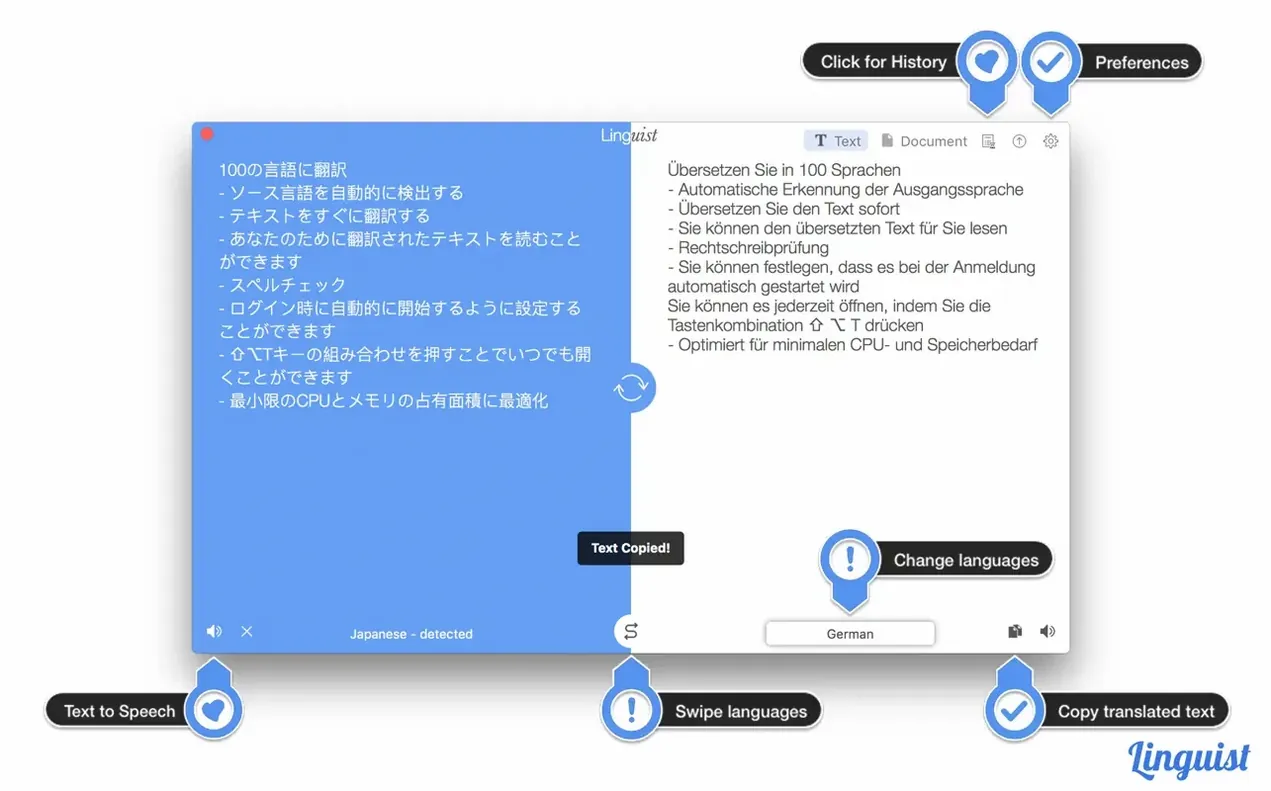
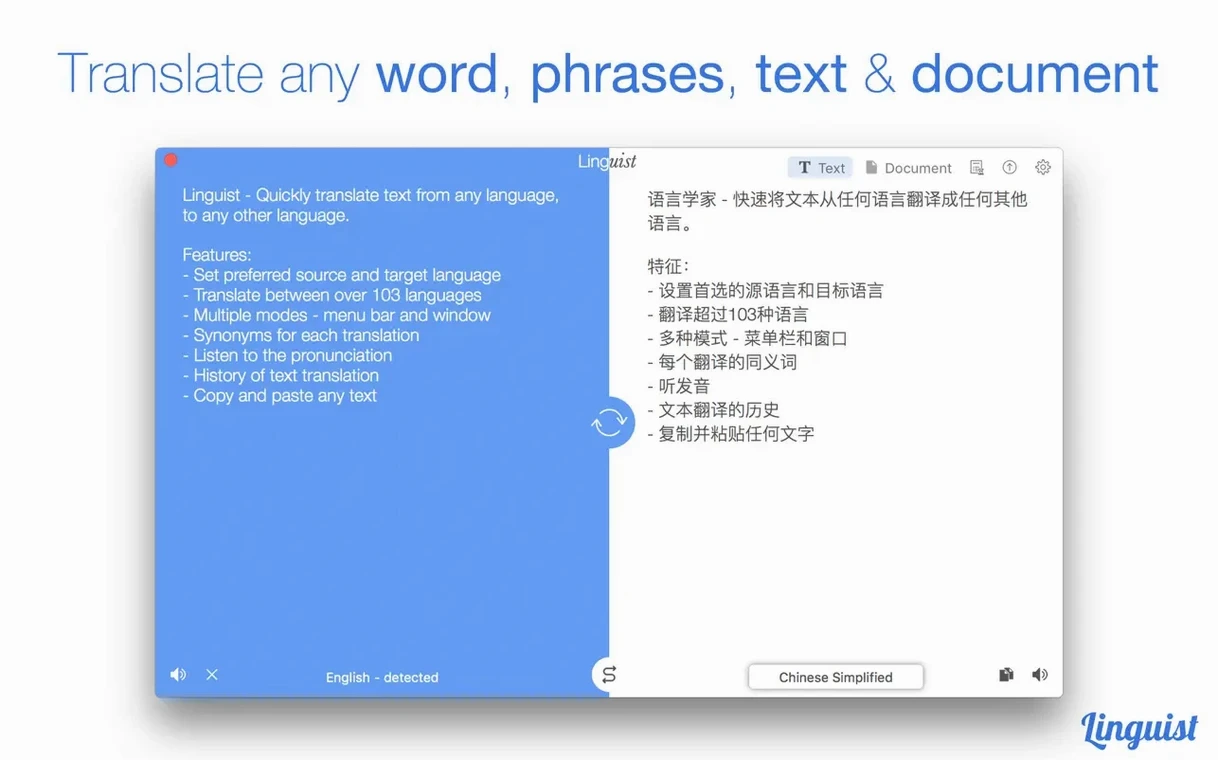
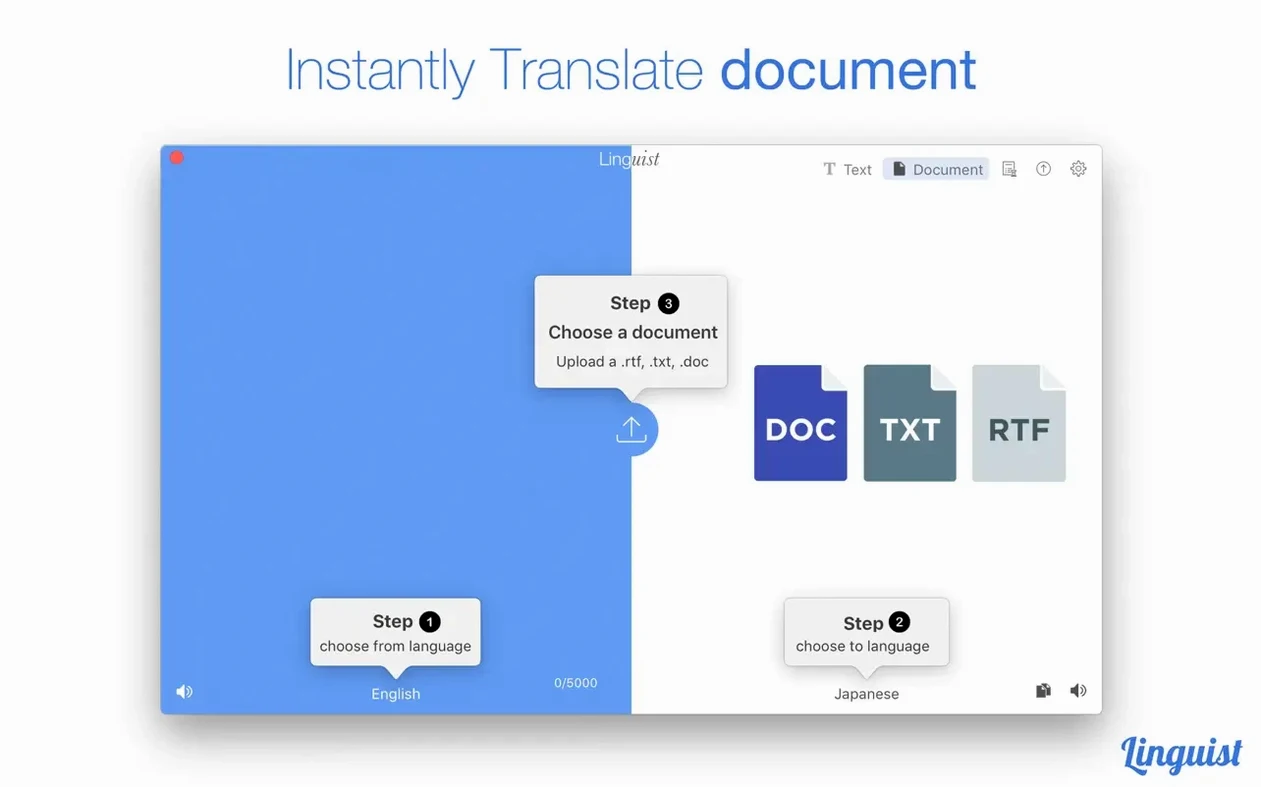
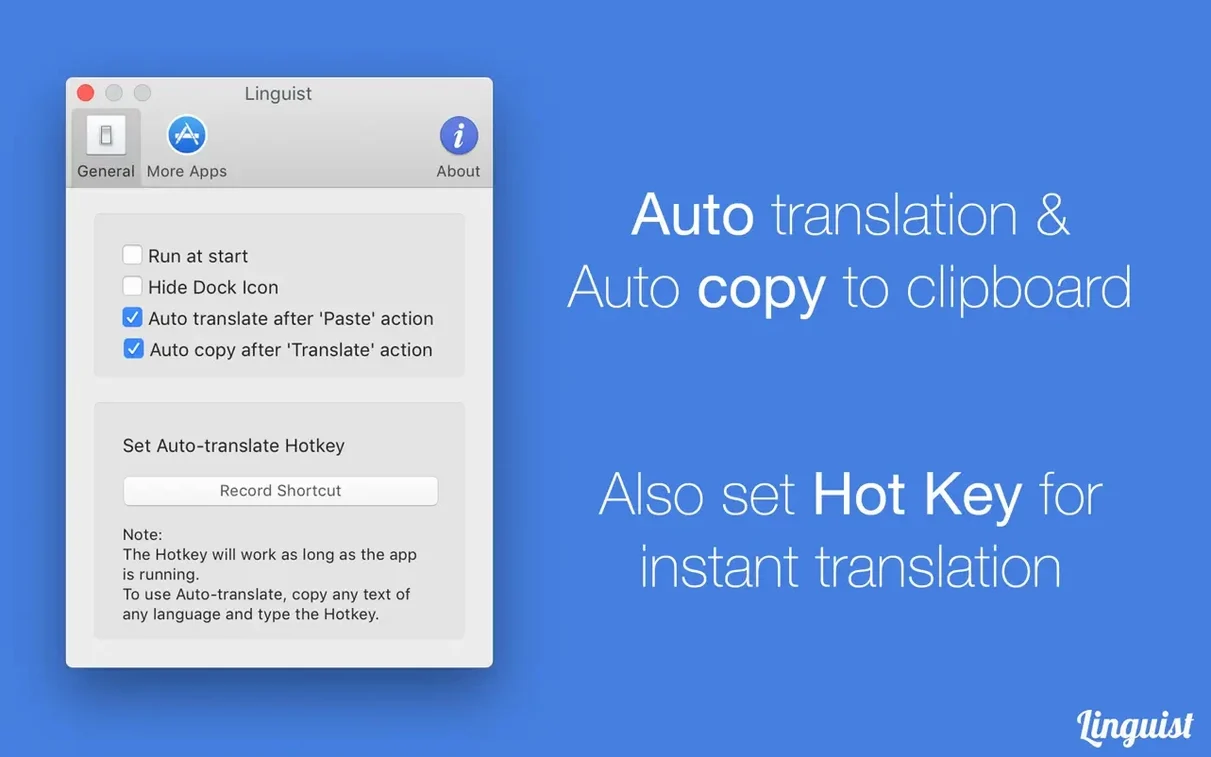
You can translate PDF, DOC, TXT, and RTF files, or paste any text directly into the window. Selected content from a website or another app can be translated with a click or a custom hotkey.
Work from the menu bar or a window
The app works as a compact menu bar utility or a full window. You can also play back the pronunciation of a translated phrase when you need to hear how it sounds.
First-timer mistakes that slow you down
One pattern shows up repeatedly: a user installs linguist for mac, opens the menu bar drop-down, types a phrase, and waits. Nothing happens because the source and target languages are both set to the same option — often auto-detected to English in both fields. Check the two language selectors before you type. They sit directly above and below the input area, and the app does not warn you when they match.
Another slip is forgetting the app lives entirely online. People launch linguist macos without a connection, see a blank result pane, and assume the install is broken. The interface gives no offline fallback message beyond a silent timeout. If your network is metered or behind a proxy, the translation simply fails.
Document translation trips up users who drag a file onto the dock icon and expect it to open inside the window. That is not how it works. You need to open the document from inside the app — via the window toolbar — or use the system Open With menu. Dragging does nothing.
The hotkey feature is easy to misconfigure too. By default, no shortcut is assigned. New users sometimes tick the checkbox in preferences and assume it is active. You must click into the key-recording field and press the combination you want before the feature becomes usable from another app.
Synonyms appear right under the result without a click
The jump to linguist 3.4 for mac brought one visible shift: the translation result panel now shows synonyms as a compact list beneath the main output, instead of requiring a separate click. Earlier versions hid them behind a small icon that many users never noticed. The change makes the synonym feature feel less like an afterthought and more like part of reading a translation.
Window behaviour tightened up too. Previously, the floating translation window could lose focus when you switched spaces or used Mission Control, leaving the hotkey unresponsive until you clicked back into the app. Version 3.4 keeps the window tied to the active space more reliably, so a hotkey press from Safari pulls the result forward without extra mousing.
Under the hood, the translation engine backend was updated, though AppYogi does not document which service it queries. The practical effect is faster turnaround for short phrases — under a second in most cases — and slightly better handling of idiomatic expressions in German, French, and Russian compared to the 3.2 builds. Document layout preservation in PDF output also improved: line breaks inside paragraphs no longer split sentences mid-stream as often.
Translate highlighted text from Mail or Notes via Services
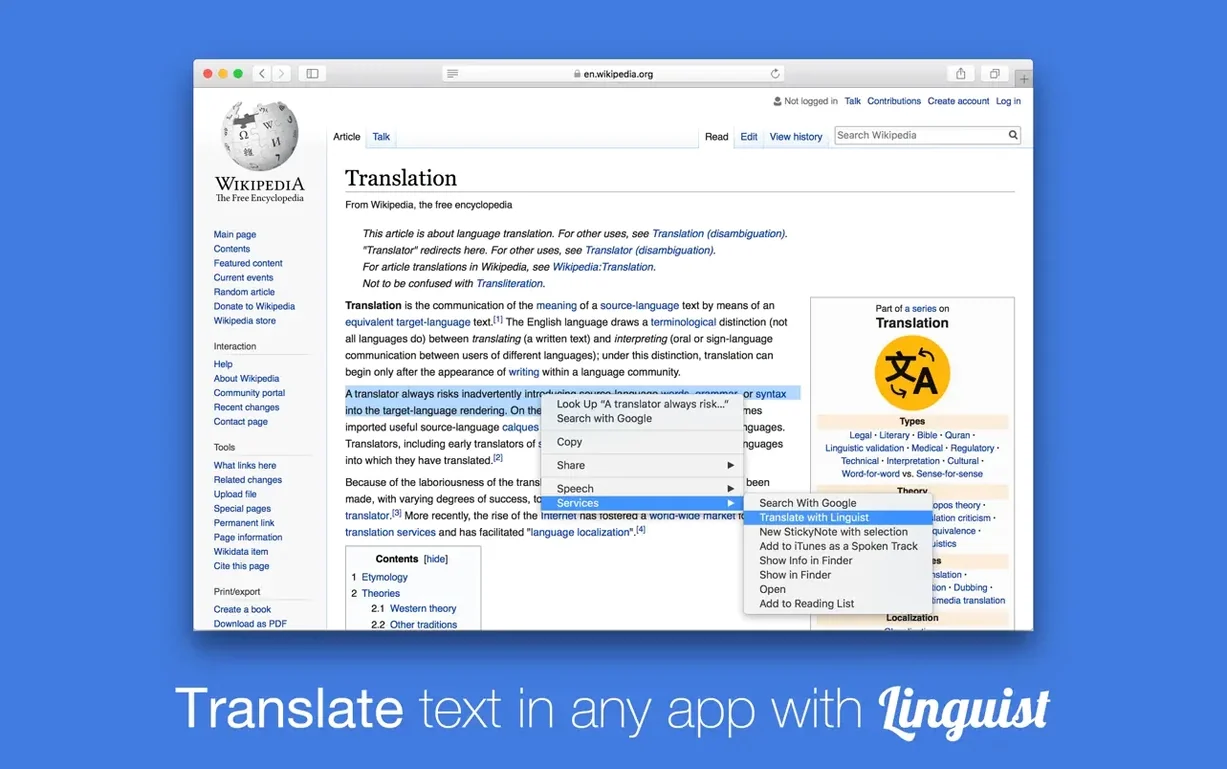
The simplest integration is the Services menu. Highlight text in Mail, Notes, or TextEdit, right-click, and Translate with Linguist appears if you enabled the service in System Settings. The translated text lands in a small popover, and a click copies it back to your clipboard. It is not as fluid as Apple’s own inline translation in Safari, but it covers apps where the system-level feature is absent.
If you use a clipboard manager, Linguist plays nicely with it. Copy a sentence in Spanish, trigger the hotkey, and the translation appears. Paste the result, then your clipboard history retains both the original and the translated string — useful for anyone assembling bilingual notes or correspondence.
For those hunting a linguist app mac download that complements their existing tools, the menu bar mode pairs well with distraction-free writing apps like iA Writer or Ulysses. You keep the full-screen editor open and call Linguist from the menu bar without breaking focus. The pronunciation playback also works through the same menu bar panel, so you can check a word’s sound without switching windows.
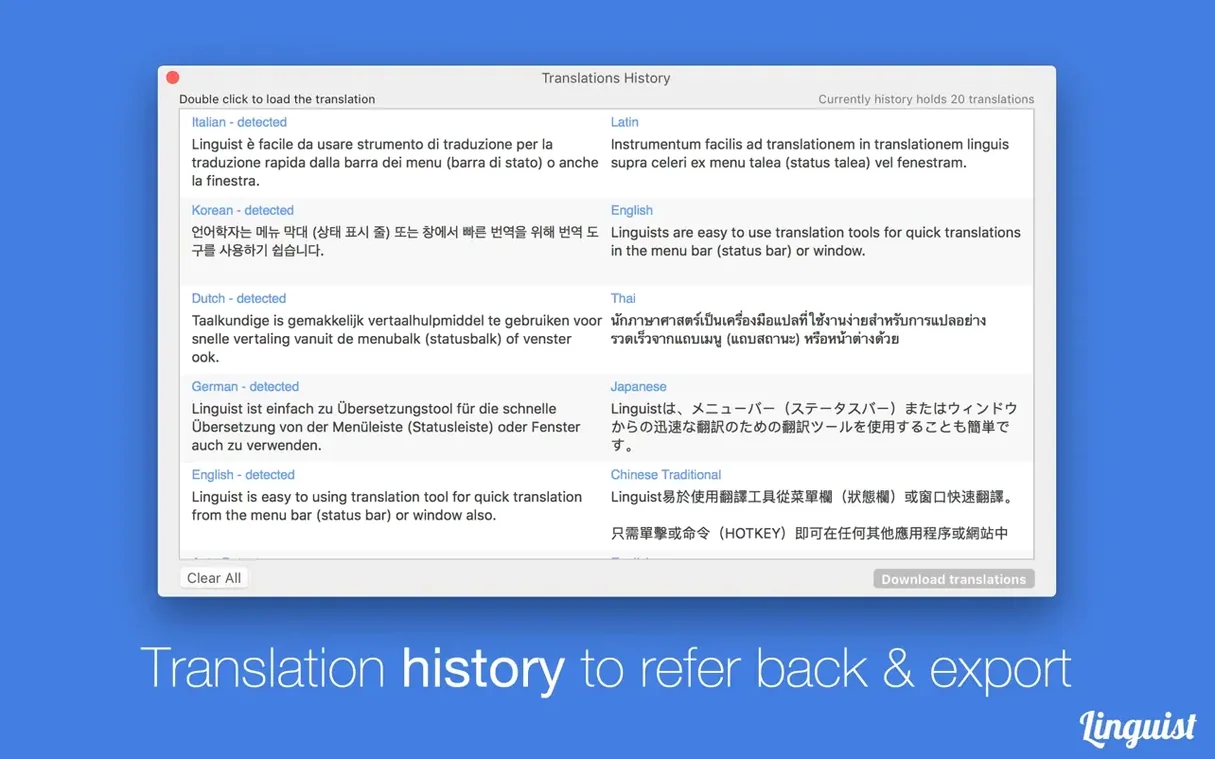
The app does not offer a Share extension or an Automator action, so you cannot build a right-click-to-translate-file workflow in Finder. That remains a gap. But the hotkey and clipboard approach covers most ad-hoc translation needs between apps, and the history panel — exportable as a plain .txt file — lets you gather translations during a session and dump them into a note or a draft later.