Aspecten
 Download (9 MB)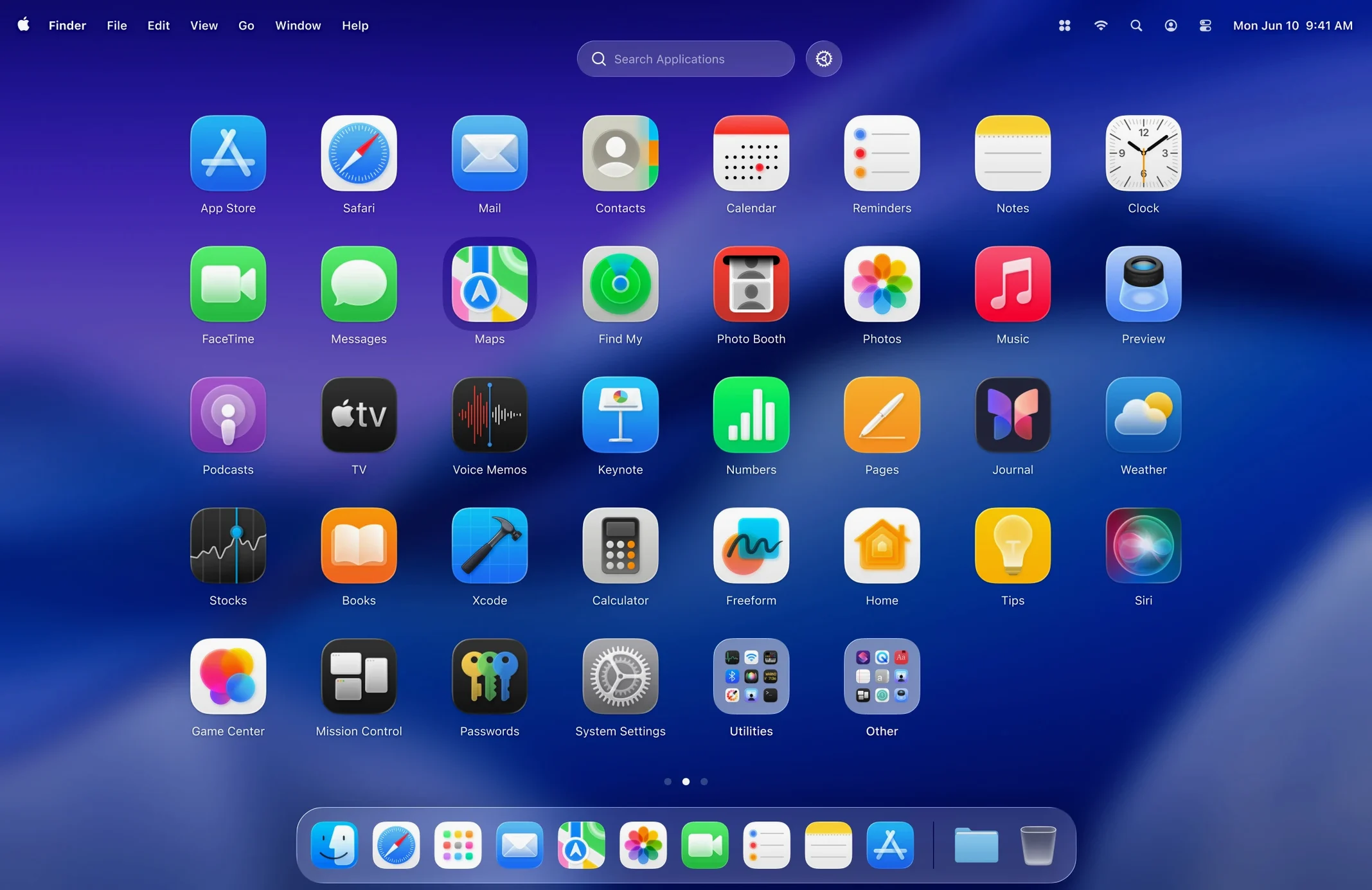
Someone with a few dozen apps and a low tolerance for hunting through Launchpad’s oversized icons. LaunchOS, from Remix Design, is an alternative organiser that keeps the same grid concept but cuts away the animation and adds controls Apple left out.
Setting up a clean application grid
- Open LaunchOS. You see every app from your Applications folder, laid out in a resizable grid.
- Long-press any icon until it jiggles. You can now drag it to a new spot or onto another app to create a folder—much like iOS, but with a right-click option to rename or remove.
- Right-click an app you never use. Choose Uninstall. LaunchOS moves it to the Bin without opening Finder.
- Assign a keyboard shortcut to your most-used app. Click its icon, press a key combination, and from then on that shortcut launches the app even when LaunchOS is closed.
Keeping things reachable
Over time, the grid settles into a layout you can work from memory. The status bar menu—new in version 2.1.0—holds a Restart command, and the same command appears in the right-click context menu for when the app needs a quick reset after large install batches. Because LaunchOS runs natively on both Apple Silicon and Intel Macs under macOS 26, it stays responsive even with a full grid of icons. The interface ships in ten languages, so the labels stay readable regardless of your system language.
Missing apps after first scan
A few rough edges show up early, mostly because LaunchOS grafts itself onto habits people built with the stock Launchpad.
Missing apps after first launch. LaunchOS scans the system Applications folder and the user Applications folder once. Apps tucked inside subfolders or on external drives do not appear unless you add the path manually. Open LaunchOS preferences, switch to the Locations tab, and drag the extra folder in. The grid repopulates within a second or two.
Keyboard shortcut interference. Some combinations conflict with system-wide shortcuts or other utilities. If a shortcut fails silently, try a three-key chord—Control-Option plus a letter rarely clashes with anything. You can also check whether another app grabbed the combination by quitting it briefly and testing again.
Jiggle mode sticking. A long-press occasionally locks icons in edit mode after you release. Tapping Escape dismisses it, but if that fails, right-click and choose Restart. The new Restart command in version 2.1.0 clears the state without touching your layout.
Uninstall confirmation. The uninstall feature sends apps straight to the Bin with no dialog. If you remove the wrong thing, open the Bin from the Dock and drag the app back before emptying it. The icon returns to its previous grid position on the next LaunchOS restart.
Switching to design work without leaving the keyboard
Say you have just finished a morning of email and want to switch to design work. Hands on the keyboard, you do not touch the Dock.
- Press Control-Space, the shortcut you assigned to LaunchOS. The grid slides in over the desktop, Liquid Glass effect softening the background.
- Type the first two letters of your design tool. The grid filters instantly, shrinking to three matching icons.
- Tap Return. The app opens and LaunchOS dismisses itself.
- Later, you download a new colour-picker utility. You open LaunchOS again, spot the new icon at the end of the grid, long-press it, and drag it next to your other design tools.
- You right-click an old screenshot annotator you stopped using and choose Uninstall. The icon vanishes and the surrounding apps close the gap.
- Before shutting down for the day, you click the status bar icon and pick Restart—just to flush any lingering state after installing four new apps.
The whole session stays in flow. No hunting the Finder, no waiting for the stock Launchpad to settle its icon positions.
Separating lesson-prep apps from live screen-sharing tools
A teacher who runs classroom demonstrations from a MacBook keeps two distinct app sets: one for lesson prep, one for live screen sharing. Before LaunchOS, she hid teaching tools in a folder on the desktop because Launchpad showed everything in a flat mess.
With LaunchOS, she creates two folders on the grid—Prep and Classroom—and hides the apps that do not belong in either. During a lesson, she taps a gesture on the trackpad to open LaunchOS, types “Classroom,” and sees exactly the four apps she needs: a browser, a whiteboard tool, a timer, and a presentation viewer. No stray icons, no students watching her scroll past personal utilities. After class, she restarts LaunchOS from the status bar, switches to the Prep folder, and carries on with grading tools and lesson planners. The separation is purely organisational—no separate user accounts required—and the hidden-apps list ensures nothing leaks into view by accident.
Trading spacious layouts for a denser grid
Out of the box, LaunchOS behaves like a leaner Launchpad. A few tweaks make it feel more like a custom launcher.
- Grid size. The default is a spacious layout suited to trackpad use. If you prefer density, open preferences and drop to a smaller grid. On a 16-inch screen, a tighter grid shows every installed app without scrolling.
- Gesture assignment. The app supports configurable gestures. Pick something distinct—a four-finger pinch, for example—so you never trigger it accidentally while swiping between Spaces.
- Hidden apps list. Spend ten minutes hiding the cruft: uninstallers, helper daemons with GUI wrappers, legacy Java apps you keep for one file a year. The list lives in preferences and you can unhide items later without reinstalling anything.
- Startup behaviour. By default, LaunchOS opens as a floating overlay. You can set it to open as a full-screen space instead, which some people prefer for distraction-free launching.
Why you shouldn’t reorganize the grid on day one
The first 48 hours after installing LaunchOS shape whether it sticks or gets trashed. A methodical start helps.
Do not reorganise everything at once. Spend the first day using the grid as-is. Note which apps you actually open and which you ignore. On day two, hide the ignored ones and drag the frequent flyers to the first page. This way the layout reflects real habits, not a theoretical clean-up.
Assign shortcuts gradually. Pick three apps on day one and assign shortcuts you can remember without a sticky note. Once muscle memory locks in, add two more. Trying to memorise twenty shortcuts in one sitting leads to forgotten combinations and frustration.
Keep the status bar icon visible. The Restart command lives there, and you will need it after large install batches or when a system update shifts application paths. It also provides a quick visual cue that LaunchOS is running.
Test the uninstall feature on something trivial first. Pick a free utility you can re-download easily. Right-click and uninstall it, then check the Bin. This builds confidence before you remove anything important.
Let the Liquid Glass effect breathe. On macOS 26, LaunchOS picks up the system translucency automatically. If you use a busy desktop wallpaper, try a calmer background for the first week—it makes the overlay easier to scan at a glance, especially while you are still learning icon positions.