Aspecten
 Download (6 MB)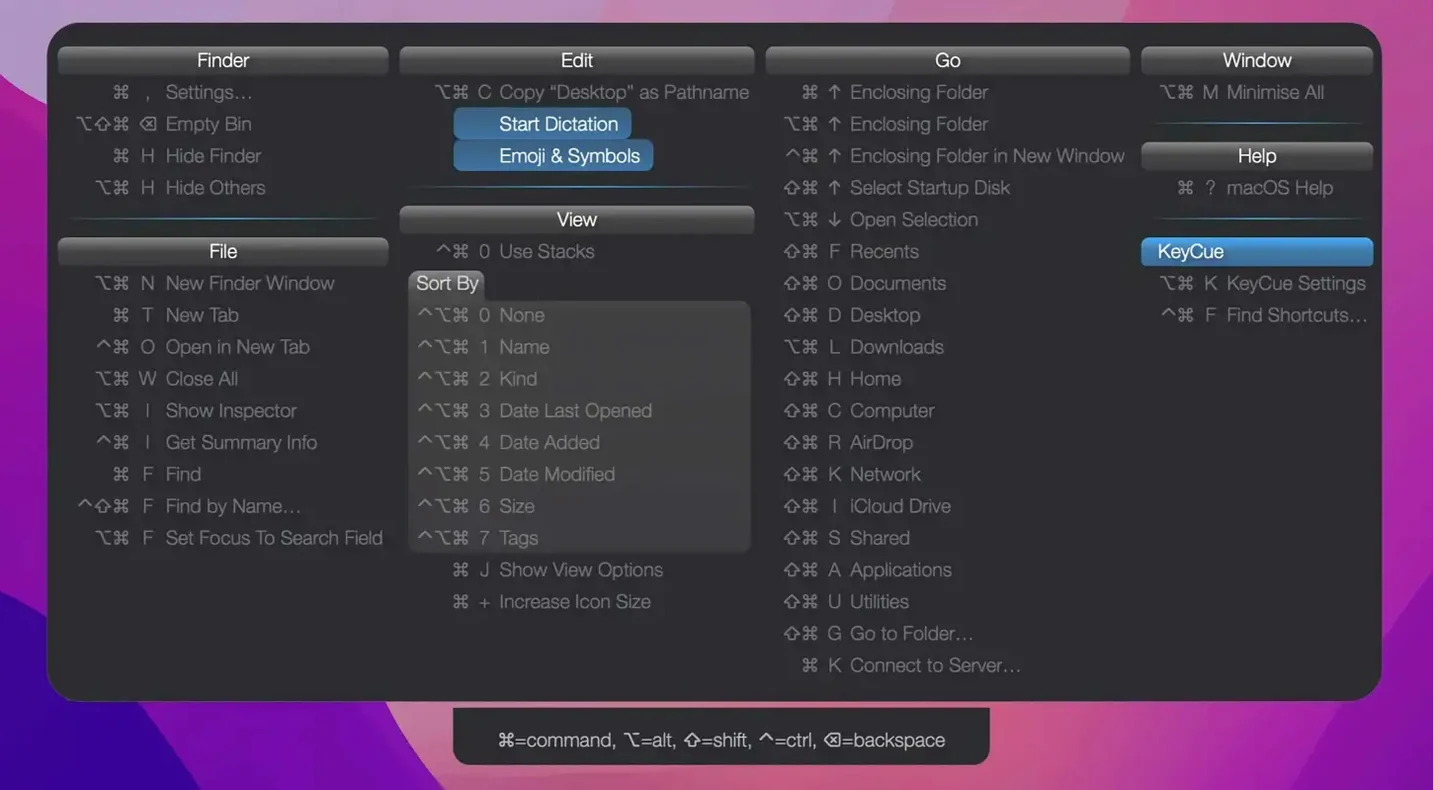
The shortcut table itself remains the core of it. Press the trigger and a single clean overlay lists every menu command with its shortcut, grouped by menu heading, for whatever application sits in front of you. That table has always been the point, and version 11.2.1 leaves it exactly where it was.
Check a shortcut mid-task
You hesitate over a menu command you only use twice a month, tap the trigger, and the table pops up with the keystroke you need. It pulls from the live menu bar, so the list matches the app’s actual state.
See system-wide hotkeys alongside app commands
KeyCue can show global shortcuts and application-specific ones in the same view, which saves switching between a separate cheat sheet and the menu bar.
Find an emoji by name
The emoji search field accepts a plain keyword and returns matching characters, ready to insert. It is a small addition tucked beside the main shortcut table, useful when the standard character viewer feels heavy.
Licence window no longer nags after restarts
Version 11.2.1 tidies up a small but persistent annoyance. The licence window no longer appears after every restart, a fix that matters most on laptops that sleep and wake often. The under-the-hood improvements are invisible — no new triggers, no layout changes — but the pop-up feels fractionally snappier on Apple Silicon machines, particularly when summoning the full table in a busy app like Xcode with dozens of menu entries.
Earlier 11.x releases had already tightened the emoji search. Typing “shrug” now lands on ¯\_(ツ)_/¯ without scrolling, and the recently-used list stays populated between sessions instead of clearing on quit. The shortcut table itself remains untouched in behaviour: it still reads the live menu bar, still respects custom shortcuts set in System Settings, and still closes the moment you press a key or click away.
Mid-task cheat sheet for unfamiliar apps
Mac users still finding their way around an unfamiliar app get the most immediate reward. Someone switching from a browser-based tool to a proper design application, for instance, can tap the trigger mid-task and see every available command without trawling through nested menus. The table acts as a real-time map of what the app can do.
Power users who remap shortcuts extensively also benefit, because KeyCue shows the current binding, not the default one. If you reassign ⌘W to something else in System Settings, the table reflects that. Users who work with multiple keyboard layouts gain a similar advantage: the overlay always shows the physical key names that match the active layout.
Anyone who regularly needs an emoji outside of messaging apps — in email subject lines, file names, or code comments — will find the searchable pop-up quicker than opening the full character viewer. The keyword matching is straightforward and the recent list keeps a short, practical history without clutter.
A workflow: learning shortcuts in a new code editor
Suppose you have just installed Nova and want to build muscle memory for its editing shortcuts. You could read the manual, but a more direct route uses KeyCue alongside deliberate practice.
Open a small project in Nova and position the cursor inside a file. Press the KeyCue trigger — by default, holding ⌘ for a set duration — and the table appears, showing every menu command available in Nova’s editor. Scan the Edit and View sections. Spot ⌘/ for toggling a line comment and ⌘D for selecting the next occurrence of the current word.
Dismiss the table, type a line of code, and use ⌘/ to comment it out. Do this three or four times without looking at the overlay. When you forget whether block commenting uses a different modifier, hold ⌘ again and check. The overlay confirms it is ⌥⌘/.
Repeat for ten minutes, calling up the table only when you stall. The shortcut fades into memory faster than it would from a static cheat sheet because the lookup happens inside the task, not in a separate window or web page. After a session or two, the most-used commands stick. The table becomes a safety net for oddball operations — like toggling syntax highlighting off and on — that you might reach for once a month.