Aspecten
 Download (62 MB)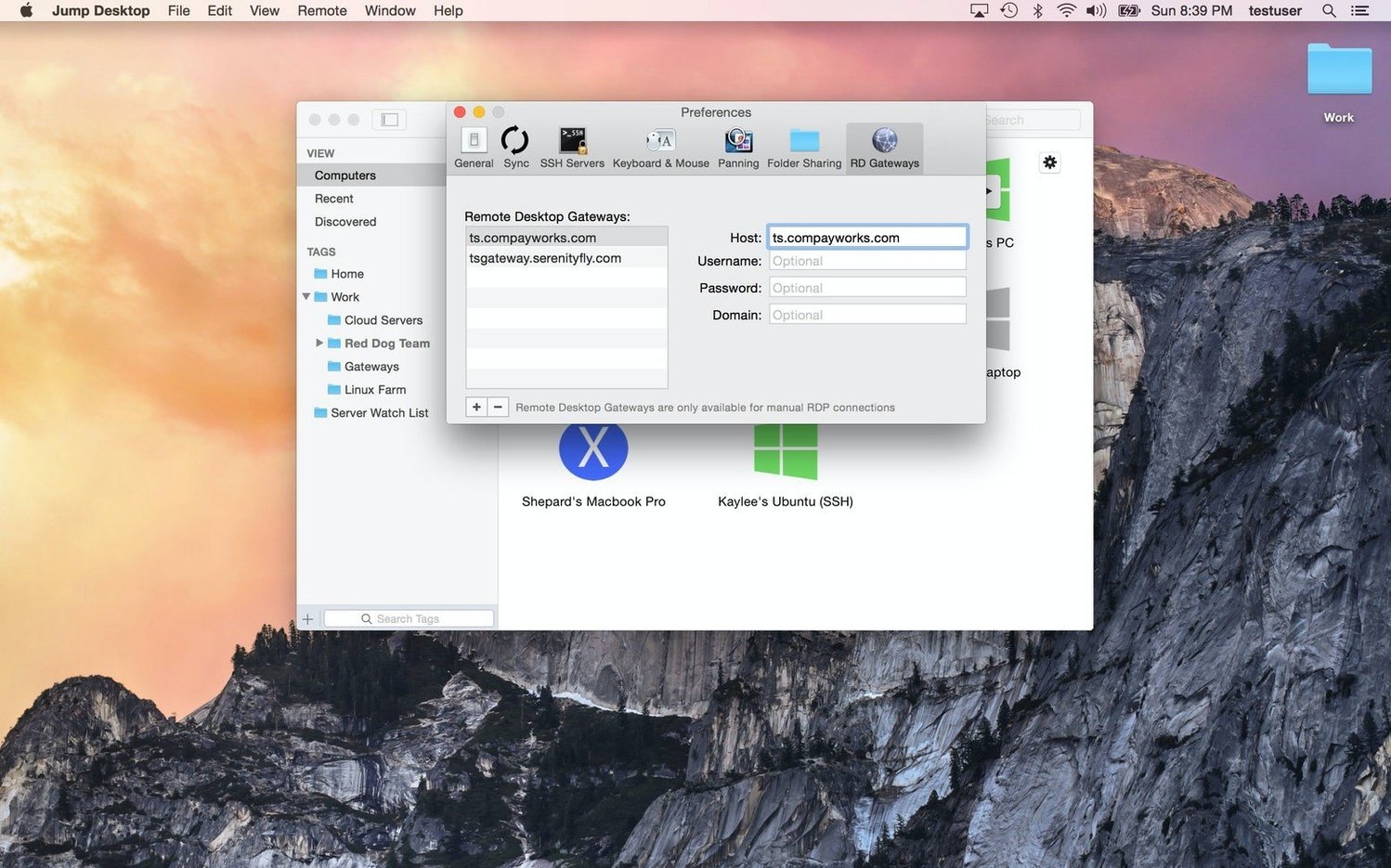
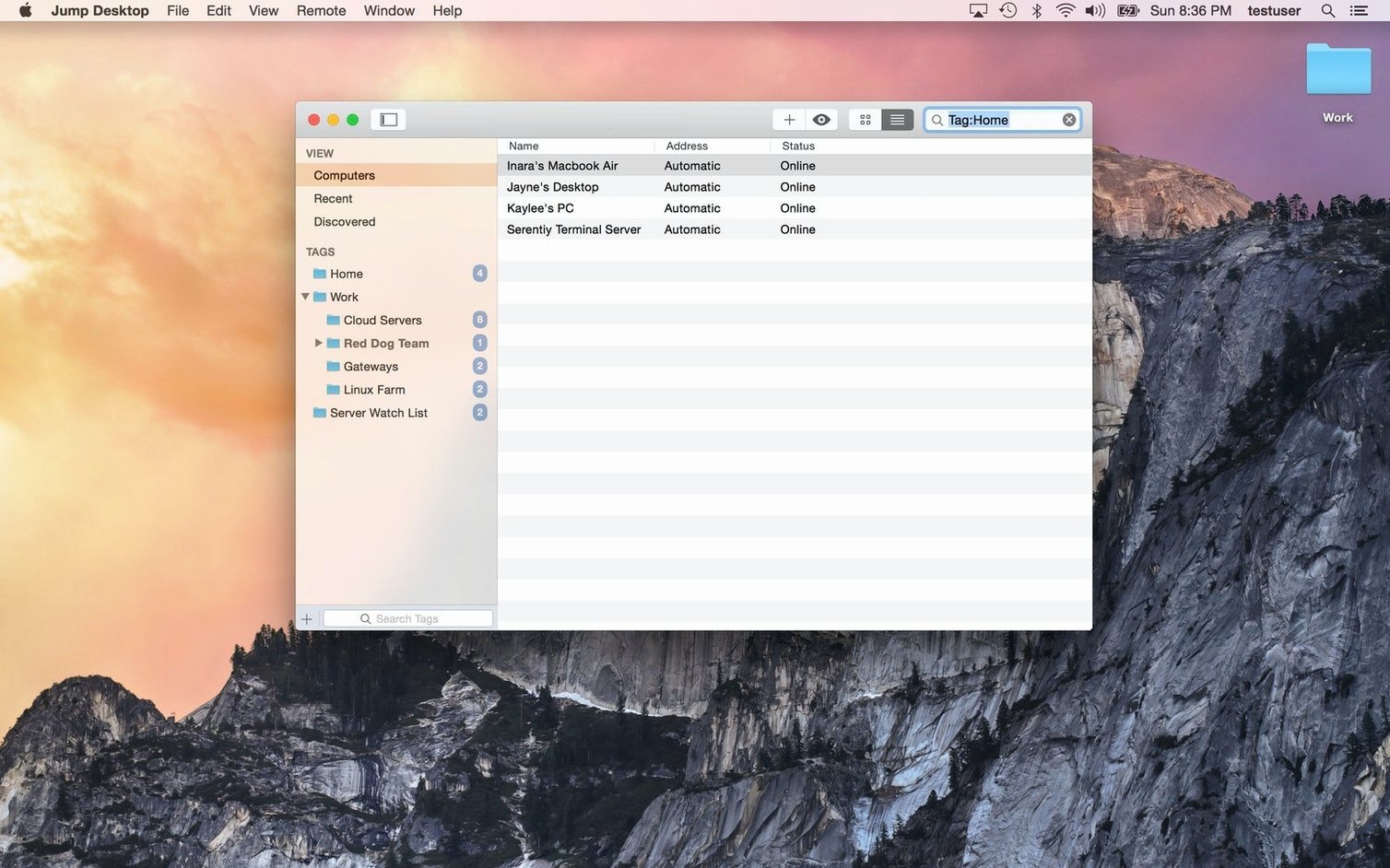
System administrators, support staff, and anyone who splits their day between multiple computers tends to be the core audience for Jump Desktop. It is a client application for reaching Macs, PCs, and VNC hosts from a single interface.
Which remote protocols does it actually use?
It connects via RDP for Windows machines and standard VNC for Mac and Linux hosts. A companion app installed on the target computer enables the Fluid Remote Desktop protocol for tighter integration, but plain VNC and RDP sessions work without it.
How does clipboard sharing behave?
Text, images, and files can be sent and received between the local Mac and the remote machine during a session. The transfer is handled through the client’s own channel rather than relying solely on the remote protocol’s built-in clipboard, which makes it more predictable across different host types.
Can keyboard shortcuts be remapped?
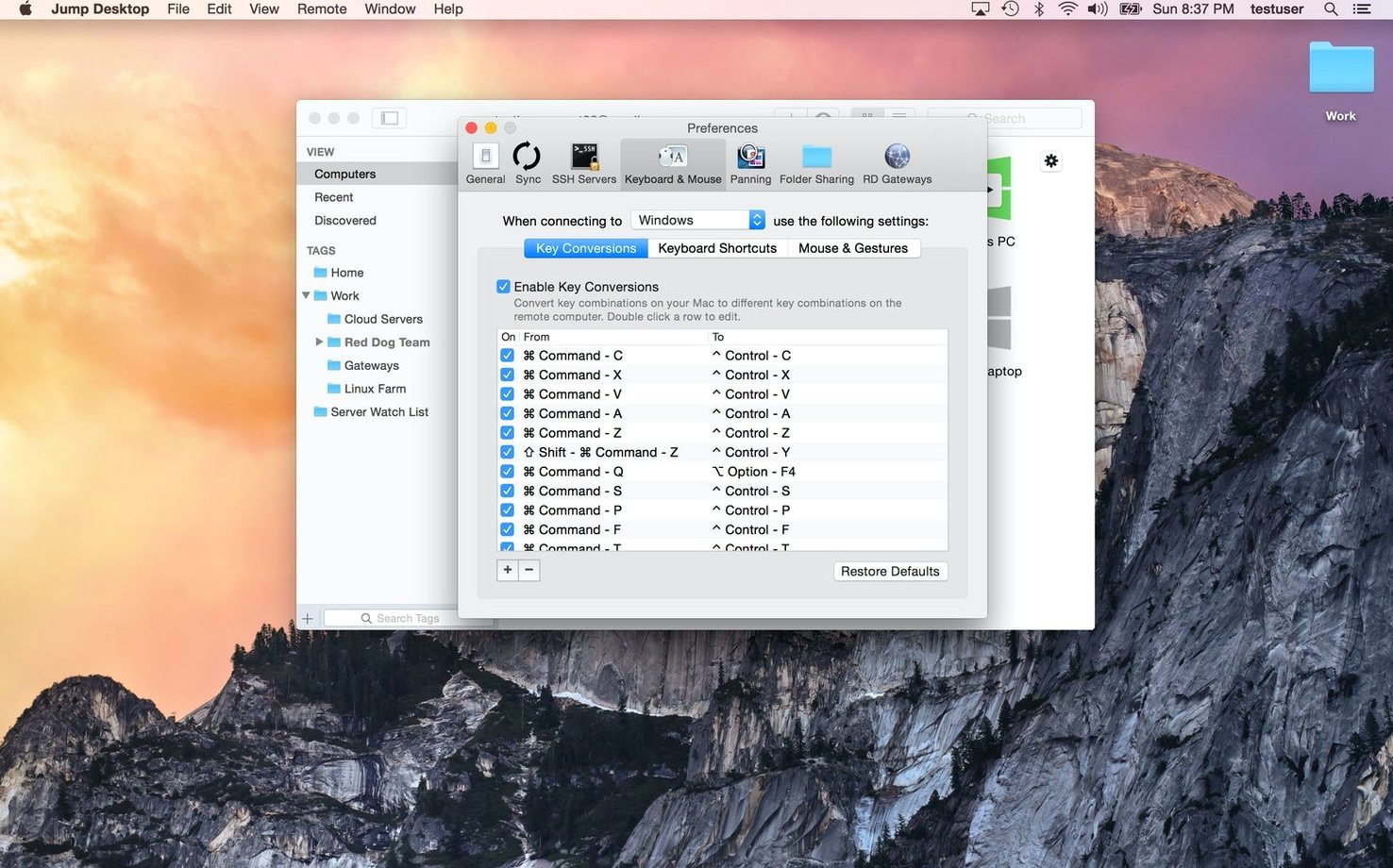
Keyboard remapping is built in. You can reassign macOS modifier keys to match a Windows layout on the remote side, or adjust specific shortcuts so that frequent combinations like Copy and Paste behave as expected regardless of which operating system you are controlling.
Drag files straight into a remote session from Finder
Jump Desktop does not attempt to replace the macOS file manager or your local tools; it layers remote access over them. Drag a file from a Finder window onto a remote session, and it transfers without opening a separate transfer utility. The client registers itself as a handler for RDP and VNC files on disk, so double‑clicking a saved connection file in Finder launches the session directly rather than prompting you to choose an application first.
Spotlight sees little of Jump Desktop internally—connection lists are stored inside the app’s own container—but the fluid protocol’s clipboard bridge means you can copy a link from Safari on the local Mac and paste it into a browser on the remote Windows machine without an extra step. Screen sharing sessions opened through Messages or the Screen Sharing app are completely separate; Jump Desktop connects to VNC ports at the network level, not through Apple’s sharing invitation system, so the two can coexist.
Sound routing is deliberately minimal. The client can play audio from the remote machine through the local speakers, but it does not try to redirect microphone input or present itself as an audio device to other macOS applications. For users who rely on dictation or VoiceOver locally, this avoids conflicts—the remote audio stream arrives as one self‑contained channel that the system treats like any other application audio.
Switch to Smooth quality before your first connection
A few adjustments make a noticeable difference before the first real session. Open the preferences window and look for the Quality controls under the general tab. The automatic setting balances bandwidth and sharpness reasonably well, but switching to Smooth prioritises frame rate over perfect pixel clarity—useful when the remote machine runs an animation‑heavy interface or when scrolling through long documents feels sluggish. On a fast local network, unticking Adaptive quality and setting the slider to maximum removes compression artefacts that can make small text hard to read.
Under Keyboard, check the modifier remapping panel. The default mapping translates the Mac Command key to the Windows key on an RDP session, but many users prefer to send Command as Control so that shortcuts like Command‑C map directly to the remote copy command. The same panel lets you disable the local interpretation of function keys; without this, pressing F5 on a Mac keyboard may trigger the macOS dictation shortcut instead of refreshing the remote browser window.
The Display section controls resolution handling. By default, the client matches the remote desktop to the local window size, which works well for occasional use but produces an odd resolution if the local window is an unusual shape. Setting a fixed resolution—1920 by 1080 or the native resolution of the remote monitor—prevents Windows from rearranging desktop icons every time the Jump Desktop window is resized.
One less obvious option lives in the connection editor under Advanced: the clipboard synchronisation toggle. Keeping it on is convenient, but when you are copying large blocks of formatted text or high‑resolution images between machines, the transfer can delay the session momentarily. Toggling it off for a specific connection stops the client from attempting to sync clipboard contents automatically, leaving the manual paste command as the only trigger.
A workflow for remote file retrieval
Suppose you are away from the office and a colleague asks for a spreadsheet stored on your work Mac, which has Jump Desktop Connect installed. The local machine is a MacBook Air on a café Wi‑Fi connection. The goal is to retrieve the file and email it without leaving a copy on the laptop’s desktop for longer than necessary.
The session begins by opening Jump Desktop and selecting the work Mac from the connection list. The Connect service handles the NAT traversal, so no VPN is needed. Once the remote desktop appears, the display is set to match the local window size, and the quality slider sits at about sixty percent to keep the session responsive over the shared Wi‑Fi.
Instead of navigating through the remote Finder by hand, you press the keyboard shortcut that brings up Spotlight on the remote Mac—Control‑Space in a default mapping—and type the filename. The file appears in the search results. A right‑click opens the context menu, and selecting Copy places the file on the remote clipboard. Jump Desktop detects the file reference and begins transferring the data through the fluid protocol’s file channel. A small progress indicator appears at the edge of the session window, then disappears once the file is on the local clipboard.
Back on the MacBook Air, switching to the Mail app and pasting drops the spreadsheet directly into a new message as an attachment. The file never lands in the local Downloads folder or on the desktop. After sending, the session window can be closed; the connection stays alive in the background for quick reconnection if another file is needed. The whole sequence—connect, locate, copy, paste, send, disconnect—takes under two minutes and leaves no stray files behind.
The companion app is optional, not required
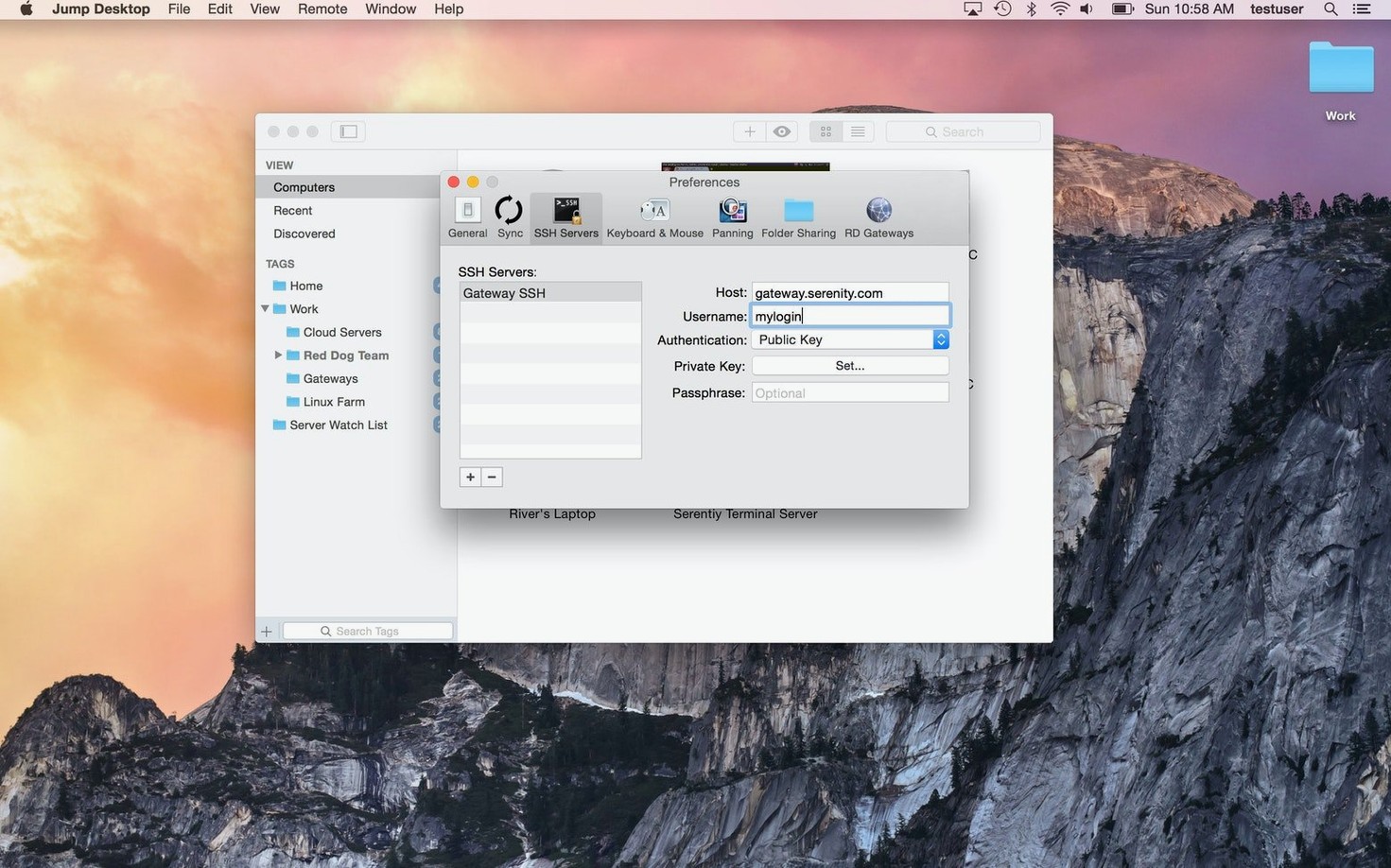
Does it need a companion app on every machine I want to reach? No. The companion app, Jump Desktop Connect, simplifies connections through firewalls and NAT by maintaining a persistent link to the developer’s coordination service. It is the smoothest path for machines you control. For machines where you cannot install extra software—client servers, headless Linux boxes, network equipment with VNC—you can connect directly via a VNC or RDP address. The trade‑off is that direct connections require port forwarding or a VPN if the target sits behind a router you do not manage.
Will it interfere with Apple Remote Desktop or the built‑in Screen Sharing? The two services can run on the same Mac without conflict. Jump Desktop connects to the VNC port that macOS exposes when screen sharing is enabled in System Settings. Apple Remote Desktop uses the same underlying VNC server, so enabling one also allows the other to connect. The only caveat is that macOS limits simultaneous VNC connections: if Apple Remote Desktop is already controlling the screen, a Jump Desktop VNC session may be refused until the first session ends.
What happens when the remote machine has multiple displays? By default, Jump Desktop shows all connected displays as a single large desktop that you can scroll across or scale down to fit the local window. A display selection menu in the toolbar lets you switch to viewing only one monitor at a time. This is particularly handy when the remote machine has a large ultrawide display and a smaller secondary screen—you can pin the session to just the secondary display and work at a comfortable size on the local laptop screen.
Is there a way to transfer files without starting a full remote desktop session? The fluid protocol supports file transfers through the clipboard method described earlier, but there is no separate file browser window that lists the remote filesystem independently of a screen session. For bulk transfers, connecting the session and dragging files between Finder windows remains the most direct route. The drag‑and‑drop path uses the same underlying data channel as clipboard transfers, so it is subject to the same network conditions and does not require additional ports.
Does the Mac client support touch bar input or the notch area on newer MacBooks? The client window respects the safe area of the display and does not draw session content into the camera notch region on MacBook Pro models. The Touch Bar is not used for remote control functions; any special keys you might expect there—brightness, volume, media controls—are sent through the standard function key row mapping instead. If the remote machine is a Mac, its own Touch Bar is rendered as a strip at the bottom of the session window when the display resolution is high enough to accommodate it without shrinking the main desktop too aggressively.