Aspecten
 Download (35 MB)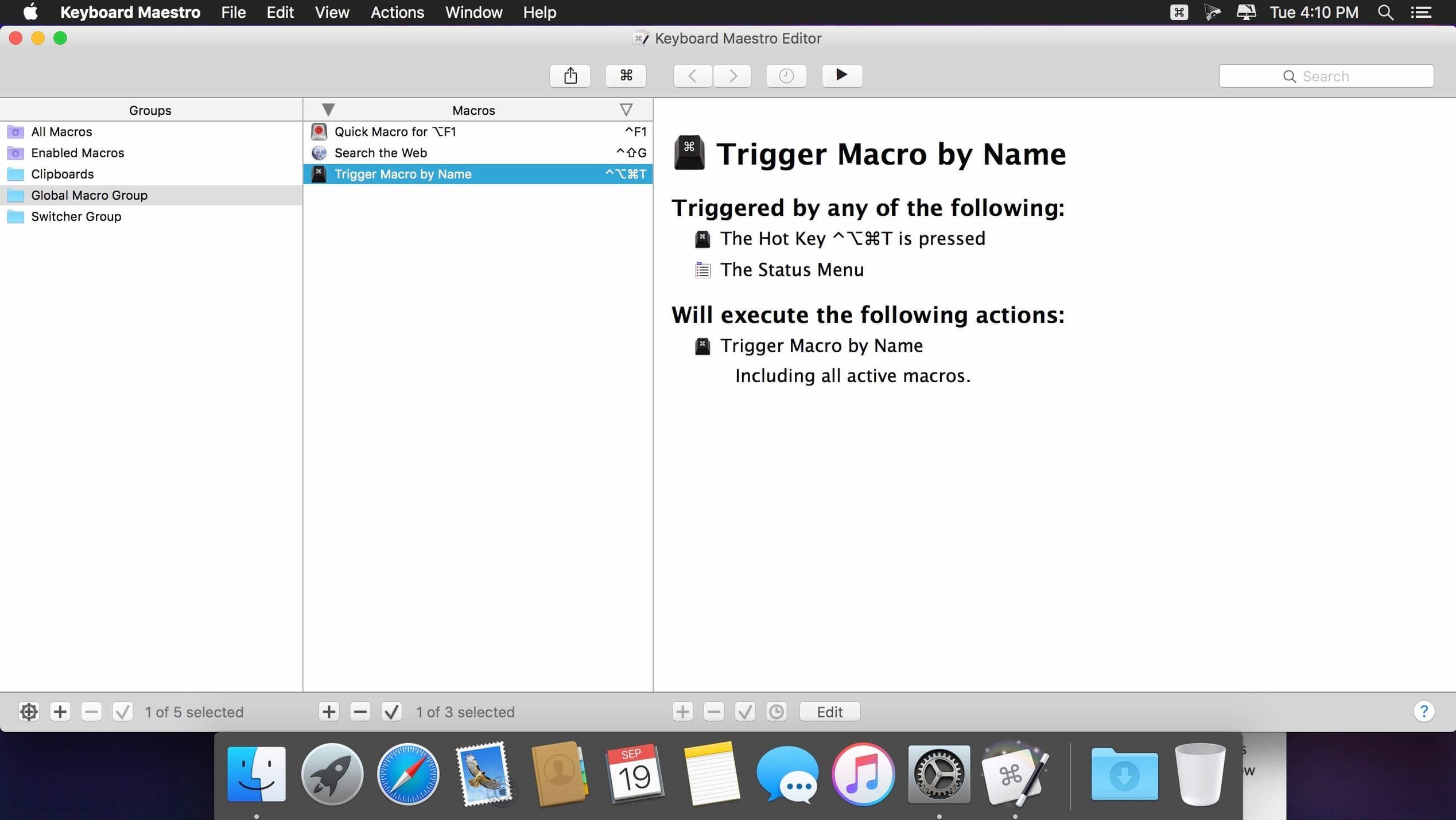
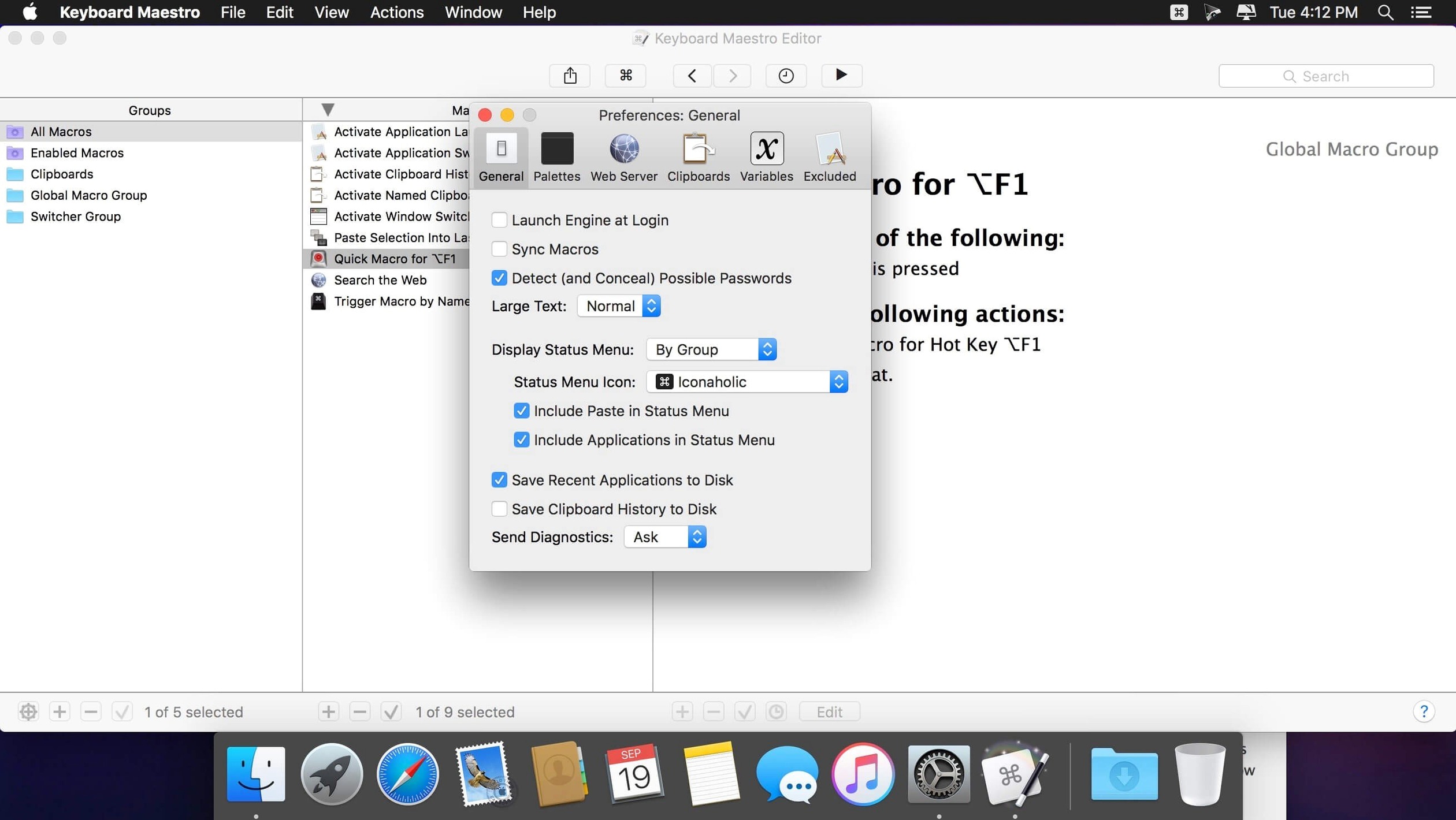
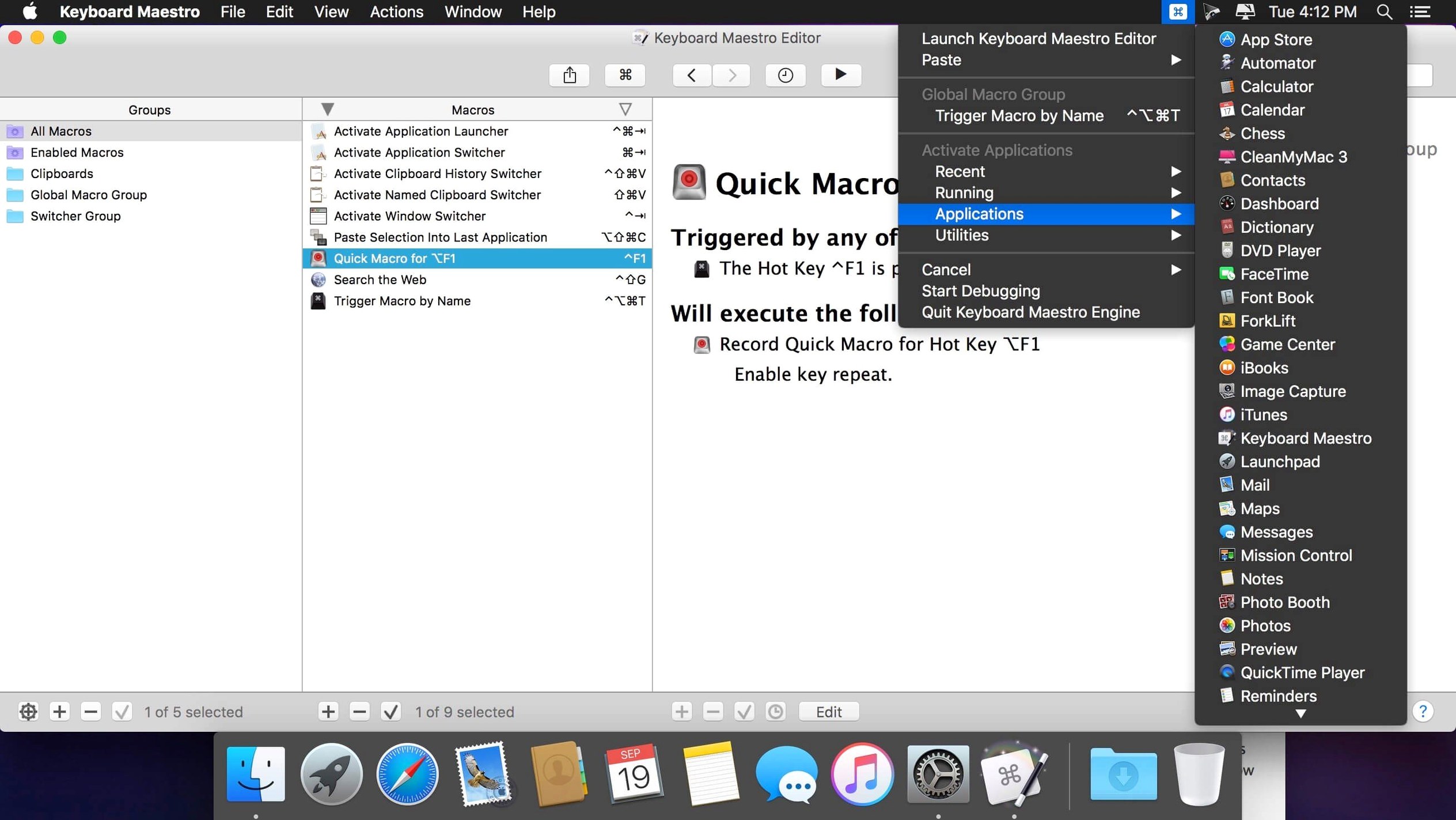
Keyboard Maestro 11.0.4 stores over a thousand macros per user and keeps them running in the background. It is a macro automation utility for macOS, built around the idea that applications, windows, documents, and the clipboard can be controlled without reaching for the mouse each time. The app suits people who repeat the same sequence in several programs daily and want that sequence reduced to a single trigger.
- Start frequently used applications and open specific documents from one shortcut.
- Fill web forms and visit frequently read web pages without manual typing.
- Convert text between formats as part of a longer workflow.
- Perform OCR on images using Apple Text Recognition.
- Create reports from data gathered across apps and websites.
- Automate workflows that cross application boundaries, including clipboard handling.
The macro editor shows each step plainly, so a workflow can be read from top to bottom before it runs. Version 11.0.4 adds a display to Switch/Case actions that marks which entries are true or would execute, plus tool tips for the Macro Debugger window. The main learning curve is in deciding which tasks deserve automation; after that, building the macro is mostly a matter of selecting actions in order.
When a macro works in test but fails live
A macro that works perfectly in testing but fails when triggered live is a frequent frustration. The usual culprit is timing. Keyboard Maestro fires actions quickly, and an application may not be ready by the time the next step lands. The fix is to insert a Pause action — even a quarter-second delay often stabilises a sequence. For window-dependent macros, the Pause Until condition waits for a specific window title or button to appear before continuing, which is more reliable than a fixed wait.
Another annoyance: a keyboard shortcut trigger that stops working after an OS update. Apple occasionally claims hotkey combinations for system-level features, and Keyboard Maestro respects that claim. If ⌃⌥⌘T suddenly does nothing, open the System Settings, browse to Keyboard Shortcuts, and check whether macOS has assigned that combination to something else. Either reassign it there or pick a different trigger in Keyboard Maestro. The Conflict tab in the editor will flag clashes between macros, but it cannot see what macOS itself has reserved.
Clipboard history not capturing content as expected usually traces back to two settings. Certain applications mark copied data as transient, and the Exclude Transient Clipboard Data option (enabled by default) filters those entries out. Security-conscious apps like password managers deliberately mark their copies this way. The other setting is the Maximum Clipboard History Size; older entries drop off silently when the limit is reached. Adjust both in the Clipboard preferences pane.
Macro groups not syncing between machines is almost always a permissions issue. Each macro group can be stored in a file that Keyboard Maestro watches. If that file sits in a cloud-synced folder, two Macs can share the same macros. The snag: the path must be identical on both machines, and the syncing service must have fully downloaded the file before Keyboard Maestro starts. Delayed sync from services that use placeholder files causes macros to vanish temporarily. Storing the sync file outside a deeply nested folder structure and launching Keyboard Maestro a minute after login avoids most conflicts.
Five manual steps per screenshot—now one keystroke
Suppose screenshots land on the desktop throughout the day and need to be resized to 1200 pixels wide, converted to JPEG, and moved into a dated folder. Doing this manually takes five steps per image. Here is how that becomes a single hotkey.
Set the trigger. Create a new macro and choose a hotkey trigger, perhaps ⌃⌥⌘S. The macro will act on whatever image is currently selected in the Finder, so no file-picker dialogue is needed.
Gather the selected files. Add a For Each Path in Finder Selection action. Everything inside this loop runs once per selected file. The loop variable holds the full path, and the macro can refer to it in later steps.
Resize and convert. Inside the loop, place a Manipulate Image action. Set it to scale the image to 1200 pixels wide, preserving the aspect ratio. Add a second Manipulate Image action (or chain the operation in one action if the options support it) to change the format to JPEG with a quality setting around 85%. The processed image can be written to a temporary location or directly to the destination.
Create the dated folder. Before the loop, calculate today's date with a Set Variable to Text action, using the %ICUDateTime% token formatted as yyyy-MM-dd. Store that in a variable named DateFolder. Then use a Create Folder action pointed at ~/Documents/Screenshots/%Variable%DateFolder%. Keyboard Maestro will skip creation if the folder already exists.
Move the processed file. Back inside the loop, add a Move or Rename a File action. Point the source to the processed image path and the destination to the folder path assembled above. Tick the option to rename if a file with the same name already exists.
Clean up. After the loop, optionally move the original screenshot to the Trash with a Move to Trash action referencing the original Finder selection. Add a brief notification via a Display Notification action so there is quiet confirmation that the job finished.
The whole macro runs in under a second for a handful of images. Selecting a dozen screenshots and tapping ⌃⌥⌘S replaces a repetitive Finder chore.
One enormous macro instead of several small ones
Building one enormous macro instead of several small ones. A macro that launches an app, arranges its windows, types boilerplate text, saves a file, and sends an email is fragile. When one step breaks, the whole chain stops. Splitting it into separate macros that call each other with the Execute a Macro action makes each piece testable on its own and reusable in other workflows.
Ignoring the action search field. Keyboard Maestro ships with hundreds of built-in actions. New users often scroll the action list manually, missing actions that would simplify a macro by half. Typing a verb such as "find" or "filter" into the search field surfaces actions like Filter Variable or Search a String that are not immediately visible in the category tree.
Hardcoding paths and application names. Writing /Applications/Firefox.app into a macro means it breaks the day someone switches to Firefox Nightly or moves it to a subfolder. Keyboard Maestro can resolve applications by bundle identifier, which stays constant across renames and relocations. The Activate an Application action offers a picker that uses bundle IDs, and most file actions accept tokens like ~/Documents instead of absolute paths.
Forgetting to disable macros during editing. A macro triggered by a common key combination will fire while the user is still building it. Tapping the Disable checkbox in the editor or switching to a different macro group during construction prevents an unfinished macro from executing against live data.
Forty tickets each morning, each with five repetitive steps
A technical support engineer handles forty support tickets each morning. Each ticket requires opening the issue tracker, copying the customer's email address, pasting it into an internal lookup tool, capturing the account status, and replying with a templated response that includes the status and the ticket number. Doing this manually for forty tickets takes roughly three hours.
With Keyboard Maestro, the engineer builds a macro triggered by ⌃⌥⌘R. It reads the selected text in the issue tracker (the email address), switches to the lookup tool, pastes the address, waits for the result page to load, copies the account status line, and switches back. A second macro, triggered by ⌃⌥⌘T, pastes the reply template with the ticket number and status inserted from variables. Between the two shortcuts, each ticket takes under twenty seconds. The engineer processes the morning queue in under an hour and uses the reclaimed time for escalated cases that need actual thought.
Turn ;sig into a full signature block
Writers and editors who reformat copy across multiple platforms benefit from text-expansion macros and clipboard filters. A snippet that expands ;sig into a full signature block saves dozens of keystrokes per day. More advanced macros can strip trailing whitespace, convert smart quotes to straight quotes, and apply house style rules before text reaches the CMS.
Developers who switch between an editor, a terminal, a browser, and a database client appreciate window-arrangement macros. One shortcut can tile the editor on the left half of the screen, the terminal on the right, and the browser on a second desktop, all without dragging a single window. Git commit message templates and JIRA ticket formatting become text-expansion triggers.
Designers and photographers who export assets in multiple resolutions use watched-folder macros. Dropping a file into a designated folder triggers an automated sequence that resizes, renames, and files the output, often with an adobe acrobat keyboard shortcuts complement for those who bounce between Creative Suite apps and need consistent key mappings across them.
System administrators who manage fleets of Macs lean on shell-script actions. A macro can run an AppleScript or a bash script that gathers disk usage, uptime, and installed-software lists from a remote machine, formats the output, and drops it into a ticket or a report, all from a single keystroke.
Keyboard Maestro rewards users who recognise a pattern in their own work. The person who thinks "I have done this exact sequence four times this week" is the person who will extract the most value — regardless of profession. The initial time investment in building a macro pays back quickly once the trigger is committed to muscle memory.