Aspecten
 Download (38 MB)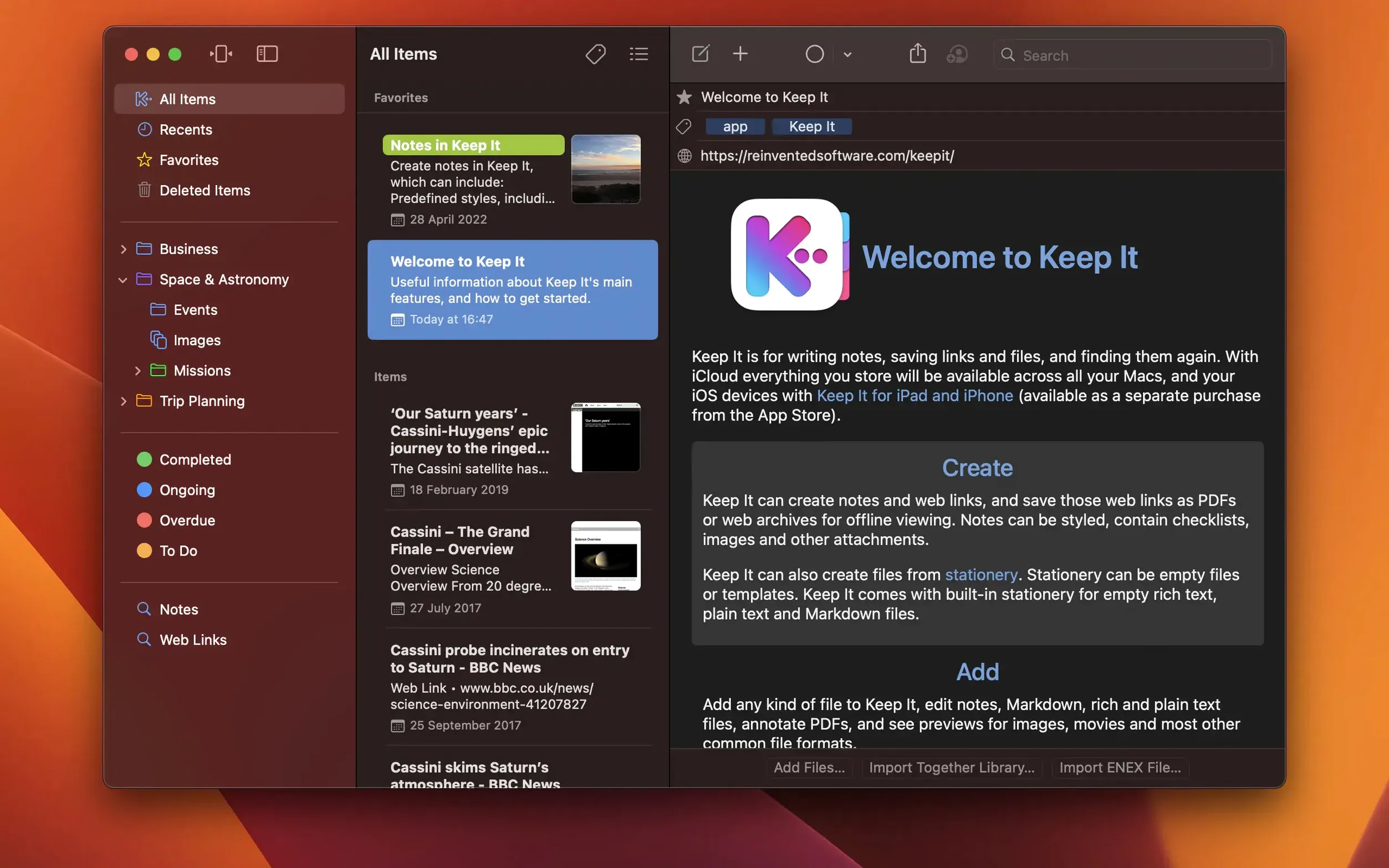
Keep It runs on any Mac that supports macOS 15 Sequoia, on Intel and Apple Silicon hardware alike.
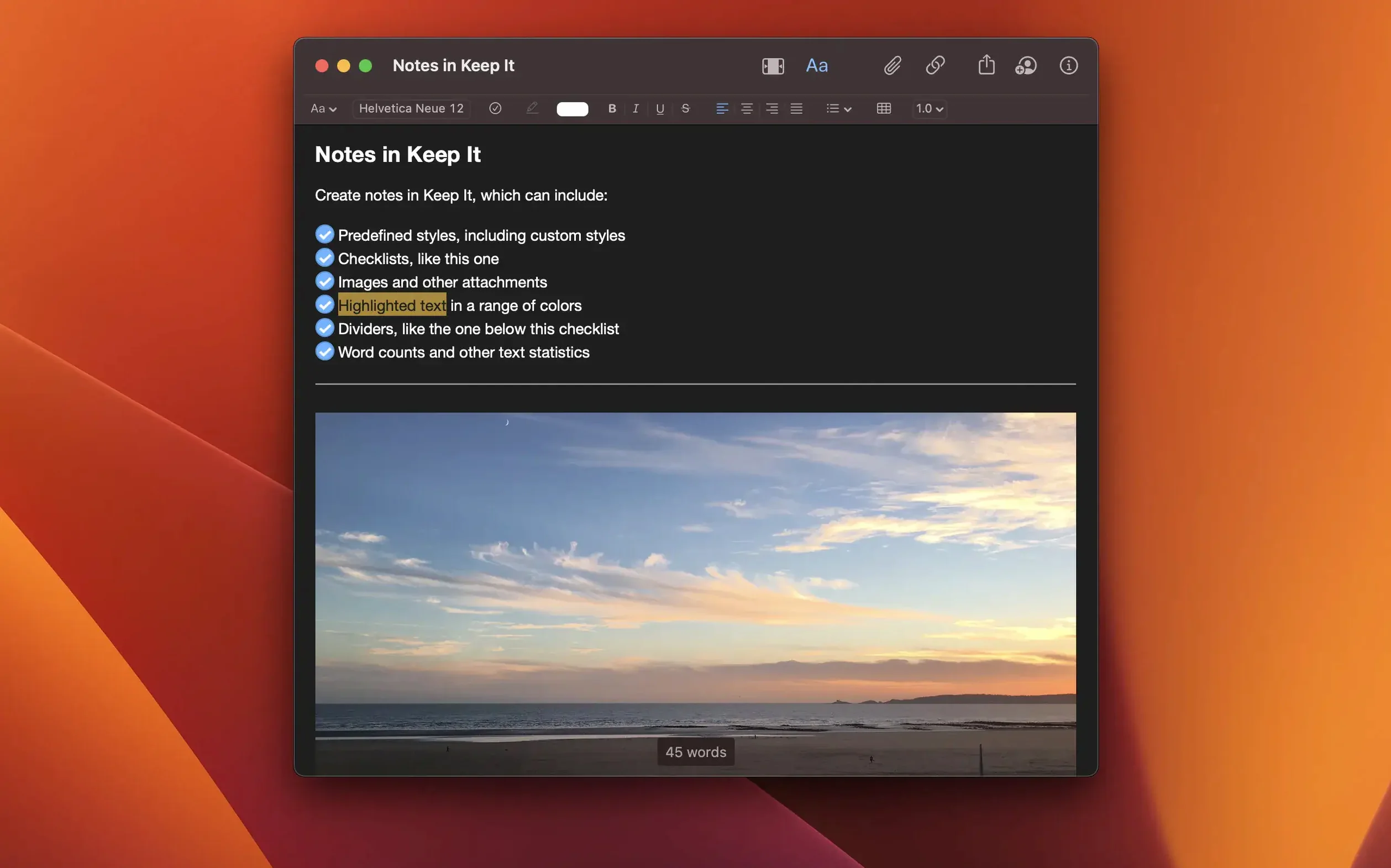
See formatting stay live inside the note
- Start a note with structure. Press ⌘N for a new note. The editor handles checklists, bulleted lists, numbered lists, dividers, links and image attachments without switching modes. Try a checklist for a small project to see how the formatting stays out of the way.
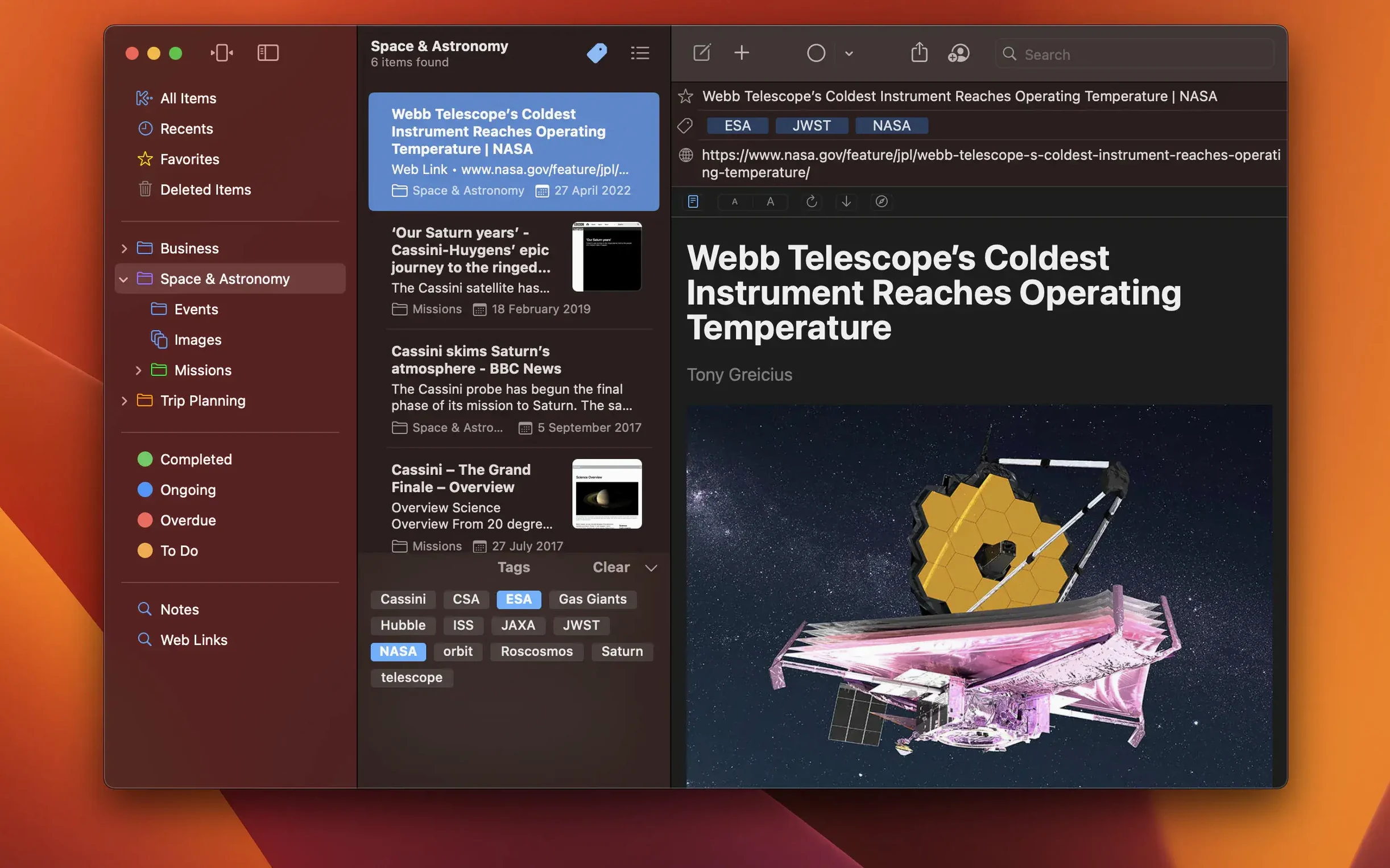
- Save a web link and convert it. Drag a URL into the sidebar, or use the browser extension. The page appears inside Keep It. From there you can view it as-is, open it in a browser, save a PDF or web archive, or convert it into an editable note — useful for capturing research without losing the original.
- Search something and save the search. Type into the search field. Suggestions appear while you type, and the search inspects file contents and recognises text in scanned PDFs and images. Click Save to keep the search; it appears in the sidebar for later reuse.
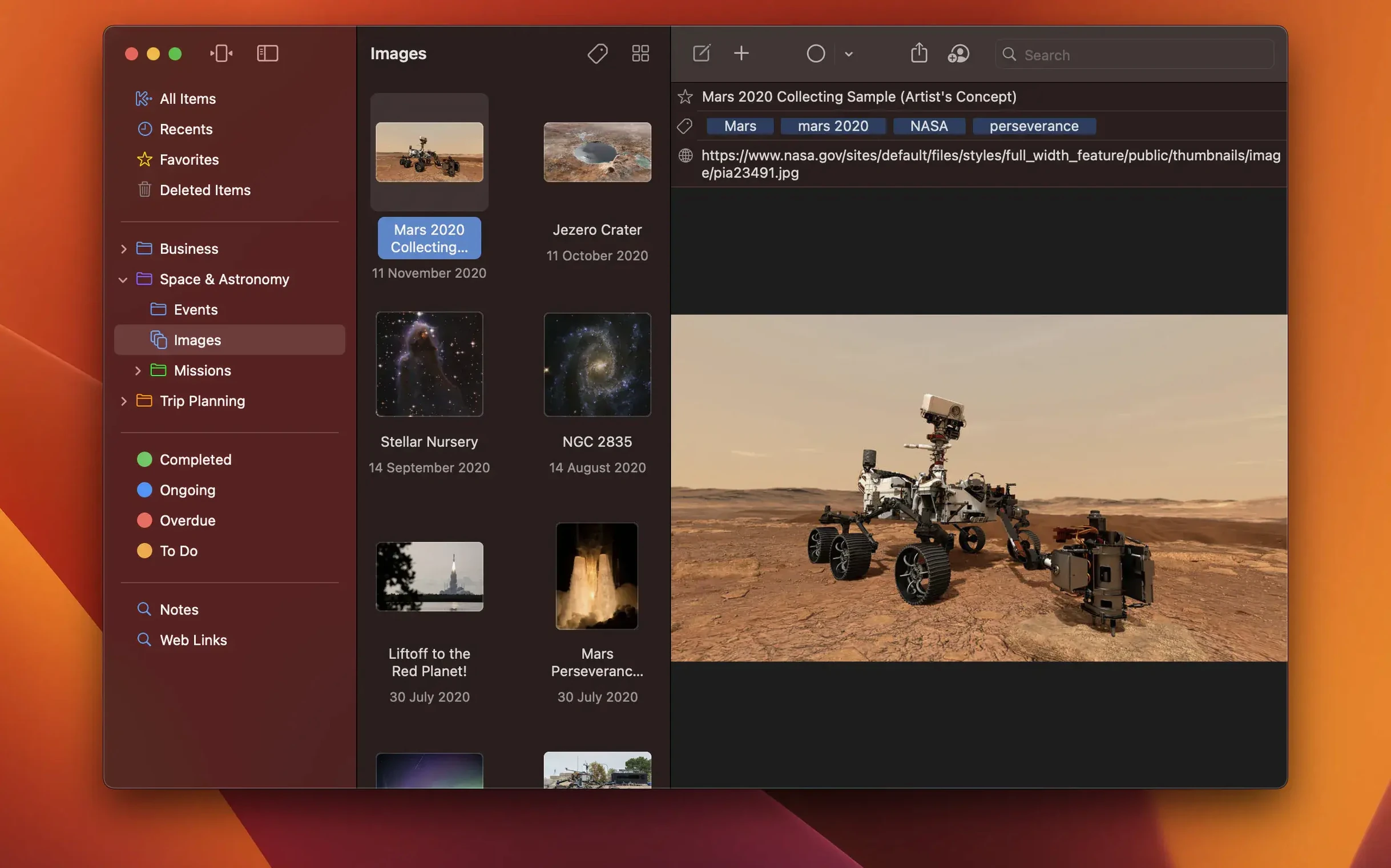
- Bundle a few items. Select two or three items — a note, a PDF, a web link — and choose File > New Bundle with Selection. Items can belong to multiple bundles simultaneously, so the same reference document can live inside a project bundle and a topic bundle at once.
- Add a label. Right-click any item, pick a label colour. Labels are a quick visual layer that works alongside folders and bundles without forcing a rigid hierarchy.
- Check the Recent list. The sidebar's Recent section shows items added or viewed recently. It is a narrow but practical window into what you touched last, across all folders.
The companion apps for iPhone and iPad share the same iCloud library, so items and top-level folders can be shared with other Keep It users. Deleted items stick around for thirty days before automatic removal, and Time Machine backs up whatever you file inside the app.
Project folder holds the PDFs, tags surface the standouts
A graduate student gathering sources for a literature review saves a dozen journal PDFs and web links into Keep It over the course of an afternoon. Each article lands in a project folder, but a few key papers also get dropped into a methodology bundle alongside notes from earlier reading. The student highlights passages in the PDFs directly inside the app and adds short margin notes. Before shutting the Mac for the day, a saved search called unread + last 7 days pulls up everything added this week that still needs attention, and the Recent list confirms nothing slipped through.
Workflow: turning a web link into a structured note
- Drag a URL from Safari into the Keep It sidebar. The link appears as a new item, and the page renders inside the app.
- Scan the rendered page to confirm it captured the right content. If the layout is cluttered, switch to the plain view for cleaner reading.
- Choose Convert to Note from the item's contextual menu. Keep It extracts the text and images into an editable note.
- Strip out navigation elements, ads and irrelevant sidebars by selecting and deleting them. What remains is a clean reading copy.
- Add a checklist at the top for follow-up tasks mentioned in the article. Insert a divider below the checklist, then paraphrase the core argument in a short paragraph.
- Apply a label to indicate priority, then drag the note into both a topic folder and a project bundle so it surfaces in two contexts later.
- Save the original web archive alongside the note for reference. The two items sit next to each other in the folder, one editable and one preserved as captured.