Aspecten
 Download (23 MB)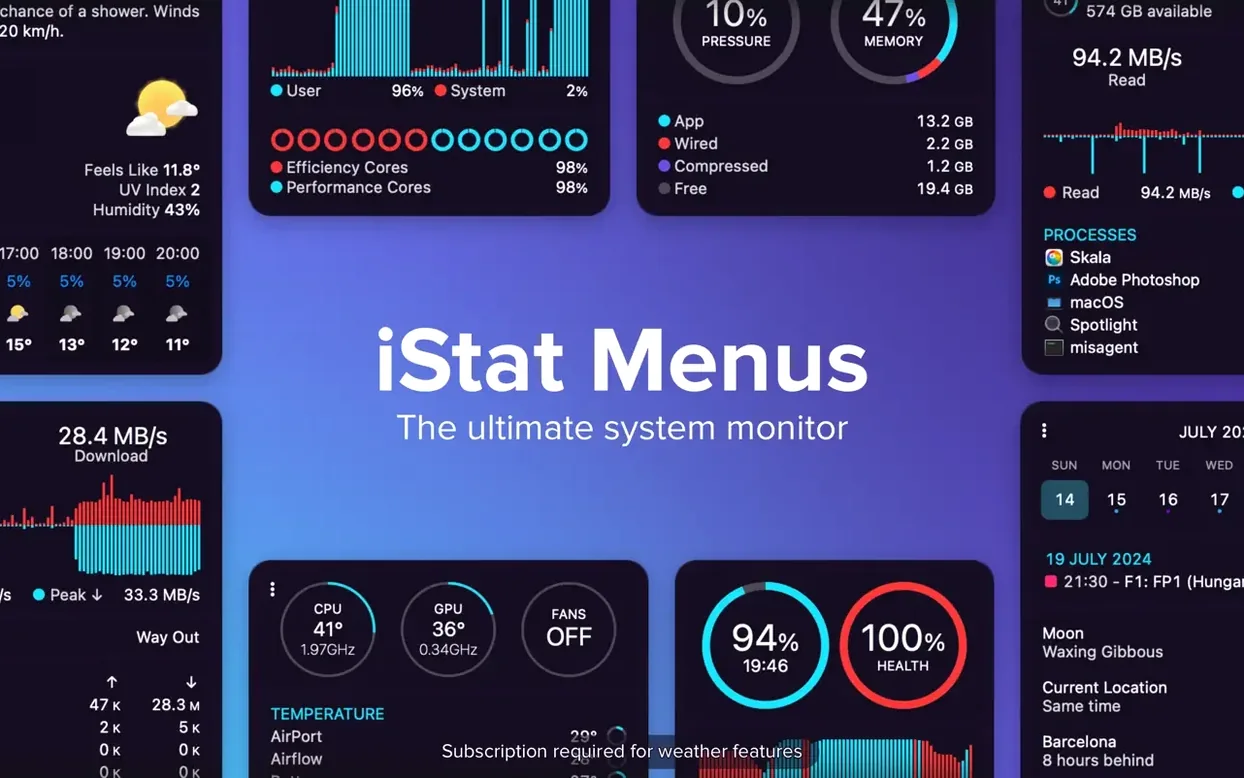
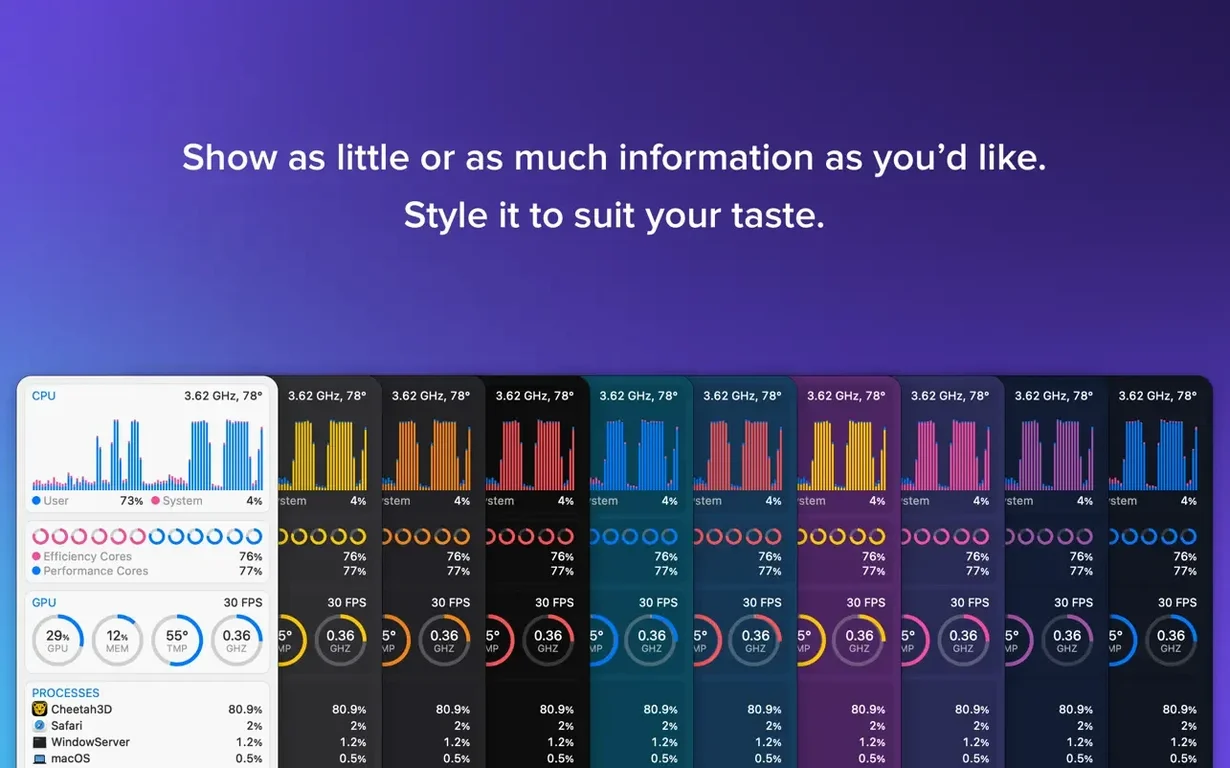
CPU load sits in the menu bar as a compact graph, updating in real time. A click opens a dropdown with per-core activity, processor frequency, and uptime. That one item is often the first thing people configure after dragging the app into place.
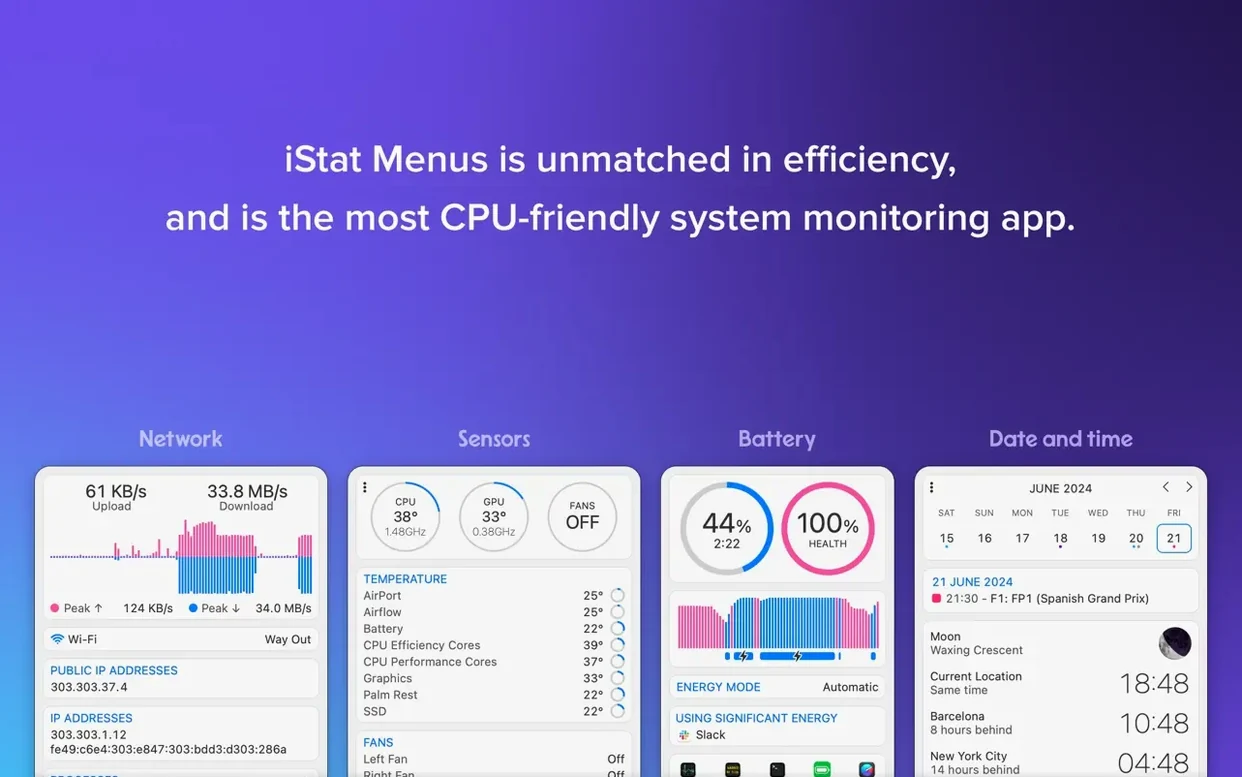
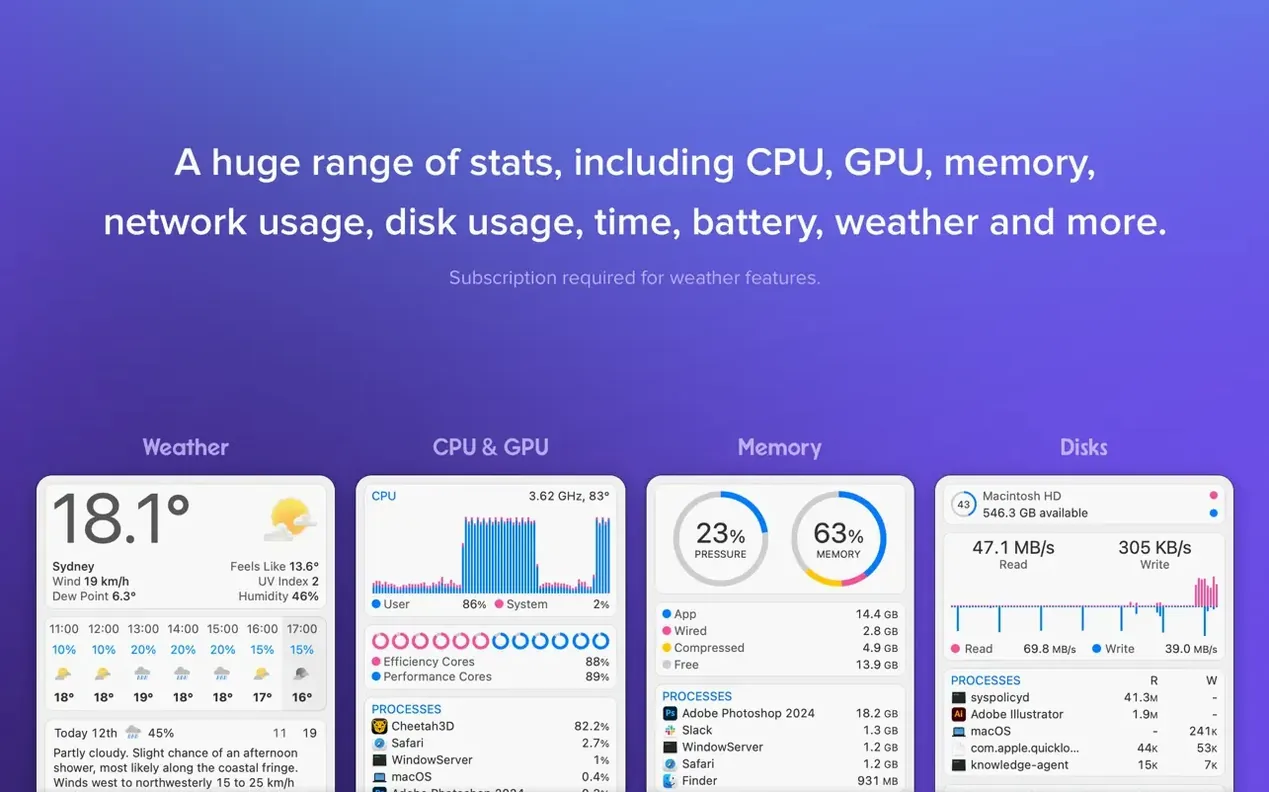
From there, the setup follows a predictable sequence. You work through the sidebar, enabling the monitors you need. Memory gets its own panel, listing the applications currently drawing the most resources. Network shows a bandwidth chart and a breakdown of connections by application—useful for spotting a background process that is saturating the line. The weather section pulls in forecast data, wind speed, and moon phases, while the clock can display world times and sunrise alongside the time.
Sensors require the iStat Menus Helper. Once that is running, temperature and fan speed readings appear, and you can set fan speed rules that engage specifically when the Mac is running on battery. The helper is a standard component, though people often ask about it before installing because macOS flags it during the permissions process. No readings leave the machine; the helper simply bridges the app and the hardware sensors.
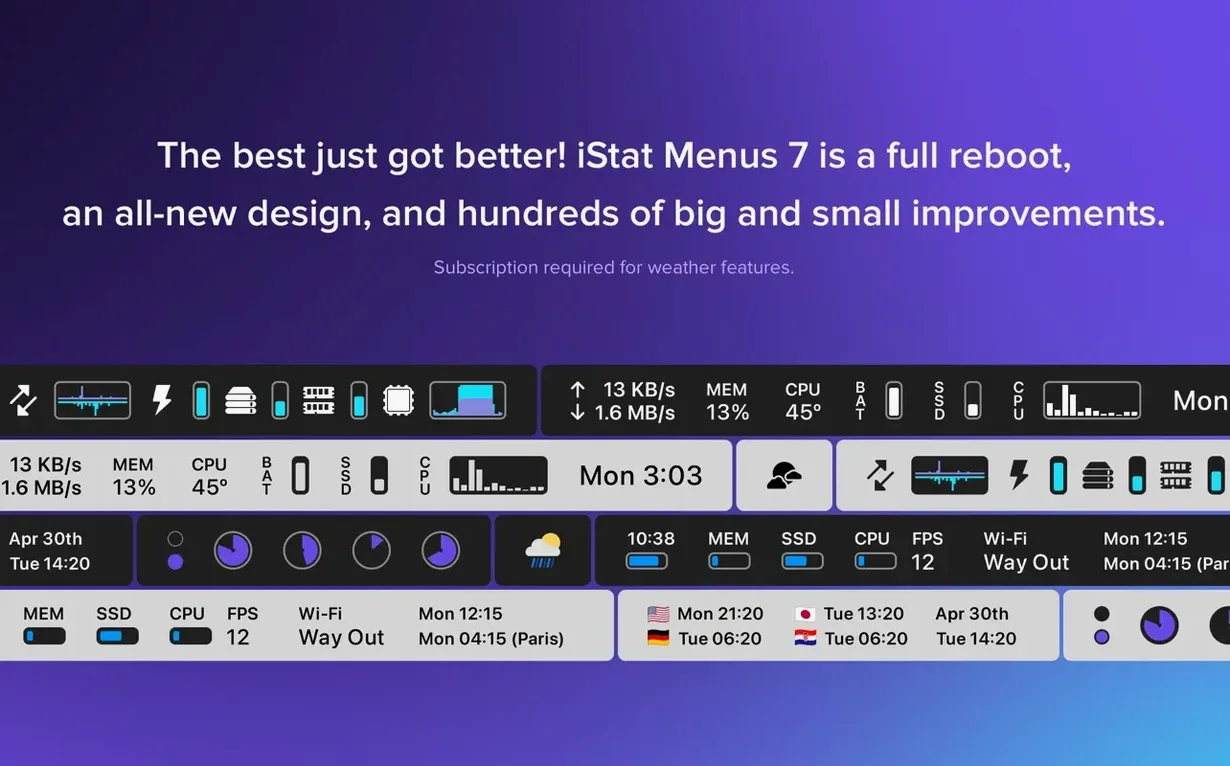
What you end up with is a dense but tidy strip of information. The app supports Dark Mode and ships in over thirty languages, from Arabic to Vietnamese, which makes it practical across shared workstations. It runs on Apple Silicon and Intel 64-bit Macs, with macOS 11 as the minimum.
A sysadmin’s Monday morning
Consider someone managing a small fleet of Macs in a design studio. A render job running overnight has made one of the workstations sluggish by 9 a.m., but nobody has flagged it yet. With iStat Menus, the admin spots the anomaly before the first complaint arrives: the CPU graph for that machine shows a sustained flat line near 100%, and the memory panel lists the renderer still holding 28 GB. A quick remote session confirms the job finished but the process did not exit cleanly. Without a menu bar monitor, the machine would have limped through the morning on swap memory until someone noticed.
From download to configured menu bar in four minutes
Installing iStat Menus takes about four minutes from disk image to a configured menu bar. The steps unfold like this:
- Open the downloaded disk image and drag the app to the
Applicationsalias. - Launch the app. The first window shows a sidebar with every monitor category listed and switched off by default.
- Enable CPU first. A small multi-core graph appears immediately in the menu bar. Click it to check the dropdown; the per-core view confirms all cores are recognised.
- Turn on the memory monitor. The menu bar icon switches to a pie chart. Opening the dropdown reveals a list of processes sorted by memory pressure, which is often more revealing than the bar itself.
- Enable network activity. A tiny upload and download indicator settles between the CPU and memory icons. For a clearer picture, open the dropdown and note which applications are generating traffic.
- Navigate to the sensors section. The app prompts permission for the helper. Approve it, then check that temperatures, fan speeds, and power draw appear. At this point it is worth setting a fan rule for when the Mac runs on battery: a gentle ramp starting at 60°C keeps the keyboard cooler during lap use.
- Add the weather item if you want forecast data in the bar. It pulls location-based conditions, wind speed, and moon phases. The new Astronomy item in version 7.50 adds seeing, transparency, and cloud cover forecasts for anyone who watches the sky.
- Finally, reorder the menu bar items by holding Command and dragging them. What starts as a row of separate icons settles into a single, continuous information strip.
During the working day, the monitors become background companions. A sudden spike in disk activity while writing a document prompts a glance at the dropdown to see if Time Machine has kicked in. An unusually warm palm rest leads to a quick sensor check. None of this interrupts the task at hand; the information is simply there when curiosity or concern arises.
CPU and memory footprint during idle monitoring
One of the first questions is whether the app itself is heavy. iStat Menus idles at a few percent of CPU usage, and its memory footprint stays modest. The sensors and helper run in the background without noticeable impact on everyday work. People on older Macs sometimes worry that the constant updating will slow things down; in practice, the overhead is small enough that you notice it only if you are already running at full capacity.
Another common question concerns privacy. The network monitor shows connections by process, which can feel intrusive. The data stays local. None of the readings are sent to Bjango or anywhere else. The weather item does fetch data from a weather service, and that is the only external communication the app initiates. The helper, which macOS flags during setup, accesses hardware sensors exclusively and does not transmit anything.
People also ask what they miss if they use the Mac App Store version. That variant omits weather, fan speed control, and CPU frequency readings. The direct download from Bjango includes all modules. Some searches for istat menus free or istat menus 6 download circle around older versions, but version 7.50 is the current one and requires macOS 11 or later.
Enabling every monitor at once floods the menu bar
A frequent early mistake is enabling every monitor at once. The menu bar fills with icons that overlap and push system status items off the screen. Starting with three or four well-chosen monitors—CPU, memory, network, and perhaps battery—keeps the bar readable. You can always add more later.
Another misstep is ignoring the dropdown panels. A memory bar alone tells you little; the process list inside the dropdown is where the useful detail lives. The same applies to network: the tiny upload and download arrows look busy, but the per-application breakdown is what identifies a misbehaving syncing tool.
Beginners also tend to set aggressive fan curves. A rule that ramps fans to maximum at 50°C makes the Mac loud for no good reason. The default fan behaviour is sensible for most situations, and custom rules work better as gentle nudges—for battery cooling or for shaving a few degrees off a consistently warm component.
Some newcomers stumble over the helper prompt and decline it, then wonder why temperature readings are absent. The prompt looks like an external installer request, but it is simply the component that connects software to hardware sensors. Accepting it restores the full sensor set instantly.