Aspecten
 Download (115 MB)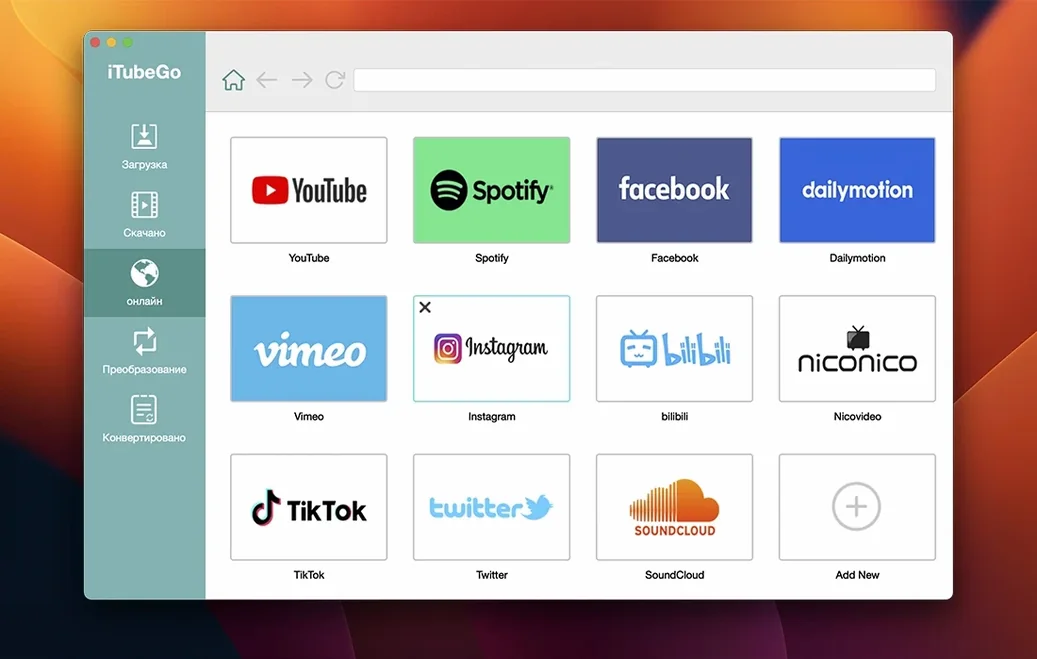
Finding a video online is one thing; saving it for offline viewing often requires a different tool altogether. iTubeGo addresses this by combining a built-in web browser with a multi-site download engine, making the process of fetching video and audio rather direct.
Compatibility check
The software runs on Mac hardware with an Intel processor. The system requirement is OS X 10.10 or newer. Apple Silicon Macs are not natively supported in the listed specifications, so the app runs through Apple’s Rosetta translation environment on those machines. The interface is localised into thirteen languages, including English, German, French, Spanish, Italian, Japanese, Korean and both Simplified and Traditional Chinese.
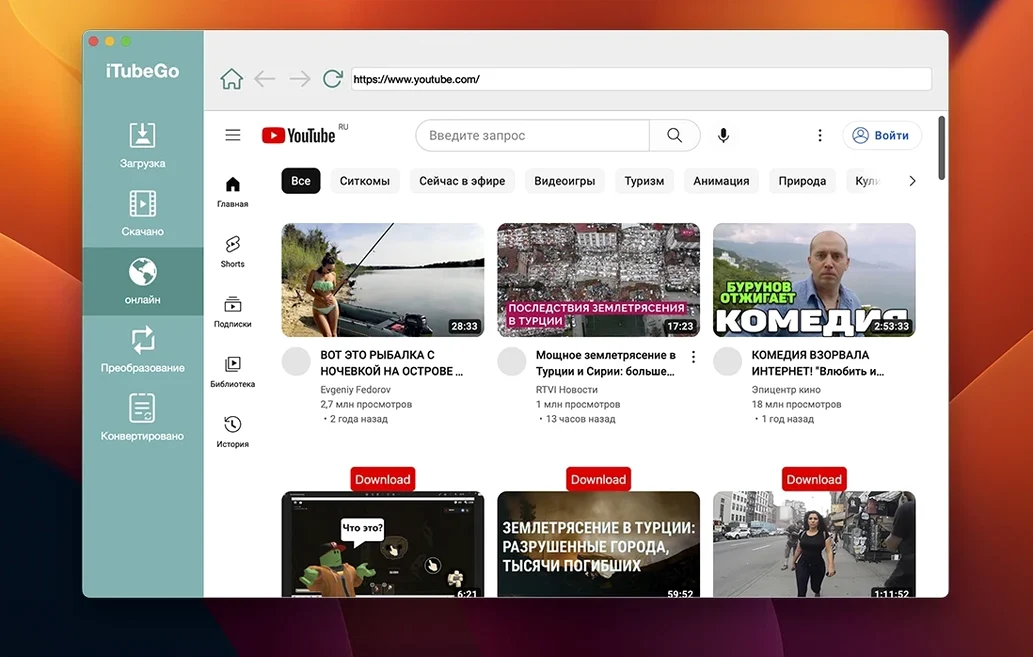
Detect a stream by playing it in the built-in browser
- Open the app and use the built-in browser to navigate to a video page.
- Play the video; iTubeGo detects the stream and presents available formats.
- Choose a quality setting from the listed options, which range from 480p up to 8K.
- Select an audio-only extract if a soundtrack is all that is wanted.
- Set a destination folder and confirm the download to begin fetching the file.
A strength here is the breadth of supported sites. Beyond YouTube, the app works with Facebook, Instagram, Dailymotion, Vimeo, TikTok and several adult platforms, drawing from a stated pool of over 10,000 websites. Bulk downloading is available, with the developer claiming a speed increase of up to ten times compared to single transfers. A limitation to keep in mind is that the setup involves a manual Gatekeeper workaround via Terminal, a step that may feel unfamiliar to some Mac users.
Settings worth visiting straight away
After the first launch, a handful of preferences make the app behave more predictably. Open the preferences window and look for the Download tab. Here you can set a default output folder — the preset location tends to be the user’s Movies folder, but pointing it at a dedicated directory on a secondary drive avoids clutter. The same panel lets you toggle whether iTubeGo creates a subfolder for each playlist download; leaving this on keeps multi-video grabs organised.
Under General, switch the interface language if the auto-detected one does not match what you prefer. The app picks up the system language on first run, but changing it here does not require a restart. Also in this tab, disabling the “Launch at login” checkbox is sensible unless iTubeGo is used daily — its background helper can add a few seconds to boot time on older Intel machines.
The Convert section is where output format defaults live. Setting the MP4 encoder to “High Quality” rather than “Standard” adds a marginal processing delay but preserves more detail from the source stream. For audio-only rips, confirming the MP3 bitrate slider sits at 320 kbps avoids accidentally saving lower-fidelity files later. The app remembers these choices per session once applied.
Quick Look and drag‑and‑drop into iMovie or Final Cut Pro
iTubeGo integrates with Finder in a straightforward way. Downloaded files appear in the chosen output folder and behave like any other media file — Quick Look works with the spacebar, and dragging a clip into iMovie, Final Cut Pro or DaVinci Resolve triggers no format complaints, provided the download was saved as MP4. The app does not register itself as a share destination in the macOS Share menu, so pulling content in always starts from inside iTubeGo’s built-in browser rather than from Safari or Firefox.
For people who use iTunes (or the Music app on newer macOS builds), dropping an extracted MP3 into the Automatically Add to Music folder gets the track into the library without manual import. The same approach works with third-party players such as IINA or VLC — simply point their media libraries at the iTubeGo download folder and new files appear on the next scan.
One quiet benefit is how iTubeGo handles URLs copied from other browsers. If the built-in browser feels sluggish on a particular site, copying the video URL from Safari and clicking the “Paste URL” button in the app’s toolbar triggers detection without needing to load the page again inside iTubeGo. This works reliably with YouTube, Vimeo and Dailymotion. A minor limitation is that pasted links from certain regional streaming platforms sometimes fail to resolve, in which case the built-in browser usually succeeds where the clipboard method does not.
Let buffered video play a few seconds before formats appear
Detection does not start when a video plays. This is the most frequent hiccup. On sites that load video in chunks, iTubeGo sometimes waits until a few seconds of playback have buffered before listing available formats. Letting the video run for five to ten seconds inside the built-in browser usually prompts the format list to populate. If it still does not appear, refreshing the page while the video is playing forces a re-scan of the open streams.
The Terminal step during installation raises a flag. The Gatekeeper workaround requires pressing Enter in a Terminal window that the installer opens. Users unfamiliar with command-line prompts sometimes close the window prematurely out of caution. If the app bounces in the Dock and quits, running the opener again and waiting for the Terminal prompt — then pressing Enter exactly once — resolves it. No commands need to be typed; the script handles everything after that single keypress.
Playlist downloads grab only the first video. When pasting a playlist URL, iTubeGo shows a dialogue listing all detected items. If the dialogue is dismissed by clicking “Download” without scrolling through the full list, only the first entry is queued. Scrolling to the bottom of the list to confirm all checkboxes are ticked before starting the batch prevents partial grabs.
4K and 8K options are greyed out. The source video must be available at that resolution for the option to become selectable. A stream uploaded at 1080p will never offer a 4K download, regardless of the app’s capability. Switching the built-in browser’s user-agent to mimic a desktop rather than a mobile device — found in the View menu — occasionally exposes higher-quality streams that a mobile-optimised page would hide.
Copy URL or open a source page in Safari from the queue
Right-clicking any entry in the download queue opens a context menu with a “Copy URL” command, useful for logging sources without hunting through browser history. The same menu includes “Open in Browser,” which loads the source page in Safari rather than the built-in window — handy when the site requires a login that iTubeGo’s internal browser does not store.
The download queue accepts drag-and-drop from text clippings. If you keep a plain text file of video links, selecting a URL and dragging it onto the iTubeGo window or Dock icon starts detection immediately. This bypasses the paste button entirely and works even when the app is hidden behind other windows.
Keyboard shortcuts are sparse but functional. ⌘N opens a new built-in browser tab, ⌘O opens the output folder in Finder, and the Escape key closes any floating format-selection panel. There is no global shortcut for starting a download from another app, which keeps the workflow self-contained but means switching back to iTubeGo to trigger a fetch.
When converting a downloaded video to audio, iTubeGo does not delete the original video file unless the “Remove original after conversion” checkbox is ticked in the Convert preferences. Leaving it unticked gives you both the video and the extracted MP3, stored side by side with matching filenames. The conversion queue can be paused and resumed individually per item by right-clicking and selecting “Pause,” which is less obvious than the global pause button in the toolbar.
Tight Safari integration versus the built‑in browser approach
Alongside iTubeGo, three other Mac apps occupy the same space: Downie, 4K Video Downloader, and ClipGrab. Each handles video fetching, but the approaches differ in ways that shape daily use.
Downie integrates more tightly with macOS. It supports Safari and Chrome extensions that send links with one click, and its post-processing engine can extract subtitles or convert to formats suitable for specific Apple devices. Downie’s interface is simpler — a single window with a drop zone — but its site coverage leans heavily on YouTube and Vimeo, with fewer adult-platform entries than iTubeGo. Where iTubeGo gains ground is the built-in browser: Downie expects you to supply a URL from a regular web browser, which feels cleaner until a site blocks direct link detection, at which point iTubeGo’s internal browser becomes a practical fallback.
4K Video Downloader matches iTubeGo’s resolution ceiling and adds support for 360-degree video and subtitles as separate downloads. Its queue management is slightly more visual, with thumbnail previews for each item. However, 4K Video Downloader’s free tier limits playlist length and concurrent downloads more aggressively than iTubeGo’s single-session workflow, and it lacks an integrated browser, relying entirely on system-wide clipboard monitoring. For someone who downloads from a wide range of video platforms and wants a self-contained tool, iTubeGo’s browser-first approach can feel more direct.
ClipGrab is the lightest of the bunch. It asks little of the system, starts quickly, and handles YouTube-to-MP3 conversion with minimal fuss. Its site support is narrower, and it does not attempt bulk downloading or 8K retrieval. ClipGrab suits quick, single-video grabs where format choices are few. iTubeGo feels heavier to launch but rewards with broader format options, higher audio bitrate ceilings — ClipGrab caps MP3 extraction at 256 kbps — and a queue system that makes multi-video sessions less repetitive.