Aspecten
 Download (90 MB)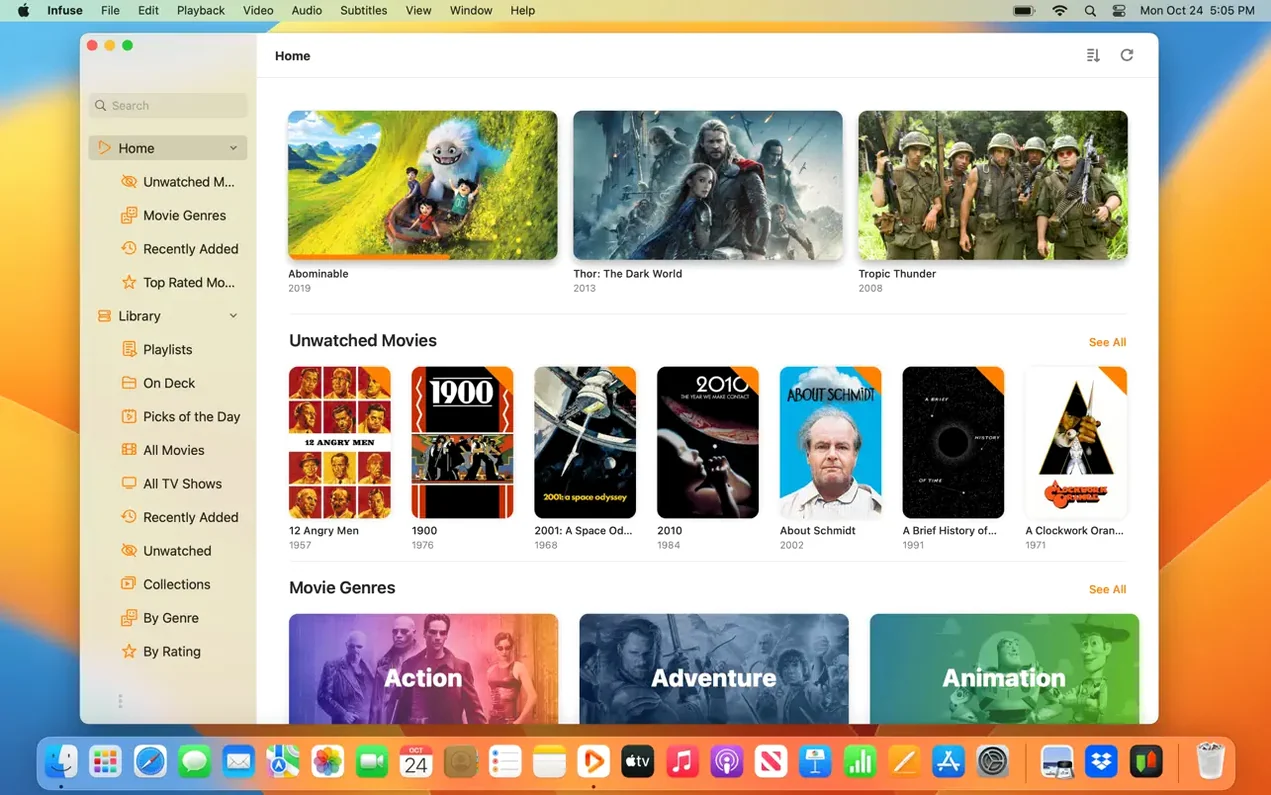
Open an MKV without a second thought
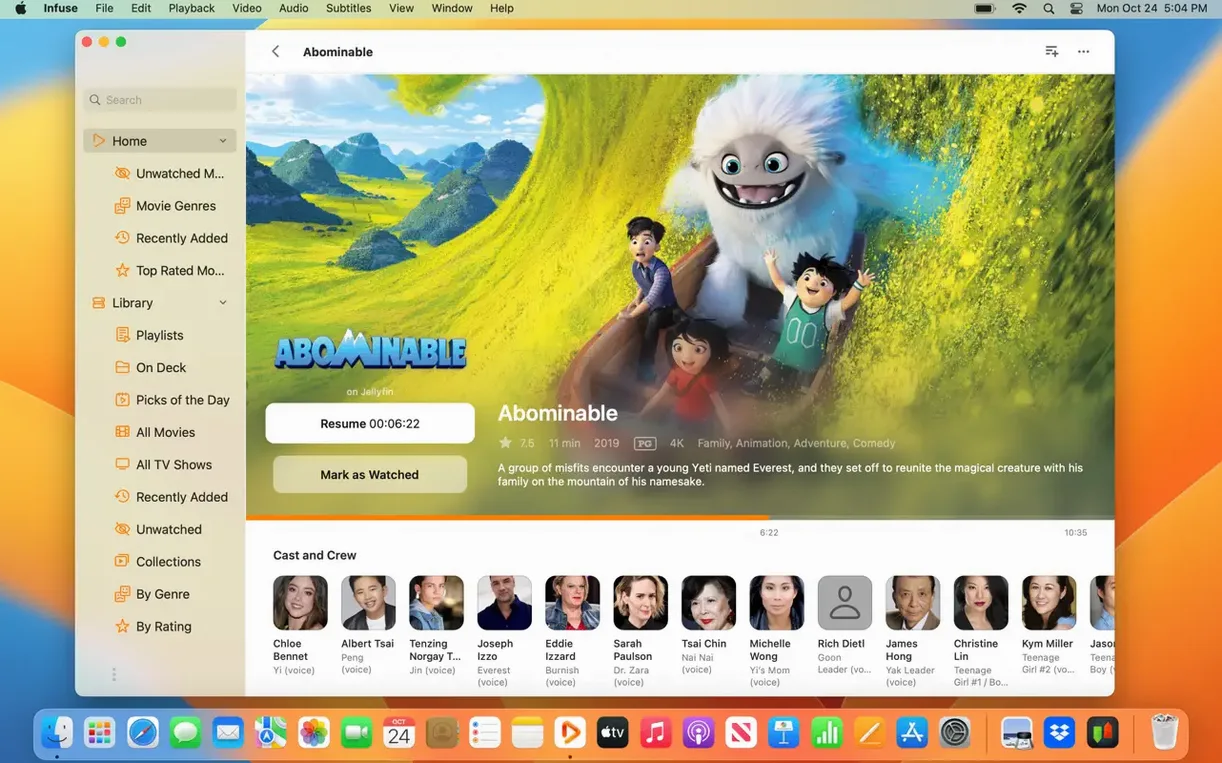
Trakt sync pulls in watched history and ratings the moment you sign in. Infuse reads the file, finds artwork, and queues up OpenSubtitles in the background — all before you settle on a seat.
Let DTS-HD audio actually play
QuickTime stumbles on a DTS track; Infuse decodes it directly. The same file that was silent in Finder’s preview plays with full surround sound, no conversion step needed.
Keep your place across the desk and the sofa
Start a film on the Mac, pause it, and pick up the iPad later. iCloud sync moves the timestamp between devices without a manual bookmark, sitting quietly alongside the other sync services you already use.
Switch the poster wall to a detail list view
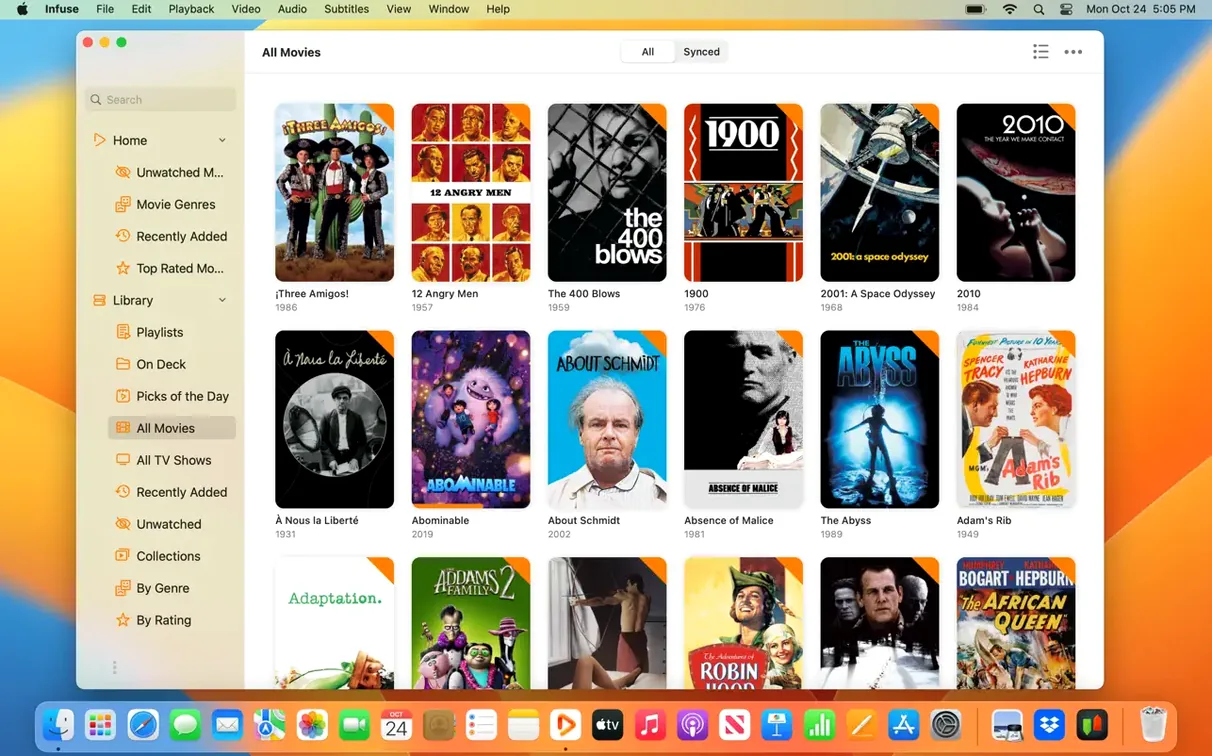
Fresh installs benefit from a handful of deliberate tweaks. Start with the library view. Infuse defaults to a poster-wall layout, but tapping the list icon in the top bar switches to a compact table with filename, resolution, and duration columns — easier to scan when you point the app at a large network share for the first time.
Under Settings → General, check the option labelled “Show filenames in lists”. It keeps the raw file name visible alongside the scraped metadata. When a filename carries episode numbers or a release tag that the artwork obscures, that small label saves a lot of squinting.
The “Pre-cache artwork” toggle, found in Settings → Library, is another early choice. On a Mac with a fast internal drive it makes browsing snappier. On a machine with limited storage, leaving it off and letting posters load on demand keeps the library footprint small. The difference is rarely explained during setup, but it shapes the feel of scrolling through a large collection.
Lastly, spend ten minutes with the subtitle defaults. Open any video, pull up the subtitle menu, and set a preferred language and a fallback. Infuse remembers the pairing per-device, so you stop reaching for the menu every time a foreign-language scene appears. Pair that with the OpenSubtitles login under Settings → Services, and the app pulls matching subs without a file hunt.
A researcher’s evening with a dusty archive
Consider someone working through a set of old conference recordings — MPEG-2 files stored on a university NAS, reachable over SMB. The filenames are cryptic: PANEL_04_2011.mts, KEYNOTE_B.mts. QuickTime refuses to open them. VLC plays the video but treats each folder as a flat list. Finding the right talk means squinting at tiny thumbnails in Finder.
Infuse is pointed at the NAS share once. Over the next few minutes it pulls in the folder structure as-is, so the researcher browses by year and session exactly as the files are organised. The MTS containers open without a prompt. A double-tap on the remote or a click on the Mac starts playback, and the DTS audio track recorded from the auditorium’s mixing desk comes through cleanly. The researcher spots a talk that was originally delivered in French, taps the subtitle menu, and fetches an English SRT from OpenSubtitles without leaving the playback screen. No file conversion, no Finder hunt, just the content.
At the end of the evening, the watched indicators sit in the library next to the files that were played. The next morning, the iPad in the office shows the same tick marks via iCloud sync. The archive hasn’t moved, but the progress has followed the person.
Fitting into the wider Mac ecosystem
Infuse does not try to replace the Finder or a media server — it sits alongside them. A common pattern is to keep the video files on a Synology or a Mac mini running file sharing, and let Infuse handle playback while Plex or Jellyfin manages the metadata for other household devices. Infuse reads the same folder structure directly over SMB, so no library duplication is needed. Watched status syncs through Trakt and iCloud, leaving the server’s own database untouched.
On the Mac itself, the app respects standard conventions. It appears in the macOS share sheet, so from Finder you can right-click a video and send it straight to Infuse. The Quick Look integration is one-way — Infuse does not replace the Finder preview — but dragging a folder onto the Dock icon adds it to the library immediately. For users who keep a media scratch folder on the Desktop, that drag-and-drop path becomes muscle memory within a day.
AirPlay works as a second-screen option. A film playing on the Mac can be sent to an Apple TV in the next room while the Mac’s display stays free for other tasks. The audio stays in sync better than browser-based casting, largely because Infuse decodes the stream locally before sending it. For a setup that mixes local files and Apple hardware, that single feature ties the pieces together without extra cables or software.
Small shortcuts and overlooked conveniences
A few touches hide in plain sight. The space bar toggles play/pause from anywhere in the library, just as it does in QuickTime, but it also works when the window is not in focus — handy when Infuse is playing on a secondary display while you type elsewhere.
The swipe gestures on the Mac trackpad mirror the iOS version. A two-finger swipe horizontally scrubs through the timeline in small increments. A vertical two-finger swipe on the right half of the trackpad adjusts volume; on the left half it changes brightness. These are never advertised prominently, but they become second nature after a few long-form viewing sessions.
- Direct chapter jumping: Press Cmd+left or Cmd+right to skip between chapters in MKV and MP4 files that carry chapter markers.
- Audio track cycling: Cmd+Shift+A rotates through available audio tracks without opening the on-screen menu.
- Subtitle delay fine-tuning: While subtitles are visible, Option+left and Option+right shift the sync in 0.5-second steps. Infuse remembers the offset per file.
- Quick folder refresh: Pull down on the library view with a trackpad scroll gesture to force a rescan of the current share — useful after adding new files from another machine.
- De-interlacing toggle: Found under the playback settings gear, not the main preferences. For those old MTS files or DVD rips, it cleans up combing artefacts with a single tap.
One final detail: when you download an infuse dmg and set up the app, the initial library scan can look as if it has stalled on large shares. Let it run. The progress indicator is subtle — a thin bar at the bottom of the sidebar — but once the first pass completes, subsequent updates are incremental and nearly instant.