Aspecten
 Download (5 MB)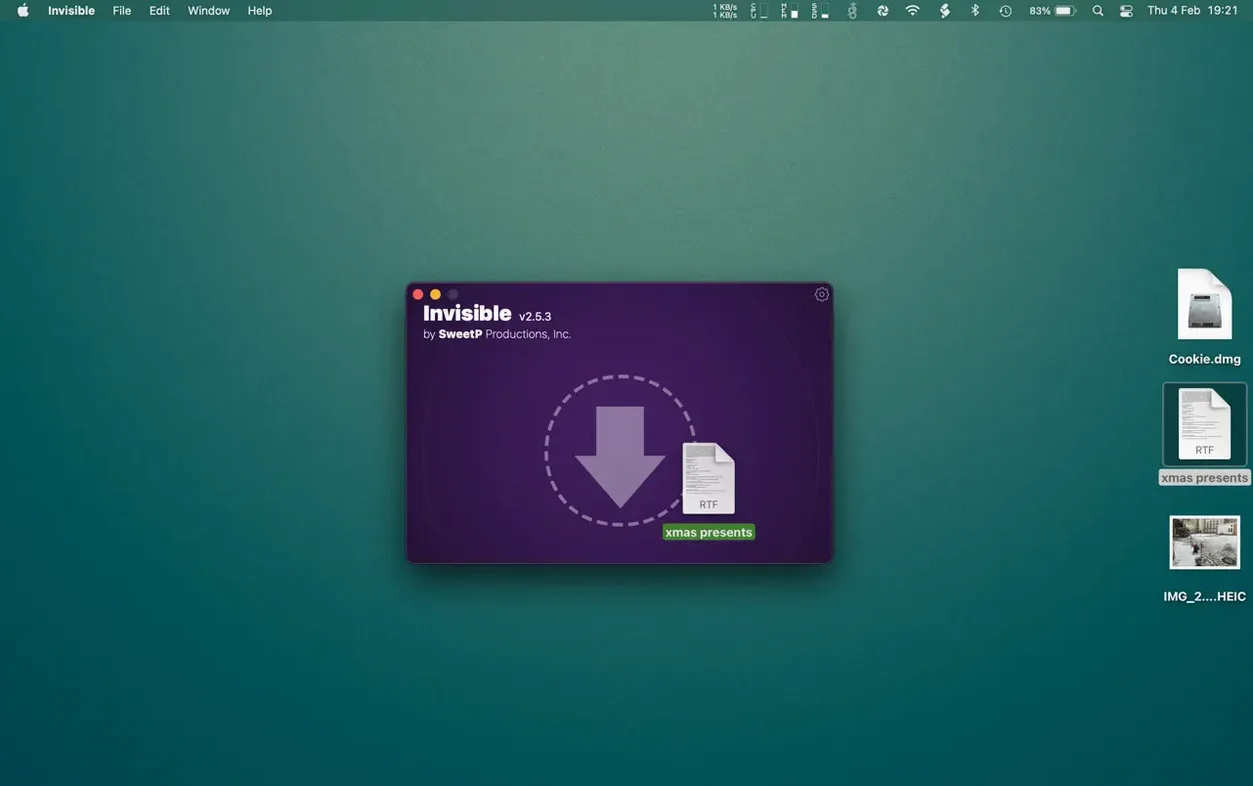
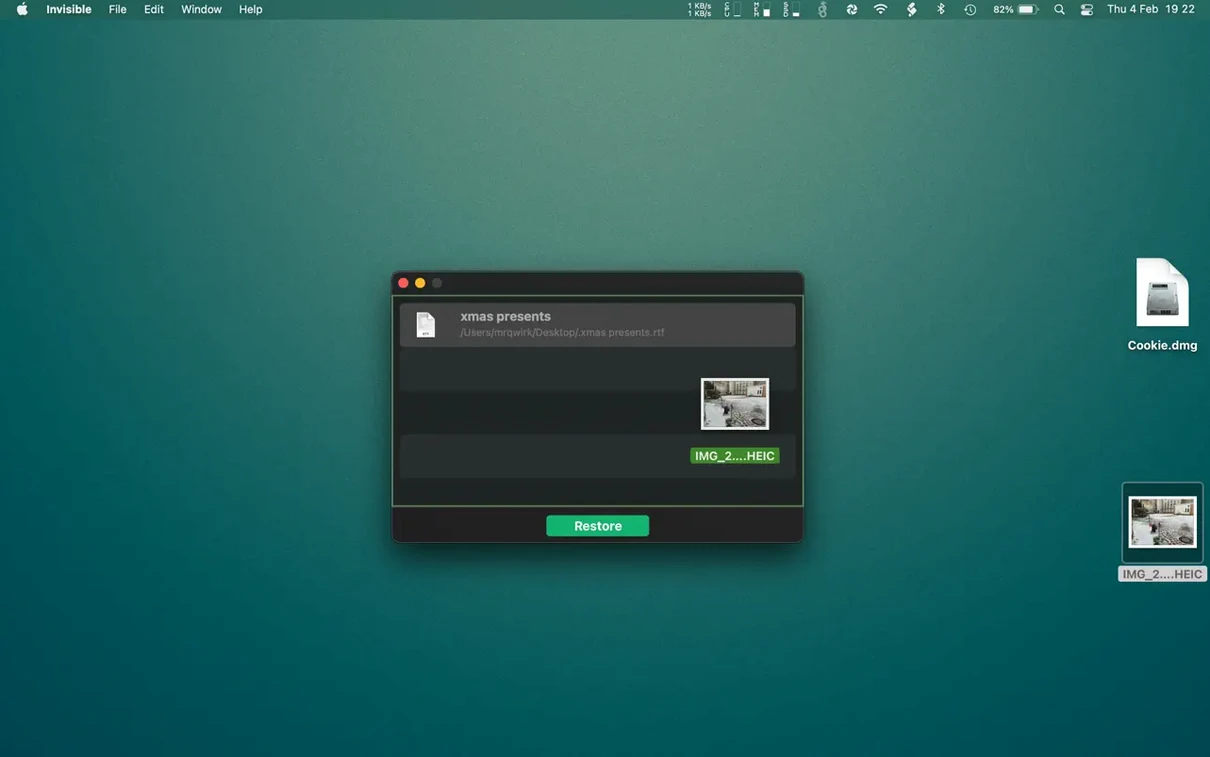
Invisible is a privacy utility that uses macOS's default hiding function to conceal files and folders from view and restore them later. The current version, 3.2.2, runs on Apple Silicon and Intel Macs and stays close to what the app has always been: a straightforward way to tuck items out of sight without encryption overhead.
- Hides individual documents or entire folders via a simple drop interface.
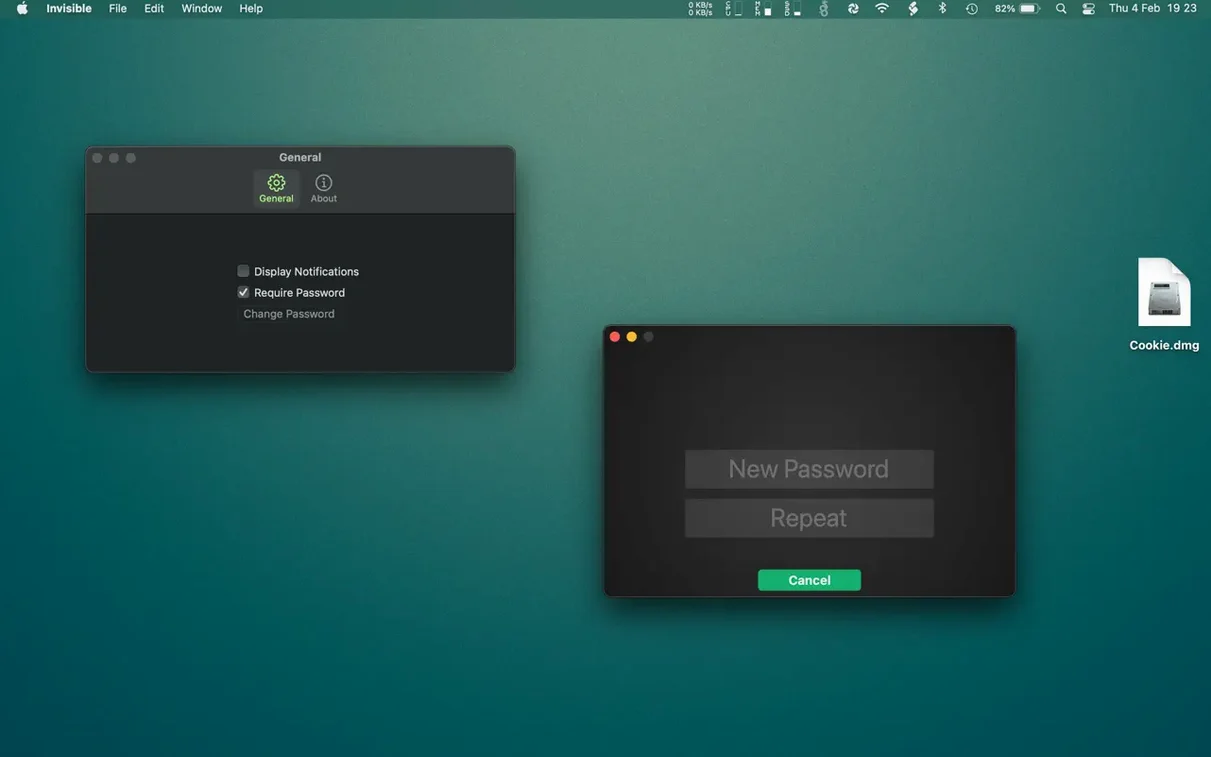
- Protects the hidden list with a password, so restoring items requires authorisation.
- Uses the operating system’s own hiding mechanism; files remain on disk in their original location.
- Experienced users familiar with macOS may still be able to access hidden items through other means.
- Double-clicking a file entry in the app opens it directly, without needing to unhide it first.
- Localised for English, German, Dutch, Russian, Traditional Chinese, and Simplified Chinese.
The app does not encrypt data. It relies on invisibility rather than cryptographic security, so it suits keeping sensitive documents out of casual view more than defending against a determined search. What changed in recent releases is minimal — the tool remains a quiet, single-purpose addition to the Mac privacy drawer.
Hiding hundreds of files finishes in under a second
In daily use, Invisible 3.2.2 feels immediate. Hiding a folder with several hundred files completes in under a second on a modern Mac, because the app simply flips the visibility flag rather than moving or copying data. Restoring items is equally quick. There is no perceptible lag when scrolling through a long hidden-items list, and Quick Look via the spacebar pops open with the same speed you would expect in the Finder.
Memory consumption sits around 45–65 MB while the app is open, and CPU use is negligible when idle. The app does not run a background daemon or a login item by default, so it adds no measurable overhead to system startup or everyday operation. During batch operations — hiding or restoring thirty or forty items in one go — a brief spike in CPU activity appears but settles within a second or two.
Stability has been uneventful across weeks of routine use. The app has not caused a single hang or unexpected quit in testing on both Intel and Apple Silicon machines. Because it does not touch file contents, the risk of data corruption is essentially zero; the worst outcome of a crash mid-operation is an item remaining in its previous visibility state.
Pressing Enter too fast in the Gatekeeper script can stall things
One recurring sticking point involves the initial Gatekeeper hurdle. When you first mount the disk image and run the Open Gatekeeper friendly script, a Terminal window asks for confirmation. Users who press Enter too quickly without reading the prompt sometimes miss the step, then find the app refuses to launch. The fix is straightforward: run the script again and wait for the clear instruction before pressing Enter.
Another snag surfaces when people expect hidden items to be invisible everywhere. Files and folders hidden by Invisible stay hidden in Finder and standard Open dialogs, but they remain visible to command-line tools, search utilities that index hidden paths, and any app that explicitly requests hidden files. Someone accustomed to the sandboxed isolation of encrypted disk images may find this surprising. The remedy is to treat the app as a clutter reducer and casual privacy layer, not as a security vault.
The password prompt after a period of inactivity can catch users off guard. If you leave the app open and walk away, returning to a hidden-items list may trigger the biometric or password gate. This is by design, but if the Touch ID sensor does not register immediately, tapping the password field and typing the passphrase bypasses the wait cleanly.
A minor nuisance: dragging a folder that contains symlinks or alias files occasionally leaves the aliases visible while the targets hide correctly. The workaround is to drop the actual folder rather than an alias onto the app, or to hide the linked items separately.
The hidden-items list now remembers your sort order after relaunch
Version 3.2.2 tidied up a long-standing annoyance where the hidden-items list would forget its sort order after a relaunch. Now the list retains the user's chosen sorting — by name, date hidden, or kind — across sessions. The change is small but cuts out a repetitive click for anyone who hides and restores items in regular batches.
Earlier updates in the 3.2 line brought native Apple Silicon support, which removed the brief Rosetta translation delay that Intel-only builds incurred on M-series Macs. The app now opens without the bounce-and-pause that used to accompany first launch on Apple Silicon. Localisation also expanded quietly: Dutch, Russian, Traditional Chinese, and Simplified Chinese joined the existing English and German, which means the password prompt and contextual menus now speak a wider set of languages without any setting to toggle manually.
The developer also refined how the app handles macOS access permissions. Where earlier versions sometimes re-requested folder access after a system update, 3.2.2 remembers granted permissions more reliably. Users upgrading from older builds may still see a one-time permission prompt on first run; granting it once usually settles the matter for good.