Aspecten
 Download (313 MB)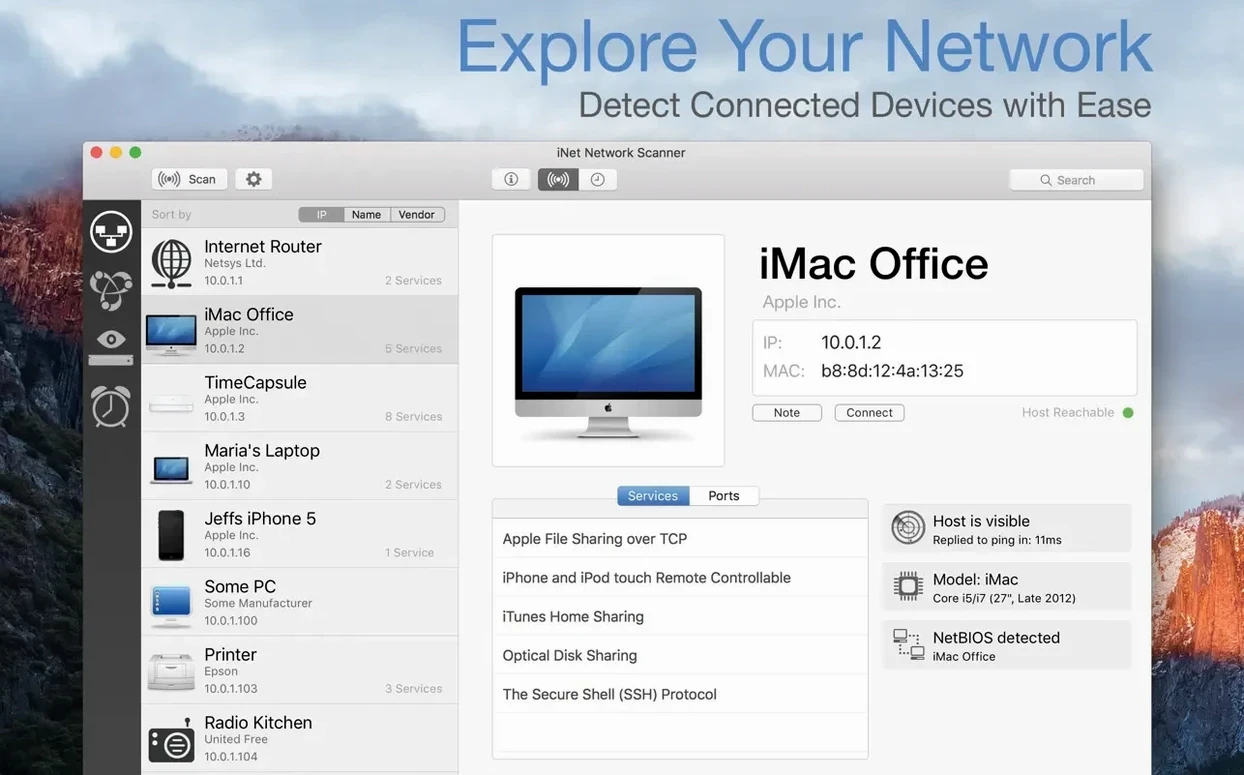
iNet Network Scanner is a Mac application for surveying local networks, identifying every connected device and inspecting the services they expose.
Good for
- Seeing which devices are active on a subnet, with automatic distinction between Windows and Macintosh hardware.
- Displaying the specific model name for most Apple computers.
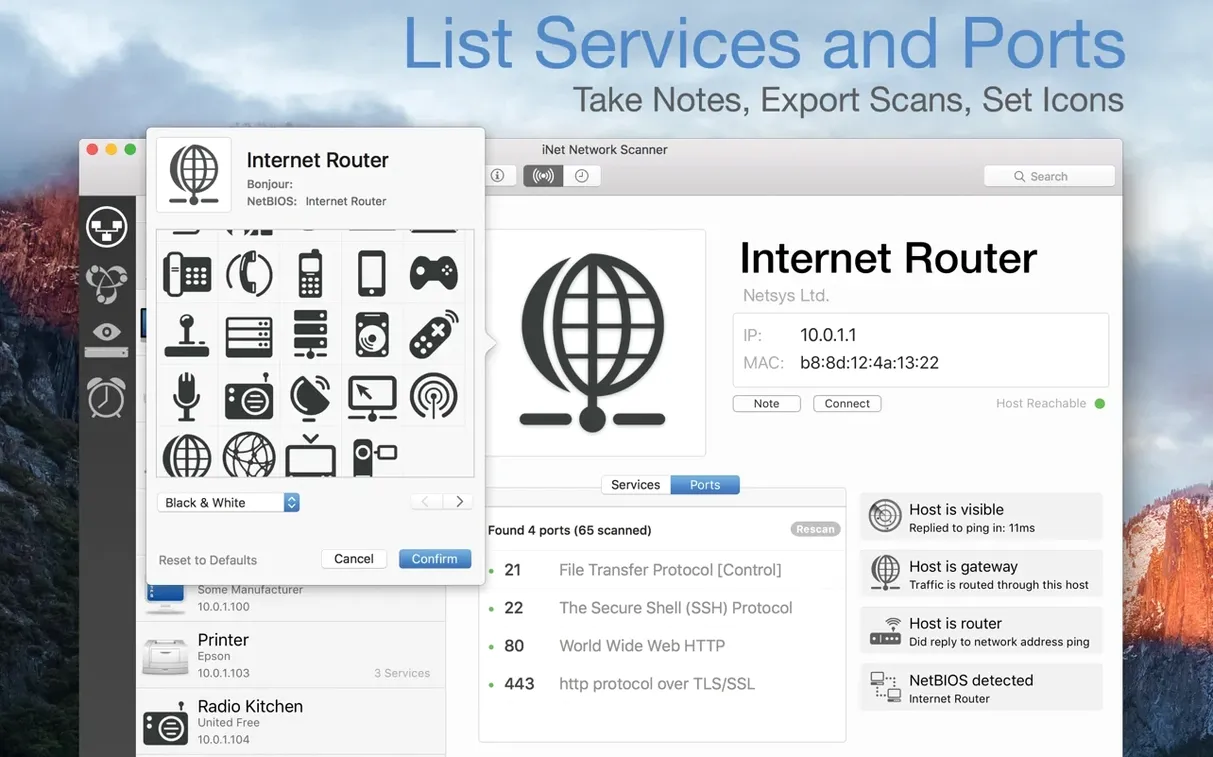
- Running a port scan to check which services a device is offering, with faster scanning in the current version.
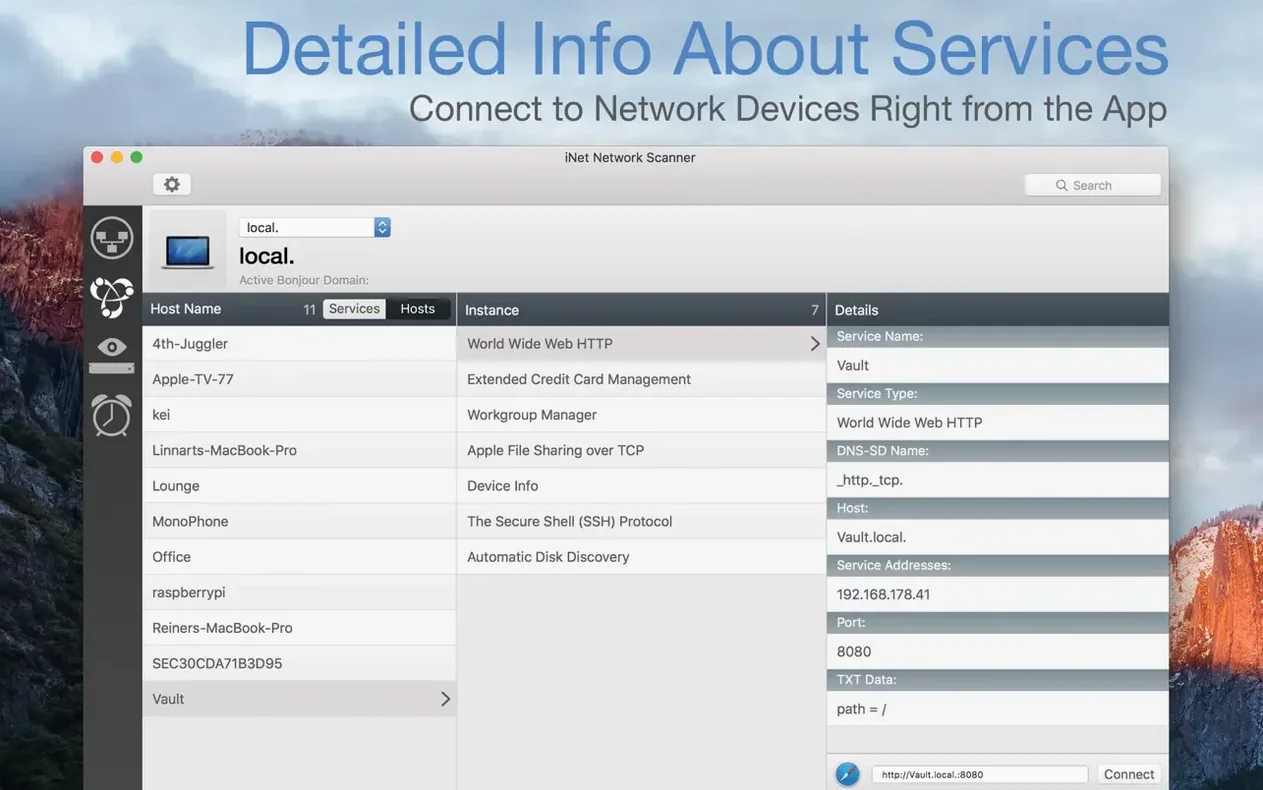
- Browsing Bonjour services to find printers, file shares and other advertised resources without knowing IP addresses.
- Sending Wake on LAN packets to sleeping Macs and PCs, or issuing Sleep on LAN to compatible Macs.
Keep in mind
- Sleep on LAN is limited to Macintosh targets only.
- Requires macOS 12.4 or later.
Choose a scan interface to avoid VLAN or Wi‑Fi blind spots
After launching iNet for the first time, a few adjustments make scanning more predictable. The scan range defaults to the subnet of the active network interface, but if you work across VLANs or use a wired connection alongside Wi‑Fi, open Preferences → Network Interfaces and select the correct adapter explicitly. Leaving it on automatic can occasionally pick the wrong one after a reboot.
In the scan results pane, the columns shown by default are minimal. Right‑click the header row and enable Manufacturer and Last Seen. Manufacturer detection improved noticeably in version 4.0.4, and the Last Seen timestamp helps when you are hunting for a device that drops off intermittently.
For port scanning, click the small gear icon in the ports list header — the release notes mention quick access to port scan settings from there — and switch from the default top‑ports preset to a custom range if you are auditing a specific service. The faster port scanning in this version makes broader ranges far less tedious than they used to be.
IPv4-only host discovery or a deeper device‑role scan
Three other scanners often appear alongside iNet in discussions: LanScan, Angry IP Scanner and the built‑in Network Utility replacement approaches some people cobble together with arp -a and nmap.
LanScan does one thing — IPv4 host discovery — and does it quickly. It shows manufacturer, IP and MAC address in a flat list. Where iNet pulls ahead is Bonjour browsing and the port scan integration. LanScan has no service discovery, no Wake on LAN, and no way to drill into a device beyond its basic identifiers. If you only need a fast headcount of hosts, LanScan is lighter. If you need to understand what those hosts are doing, iNet covers more ground.
Angry IP Scanner is cross‑platform, open source, and can fire off hundreds of threaded pings in seconds. Its plug‑in system lets you write custom fetchers. The trade‑off is a Java runtime dependency and an interface that feels indifferent to Mac conventions. iNet is quieter to look at, uses native macOS networking frameworks, and wraps Bonjour and port data into the same row as the IP. Angry IP Scanner gives you raw speed and extensibility; iNet gives you an integrated view without assembling components yourself.
The manual toolchain — arp, dns-sd, nmap — costs nothing and teaches you plenty. It also demands you remember syntax and interpret output that is not always consistent across macOS versions. iNet bundles those capabilities behind a single window where a double‑click opens a device detail sheet and a right‑click sends a magic packet. For occasional troubleshooting the command line is fine; for regular use, iNet saves the mental switching cost.
Resuming a subnet scan to find a down printer in 10 seconds
Imagine a Tuesday morning. Someone reports that the accounting printer is not responding. You open iNet and it resumes with the last‑used subnet. The scan runs — about ten seconds for a /24 — and the results list populates.
You spot the printer by its Bonjour name in the Services column. The IP matches what the office floorplan says it should be, but the row is greyed out: the device did not respond to the latest ping. You right‑click and choose Port Scan, narrowing the range to ports 515, 631 and 9100. All three come back closed. The printer is powered off, not just sleeping.
You switch to the Bonjour browser tab. A second printer of the same model appears, this one in the design department on a different IP. The person who filed the ticket did not realise their machine had switched to that queue after a macOS update. You note the correct printer name, walk over, reselect it in System Settings, and send a test page.
Before closing iNet, you select the offline printer, click Wake on LAN from the toolbar — just in case it was in deep sleep rather than off — and then email yourself the scan results through File → Send via Mail. The exported list includes every device, its provider and the number of Bonjour services, which is enough for a quick audit note. Five minutes from launch to resolution. That is the rhythm iNet settles into: scan, inspect, act, document.