Aspecten
 Download (242 MB)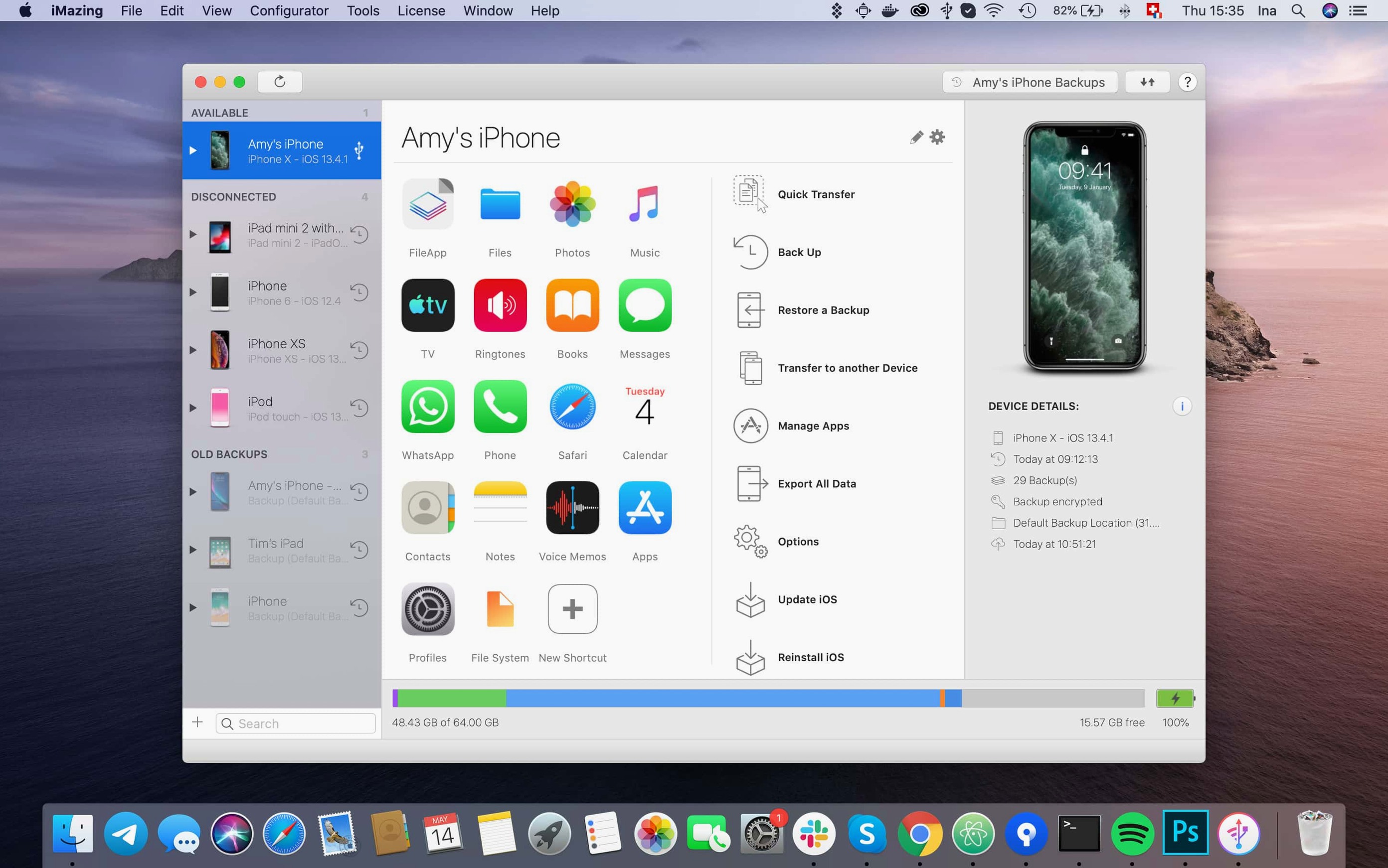
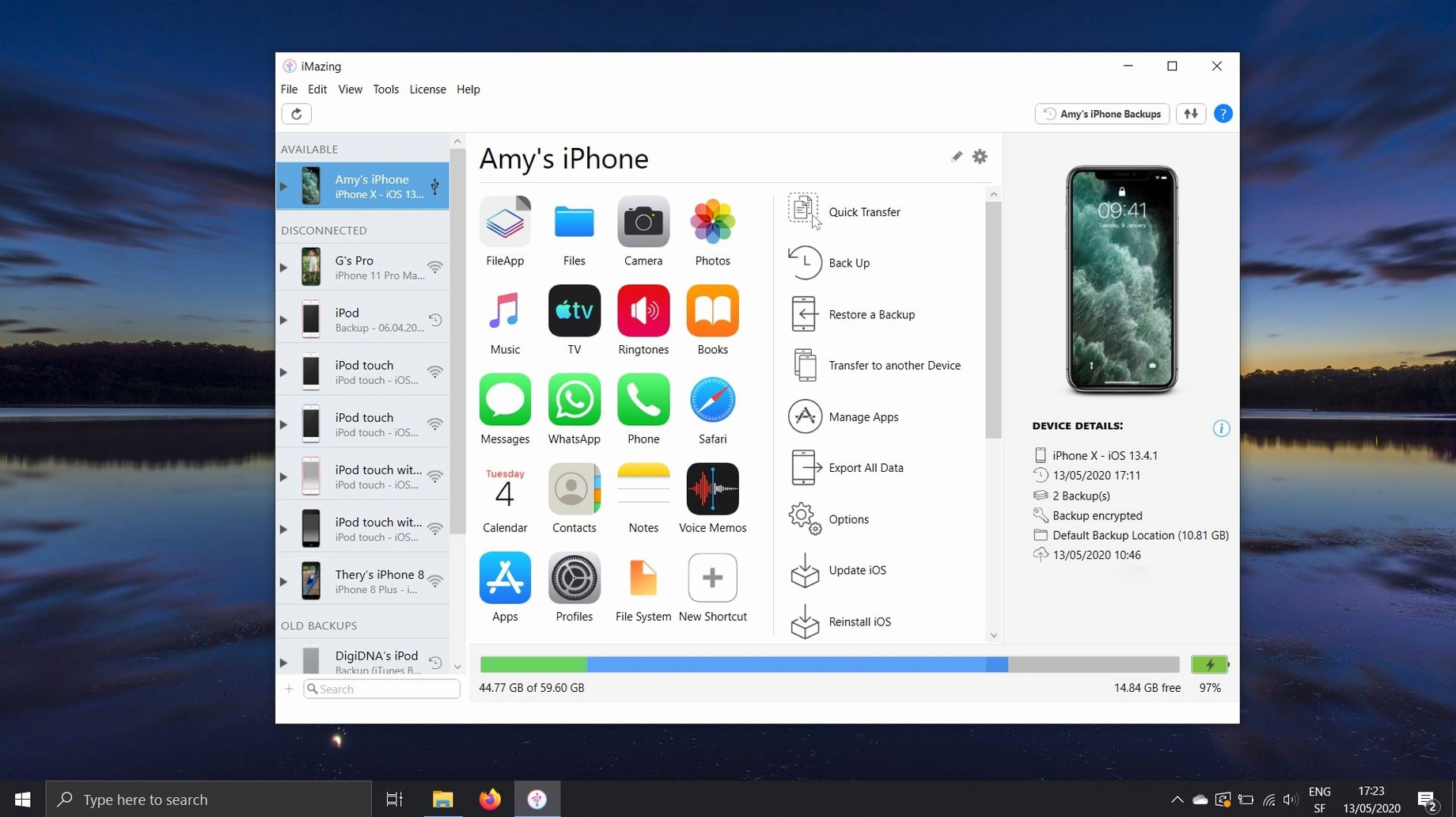
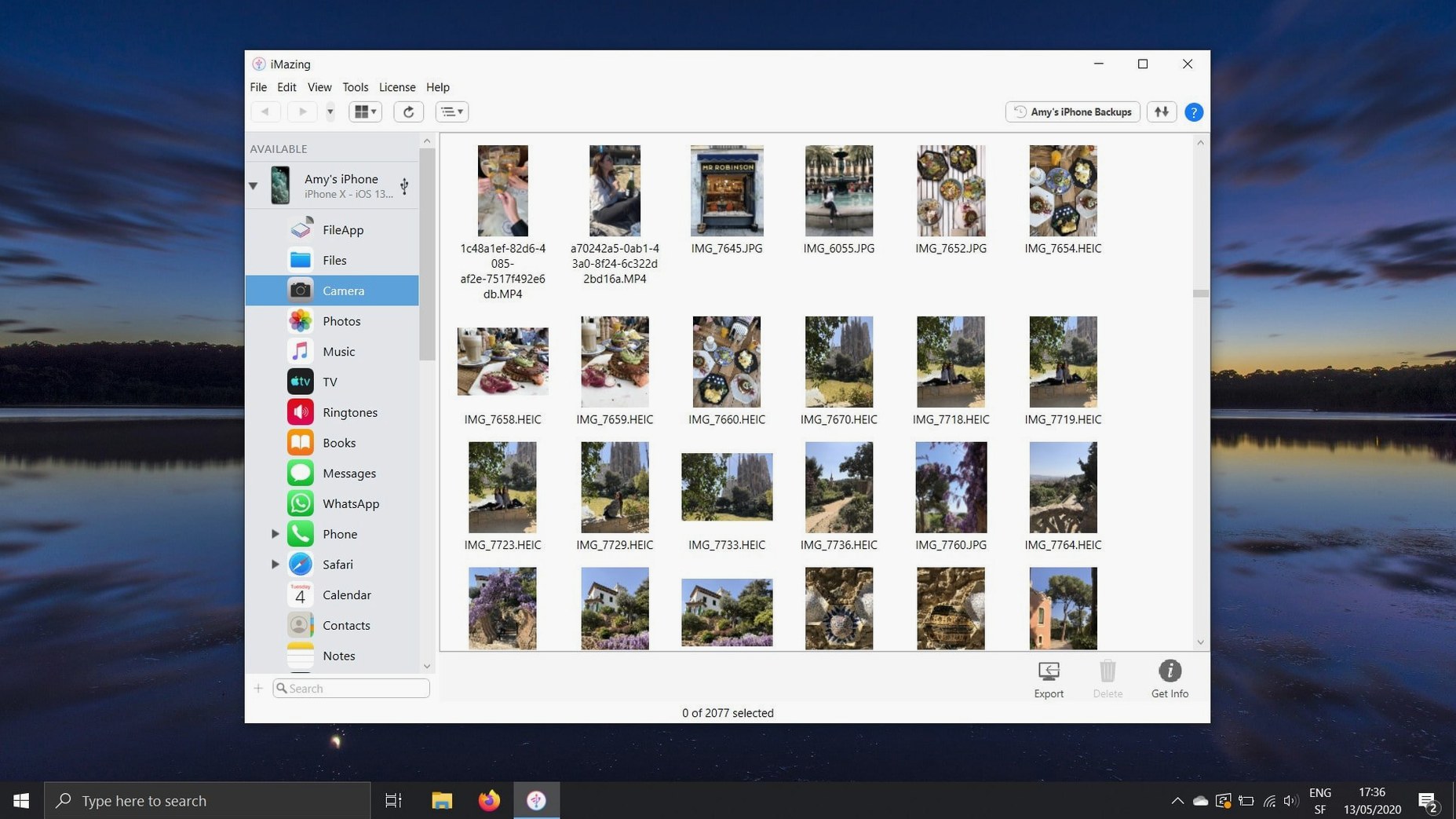
For anyone familiar with the limited file-browsing of Apple’s Finder or Music app, iMazing relates as a far more direct conduit to an iPhone or iPad. Version 3.6.5 keeps that same approach with a few measured additions.
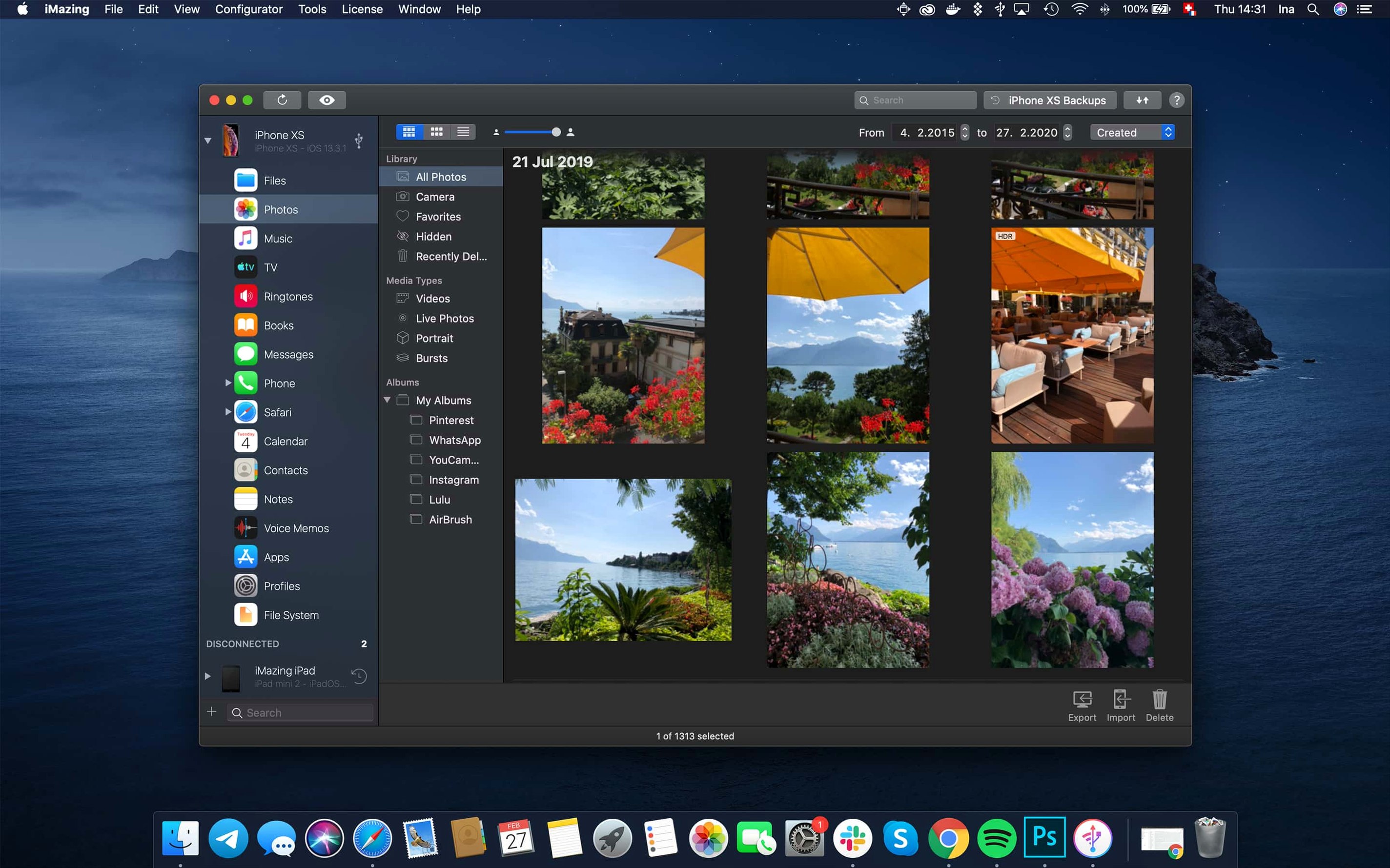
Browsing messages, music, and photos from a live device
- Connect the device with a cable or over Wi-Fi. iMazing presents a summary of storage, battery health, and backup status.
- Choose a data section — Messages, Music, Photos, or File System — to browse the live content as a structured tree.
- Select items. Drag a voice memo to the desktop to save it as an audio file, or copy a text conversation complete with attachments to the Mac for archiving.
- For app data, open the File System section. Here you can navigate an iOS app’s documents and settings folder, export a game’s saved state, or place a document back into an app’s sandbox.
- Use the backup tools to extract data from an encrypted archive or push selected files back onto a fresh device.
The app handles a broad range of data types without switching tools. You can copy contacts between the device and a Mac address book, transfer ePub and PDF books into Apple Books or out to a folder, and export calendars as ICS or CSV files. Voicemail messages saved as standard audio sit neatly alongside exported voice memos. The device can also be mounted as a basic flash drive for moving arbitrary files. This release introduces a link to the iMazing Chatbot in the toolbar and adds support for newer hardware, while the core transfer and backup functions remain unchanged.
Unlock the iPhone to fix the "device not recognised" prompt
A few recurring hurdles come up in everyday use, usually tied to how iOS locks down its own file system. The first is the "device not recognised" prompt after a macOS update. The fix is almost always the same: unlock the iPhone or iPad, reconnect the cable, and tap "Trust This Computer" when the alert appears. If the alert does not show, a quick toggle of the USB connection in iMazing's device list — disconnect, wait five seconds, reconnect — forces iOS to re-prompt.
Wi-Fi backups stalling mid-way are another common irritation. The device must remain on the same network as the Mac, with the screen locked and the battery above 50 percent. If iMazing reports "waiting for device" for more than a few minutes, plugging the device into power often nudges iOS out of its low-power networking state. Switching the backup frequency in preferences from automatic to a fixed nightly schedule also helps avoid the background task being deprioritised by macOS.
Messages export can trip up users expecting a single clean file. iMazing exports conversations as PDF with attachments in a side folder, or as plain text without media. Selecting a long thread and choosing PDF may take a while; the progress bar sits at 90 percent for a minute or two while it renders large image attachments. Patience sorts it — force-quitting mid-export leaves a partial file behind. For the cleanest export, use the text-only option first to check the conversation range, then switch to PDF if the attachments matter.
App file system browsing sometimes shows an empty Documents folder for apps that store everything in iCloud. That is not a bug — the local sandbox simply has nothing to show. The same applies to apps that use shared group containers; 3.6.5 now includes those containers in .imazingapp files exported from backups, but live browsing still requires the app to have local data.
Error code 429 during app downloads, fixed in this release, was a rate-limiting response from Apple's servers. Earlier builds would retry too aggressively and lock the session. The current version spaces out requests sensibly, so the download queue now completes without manual intervention.
iPhone 18 Pro and Apple Watch Series support arrives
Version 3.6.5 is a maintenance and compatibility release rather than a feature overhaul. The most visible change for someone upgrading from an earlier 3.x build is hardware support: iPhone 18 Pro, iPhone 18 Pro Max, iPhone Duo, Apple Watch Series 12, and Apple Watch Ultra 4 are now recognised immediately upon connection. Before this update, connecting a newer device simply showed an unsupported hardware message. Now the device tile appears with full battery, storage, and backup options.
The unified logs export is a quiet but genuinely useful addition. Previously, extracting diagnostic logs from a device meant copying individual entries from the console view. Now a single command exports the complete log archive — helpful when tracking down a recurring crash or app misbehaviour. The toolbar link to the iMazing Chatbot sits alongside the existing help icon; it opens a support chat directly, which removes a step for anyone who previously hunted through the Help menu for contact options.
A small but meaningful fix addresses scanned documents from iOS 26. In earlier builds, multi-page scans displayed only the first page in iMazing's preview pane. The second page onward rendered as blank thumbnails. Now the full document scrolls through correctly, making it practical to pull scanned paperwork off a device without resorting to AirDrop or email.
Plug in, wait for the tile, and check battery and backup status
Imagine a Tuesday evening. An iPhone sits on the desk with a Lightning cable connected to a MacBook. The user opens iMazing and waits a few seconds for the device tile to populate — battery at 82 percent, 41 GB free of 256 GB, last backup four days ago.
First task: pull off the weekend's voice memos. The user clicks Voice Memos in the sidebar, sees a list sorted by date, selects three recordings from Sunday, and drags them to a project folder on the desktop. iMazing copies them as M4A files, keeping the original timestamps. The transfers finish in under ten seconds.
Next, a Messages thread needs archiving. The user navigates to Messages, finds a conversation with a colleague, and selects the whole thread. Right-click, choose Export as PDF, and pick a destination. The progress bar fills steadily. A minute later, a searchable PDF sits alongside a folder of attached images and documents.
Then a quick file system check on a drawing app. The user opens File System, drills into the app's container, and spots a folder full of project files that had been thought lost. One drag copies them all to a backup drive. The user right-clicks the device tile and starts a manual backup to a second external disk, ticks the encrypted option, and enters a password. The backup runs in the background.
Before closing, the user checks the calendar export. A few clicks select the next three months, CSV format chosen, and the file drops into a budgeting spreadsheet without any reformatting needed. The session wraps inside fifteen minutes.
Twice-monthly encrypted backup keeps iCloud out of the mix
A freelance journalist keeps work and personal data on the same iPhone but refuses to let iCloud mix them. Twice a month, she connects the phone to a Mac and runs a local encrypted backup through iMazing. That backup is the sole off-device copy of her SMS interviews, recorded briefings, and on-the-go photos.
During one session, she needs to pull a two-hour voice memo interview from three weeks prior. She opens iMazing, locates the file by date in Voice Memos, and drags it to a transcription folder. The M4A lands immediately. She then exports the corresponding WhatsApp conversation — not via iCloud sync, which she keeps disabled, but directly from the device backup stored on the Mac. The export produces a clean text file with timestamps, which she imports into her notes app.
Before disconnecting, she mounts the iPhone as a flash drive and drops a folder of reference PDFs into a reading app's documents directory. The whole workflow bypasses iTunes entirely and keeps the journalist's data local. For her, the ability to search an older backup for a deleted message thread — without restoring the entire device — is the feature that makes the tool indispensable. She has occasionally looked for an imazing 3 download after a Mac migration, and keeps the disk image archived on a USB stick for quick reinstallation.
Move the backup folder off your system drive
Out of the box, iMazing works with sensible defaults, but a few preferences are worth adjusting early.
Backup location. The default backup folder sits on the system drive. Anyone with a large device or multiple backups should switch it to an external disk immediately. Open Preferences, select the Backup tab, and set a folder on a drive with ample space. Encrypted backups should be the default — toggle it on and set a strong password you will remember. Without encryption, Health data, Keychain entries, and Wi-Fi passwords are excluded from the backup.
Automatic backup scheduling. The default is manual. Switching to a weekly or daily schedule, set for a time the Mac is usually awake, keeps backups current without thought. The Wi-Fi option here is useful but demands the device is charging and locked at the scheduled time. A cable backup schedule is more reliable if the device is nearby.
File export format. Photos export as HEIC by default on newer devices. Changing the preference to convert to JPEG on export avoids compatibility headaches when sharing with Windows users or older software. The setting is in Preferences under the Photos tab, alongside an option to preserve or strip EXIF data.
Messages export granularity. The Messages section defaults to exporting entire conversations. For lighter exports, switching the default format to plain text and limiting the date range in the export dialogue keeps file sizes manageable. These choices stick between sessions once set.
App file system visibility. Some users find the file system view cluttered with system apps they never touch. Preferences allow hiding specific app containers from the sidebar, leaving only the apps whose data actually gets managed. This cleans up the tree significantly on devices with dozens of apps.