Aspecten
 Download (76 MB)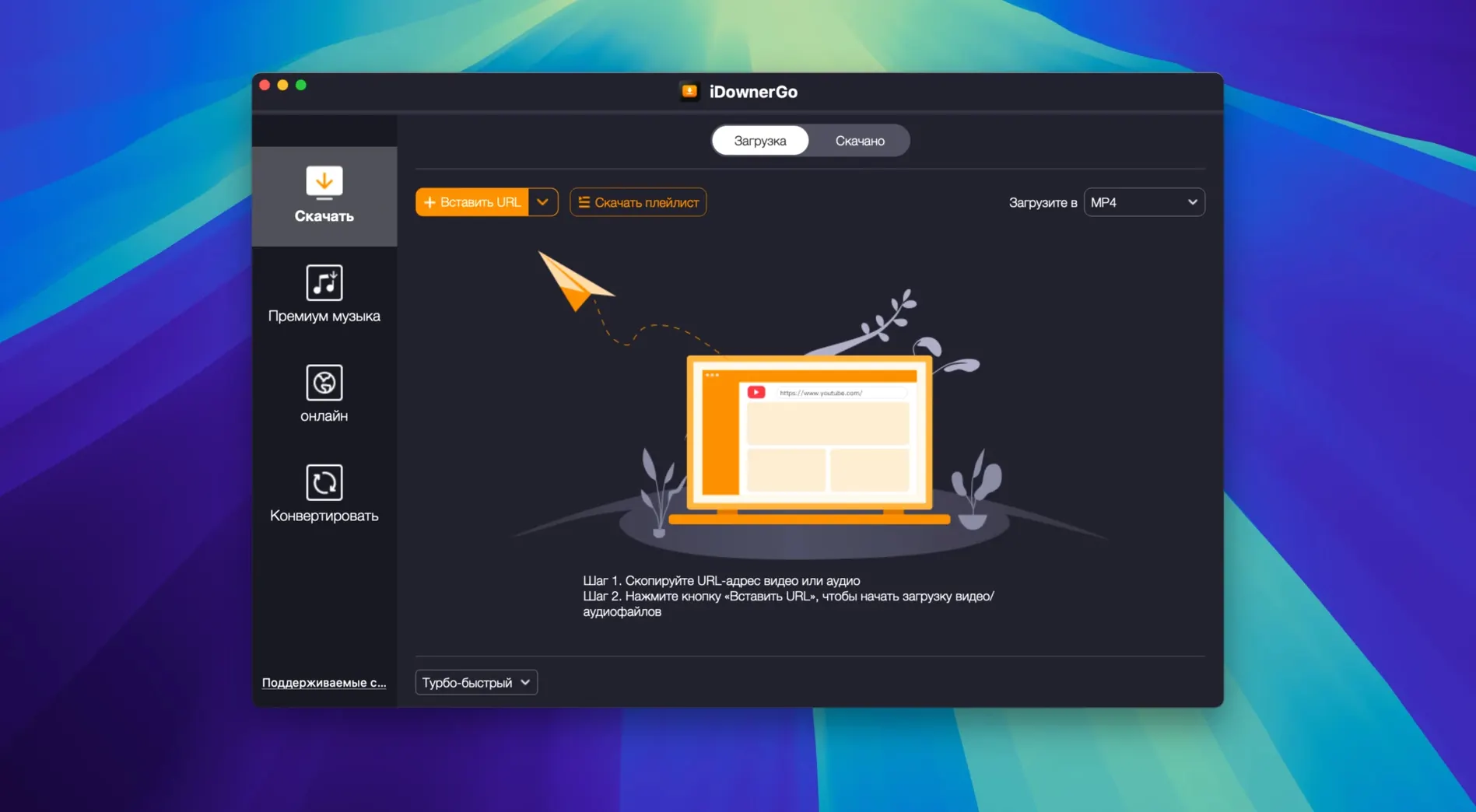
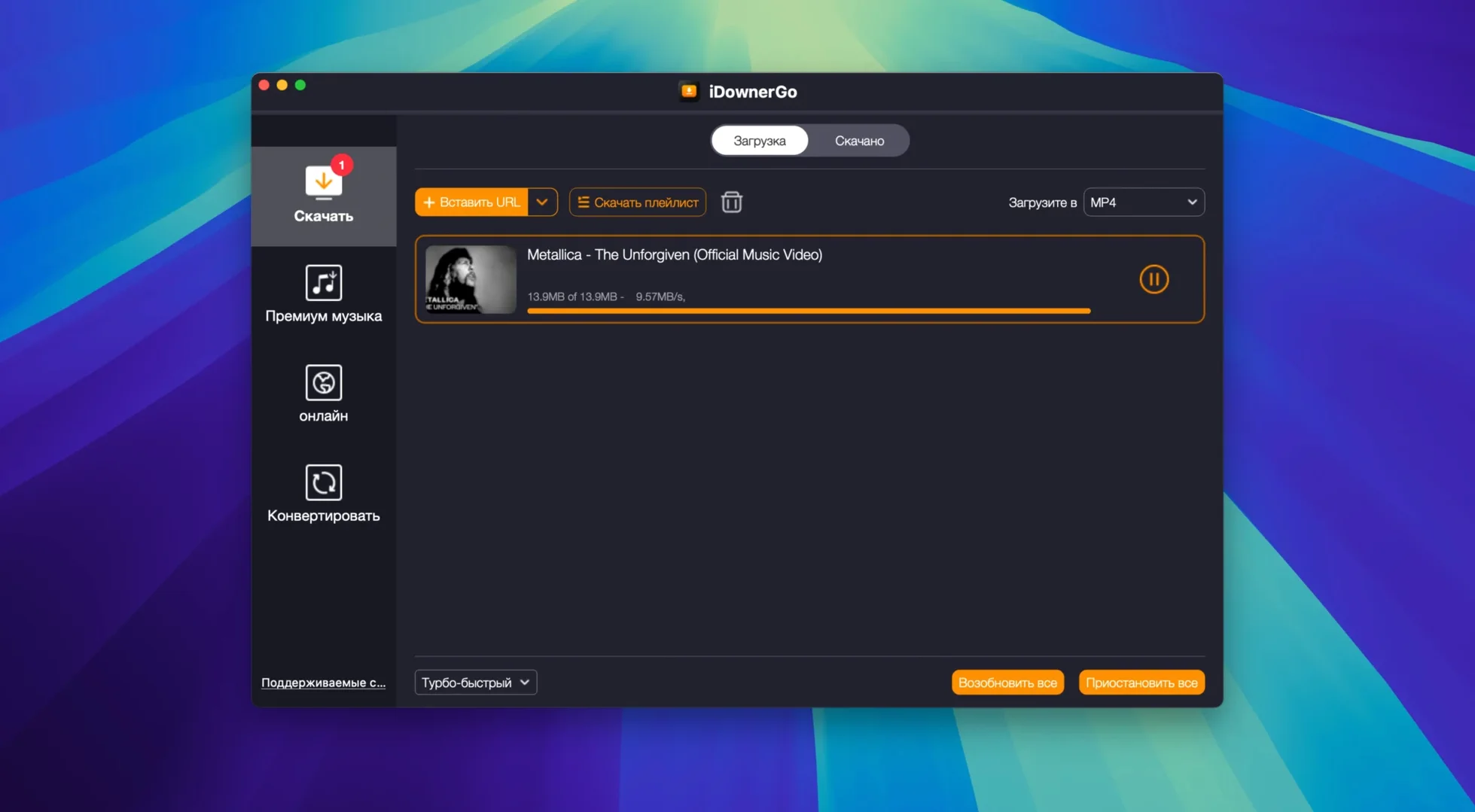
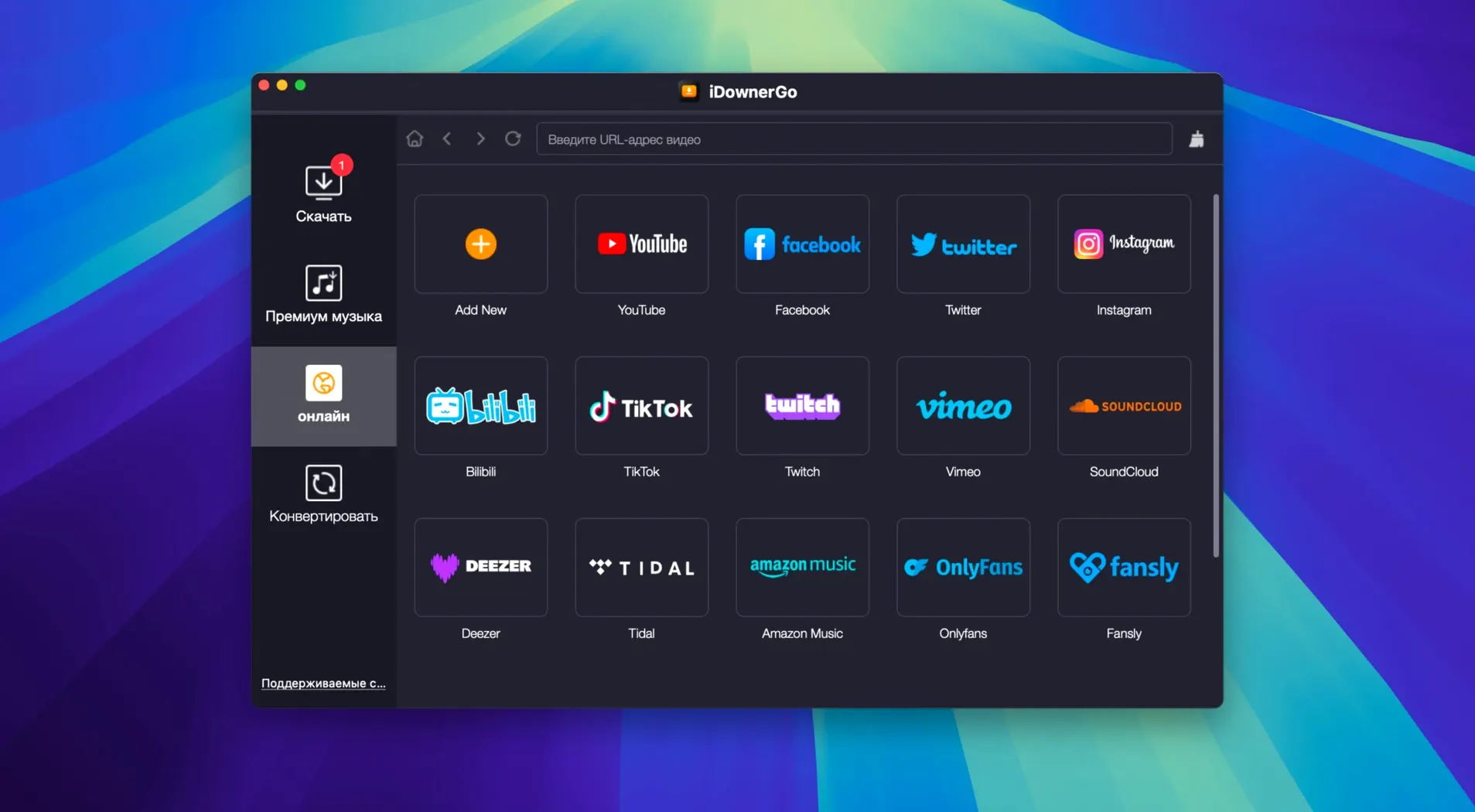
Anyone who has used a simple YouTube downloader knows the basic routine: paste a link, pick MP4. iDownerGo extends that idea across a wider set of sites and lets you decide not just the format, but the resolution and the audio track, all from one window.
Site-specific downloading
The core job is pulling video from platforms like Facebook, Instagram, Dailymotion, TikTok and Bandcamp. Paste a URL and the app parses the page, presenting the available streams — video-only, audio-only, or combined — in a list. You can grab a single clip or add a whole playlist and let it run through the queue. The interface keeps the options flat: pick a format, set a resolution, and start.
Resolution and audio extraction
Resolution tops out at 8K, with HD and 4K Ultra HD as intermediate stops, all saved without re-encoding. For music, iDownerGo strips the audio track from a downloaded video and saves it as MP3. That makes it useful when the source is a Bandcamp stream or a long DJ mix where only the sound matters. The two features — high-res video and audio extraction — sit next to each other in the same workflow, which means you don't need a separate converter running alongside.
Progress bar stays smooth even on 4K pulls
A single 1080p clip from a fast server lands in under fifteen seconds on a wired connection, with the progress bar advancing in smooth increments rather than stalling halfway. 4K files take proportionally longer but the download thread stays responsive. The app writes directly to disk as it receives data, so you are not left waiting for a post-download remux step the way some competitors impose.
Memory footprint sits around 180 MB during an active download, dropping to roughly 80 MB when idle. That is modest for an app that also parses web pages and resolves stream URLs. CPU use spikes briefly when a new link is analysed — the parsing engine unpacks the page to locate manifest files — but settles back under 3% once the transfer begins. On older Intel machines the analysis pause is a beat longer, though never long enough to suggest the app has frozen.
Stability over long sessions is consistent. Running a queue of thirty clips overnight on an older 2015 iMac produced no crashes and no partially saved files. The one weak point is waking from sleep while a download is paused; occasionally the app loses its connection to the server and leaves a stalled entry in the queue. Stopping and restarting that single item resolves it every time, but the behaviour is worth knowing if you tend to close the lid mid-session.
Clicking download before the analyser finishes
The most common stumble is pasting a URL and hitting the download button before the link analyser has finished its work. The button remains active while streams are still being fetched, and clicking too soon often starts a download of the lowest-resolution stream the app finds first, not the one you would have chosen. Waiting two or three seconds for the stream list to populate avoids this entirely.
Another frequent mis-step involves audio extraction. New users sometimes select a video stream, tick the MP3 output option, and expect the app to extract audio from that specific stream. In practice, iDownerGo downloads the video first, then extracts audio from the saved file. If the video stream is 8K and you only wanted an MP3, you have just spent bandwidth on a multi-gigabyte file unnecessarily. Selecting the smallest available video stream before enabling audio extraction saves both time and data.
Playlist handling trips up people who assume the app will respect the order shown on the source site. The queue populates in the order the site's API returns the items, which is not always the numbered sequence visible in a browser. Reordering the queue by dragging entries before starting the batch avoids surprises later, particularly with YouTube playlists where track order matters.
Drop a URL anywhere on the window to start
Dragging a URL from a browser address bar and dropping it anywhere on the iDownerGo window triggers analysis instantly, bypassing the need to copy and paste. The same drop zone accepts plain text files containing one URL per line, which makes batch work faster than pasting links individually. A less obvious shortcut is the double-click on any completed download entry: it opens the enclosing folder in Finder rather than playing the file, which is quicker when you want to rename or move the result.
Right-clicking a queue item reveals a context menu with a copy stream URL command. That is useful if the download stalls and you want to test the direct link in a browser or pass it to another tool. The menu also holds a remove completed option that clears the list in one action, something the toolbar lacks a dedicated button for.
When the app is minimised to the Dock, the Dock icon shows a small progress ring around the app logo. Hovering over it reveals the current download speed and estimated time remaining in a tooltip, so you can check progress without restoring the window. On the keyboard, Cmd-N opens a fresh paste field, and pressing Enter immediately after pasting a link starts analysis without requiring a mouse click on the button.
Point the output folder away from your Movies directory
The default download folder points to the user's Movies directory. Changing it to a dedicated folder — ideally on a drive with generous free space if you work with 4K or 8K files — prevents the Movies folder from becoming cluttered with dozens of video files. The preference pane also lets you set a maximum number of simultaneous downloads. The default is three, which saturates a typical home connection without choking it. Lowering it to one or two is sensible on slower networks or shared connections.
A setting that is easy to overlook is the post-download action menu, tucked into the General tab. By default it does nothing, but setting it to move to trash for completed items keeps the queue tidy automatically. The audio format preset under the Conversion tab defaults to 128 kbps MP3; pushing it to 256 kbps or switching to AAC yields noticeably better sound when extracting music, and the encoding overhead is trivial on any Mac that meets the app's requirements.
Users who download from sites that require login credentials — private Facebook videos, for example — should visit the Account tab early. iDownerGo can store per-site cookies or session tokens so it opens restricted pages as an authenticated user. Setting this up before bulk-downloading from a logged-in source avoids repeated authentication prompts mid-queue, which otherwise interrupt the flow and can cause the skipped-item behaviour mentioned earlier.