Aspecten
 Download (577 MB)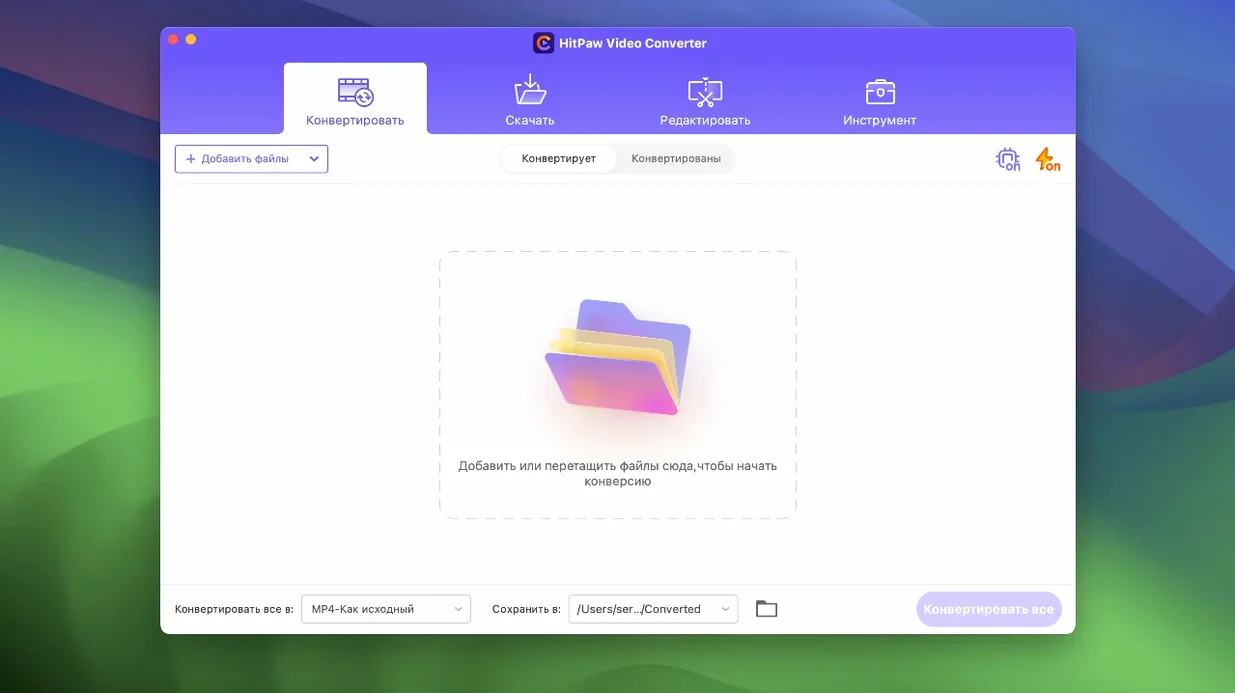
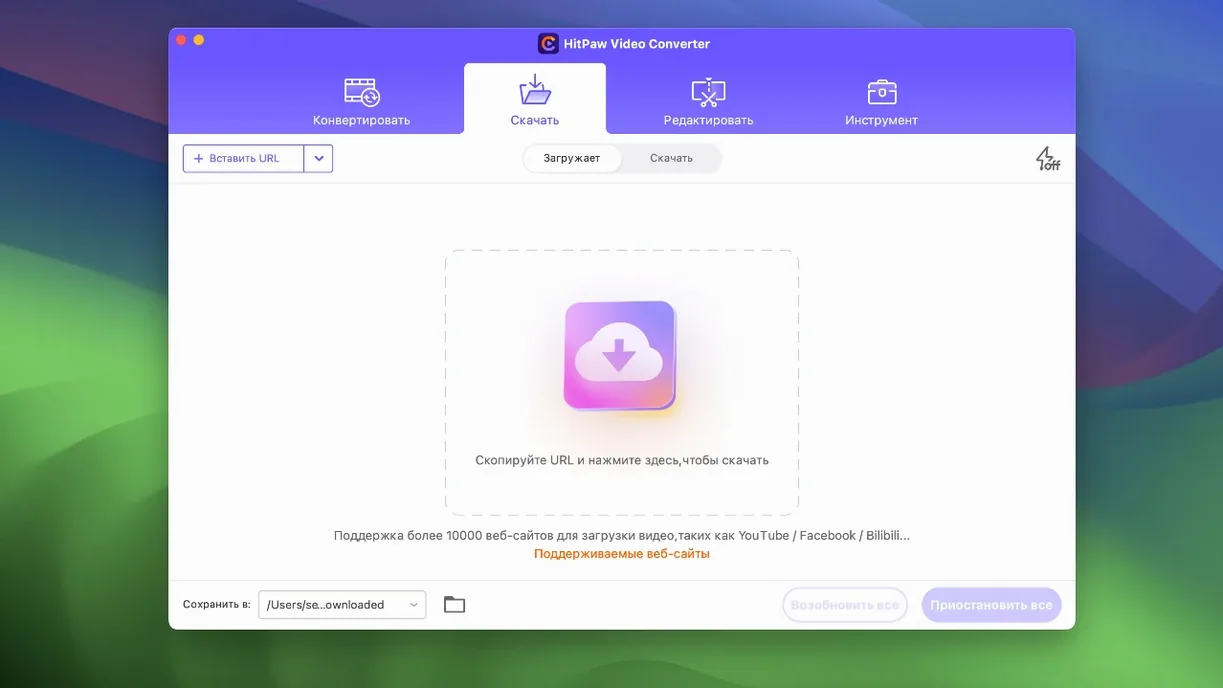
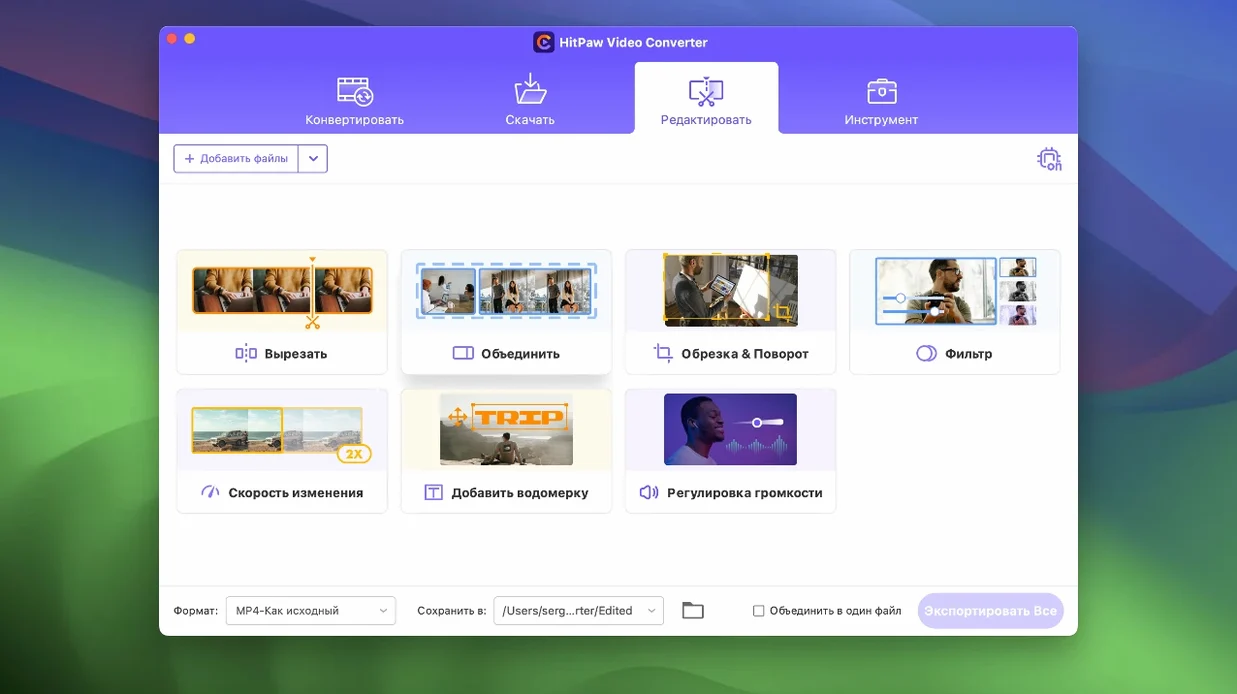
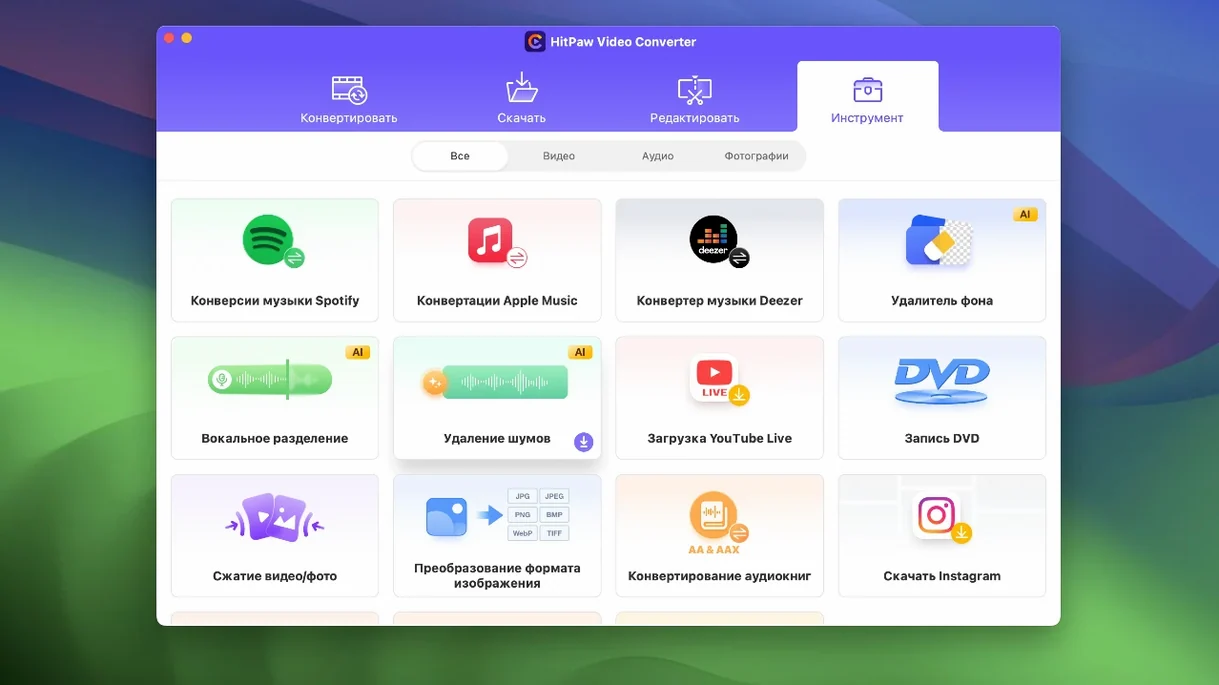
You have a folder of MKV files recorded in a codec your editing suite ignores, and a handful of lecture videos you want to pull from YouTube for offline reference. Instead of hunting for separate tools, you open a single app to run the conversions and grab the downloads in one session.
Good for
- Converting video and audio between more than 1000 formats, including advanced codecs like VP9, ProRes, and Opus.
- Downloading media from over 10,000 websites.
- Applying basic edits — trimming, cropping, adding watermarks — without leaving the converter.
- Running on Intel Macs with macOS 10.15 or later.
- Compressing large files with the recently optimised compression module.
Keep in mind
- The app requires a manual Gatekeeper bypass during installation via Terminal.
- Apple Silicon support is not listed for the current version.
- The developer markets the Mac version under the name HitPaw Univd, which can cause confusion when looking for updates or documentation.
Adjust three defaults before queuing your first file
After launching HitPaw Video Converter for the first time, a handful of defaults are worth adjusting before you queue up any files. Open the preferences pane — the gear icon sits in the upper-right corner — and work through three areas.
First, head to the Destination tab. By default, converted files land in a HitPaw folder inside your Movies directory. If you prefer output going straight to the desktop or to a dedicated project folder on an external drive, set that path now. The app remembers your last used folder per session, but the permanent default is what saves you from spelunking through Finder later.
Second, open the Converter section and uncheck "Play a sound when conversion finishes." The notification tone is loud and repeats for batch jobs. While you are there, consider enabling the option to shut down the computer after a long queue completes — useful for overnight encoding runs when the Mac is on AC power.
Third, if you download videos from YouTube and similar sites regularly, switch to the Download tab and set your preferred video quality. The app defaults to 720p, which feels conservative for archival purposes. Bump it to 1080p or the highest available resolution. The setting applies globally, so you avoid adjusting the quality slider per download.
Turning screen recordings and URLs into lunch-ready ProRes
Monday morning. A client sent over a folder of screen recordings in MKV, and you need them in ProRes 422 for Final Cut Pro before lunch. You also have three tutorial URLs bookmarked for a personal project. Here is how the next hour unfolds inside HitPaw Video Converter.
Step 1 — Load the MKV batch. You drag the whole folder onto the app window. The converter reads each file quickly and displays duration, resolution, and codec info in a clean list. No stalling, no "analysing media" progress bars that linger.
Step 2 — Pick an output format. You click the format dropdown beside the first file and select ProRes under the Video tab. The preset sets the MOV container automatically. You then apply the same choice to all files with a right-click — "Apply to all" saves you from selecting it five times. For one clip that needs a specific frame size, you click the edit icon and set the resolution to 1920×1080, overriding the auto setting.
Step 3 — Queue the download jobs. While the conversions run, you switch to the Download module. You paste the three YouTube links one by one. HitPaw parses each URL within seconds, showing the available streams. You pick 1080p for each and add the audio track as AAC. The downloads begin immediately after you confirm.
Step 4 — Monitor both tasks. The top of the window shows two active processes: the MKV transcodes and the YouTube grabs. A small speed readout tells you the current encoding rate. The ProRes transcode on a 2020 Intel iMac runs at roughly 90 frames per second for 1080p footage — adequate, not blazing. The downloads finish first and land in your designated folder.
Step 5 — A quick trim. One downloaded tutorial starts with a 40-second sponsor segment. You open the Editor module, drop the clip onto the timeline, drag the trim handles to cut the unwanted section, and export a new MP4. No round-tripping to a dedicated editor for a simple chop. The whole session — conversions, downloads, one trim — wraps in under 45 minutes.
Test a 30-second snippet before trusting an overnight batch
Give yourself a short runway to learn how the app handles real workloads. A few habits make the first week smoother.
- Test a short clip first. Before you queue 20 files overnight, convert a single 30-second snippet and check the output in your playback app. Confirm the codec, colour space, and audio channels match your expectations. The converter handles advanced formats like VP9 and Opus without complaint, but a quick sanity check catches mismatched presets early.
- Use the compression module on a copy. The newly optimised compression module in version 4.5.0 can shrink a large ProRes file to a fraction of its size, but the quality slider is aggressive at its default midpoint. Drag it to around 70% on your first attempt and compare the result with the original before committing to batch compression.
- Name your presets. If you routinely output to ProRes for editing, H.264 for preview, and MP3 for audio-only deliverables, create custom presets with your preferred bitrate and resolution. The app does not ship with user-custom preset slots in the strictest sense, but the recently used list in the format dropdown becomes a makeshift preset bar after a day or two of steady use.
- Keep the Terminal bypass note handy. On an Intel Mac running macOS 10.15 or later, the Gatekeeper hurdle during installation is a one-time step, but if you move the app to another machine or reinstall after a system wipe, you will need those Terminal instructions again. Bookmark the readme file or copy the command into a text snippet.
- Spot the auto reframe feature. Version 4.5.0 added auto reframe. When you convert a landscape video to a vertical format for short-form platforms, you can apply it from the editor module. The feature analyses the frame and attempts to keep the main subject centred. It works best with talking-head footage; action shots with fast panning occasionally confuse it.
More than HandBrake, less than a full editor
HitPaw Video Converter occupies a middle ground: it does more than a barebones transcoder, but it does not try to be a full non-linear editor. Three other Mac apps sit in a similar space, each with a different emphasis.
HandBrake. HandBrake is a free, open-source transcoder that handles a wide range of input formats and outputs excellent H.264, H.265, and VP9 encodes. Its queue system is reliable, and the preview window lets you test filters before encoding. What HandBrake lacks is built-in downloading, an editor module, or audio-streaming support. You need separate tools for YouTube grabs and quick trims. HitPaw bundles those three functions into one window, which saves context-switching when a project requires conversion, downloading, and light editing in a single session.
Permute. Permute takes a different approach to conversion. It strips away format lists and codec jargon in favour of a drag-and-drop, pick-an-output workflow. The app shines when you need a video turned into an iPhone-compatible file or an audio file converted to MP3 with zero clicks beyond the initial setup. Permute does not download online videos, does not edit, and does not include an auto reframe function. HitPaw trades some of Permute's simplicity for a broader toolkit — more formats, more codecs, and the download module that Permute deliberately left out.
Wondershare UniConverter. The closest parallel to HitPaw is Wondershare UniConverter. Both apps convert, download, compress, and edit. UniConverter includes a few extras — a screen recorder, a DVD burner, and a media metadata editor — and its interface is slightly more polished. HitPaw counters with support for ProRes, VP9, and Opus in a less cluttered window, and version 4.5.0's auto reframe addresses a specific need for creators repurposing landscape content for vertical feeds. On an Intel Mac, both apps perform similarly for common format conversions. Your choice between them probably hinges on whether you value the extra utilities in UniConverter or prefer the narrower focus and specific codec depth in HitPaw.
Finding the right tool often means matching the feature set to the actual daily workflow. If your days involve downloading from a mix of websites, converting between less common codecs like Opus or ProRes, and occasionally trimming a clip before export, HitPaw covers that exact chain without forcing you to open three separate applications. The trade-off is clear: you get that integration on Intel Macs running macOS 10.15 or later, but you miss the polish of Permute's single-purpose elegance and the open-source extensibility of HandBrake.