Aspecten
 Download (18 MB)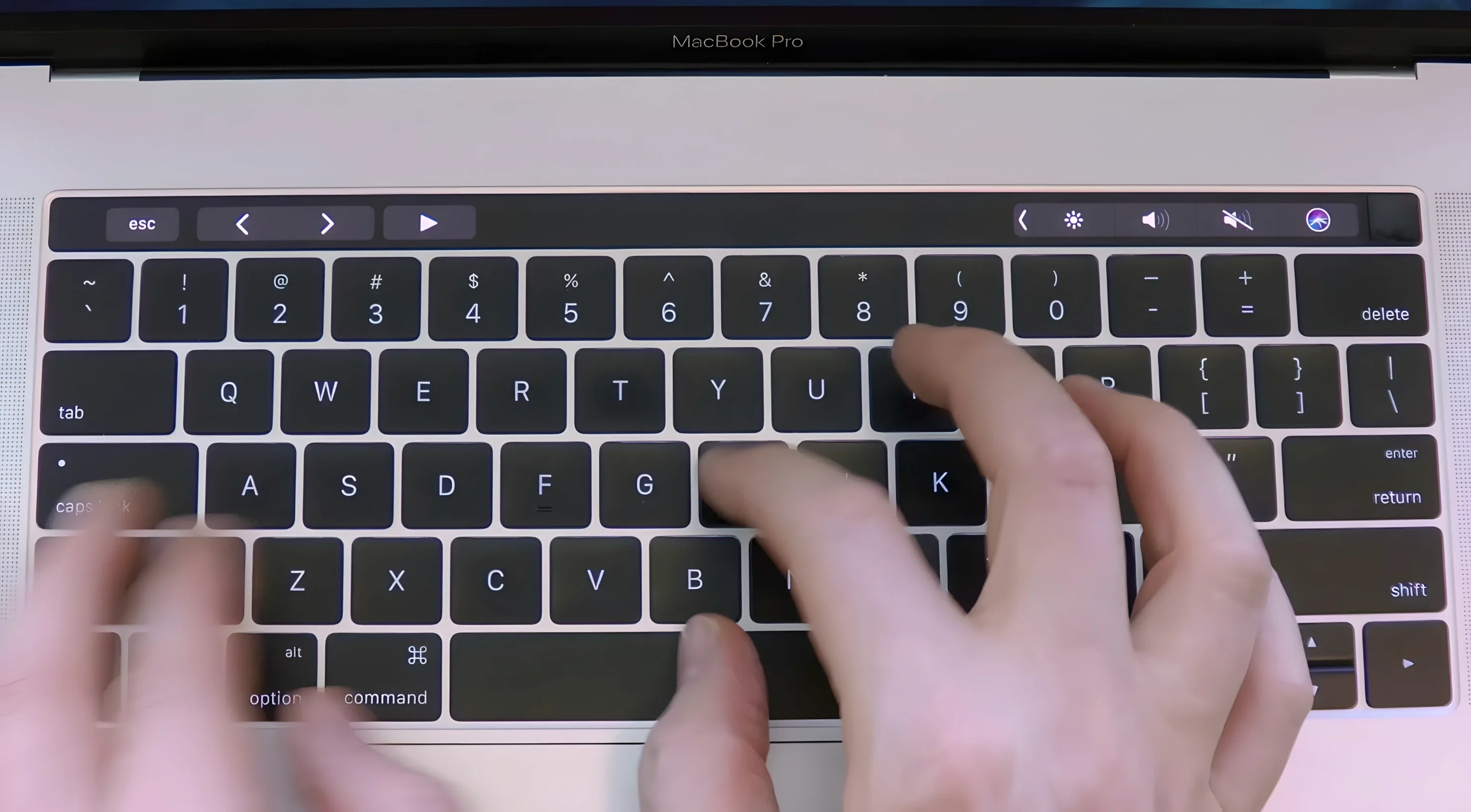
A writer who misses the crisp clatter of a mechanical keyboard, or a developer who finds silent typing oddly disorienting, might keep Haptyk running alongside a text editor and a notes app. It sits in the background, listening through the built-in accelerometer, and turns each keystroke into an audible tap that gets louder or softer depending on how firmly the key is struck.
Typing feedback on the built-in keys
- Users who want typing feedback without carrying a separate keyboard. Haptyk works with the MacBook's own keys and plays sound through the built-in speakers or headphones.
- Pairing with focused writing tools. It adds a layer of physical presence to apps like iA Writer, Ulysses or a plain text editor, where the screen stays clean but the hands get a rhythm.
- People who type with variable force. The sound intensity shifts with pressure, so a light touch and a firm press produce different responses.
Requires an M2 Pro chip or later
- It requires a MacBook with an M2 Pro chip or later. The M1 MacBook Air and 13-inch M1 MacBook Pro lack the sensor the app depends on.
- The app lives outside the keyboard settings panel. It runs as a standalone background utility rather than integrating into macOS's existing sound or input controls.
Checking sound after a quiet menu-bar start
After dragging Haptyk to Applications and launching it, the app settles into the menu bar without much ceremony. The icon sits there quietly. No splash screen, no setup wizard. The first thing to check is whether sound actually comes through. Tap a few keys at medium pressure. If nothing happens, open Sound settings and confirm the output device is what you expect—the app routes audio through the system default, so Bluetooth headphones that disconnected ten minutes ago can cause silent confusion.
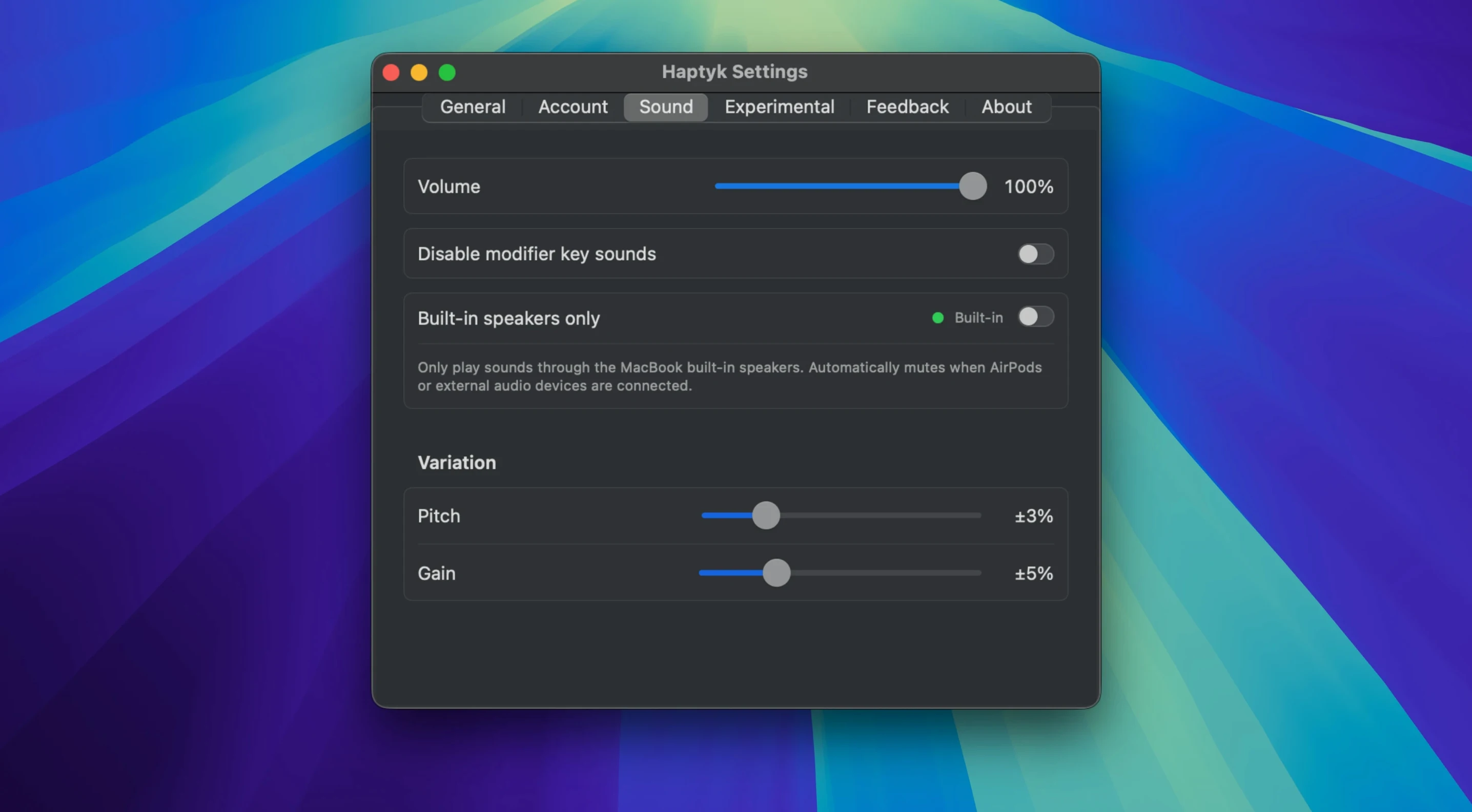
Volume calibration takes a few attempts. The app has no decibel slider keyed to a number, just a relative sense of what feels right. Start low. A mechanical-style click that sounds pleasant in a quiet room can become grating through speakers in an open-plan space. Testing with the MacBook's own speakers first, then switching to headphones, gives a clearer picture of the range.
One subtle point: the accelerometer picks up desk vibrations as well as finger pressure. If the MacBook rests on a hollow desk or a wobbly laptop stand, the sound can trigger inconsistently or feel slightly delayed. A firm, flat surface improves accuracy noticeably—something to keep in mind when moving between a café table and a solid workstation.
Battery impact is modest but real. Keeping the accelerometer active in the background draws a small, steady amount of power. On longer writing days away from a charger, toggling the app off when not typing is a small habit worth forming early.
Starting the morning with Haptyk in the menu bar
Morning, nine o'clock. The MacBook Pro 14-inch opens on a desk in a quiet flat. Haptyk starts automatically—it was added to Login Items the day before, so the menu bar icon appears within seconds of unlocking the screen.
A text editor opens. A draft for a client review needs finishing. The first keystrokes land softly, testing the rhythm. The sound profile was left on a medium setting from the previous evening, a muted clack that feels close to a dampened mechanical switch. Too soft for the morning energy. A quick click on the menu bar icon, a nudge of the volume slider upward, and the next few words land with a brighter tap. The shift in feedback is immediate—no restart, no lag.
Typing speeds up as the draft takes shape. Harder presses on the return key produce a deeper thud, a small acoustic punctuation that marks the end of a paragraph. The spacebar, pressed with the right thumb, has its own lighter character. None of this is configured per key; the app simply reads what the accelerometer reports and maps it to the sound sample. But the variation across keys emerges naturally from how the fingers move.
Mid-morning, a switch to headphones. A colleague joins a video call, and the typing sounds—now routed through the headphones—become a private rhythm track. The call software does not pick them up. The writing continues. By the time the draft is sent, the session has run for two hours without a single interaction with the app beyond that early volume tweak. It simply stays out of the way and does its one job.
Sensor tightening in recent releases
Version 2.0.2, the current release as of September 2026, brought no dramatic feature additions. The developer's focus appears to have been on tightening the sensor response and expanding the list of supported MacBook models. In earlier releases, a handful of users on M2 MacBook Air units noted a faint inconsistency when typing very quickly—occasional missed keystrokes or sounds that lagged by a fraction of a second. The 2.0.x line addressed most of those reports.
For everyday use, the most noticeable change is simply that more MacBooks are now supported. The official list includes the 14-inch and 16-inch MacBook Pro with M1 Pro and M1 Max, the MacBook Air M2 and later, and the 13-inch MacBook Pro with M2. This wider coverage means the app has moved from a niche tool for the latest hardware to something a broader set of Apple Silicon users can try.
Stability improvements are harder to point at directly but show up in the background. The app used to occasionally stop producing sound after the Mac woke from a long sleep; that behaviour is largely gone in 2.0.2. The menu bar icon also no longer disappears when macOS restarts the menu bar process, a small fix that removes a minor but recurring annoyance.
Adjusting the default sound profile first
Open the app's preferences from the menu bar icon. The default sound profile lands somewhere in the middle of the range, but the volume slider benefits from immediate adjustment. A level that feels right during a quiet morning can irritate by afternoon, so finding a comfortable baseline and nudging it down slightly from there is a safe approach.
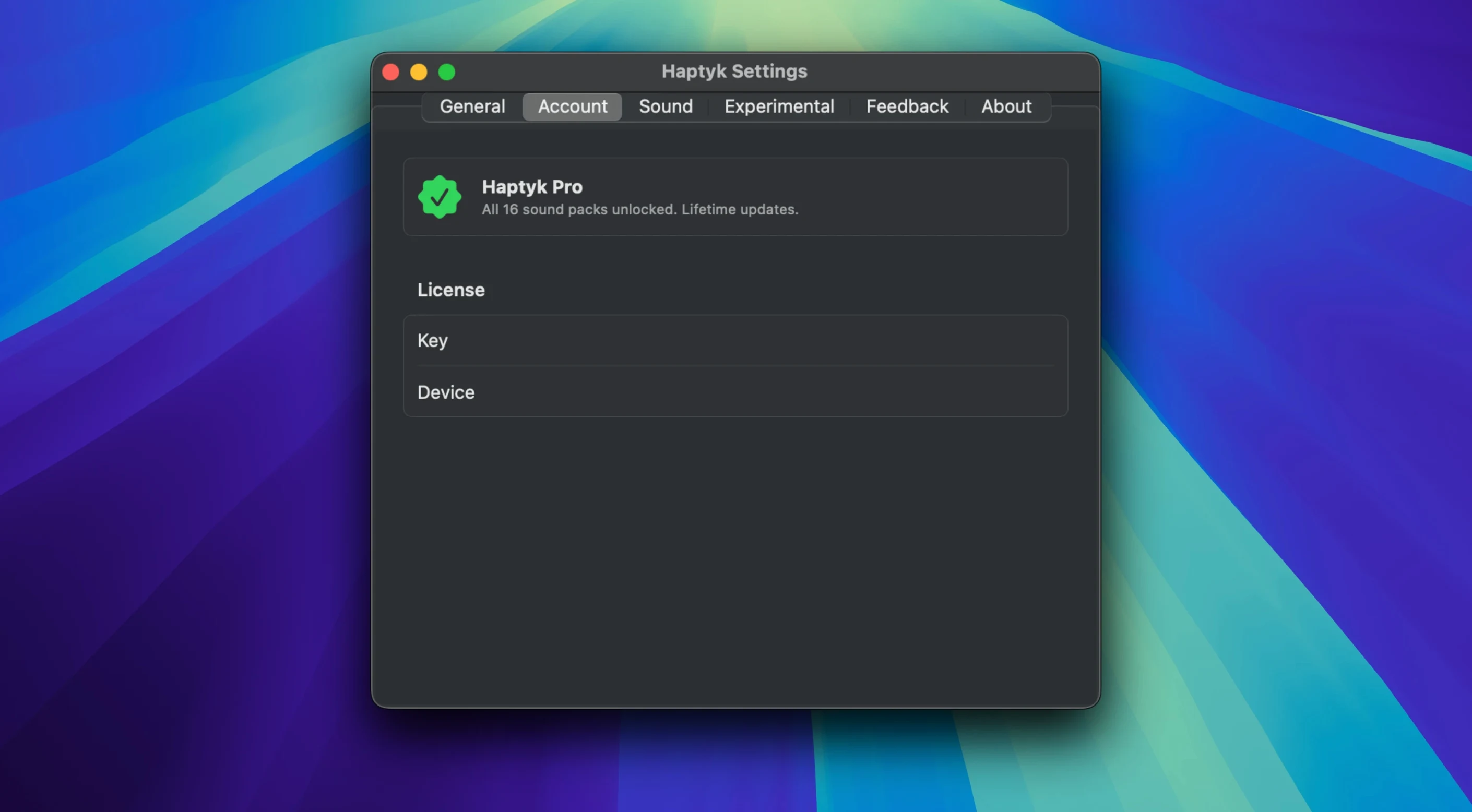
If the app is going to be used daily, enable the option to launch at login. It saves the small friction of starting it manually and means the typing feedback is present from the first keystroke of the day. The toggle is a simple checkbox, tucked into the General tab.
Sound profile selection is worth a few minutes of experimentation. The app does not ship with dozens of options, but switching between the available profiles—typically a sharper click and a softer, rounder tap—can change the typing feel significantly. The sharper profile suits faster typing and code work; the softer one blends better into a shared room. A quick test with a paragraph of real text, not just random key taps, reveals which profile fits a particular working rhythm.
Finally, check the output device setting. The app defaults to the system output, but if a preferred pair of headphones is usually connected, setting that device explicitly can prevent the sound from accidentally playing through speakers when the headphones disconnect. It is a small configuration step that prevents awkward moments in quiet spaces.