Aspecten
 Download (442 MB)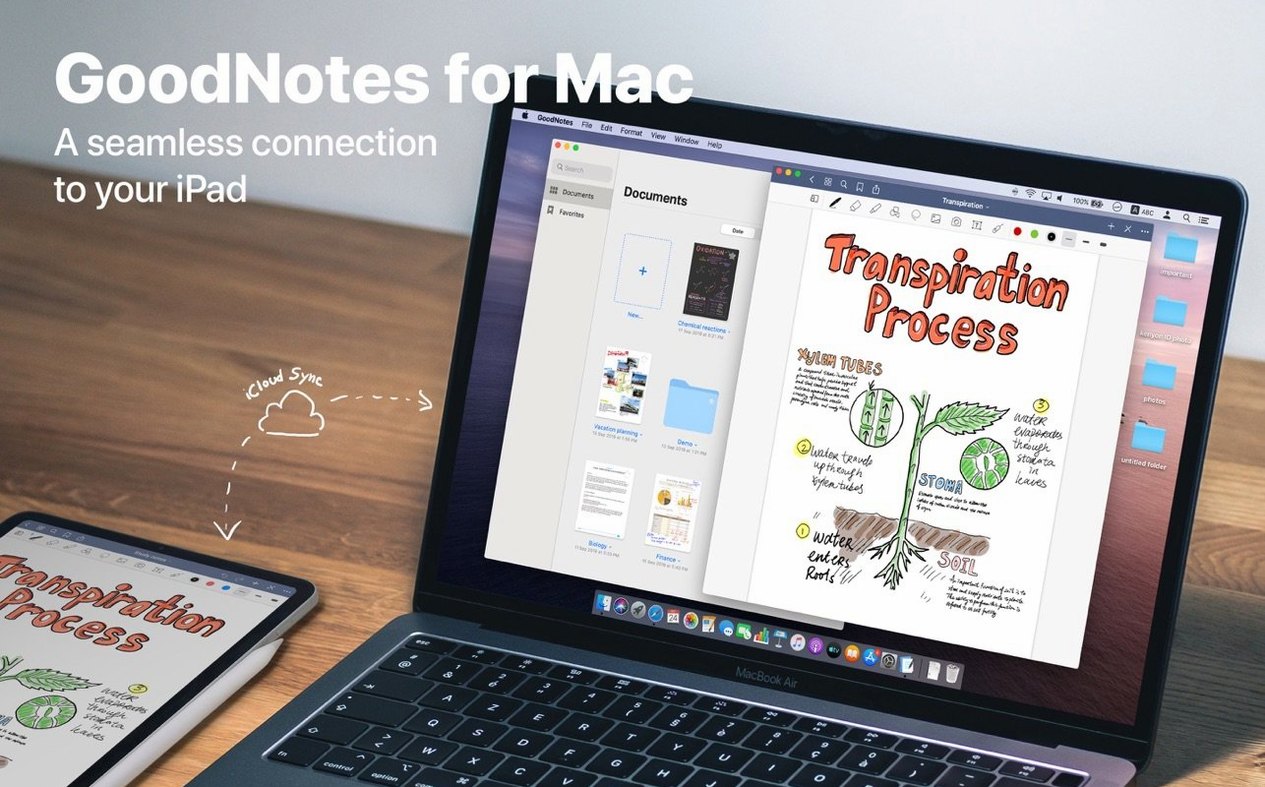
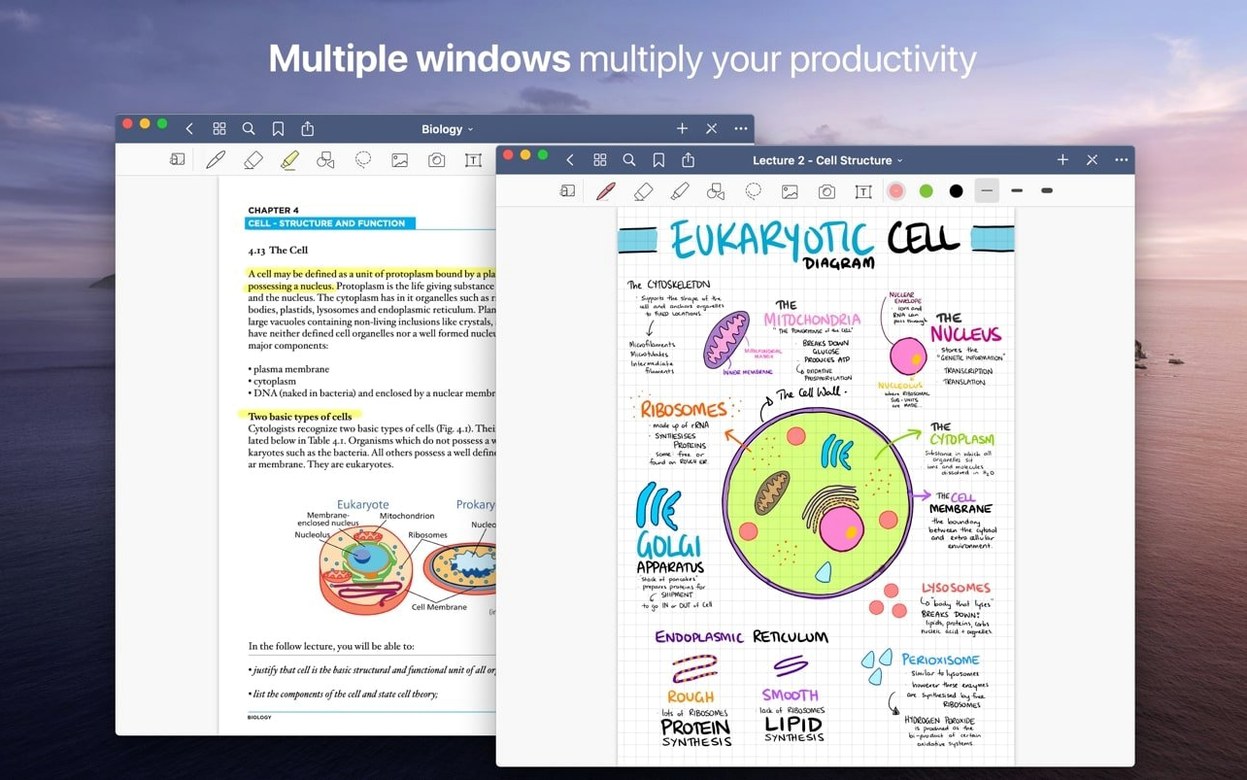
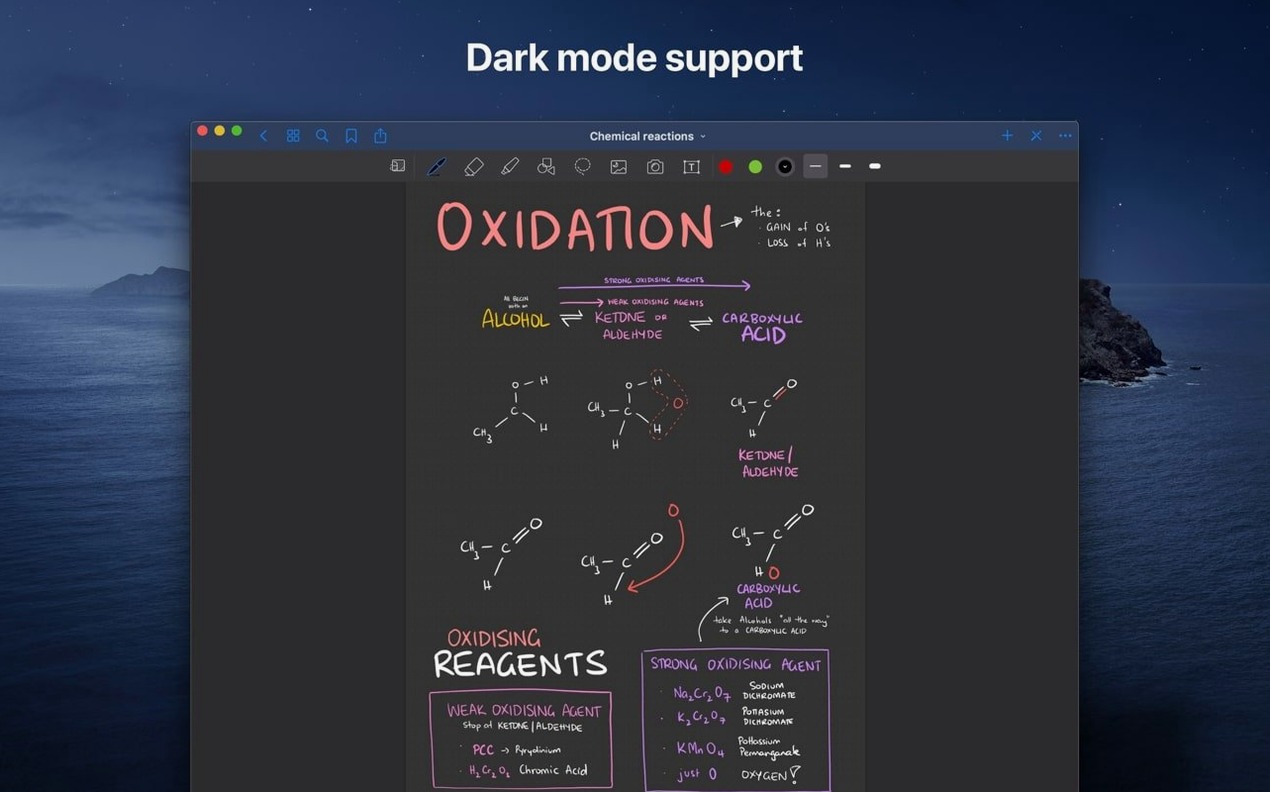
Students marking up lecture slides, professionals sketching a layout during a call, and anyone keeping a daily journal on their Mac will find a familiar tool in GoodNotes. It brings the same notebook structure from the iPad version to the desktop, with a few Mac-specific touches.
Bringing a notebook to the Mac
- Create a new notebook, picking from paper styles like dotted, ruled, or blank. The canvas takes typed text, handwriting via a graphics tablet, or mixed input.
- Drag a PDF or image onto the page to start annotating. Live hyperlinks inside imported PDFs remain tappable, so a linked table of contents in a textbook still works.
- Use the eraser tool to remove an entire pen stroke, or switch it to precise mode to trim just the part that overshot. A separate marker-only erase option leaves ink untouched.
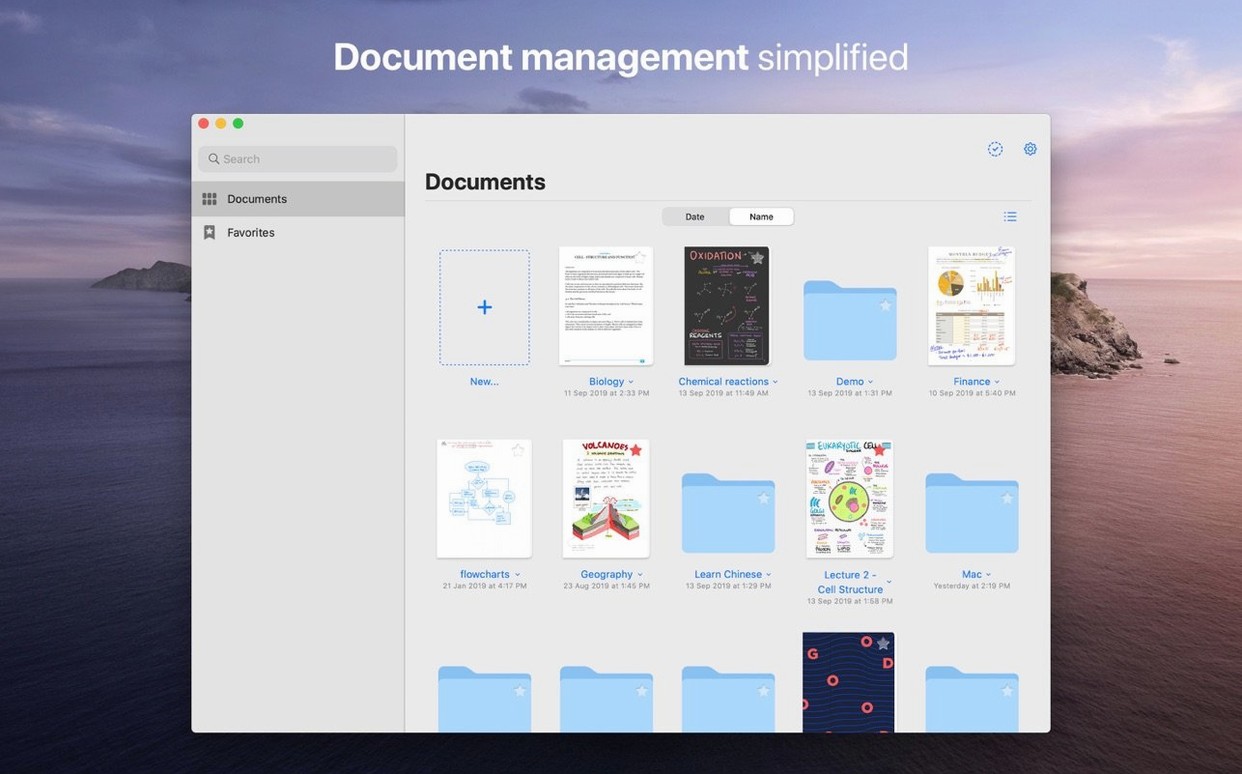
- Mark key pages, folders, or whole documents as Favorites for quick recall later. You can also build a custom table of contents to jump between sections inside long notebooks.
- Export finished work by dragging a page or document out as a PDF, straight to a Finder folder or an email.
What stayed the same is the balance between freeform input and structured organisation. The Mac version does not break the notebook metaphor, nor does it try to turn handwriting into a text editor. It stays a space where ink, typed notes, and imported material sit side by side.
Treating every document as a single long page
A fresh install of GoodNotes for Mac can feel deceptively simple, and that leads to a few predictable stumbles.
The most common one is treating every document as a single long page. A notebook is designed to have many pages — students in particular import a 40-slide PDF as one enormous canvas and then wonder why export chokes or scrolling becomes laggy. Splitting material across pages from the start keeps things manageable.
Another misstep is ignoring the iCloud sync mechanics. Launching the app on a Mac while the iPad version is still syncing a large notebook can produce duplicate documents. Letting the sync finish before opening anything on a second device avoids that entirely. Similarly, some users assume that dropping a folder of PDFs onto the Mac app will preserve the folder structure — it will not. Documents land flat in the library, and organising them into folders afterwards takes a few extra minutes.
Beginners also reach for the highlighter tool to mark up typed text, expecting it to behave like a word processor. The highlighter sits behind the text layer, so it will cover the words unless moved manually. Using a light colour and a broader stroke helps, but the better habit is to place highlights first and text on top.
Finally, the eraser tool defaults to stroke-based removal: one tap deletes an entire drawn line. New users trying to tidy up a sketch often wipe out half a diagram before realising there is a precision-erase mode tucked in the tool options.
Students who review and reorganise iPad notes on a bigger screen
GoodNotes on a Mac serves three groups especially well.
Students who already use the iPad version as their primary note-taking device get a reliable review and cleanup station. Reading through lecture notes on a larger screen, reorganising pages, and exporting tidy PDFs for submission becomes faster with a keyboard and trackpad. The sync means the iPad stays in a bag while the Mac handles everything that is not in-the-moment scribbling.
Professionals who annotate documents — architects marking up plans, lawyers reviewing contracts, editors commenting on layouts — benefit from the drag-and-drop PDF import and the precision of typed callouts alongside freehand circles and arrows. The custom table of contents feature turns a 200-page annotated set of drawings into something navigable during a meeting.
A quieter group is people who keep a personal journal or a research log. The combination of typed entries, pasted images, and occasional handwritten marginalia feels less rigid than a word processor and more searchable than paper. Because the Mac keyboard is always there, longer reflections get written rather than drawn, which keeps the notebook legible months later.
Swapping vertical scroll to horizontal for notebook pages
A handful of preferences make the Mac experience feel less like a port and more like a native app.
- Scrolling direction. The default vertical scroll for notebooks can be swapped to horizontal in the settings. For anyone coming from the iPad, horizontal scrolling matches the page-turning instinct.
- Palm rejection sensitivity. If a graphics tablet is connected, adjusting this slider prevents the canvas from jumping when a hand rests on the tablet surface. The default is tuned for the Apple Pencil and often needs tightening for third-party tablets.
- Auto-backup. Tucked under iCloud settings is an option to save a copy of every notebook to a local folder as a PDF. Turning this on means that even without an internet connection or an active subscription, all notes remain readable as flat files on the Mac.
- Default paper template. New notebooks always open with the same paper style unless you change the default. Setting it once to dotted or narrow-ruled — whatever you actually reach for — removes a small daily friction.
Dragging a PDF draft into the library to start annotating
Imagine a Thursday afternoon. A research paper is due next week, and the draft sits as a PDF on the desktop.
The session starts by dragging the PDF into the GoodNotes library. It opens as a new document, each page of the paper becoming a page in the notebook. A quick pinch on the trackpad zooms out to see the whole spread, then a tap on the first page brings the view back in.
With the paper open on the left half of the screen and a browser on the right, a paragraph that needs a citation gets a yellow highlight stroke drawn across it. The shape tool snaps the highlighter into a straight line automatically. A typed note in the margin reads "check Smith 2021 — p. 47 contradicts this". The note sits in a clean text box, resizable and easy to spot later.
Three pages in, a diagram in the PDF catches attention. The lasso tool selects a section of the page — just the figure — and a right-click copies it. A new blank page is added right after, and the figure is pasted there, enlarged, with handwritten arrows pointing to the key components. The arrows are a bit wobbly, so the selection tool straightens one and nudges another into place.
The custom table of contents panel gets a new entry: "Figure 3 breakdown", linked to that new page. Now the notebook has its own navigation layer on top of the original paper's structure.
After an hour, the session ends with a drag of the whole notebook to a Finder folder. The exported PDF includes every added page, every annotation, and the linked table of contents. The original research paper underneath remains untouched, but the notebook beside it has become a complete working commentary.