Aspecten
 Download (19 MB)
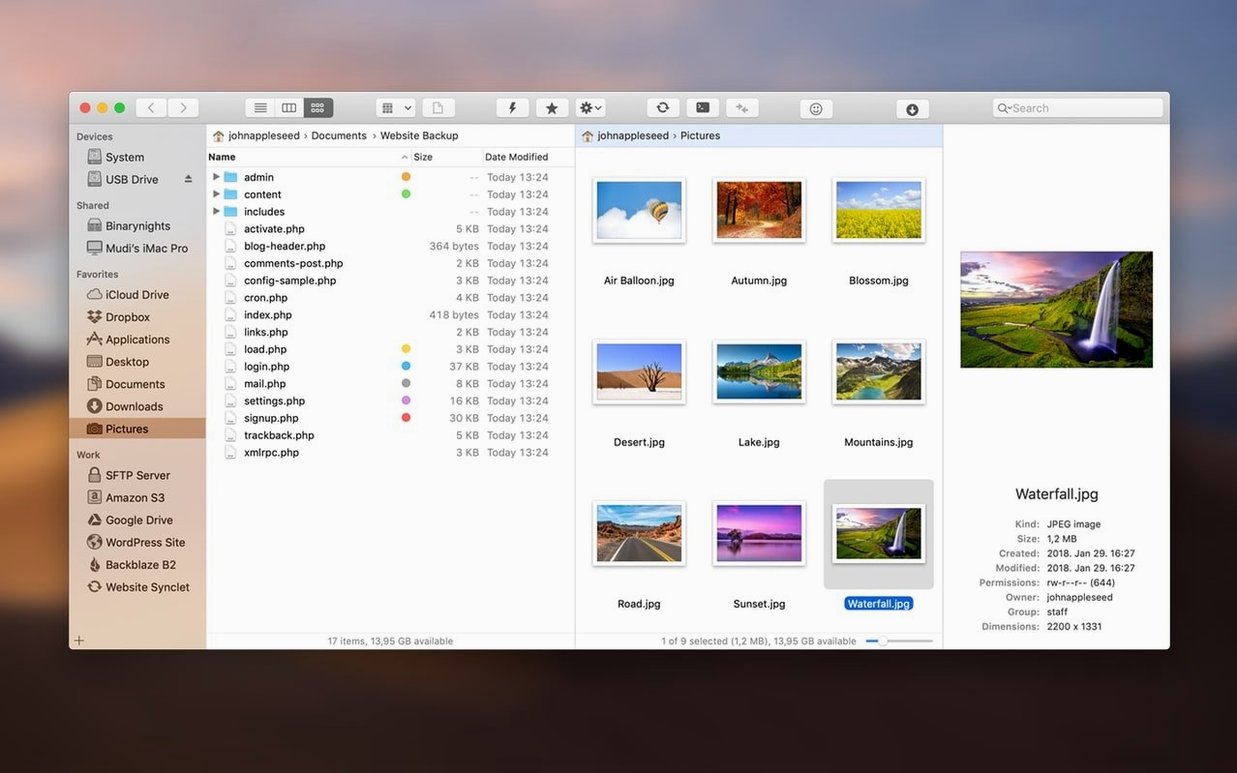
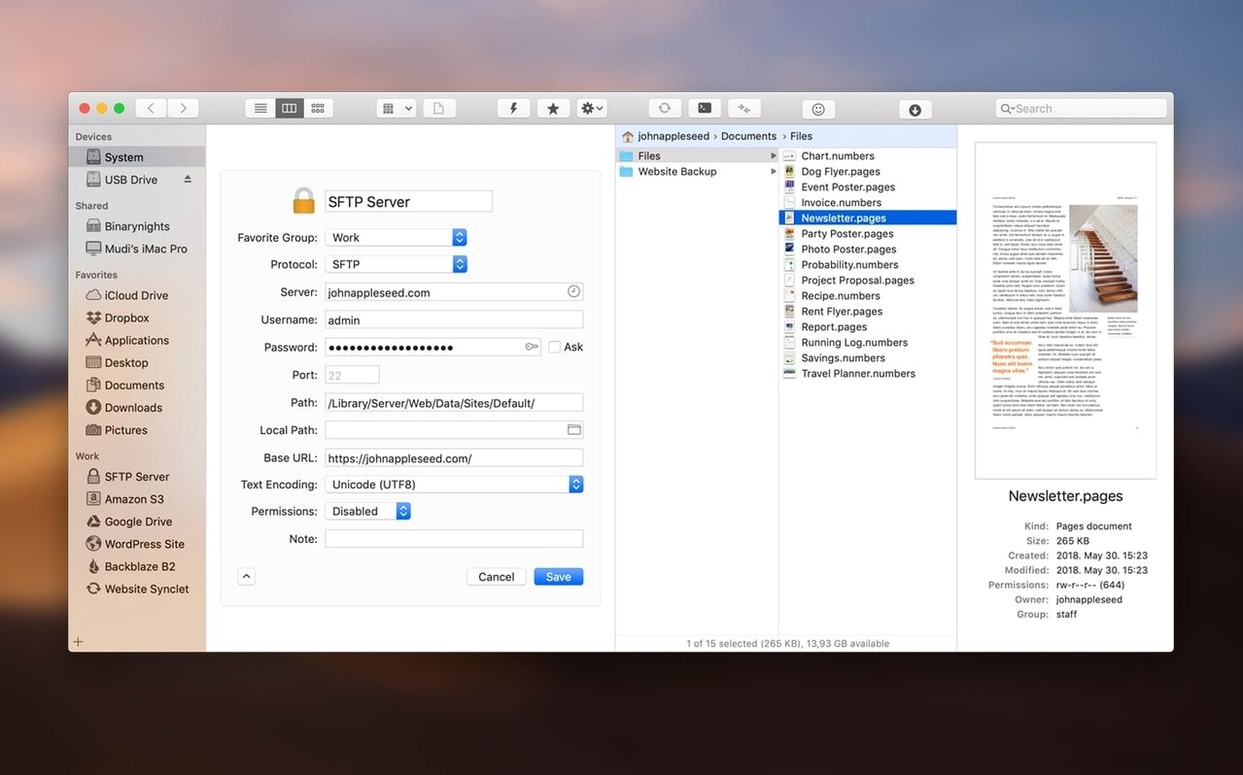
ForkLift 4.7.6 runs on Intel Macs with macOS 12 or later. It presents itself as a Finder replacement that adds remote connection capabilities, supporting FTP, SFTP, Amazon S3, AFP, WebDAV, SMB, and NFS volumes.
How does a dual-pane layout help with a file upload?
With two panes side by side, you drag files from a local folder on the left directly onto an FTP or S3 bucket on the right. There is no need to switch windows or minimise the remote view while browsing locally.
Editing a file mid-transfer without leaving the remote pane
Before finishing a batch upload, you can open a text file directly from the remote pane, edit it, and save. ForkLift handles the temporary download and re-upload quietly, so the corrected version lands on the server without manual round-tripping.
Can you verify what reached the server after a transfer?
The sync and compare tools let you check a local source against a remote destination. A quick comparison by name or size highlights mismatches, and the built-in search can scan both sides by extension or text content if something still looks off.
How ForkLift sits alongside other Mac file managers
Two names come up often when someone looks beyond the Finder: Path Finder and Commander One. Each takes a different route, so the choice depends on what you do daily.
Path Finder shares the Finder-replacement ambition but leans into local file work. Its drop stack, tab shelves and module-based layout help when you juggle dozens of folders on the same Mac. Remote connections exist as an add-on rather than a central feature. ForkLift treats local and remote panes as equals — you can drop a file from an S3 bucket onto an SFTP server in one drag without intermediate steps. Path Finder’s remote support feels bolted on; ForkLift’s is in its bones.
Commander One borrows heavily from the Midnight Commander tradition. It suits users who want a keyboard-driven, Orthodox File Manager experience with two fixed panels and a command line always within reach. Its PRO Pack adds FTP, SFTP and cloud storage. ForkLift offers similar dual-pane discipline but wraps it in a native Mac interface that is easier on the eyes during long sessions. Commander One keeps things stark; ForkLift adds preview panes, archive browsing and a more forgiving learning curve for someone coming straight from the Finder.
A third tool, Transmit, handles FTP and cloud transfers beautifully but does not try to be a file manager. It is a dedicated uploader. ForkLift merges that remote agility with local file operations — renaming batches, syncing folders, browsing zipped archives — so the line between “file manager” and “transfer client” blurs. If you already own Transmit, you may still find ForkLift useful for the local side. If you do not, ForkLift covers both roles well enough that a second app becomes optional.
Opening archives as ordinary folders
Several touches hide in plain sight. The archive browsing feature treats .zip, .tar and .gz files as ordinary folders. You can open an archive in one pane, preview a photo inside it, and drag a single file out to a remote server — all without launching a separate extraction tool.
The preview pane adapts to file type. A selected PDF shows its pages; a PSD shows a flat preview without opening Photoshop. If you manage image libraries or document folders, this alone saves dozens of application launches per day.
ForkLift can open a terminal at the current pane’s path in Terminal, iTerm or Hyper. A keyboard shortcut sends the path across, which matters when a quick chmod or tail on a remote log file is faster than navigating there manually. The terminal integration works for local and remote locations alike.
Search filters by name, extension, text content and Finder tags. A remote search on an SFTP server that filters by .log and contains a specific error string runs without downloading the files first, which keeps bandwidth use low during troubleshooting.
The single-pane mode, toggled with one click, suits smaller screens. It turns ForkLift into a focused browser for one location at a time, then snaps back to dual-pane when the task demands it. Many users never switch away from dual-pane and miss how useful the single-pane view is for reading a deep folder tree without horizontal clutter.
Preparing sidebar connections for a dual-pane workflow
Start by setting up three or four favourite connections. Add one SFTP server, one SMB share and one S3 bucket even if you do not need them immediately. Having them ready in the sidebar makes the dual-pane workflow feel natural sooner. Drag a local folder into one pane and connect to the remote in the other to see the interaction without pressure.
Next, set the default double-click action. Preferences let you choose whether a double-click opens files or drills into folders by default. If you often work with text files on remote servers, enable inline editing early. Then open a small remote text file and press Cmd-S to watch the save-and-reupload cycle happen once — it builds trust in the feature before you rely on it during a real deadline.
Run one small sync test between two local folders. Choose a folder with a dozen mixed files, make a few changes, and try a two-way sync with the preview enabled. The preview shows exactly what will move where before any byte transfers. This exercise reveals the logic ForkLift uses for conflict resolution and makes you faster when syncing remote directories later.
Finally, customise the toolbar. The default set is sensible, but adding buttons for “New Folder”, “Sync” and “Open in Terminal” cuts down menu trips. The toolbar accepts drag-and-drop rearrangement, so aligning it with your own muscle memory takes under a minute.
Removing friction between Finder, FTP client and terminal
Web developers and server administrators who move between local codebases and remote hosts gain the most. ForkLift removes the friction of switching between Finder, a separate FTP client and a terminal. Editing a remote config file, uploading assets to an S3 bucket and comparing a local build against a staging server happen inside one window, which reduces context-switching errors.
Photographers and designers who manage large asset libraries across NAS devices or cloud storage also benefit. The preview pane handles raw files and PSDs without launching heavy editors, and the archive browsing feature lets them pull a single image from a zipped project folder without unpacking everything. The dual-pane layout makes sorting sessions — local on the left, archive on the right — straightforward.
Users who search for a forklift mac replacement for Finder often want more than tabs and split views. ForkLift rewards those who deal with remote volumes regularly. Casual users who stay entirely on one Mac and never touch FTP or cloud storage will find the remote features dormant; the app still works as a local file manager, but its strongest arguments sit idle. Power users who connect to mixed environments — a Linux server here, a Windows share there, an S3 bucket for backups — feel the design pay off within the first hour.