Aspecten
 Download (47 MB)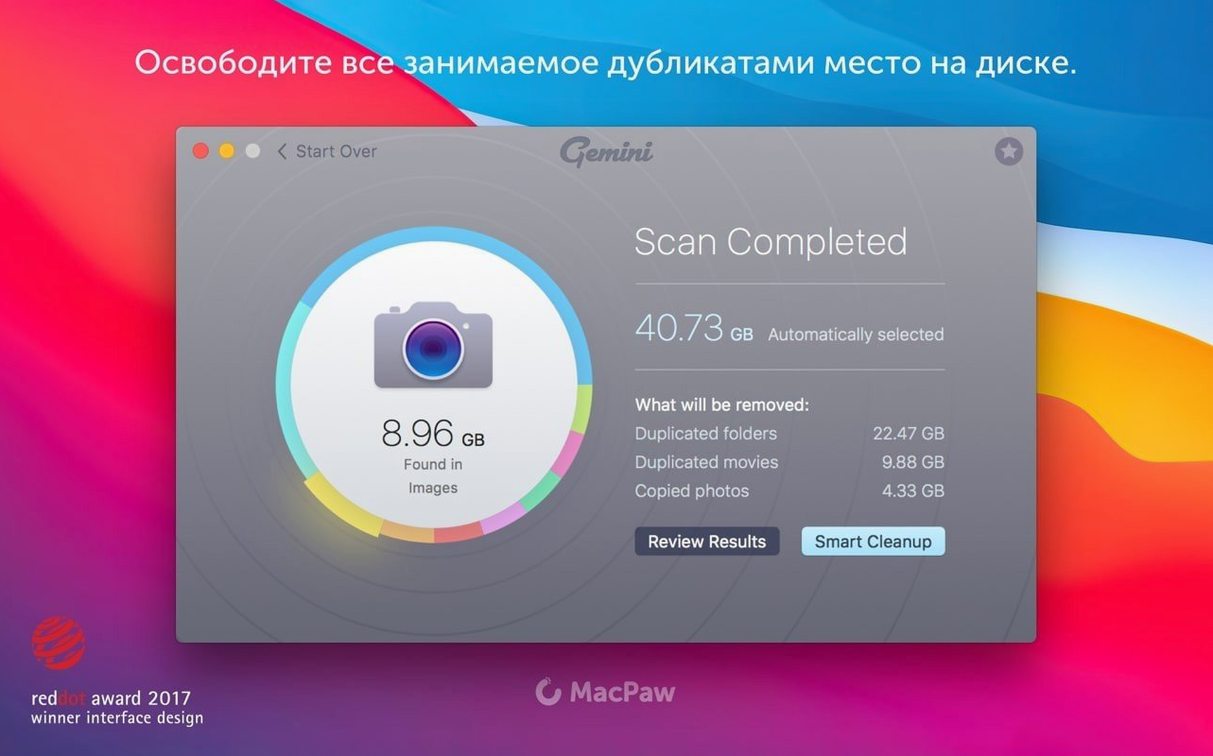
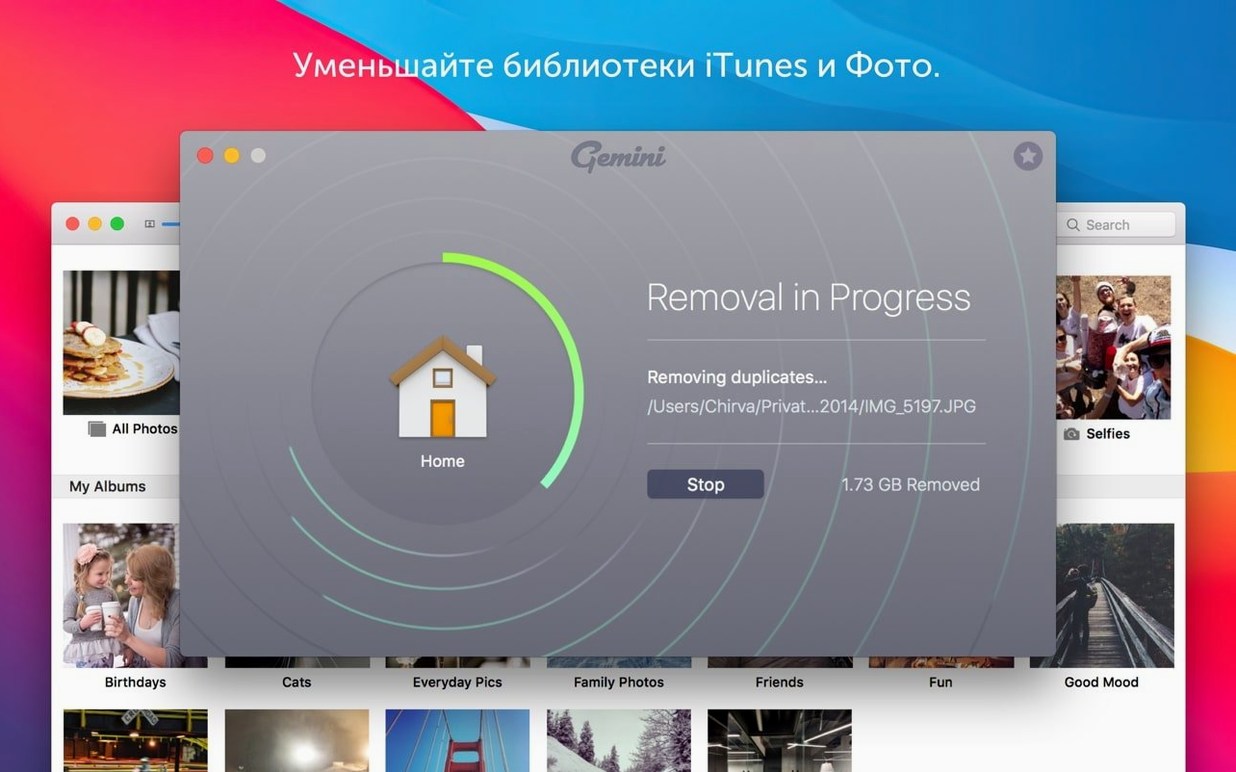
Gemini 2 is a duplicate file finder that scans your Mac for exact copies and files that look alike.
Intel Macs only, from High Sierra onward
Before anything else, check whether the app can run. Gemini 2 requires an Intel Mac with macOS 10.13 High Sierra or a later release. Apple Silicon machines are not supported natively. It is fully compatible from macOS 10.13 onward. The current version, 2.10.2, is built for x86 64-bit processors only. If your hardware and operating system match, installation is straightforward; if not, the app will not launch.
Smart Select auto-flags duplicates by version and location
Once running, Gemini 2 presents a scan interface that groups identical files and near-duplicates into a reviewable list. The Smart Select feature preselects items it considers safe to delete, based on criteria like file version and folder location. You can override those choices before confirming removal. A Recently Deleted area holds cleared files temporarily, giving you a way to restore something if the automatic selection was too aggressive. The interface is available in twelve languages, including Russian, German, Dutch and Japanese. There is no version‑specific news for the 2.10.2 release.
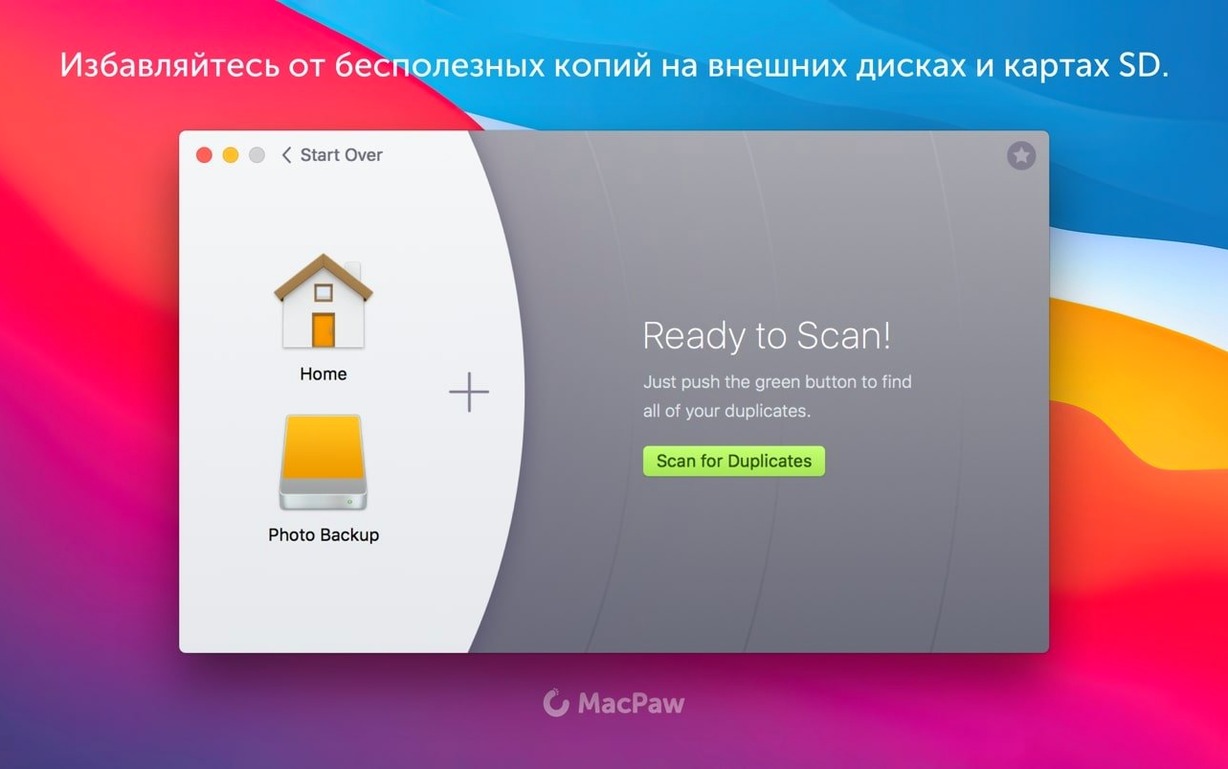
Start with your home folder and the big plus button
You launch Gemini 2 and see a large plus button in the centre of the window. Tapping it opens a folder picker. For a first run, you select your home folder — the one with Desktop, Documents, Downloads and Pictures inside. The scan begins immediately. A progress bar creeps along while a counter ticks upward: files checked, duplicates found. It takes about three minutes on a 512 GB drive with a couple of years of accumulated files, though larger libraries stretch that noticeably.
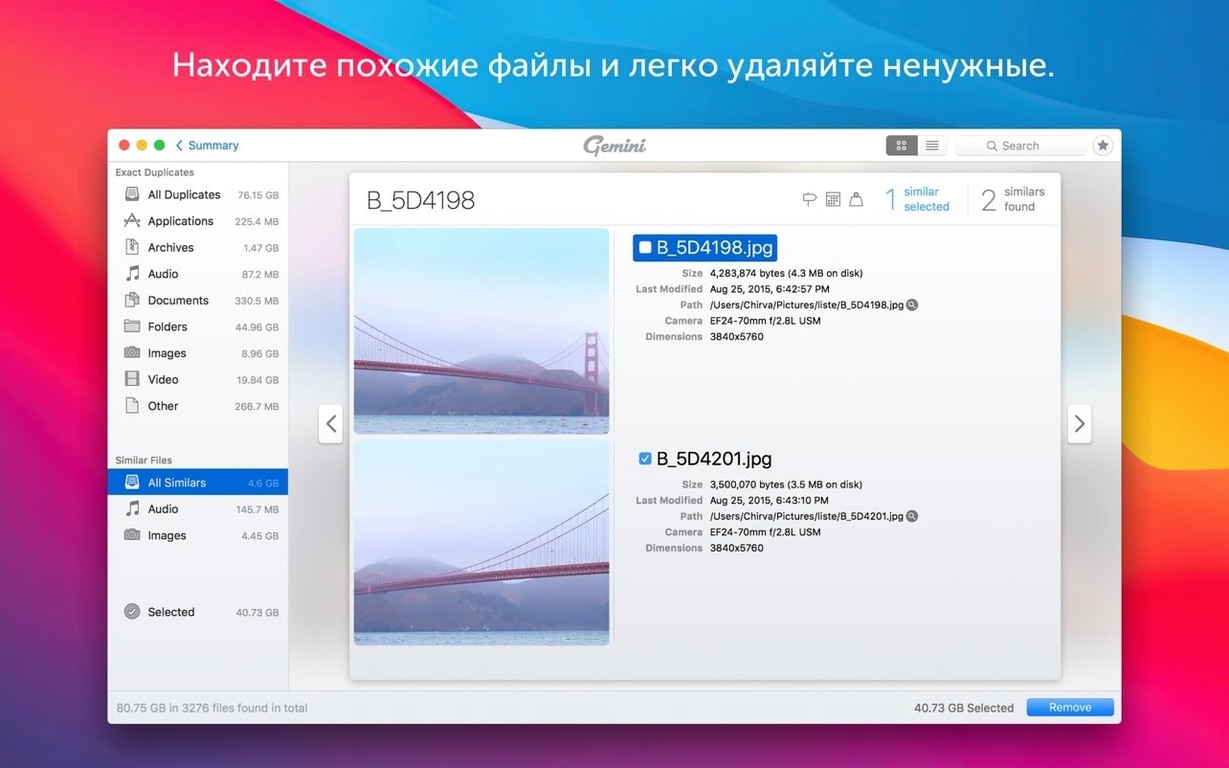
When the scan finishes, the sidebar lists categories: Duplicates, Similar Files, and a breakdown by type — Images, Music, Documents, Others. Tapping Duplicates shows every exact match pair or group. Each row displays a thumbnail, file name, path and size. The Smart Select label sits beside one copy, marking it as the suggested keeper. A quick glance at a folder of old backup images confirms the logic: it kept the version inside Photos and flagged the loose copy on the Desktop.
You spend ten minutes scrolling through the image groups. Some are genuine clutter — three identical screenshots saved in different project folders. Others need a second look: a group of RAW files where one copy lives in a dated archive and the other in a current editing folder. You uncheck the archived copy manually. The checkbox system is forgiving; nothing gets removed until you click the cleanup button.
Next you switch to the Similar Files tab. Here Gemini 2 groups images that are visually close but not byte-for-byte identical — bursts of photos taken seconds apart, resized exports, slight crops. Each group shows a similarity percentage. A set of five nearly identical sunset shots sits at 94% similarity. You expand the group, compare thumbnails side by side, and keep the sharpest one. The rest get checked for removal.
Music duplicates appear next: a handful of tracks that live both in an old iTunes Media folder and a manually copied backup from years ago. The path column makes the origin obvious. You trust Smart Select here and let it mark the copies outside the main library. A final sweep through the Documents category catches a few duplicated PDFs and old ZIP archives you forgot about.
Before clicking Remove, you scroll back through every checked item once more. This second pass catches one mistake — a fonts folder Smart Select wanted to clear from a design project directory. You uncheck it. Then you click the button. A confirmation dialogue asks for a final nod. The deletion is quick; freed space updates in the summary bar at the top. The files move to Recently Deleted, where they sit for a configurable period. You leave them there for a week, just in case.
Photographers reclaiming gigabytes from old shoots and backups
The people who notice the biggest difference after using Gemini 2 tend to fall into a few clear groups. Photographers with years of imported shoots, exported edits and multiple backup rounds find gigabytes of near-duplicates they stopped noticing. The similar-files detection catches burst sequences and variant edits that manual sorting misses, especially inside sprawling folder structures.
Users with limited SSD storage on older MacBooks get a practical, immediate return. Stripping duplicate system files, repeated downloads and copied media folders can recover space that makes the machine usable again without needing an external drive. Students and academics with duplicated lecture recordings, PDFs and presentation files spread across course folders see a similar gain.
Musicians and audio collectors benefit from the scan of iTunes and loose music folders. Gemini 2 identifies identical tracks even when metadata differs slightly, which manual sorting by name would overlook. The same logic applies to anyone who has migrated from an older Mac and ended up with nested copies of photo libraries, document folders and application support files.
Users who keep highly organised folder structures and already prune duplicates by hand will find less to clear. The app is not a substitute for a good filing system, but it works well as a one-off audit and occasional maintenance pass for machines that have accumulated clutter over several macOS upgrades.
Exclude external backups before the first scan
The default settings are sensible, but three adjustments make the experience fit tighter. Open the preferences pane before the first full scan. Under Scanning, uncheck any locations you want to exclude permanently — external backup drives, network volumes, Time Machine folders. Skipping these cuts scan time and avoids flagging files that exist for a reason on separate disks.
Move to the Selection tab. Smart Select defaults to keeping files in the original location and removing copies in other folders. If you prefer to keep files in a specific drive or folder, you can tweak the priority rules here. The app also learns from manual overrides during cleanup, so spending a few minutes correcting selections in the first session teaches it your preferences for all subsequent scans.
In the Recently Deleted section, set a retention period that matches your comfort level. The default is thirty days. If you clean aggressively, a longer window provides insurance; if you review carefully and want disk space freed immediately, a shorter period or manual emptying after each session works better. The restoration process is a single click, so there is little friction either way.
SSD scans a 200 GB folder in about five minutes
Scan speed depends almost entirely on the number of files and the disk type. On an internal SSD, Gemini 2 moves through a 200 GB home folder in roughly four to five minutes. Mechanical hard drives take longer — sometimes fifteen minutes or more for the same file count — because the app reads every byte to compute checksums for exact duplicates and perceptual hashes for similar files. The scan is not something you run while waiting for a render to finish; it works best during lighter workloads or as a background task left to complete on its own.
Memory usage during scanning sits around 400 to 600 MB for medium-sized libraries, climbing higher with very large photo collections. CPU load is moderate — one or two cores are busy while computing hashes, and the fan may spin up on older Intel MacBook Airs. Once the scan completes, resource use drops to idle levels while you browse results. The interface remains responsive even with tens of thousands of duplicate groups shown, though collapsing large category lists by type helps keep scrolling smooth.
Stability is unremarkable in the best sense. Across repeated sessions on macOS High Sierra through Monterey, Gemini 2 does not crash during scans or deletions. The only observed hiccup involved a folder with broken symlinks, which the app skipped silently after a short delay. The Recently Deleted recovery feature has worked reliably in testing, with no files lost that were not deliberately emptied from the trash area. The app does not install background daemons or launch agents, so it draws zero resources when not running.
Nothing gets deleted without your manual confirmation
Does it delete anything without asking? No. Gemini 2 requires manual confirmation before any file is removed. Smart Select marks suggestions, but you review and approve every selection. The Recently Deleted area adds a second safety layer. Files sit there until the retention period ends or you empty it yourself.
Can it tell the difference between a real duplicate and a file I need in two places? Partly. The app flags identical files regardless of their purpose, but it shows full paths for every copy. That lets you decide whether a duplicate is intentional — a config file needed in two applications, for example. Smart Select uses heuristics about folder types and file ages, but the final call is always yours.
Will it break my Photos or iTunes library? The app scans inside Photos and iTunes libraries, but it does not modify library databases directly. It identifies duplicate media files that exist both inside managed libraries and loose in folders. Removing loose copies while keeping the managed versions is safe. Caution is still wise: check every group inside a library before confirming deletion, and keep Recently Deleted active.
Does it run on Apple Silicon Macs? Not natively. Version 2.10.2 is built for Intel processors. Some users searching for a Gemini 2 download for Mac have reported that it runs under Rosetta 2 translation, but MacPaw does not officially support it on M-series chips. If you are on an M1 or M2 Mac, compatibility is not guaranteed. The same applies to anyone looking for a Gemini Mac torrent — the Intel build is the one you'll find in circulation.
What happens if the scan finds thousands of items? You can handle them in batches. The interface groups results by type and lets you review one category at a time. You do not have to clear everything in one session. Partial cleanups are saved, and the app remembers which items you already reviewed so you can return later without starting from scratch.