Aspecten
 Download (30 MB)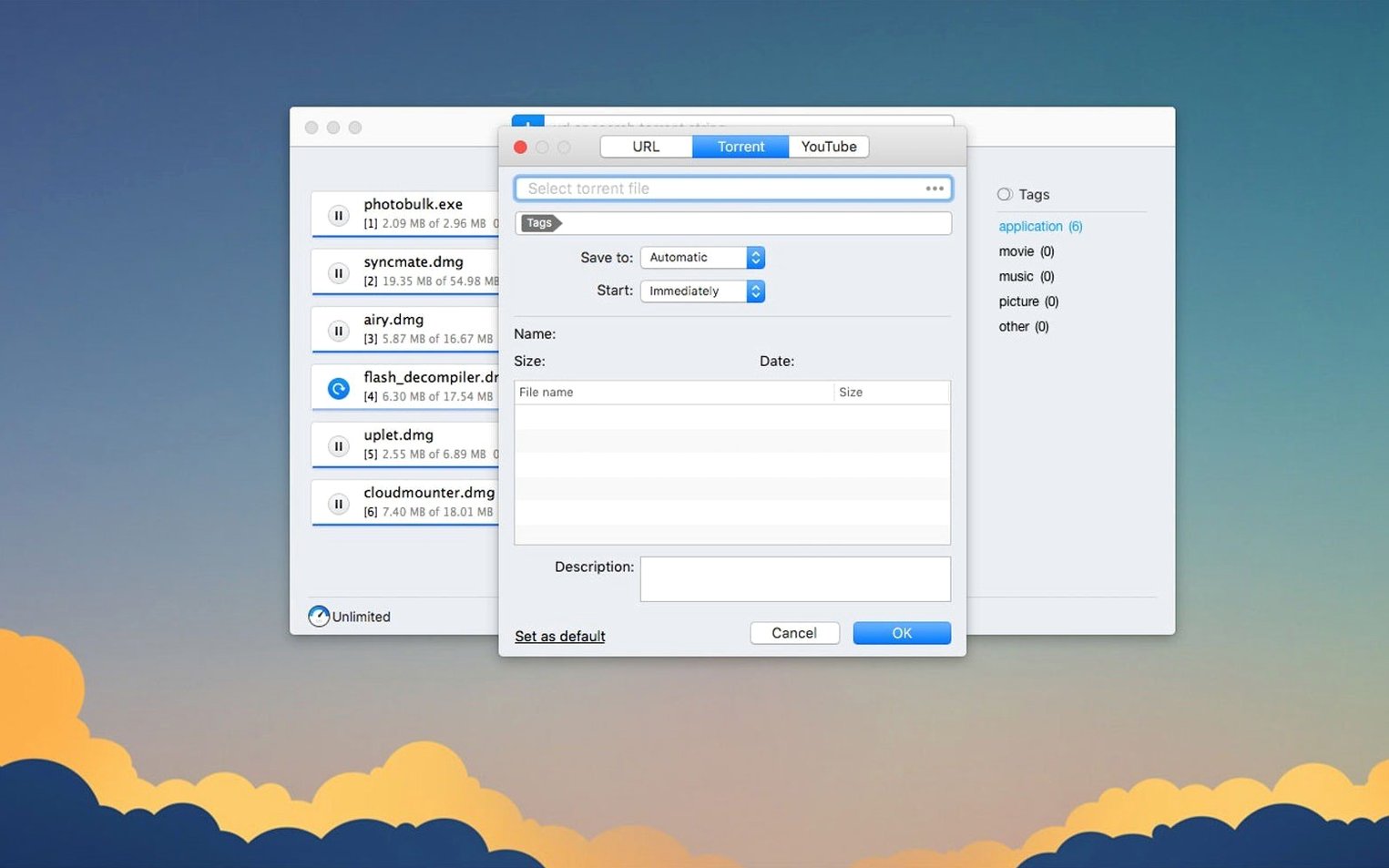
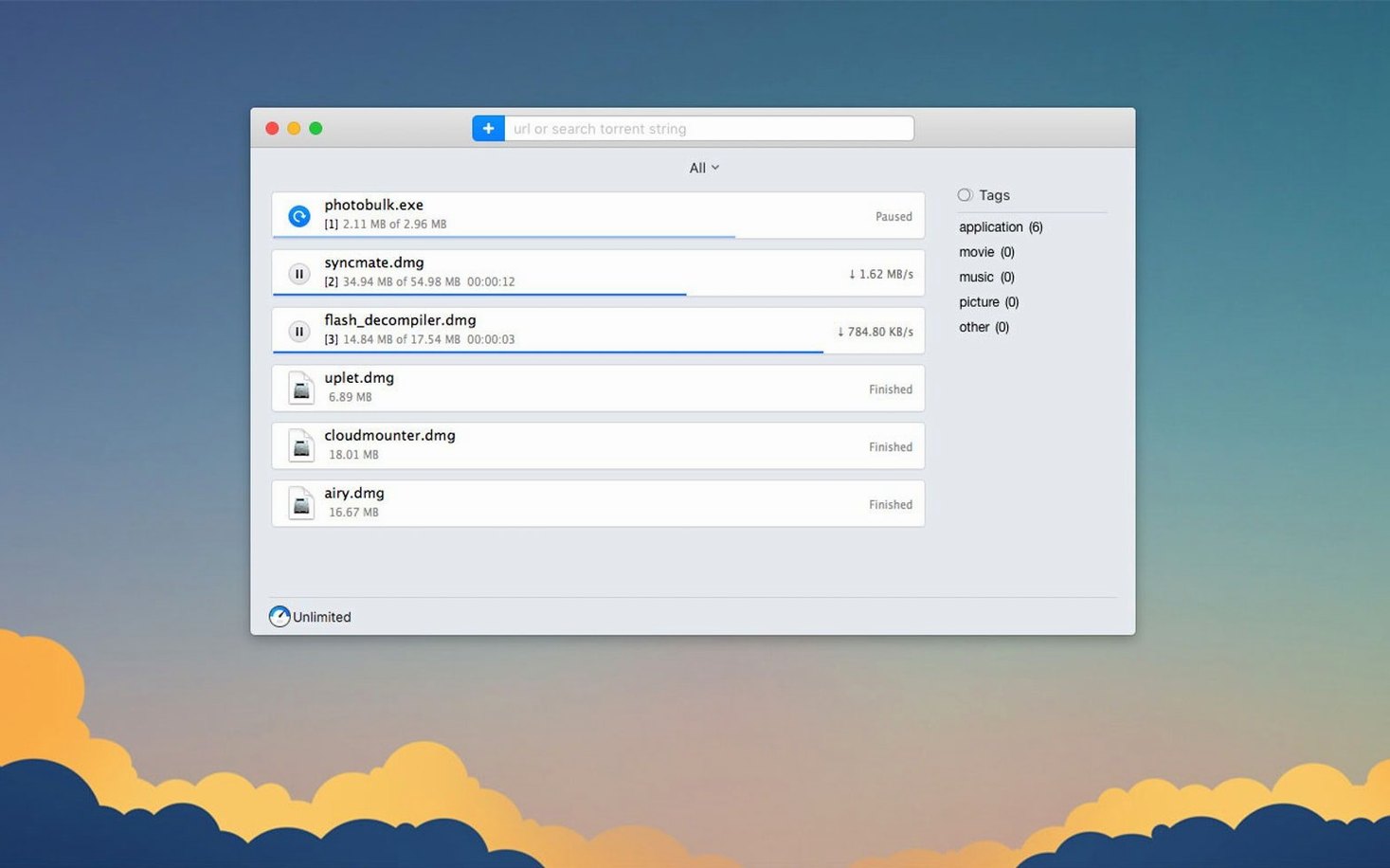
Browser download sheets are fine for a PDF, but they fall apart when a connection drops halfway through a multi-gigabyte file. Folx Pro steps in where the browser stops, splitting downloads into threads and resuming them automatically.
Fetching large files
The standard file downloader splits transfers into up to 20 threads on supported servers, considerably speeding up a single ISO or video file. Schedules let you defer bandwidth-heavy work to the early hours.
Handling torrents
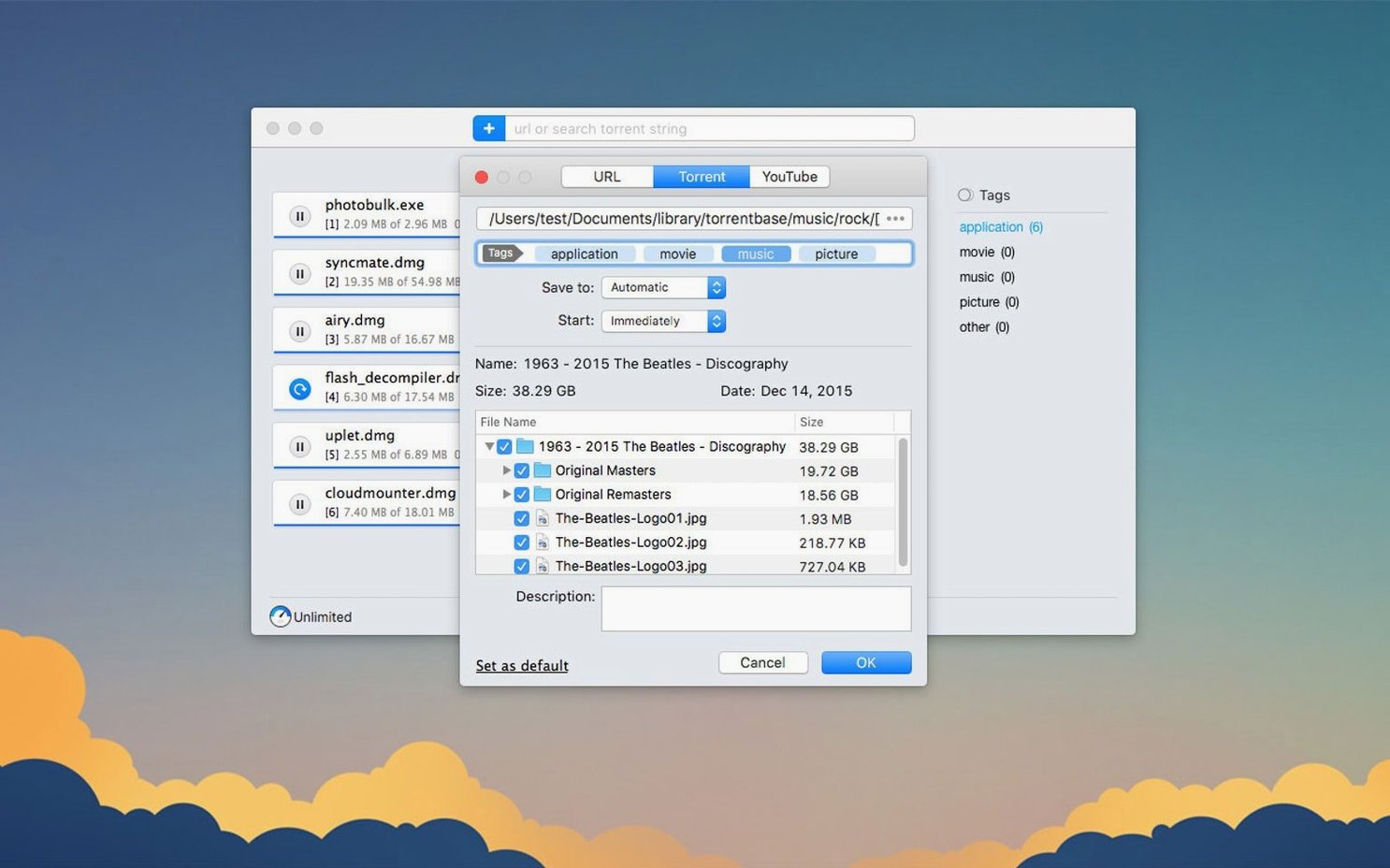
Folx Pro runs a full torrent client alongside the direct downloader. Version 5.34 brought more reliable selective file downloading within a torrent, so you can grab only the episodes you need from a season pack without waiting for the rest.
Grabbing videos
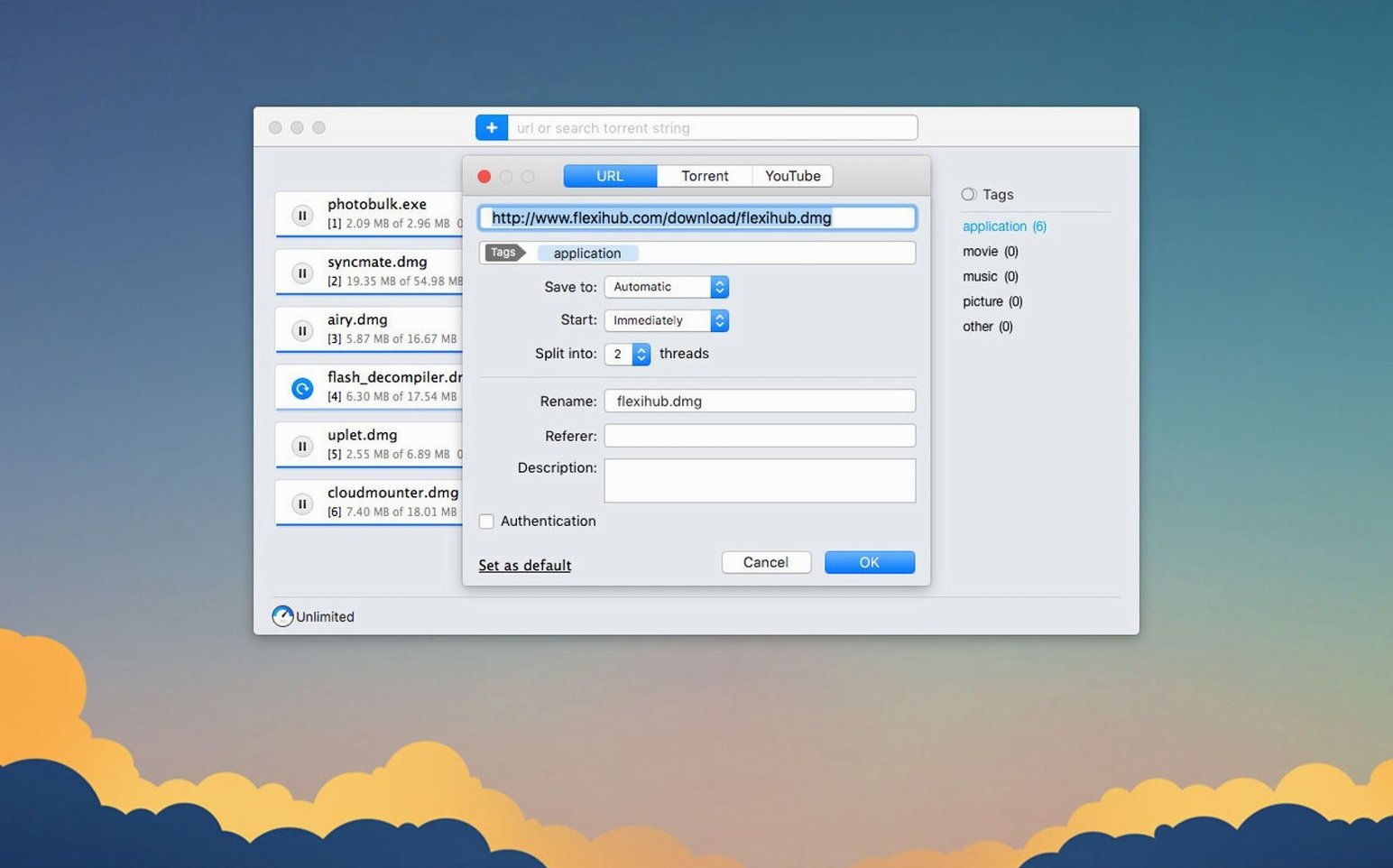
A built-in YouTube downloader pulls video and audio directly via a link. You can rename the output file before the transfer begins, which saves a trip to the Finder afterwards.
Splitting threads and scheduling bulk transfers for metered connections
Users who regularly pull down Linux ISOs, large video files or multi-part archives notice the thread splitting and resume support immediately. The scheduler makes sense for anyone on a metered or shaped connection who prefers bulk transfers to run between midnight and six in the morning. Torrent users who want one application instead of a separate client and download manager get the clearest overlap: selective file downloading inside a torrent, magnet link handling and a built-in search sit alongside the direct-download engine. People who collect tutorials, lectures or music from YouTube and want a predictable local copy also find the video grabber useful, especially since output quality and filename can be set before the transfer starts.
Replacing the browser download sheet or dragging links to the dock icon
One of the first things people ask is whether Folx Pro replaces a browser's download sheet entirely. It can, once the browser extension or capture is set up, but you can also drag a link onto the dock icon or add a URL manually. Another common question is about magnet links: version 5.34 fixed a crash that occurred with some malformed magnets, and the app now handles them as reliably as a standalone torrent client. People also wonder if the YouTube downloader keeps working as video platforms change their delivery. The feature depends on periodic updates, and the current version handles the most common formats. Questions about proxy support surface often from users on corporate or university networks; version 5.34 improved proxy behaviour, including how authentication flows through to the download threads.
Unchecking unwanted files in a torrent before the transfer starts
A frequent misstep is dropping a large torrent into the app and assuming all files will be fetched. Folx Pro defaults to downloading every file in a torrent, so checking the file list and unchecking unwanted items before the transfer starts saves bandwidth. Another mistake is setting the thread count to the maximum for every server; some hosts throttle or reject connections when too many simultaneous requests arrive from one IP, and a 20-thread split can actually slow things down on a cautious server. Beginners also occasionally ignore the scheduler's time window and wonder why a queued download sits idle during the day. The schedule respects the local system clock exactly, so confirming the active hours prevents surprises. Lastly, people sometimes rename a YouTube output file without including an extension, which leaves the file unrecognised until they add .mp4 or .webm manually.
A sample workflow: fetching a video tutorial series
Suppose you need a set of four lecture recordings from a university archive that also offers them as a torrent. You open Folx Pro and paste the magnet link into the new task field. The app resolves the magnet and presents the torrent's file list. Three of the lectures are required, but the torrent also contains a large PDF course pack you already have, so you uncheck that file. You set the save location to a folder on an external drive, leave the thread count at six because the university tracker throttles higher, and switch to the scheduler tab. There you define a window from 02:00 to 07:00, when your home connection is quiet. You add the task and close your MacBook. The next morning all three video files sit in the folder, named exactly as they appeared in the torrent, ready to watch. No manual resume, no partial files.