Aspecten
 Download (15 MB)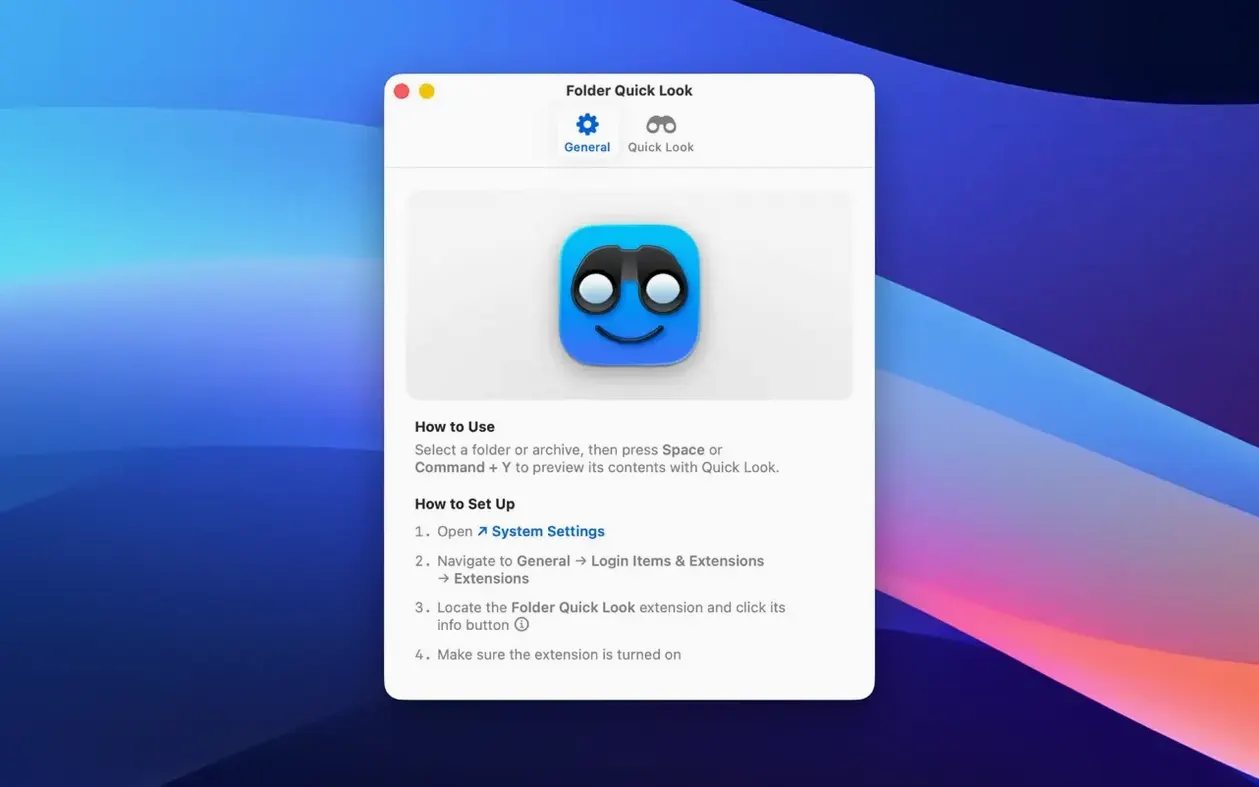
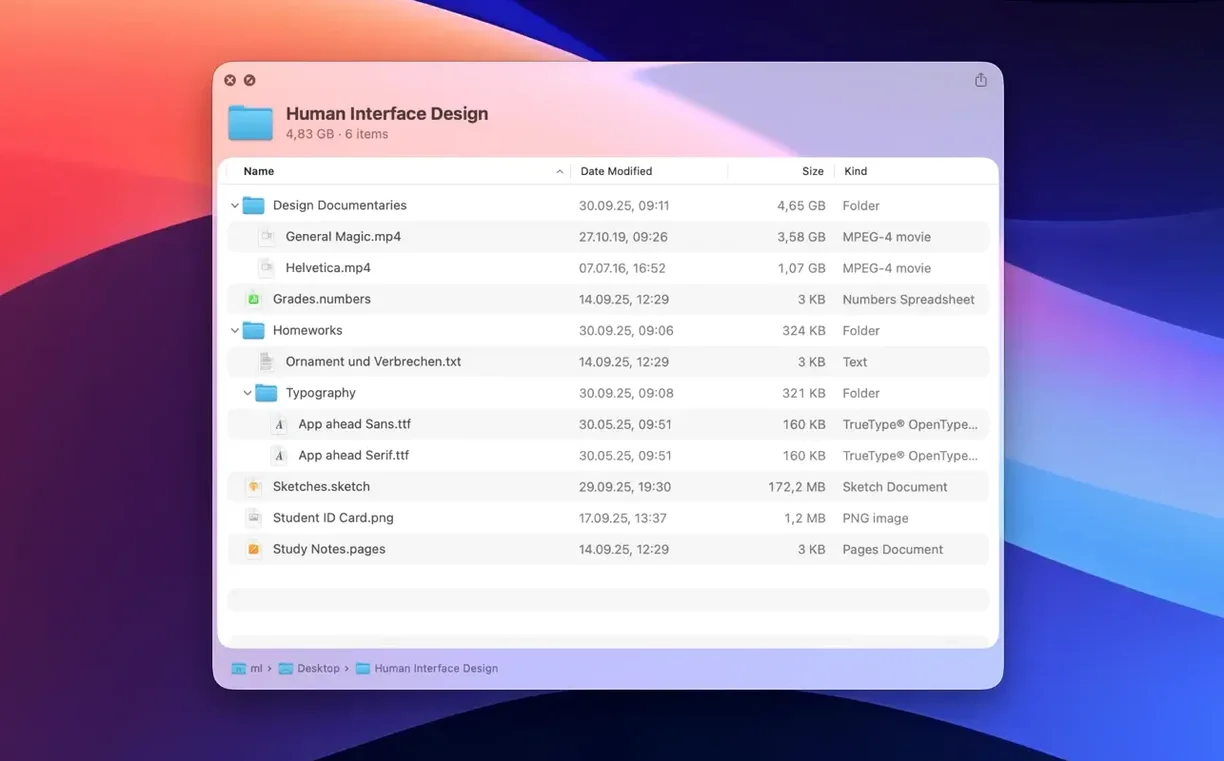
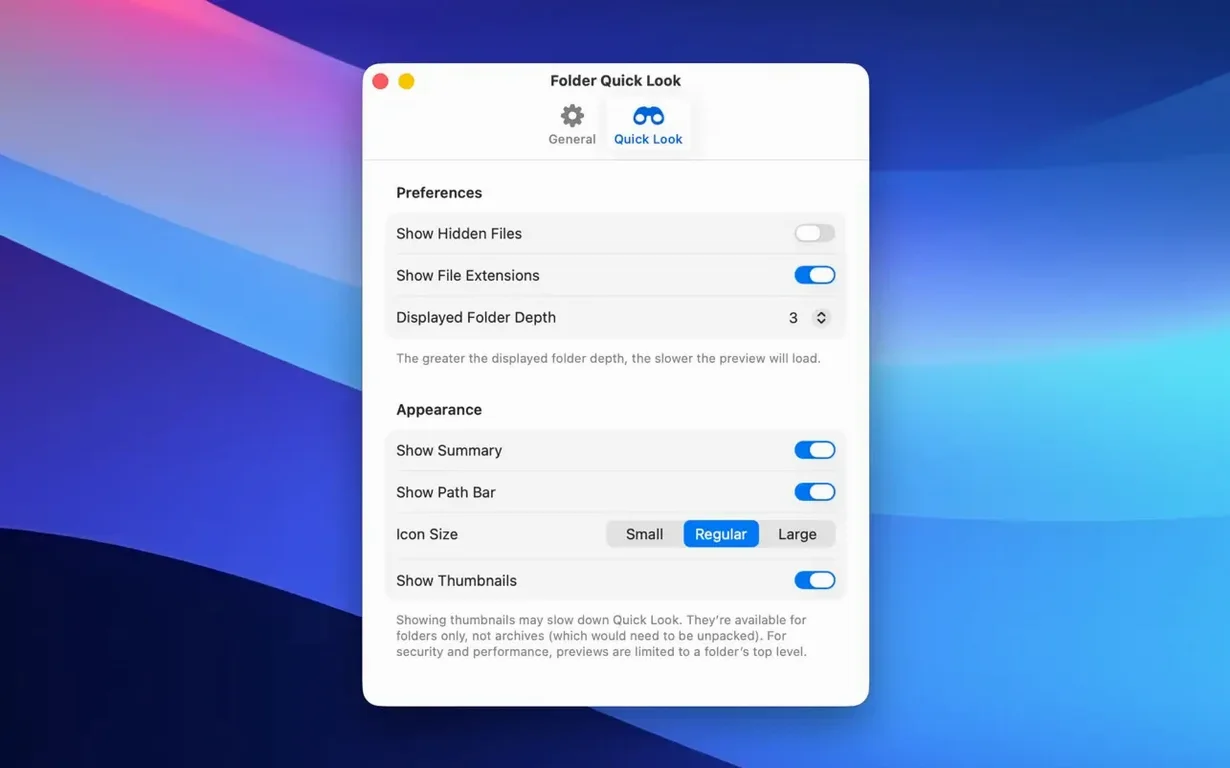
Version 1.5 brings a grid view to Quick Look previews, so instead of scanning a single-column list you can browse folder and archive contents as a set of thumbnails. It suits directories heavy with images or documents where visual recognition is quicker than reading filenames.
| Detail | Note |
|---|---|
| Developer | App ahead GmbH |
| Current version | 1.5 |
| macOS requirement | macOS 15.6 or later |
| Architecture | Apple Silicon and Intel 64-bit |
The utility hooks into macOS Quick Look and adds awareness of archives. Press the spacebar on a ZIP or RAR file and you see its contents laid out without extracting a thing. The grid view applies here too, flattening nested files into a glanceable sheet. It does one job and keeps its interface out of the way: no dock icon, no preferences window, just the previews that appear when you ask for them.
Grid view reshapes the browsing rhythm
The jump from list-only previews to an optional grid view alters the rhythm of browsing. Before 1.5, a folder with forty PDFs showed you forty rows of filenames and small icons; now the same space bar press can fill the Quick Look panel with a neat arrangement of document thumbnails. Switching between list and grid is done from a small control inside the preview itself, so you can flip modes without closing and reopening.
For archive files the improvement is more pronounced. A ZIP containing a mix of images, text files and subfolders previously appeared as a flat text list. With grid view you see the actual image thumbnails and document previews right inside the archive preview. Subfolders still show as folder icons, but their contents are one click away. The grid does not replace list view — it sits alongside it, and the last-used mode is remembered per session.
Works with column and gallery view
People often ask whether this utility works when Finder is set to column or gallery view. It does — it only comes into play when you invoke Quick Look with the space bar or a force-click, and it does not alter how folders behave in Finder windows. The preview overlay is the same system panel macOS uses everywhere, just with extra content inside it.
Another common question is about archive depth. The utility shows the top-level contents of a compressed file; it does not recursively expand every subfolder in one view. You can drill into nested folders by clicking them inside the preview, which opens a new preview for that level. For password-protected ZIP files, it respects the system-level prompt and asks for the password when macOS would normally ask.
Some users wonder whether it interferes with other Quick Look plug-ins. It is designed to coexist with them. If another plug-in already handles a specific archive format, macOS decides which one takes precedence based on load order, but in practice conflicts are rare because Folder Quick Look registers for folder and generic archive types rather than specific file extensions.
Default info panel shows instead of preview
A known snag: after installing, the space bar sometimes still shows the default folder info panel — size and file count — rather than the content preview. This usually means the system has not registered the new Quick Look provider yet. A quick fix is to log out and back in, or run qlmanage -r in Terminal to refresh the Quick Look cache. The behaviour should settle after the first restart.
On Macs with slower external drives, previewing large folders over a USB connection can take a few seconds to populate the grid. The utility does not cache thumbnails aggressively, so reopening the same folder repeats the scan. If the delay is bothersome, switching to list view inside the preview is faster because it skips thumbnail generation.
Some archive types, particularly older RAR formats with non-standard compression, may show an empty preview or a brief error. The utility leans on macOS system libraries for extraction, and formats that require third-party codecs fall outside its reach. In those cases extracting with a dedicated archive tool remains the fallback. For standard ZIP files and modern RAR archives the behaviour is reliable.