Aspecten
 Download (9 MB)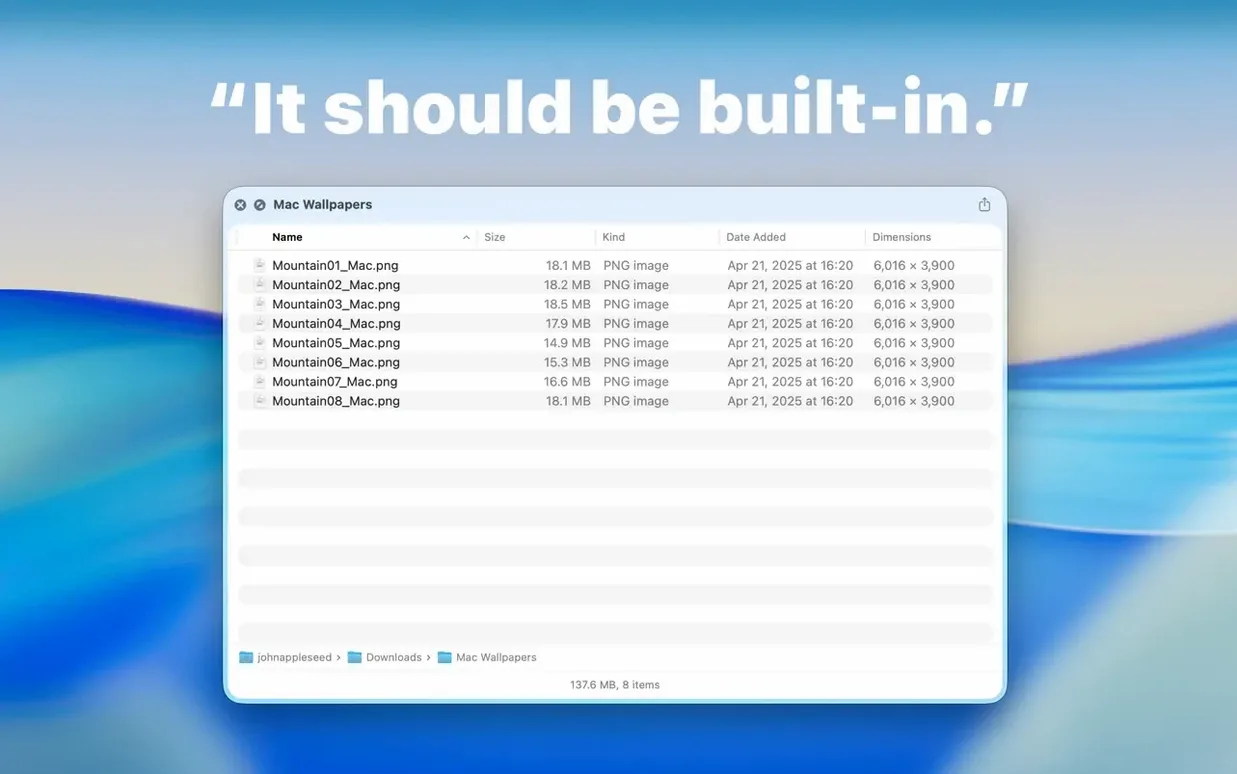
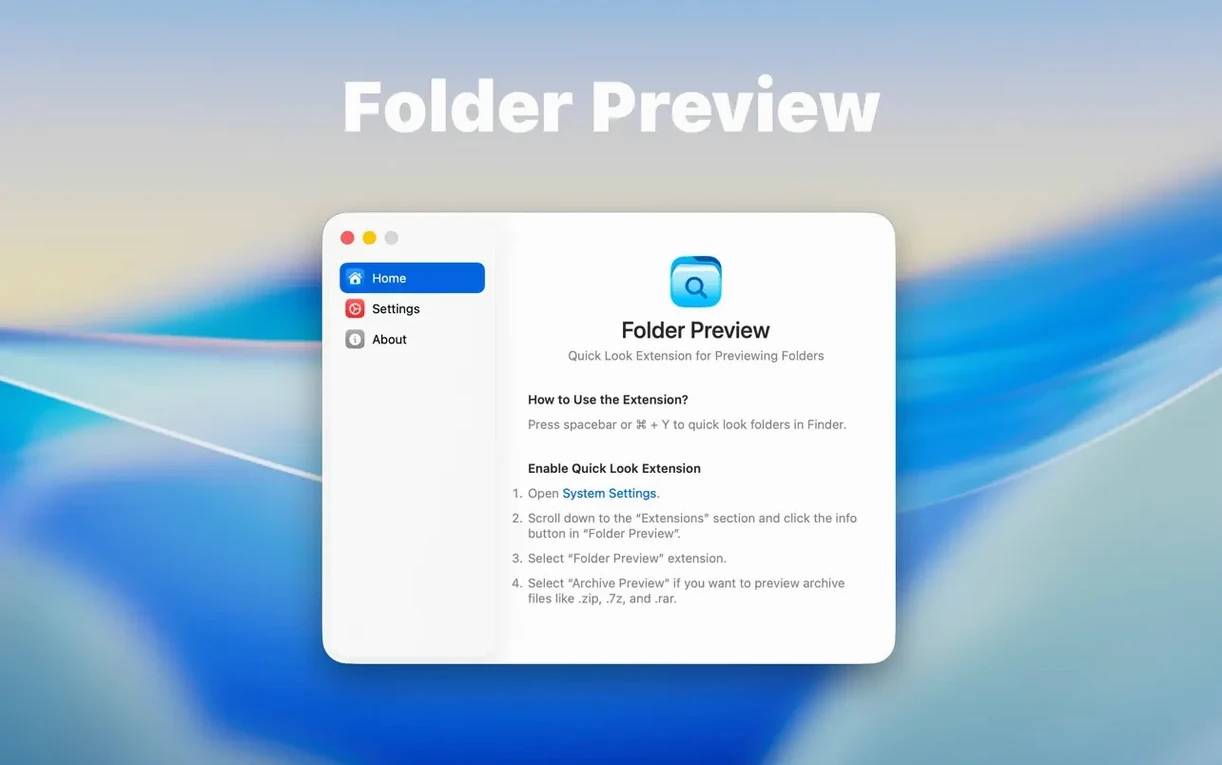
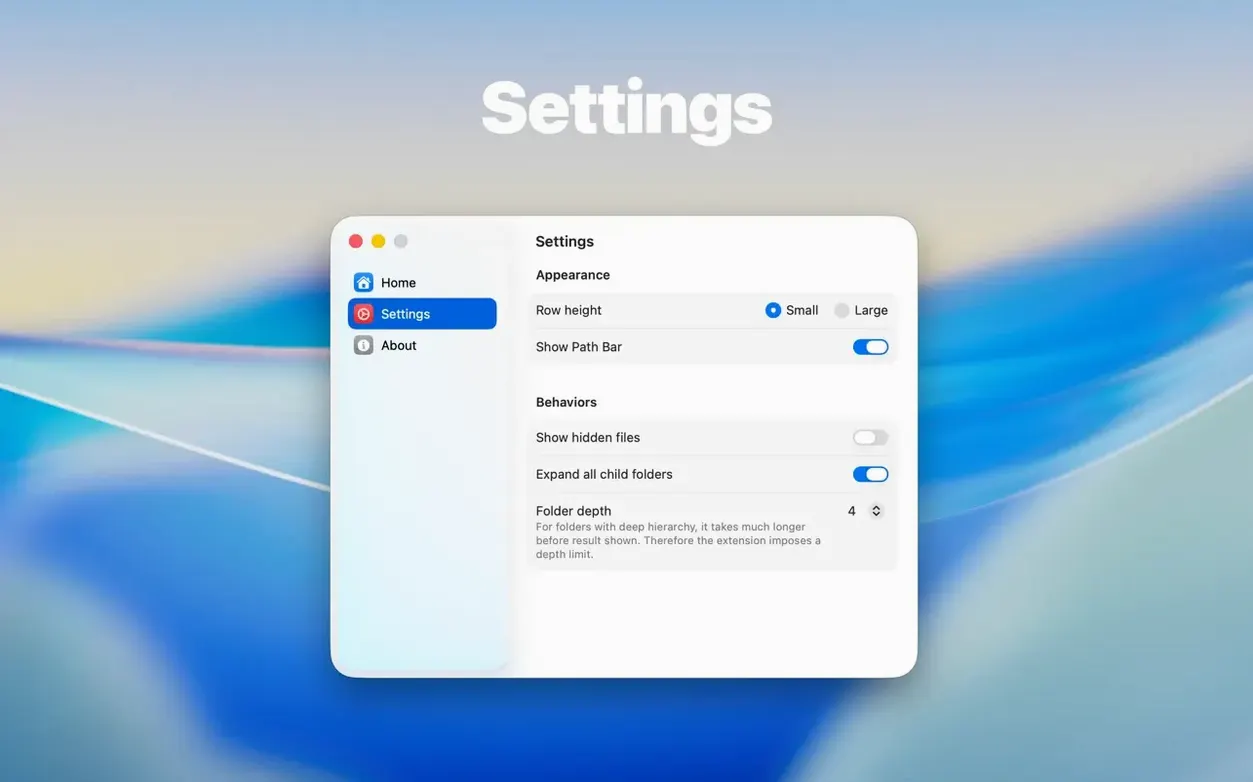
Folder Preview Pro requires macOS 13 or later and runs on both Intel and Apple Silicon Macs. Once installed, you need to enable Quick Look in System Settings — the extension does nothing without that toggle.
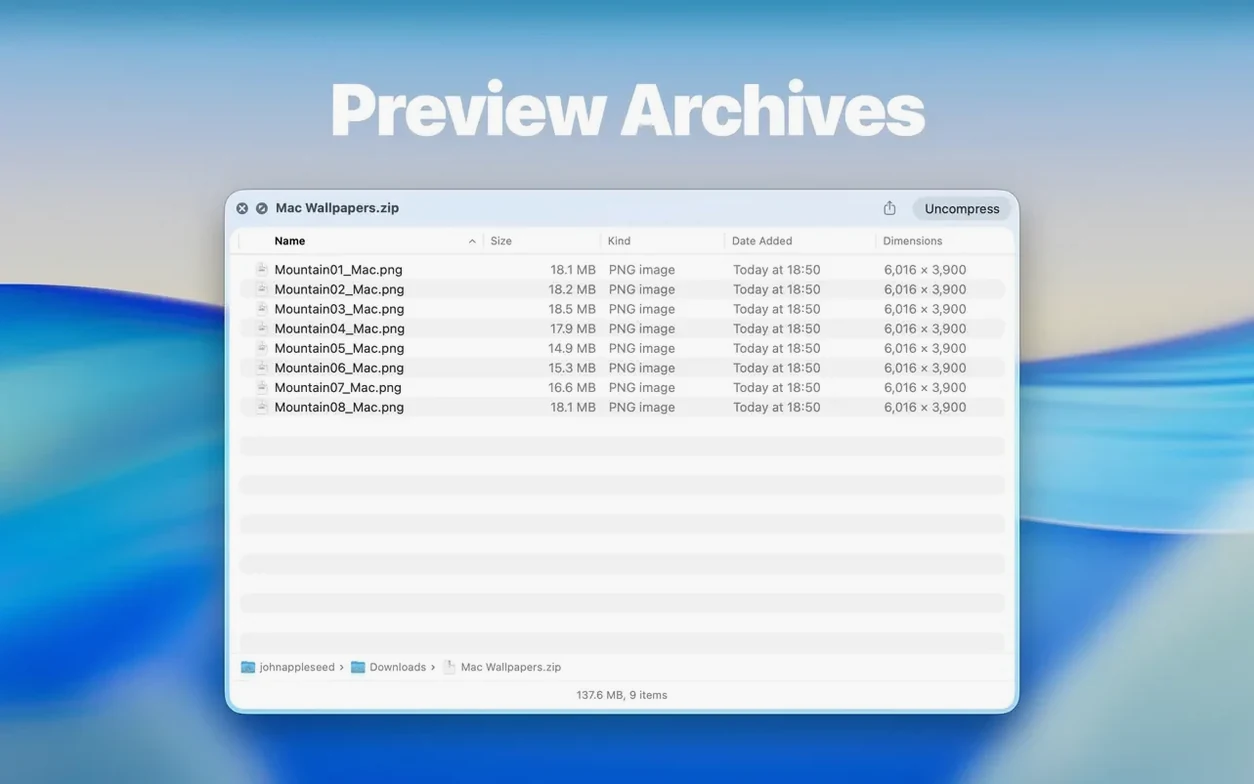
Archive handling — the app treats ZIP, TAR, GZ, 7Z and RAR files as previewable containers. Version 3.1 introduces size-limit options of 5 GB and 10 GB, so large archives do not lock up Finder while Quick Look tries to index them.
View structure — folder size information has moved from the status bar to the toolbar under the folder name, a small shift that keeps the preview window cleaner. The new Dual Columns view lets you see folder hierarchy alongside file listings without switching between modes. A Contents item now supports level-by-level browsing directly inside the preview.
Interaction model — pressing Space or Command-Y on a folder still opens the preview. From version 3.1, you can drag files out of list and icon views directly onto the desktop or into another app, which removes a few extra clicks from common file-management tasks.
Does it replace the default Quick Look for folders
Does this replace the normal Quick Look for folders? No — it extends what Quick Look does when you press Space on a folder. A standard folder preview shows a generic icon and a name. With Folder Preview Pro active, the same keystroke shows the folder’s contents instead. The extension only activates for folders and supported archives; files still use their own Quick Look generators.
Will it slow down Finder on an older Mac? The archive size-limit options added in version 3.1 help here. Setting a cap at 5 GB or 10 GB tells the app to skip scanning anything above that threshold, so accidental previews of enormous zipped backups do not stall Finder. Folder previews themselves are light — the extension reads directory listings, not file internals.
Do I need to keep the app running after installation? No. The extension registers with Quick Look and works whether the app is open or closed. You only need to launch it once from Launchpad after dragging it into Applications; after that, Finder handles the rest.
Dual Columns view changes how you browse folders
Version 3.1 brought a few changes that shift how you move through folders during a session. The Dual Columns view is the most visible addition — a left pane for the folder tree and a right pane for file contents, both inside the same Quick Look window. Before this, you saw one level at a time. Now you can keep the parent structure visible while scanning files in a subfolder, which cuts down on repeated Space-tapping to orient yourself.
The Contents item in the context menu supports level-by-level browsing without ever opening Finder windows. Right-click inside the preview, choose Contents, and you step into a subfolder directly. This pairs well with the new drag-and-drop support — you can pull files out of list and icon views onto the desktop or into Mail, Messages, or a document. Grabbing a file from three folders deep no longer requires opening anything separately.
The relocation of folder size information from the status bar to the toolbar under the folder name is subtle but welcome. The number sits closer to the folder identity now, and the status bar stays reserved for selection counts and other transient info. Together with the archive size-limit options, these changes make the preview behave more like a lightweight file browser than a static readout.
Quick Look shows nothing when I press Space on a folder
Quick Look shows nothing when I press Space on a folder. Check that the extension is enabled. Open System Settings, go to Privacy & Security → Extensions → Quick Look, and make sure Folder Preview Pro’s checkbox is ticked. If it is already on, toggle it off, wait a moment, and toggle it back — this forces Quick Look to reload its generators.
Archives above 5 GB do not preview. The default size limit is likely set to 5 GB. You can raise it to 10 GB in the app’s preferences, but archives beyond that are intentionally blocked to keep Finder responsive. If you work with very large archives often, consider extracting them first; the extension is not built as an archive browser for multi-gigabyte datasets.
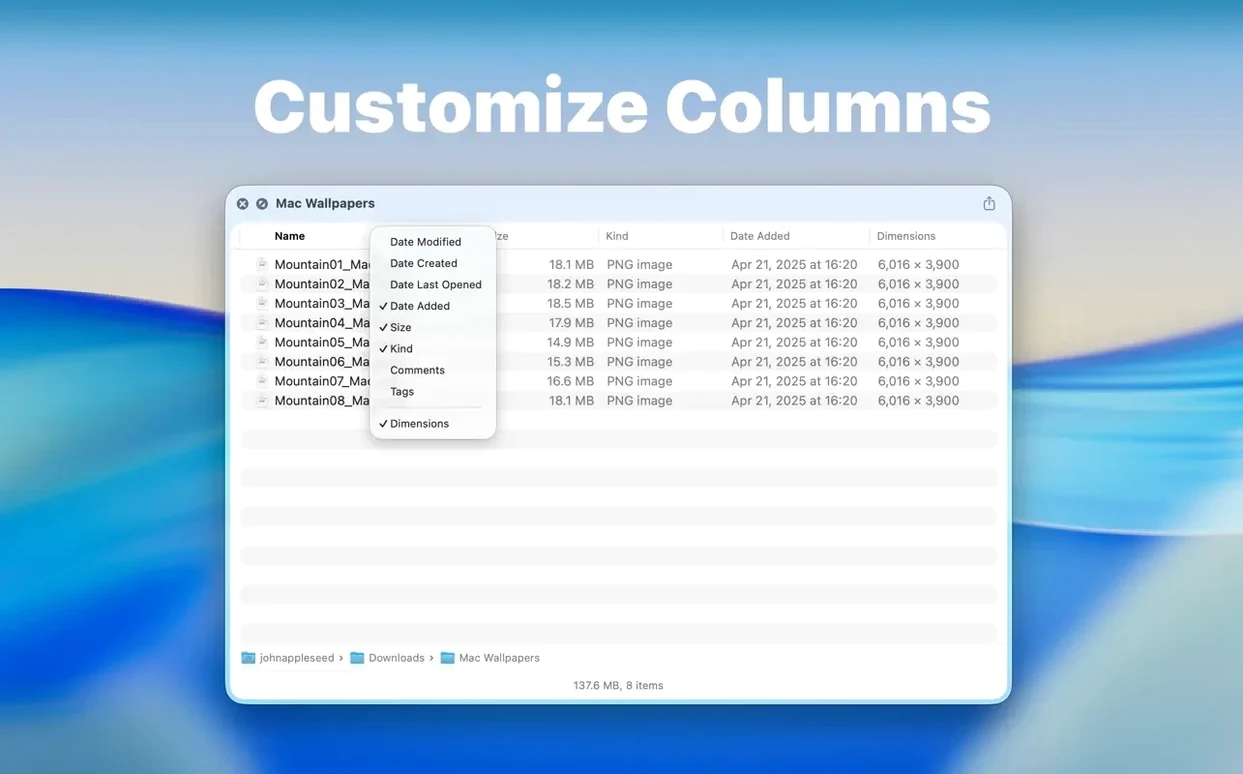
The preview shows files but the column headers look wrong or columns are missing. Right-click anywhere on the header row — the context menu lets you show or hide individual columns. If Name, Size, or Date Modified vanished, re-enable them there. The settings persist across sessions.
Drag-and-drop does not work from icon view. Make sure you are running version 3.1. The feature is new and only applies to list and icon views inside the Quick Look panel. If Finder’s own preview column is active instead, the interaction model differs — switch to Space or Command-Y to get the proper extension window.
Finding an invoice PDF without opening every folder
You have a project folder called Client_Deliverables with a dozen subfolders and a few ZIP archives from previous rounds. You need to find a specific invoice PDF from two months ago without opening every folder in Finder.
You select Client_Deliverables in Finder and press Space. The Quick Look panel opens. The folder name sits at the top, with the size on the toolbar beneath it — 4.2 GB across all contents. You see the immediate contents: folders named by date, a Contracts folder, and a backups.tar.gz archive.
You spot the archive and press Space on it directly from the preview — the extension opens it as another container. Inside, you see a dated folder structure that matches the project timeline. You spot a folder labelled 2024-11. Right-click, choose Contents, and the preview drills into that level. The Dual Columns view stays in the background; you are browsing linearly here, level by level.
You find the invoice PDF. From list view, you drag it straight into a Mail compose window already open on the desktop. No Finder window ever opened beyond the initial selection. The whole sequence — folder, archive, subfolder, file, delivery — took under twenty seconds. You close the preview with a second tap of Space and move on to the next task.