Aspecten
 Download (9 MB)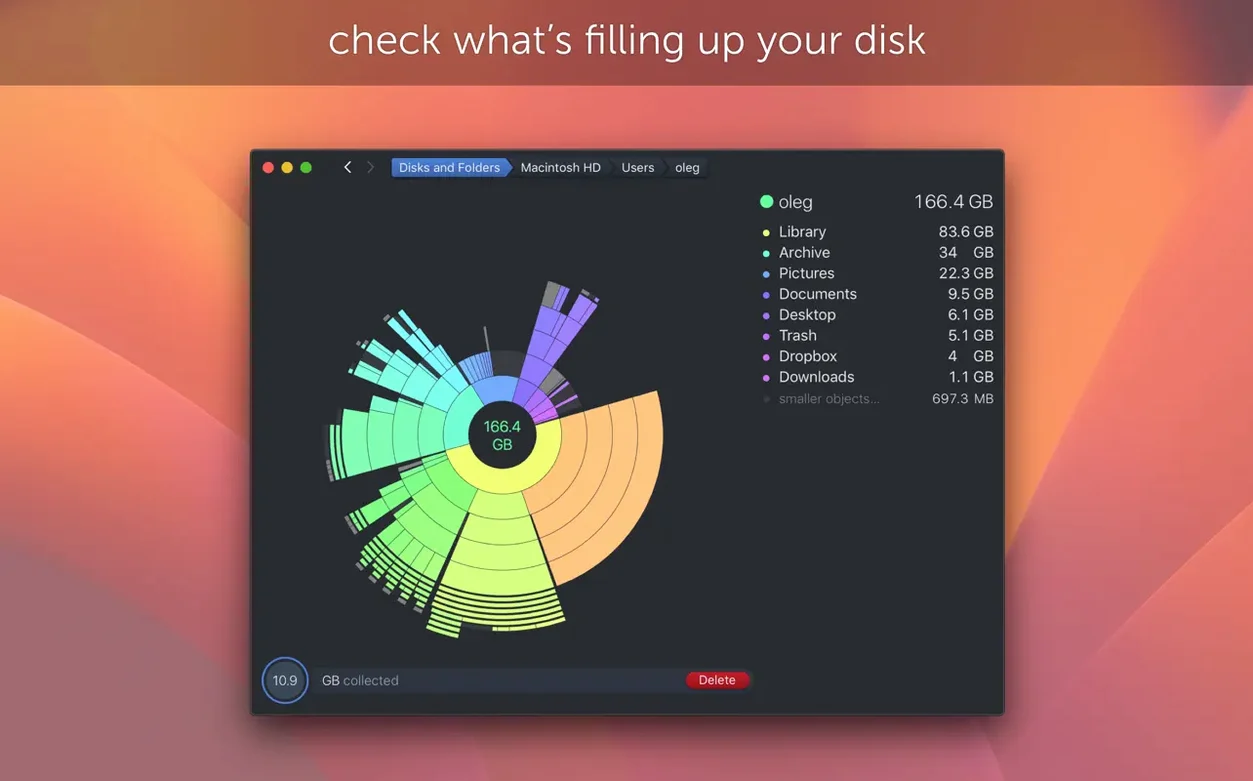
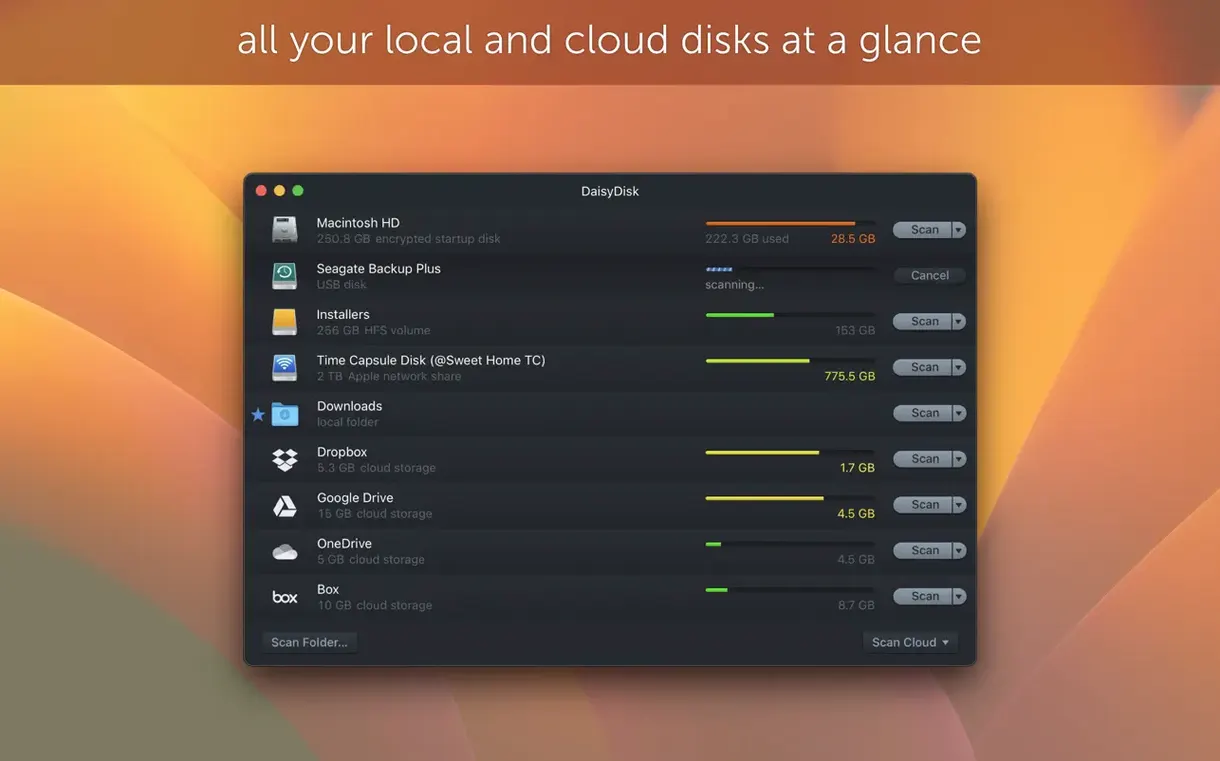
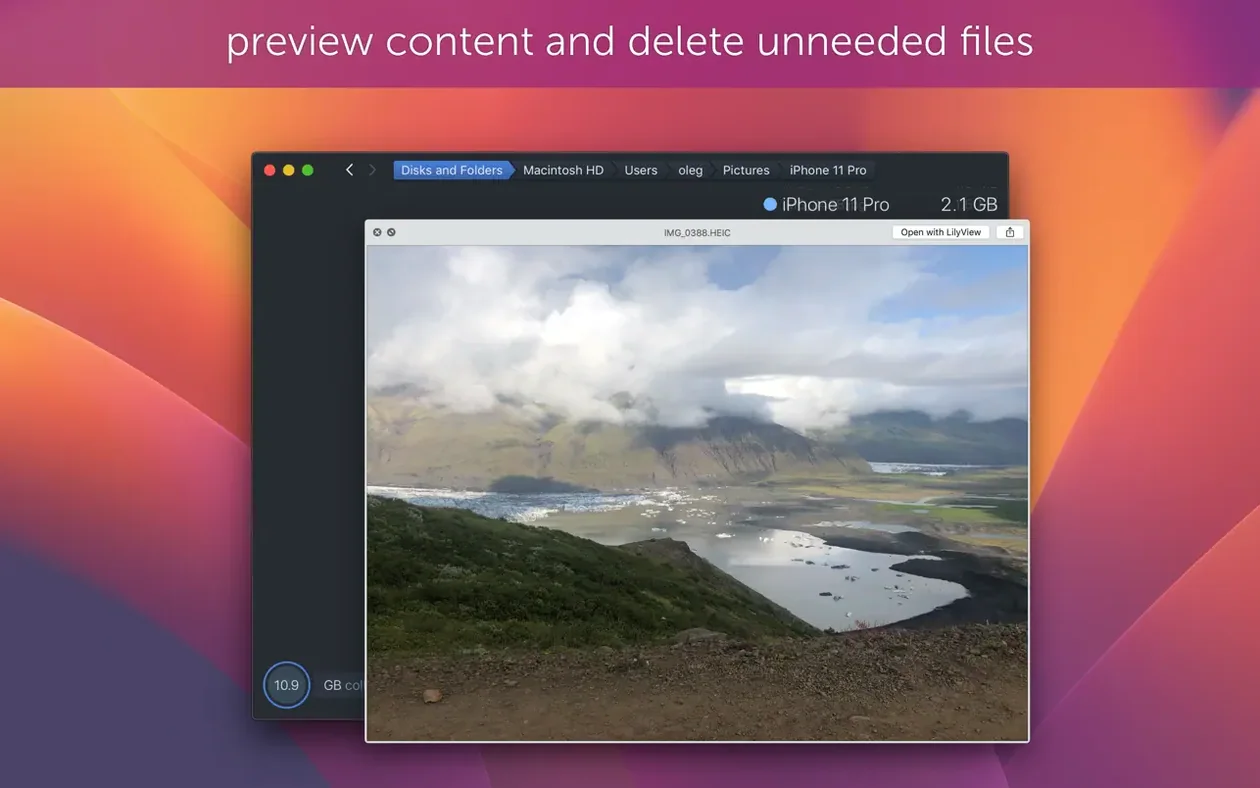
Locating what fills a Mac’s drive usually means staring at directory lists or waiting for a progress bar to crawl through every folder. DaisyDisk takes a different route: it scans a volume and draws an interactive map where each segment represents a file or folder, sized by its footprint. You see the bulk at a glance and can drill down to the precise item that’s squatting on gigabytes.
| Detail | Note |
|---|---|
| Current version | 4.34.2 |
| macOS requirement | 10.13 or later |
| Apple Silicon support | Native |
Experienced users will care about the accuracy work under the hood. Version 4.34 added proper handling of APFS clones — duplicate files that the file system stores once but reports separately. DaisyDisk now counts only the first occurrence in its space calculations, so clone-heavy folders no longer inflate the numbers. Scanning can run across multiple mounted disks in parallel, which cuts wait time when you check an internal drive and an external enclosure together. The estimation of hidden space — the stuff macOS quietly tucks away outside standard folders — was also tightened in recent releases. For those who want to act on the findings, you can delete files by dragging them straight out of the map, and the interface updates disk information in real time as other processes write or remove data. It even unpacks the opaque “Other” category in macOS storage reports, showing exactly what lives inside.
Where DaisyDisk sits among the other tools
DaisyDisk does not replace Finder, Time Machine, or a backup utility. It works best as a diagnostic layer above them. Finder gives you the folder tree; DaisyDisk gives you the proportions. Time Machine shows what has changed over time; DaisyDisk shows what is taking space right now. The two perspectives complement each other when you are deciding whether an old project folder is worth keeping on the main drive or moving to an external archive.
Quick Look is the integration most people notice first. Press the space bar on a segment in the map and macOS shows a preview of the file without opening the parent application. That matters when a directory is full of similarly named items — videos with numeric suffixes, exported PDFs, disk images — and you want to confirm what something is before deleting it. The same shortcut works in Finder, but having it inside the map removes the need to jump back and forth.
Spotlight and DaisyDisk also overlap in a useful way. Spotlight indexes file contents and metadata; DaisyDisk indexes size and location. A search in Spotlight may surface a forgotten 40 GB virtual machine image, but the map shows how that image sits among fifty other files in the same folder. You come away with a better sense of whether the problem is one large item or many medium-sized ones.
On Apple Silicon Macs, the app runs natively and scans the same APFS volumes that macOS itself manages. The clone awareness added in version 4.34 means the numbers on screen agree more closely with what df and Storage in System Settings report. That is not a small thing: before clone-aware calculation, a folder that appeared to hold 200 GB of duplicate video edits could actually occupy a fraction of that on disk. Users who cross-checked the figures saw a discrepancy and suspected the tool was wrong. In most cases the tool was simply counting logical size rather than physical size.
Recent versions and what they changed in practice
Version 4.33.2 addressed hidden space estimation. On a normal macOS installation, the operating system reserves areas for swap files, local snapshots, and system data that do not always appear in a standard scan. The improved estimation gives a more realistic picture of how much space is genuinely free. If you had previously moved 30 GB of files off a drive and watched free space climb less than expected, the hidden figures now explain more of that gap.
The same update fixed size reporting on FAT32 and exFAT volumes. Those file systems still show up on USB sticks, camera cards, and drives formatted for cross-platform use. Wrong size estimates there were an irritation rather than a disaster — but if you were cleaning a 64 GB SD card before a shoot, the margin of error could be the difference between fitting another batch of photos or not.
Version 4.34’s APFS clone support changes the way a specific kind of user works. Video editors and photographers who duplicate a clip or image inside their editing software often create clones without realising it. Final Cut Pro, for example, may reference the same media from several projects. On APFS, macOS stores the content once. DaisyDisk now respects that and attributes the physical space to the first occurrence only. The practical effect: a project folder no longer looks like it is taking twice the actual space. Trust in the map goes up, and you stop wasting time hunting for files that never physically existed as separate copies.
Version 4.34.1 fixed a scanning issue on systems older than macOS 14 Sonoma. For users who keep an older iMac or MacBook running, that fix meant scans completed instead of stalling on certain directory structures. Version 4.34.2, the most recent release, is a small bug-fix update with no feature changes listed.
Clearing 90% drive fill to fix memory swap pressure
Consider a photographer who works from a 512 GB MacBook Pro and keeps two external SSDs connected. The internal drive has filled to 90 percent. macOS warns that memory swap is constrained. The photographer opens DaisyDisk and starts scans on all three volumes at once — internal, the working SSD, and the archive drive. Parallel scanning means all three maps are ready in roughly the same time as one would take alone.
The internal drive map shows a large block labelled Lightroom Catalog Previews. It is 28 GB. The photographer had forgotten that Smart Previews were generated for every imported shoot over the past year. A few Quick Look checks confirm that many of those previews belong to shoots already backed up and removed from the working SSD. The block is selected and deleted from within DaisyDisk. Free space climbs immediately.
On the archive drive, the map shows something interesting: a folder called Masters 2025 occupies far less space than expected. The photographer realises why — many of the files in that folder are APFS clones created during an import job that duplicated references rather than copying data. Before the clone-aware update, this folder would have appeared twice as large and prompted an unnecessary cleanup session. Now the map matches reality, and the photographer leaves the archive alone.
Workflow: finding and removing large files before a macOS update
Say you need 40 GB free to install a major macOS release. The goal is specific, the time is short, and the drive is full. Here is one way through it with DaisyDisk.
- Open DaisyDisk and start a scan on the startup volume. Wait for the map to finish building.
- Sort the largest segments first. Do not drill down yet — get the overview.
- Look at the biggest block that is not essential to the system. Typically that is a folder like Users, Applications, or an external-looking item under System.
- Click into that block. The map redraws for just that folder.
- Hover over segments and use Quick Look to identify candidates. Video files, disk images, old Xcode simulator data, and iOS backups are common finds.
- Drag confirmed items to the delete area shown in the interface. DaisyDisk removes them immediately — there is no separate trash step unless the app is set to move items to Trash instead.
- Watch the free-space readout in the header. The map recalculates as you delete.
- If macOS reports a smaller gain than expected, run a new scan and check the hidden space estimate. Some space remains reserved for local snapshots and purgeable data that the system will release gradually.
The whole process takes under ten minutes on a typical internal SSD, with most of the time spent on Quick Look checks rather than scanning itself.
Dragging large .mov blocks without a Quick Look
- Deleting from the map without a second look. Quick Look exists for a reason. A segment named IMG_0043.mov could be a family video or a discarded take. Preview before you drag.
- Assuming every large block is safe to remove. The map shows size, not importance. A 60 GB Library folder may contain your Photos library, Messages attachments, and mail data. Drill down and identify the specific large files instead of treating the whole block as waste.
- Ignoring the hidden space figure. Beginners often delete 10 GB of files and see only 6 GB returned. They assume the tool missed something. In most cases the remaining space is held by APFS snapshots or system-managed data that macOS releases over time. DaisyDisk’s hidden space estimate gives a clearer target for realistic cleanup.
- Scanning only the internal drive. External disks, USB sticks, and SD cards all count toward the clutter you carry around. DaisyDisk scans mounted volumes in parallel, so checking everything at once costs little extra time.
- Not verifying FAT32 or exFAT volumes carefully. On older file systems, the numbers are now more accurate than before, but the on-disk allocation is different from APFS. A folder that appears to hold 4.2 GB on a FAT32 stick may still behave differently when copied back to the Mac. Use DaisyDisk’s readout as a planning aid, not a byte-for-byte promise.
Beginners also tend to run a scan, delete a handful of files, and then not scan again for months. The map is most useful when it becomes a habit — a monthly look at the drive before it reaches the warning threshold, rather than a panic response after the Mac has already slowed down. DaisyDisk’s fast scan times make that routine realistic even on large volumes.