Aspecten
 Download (21 MB)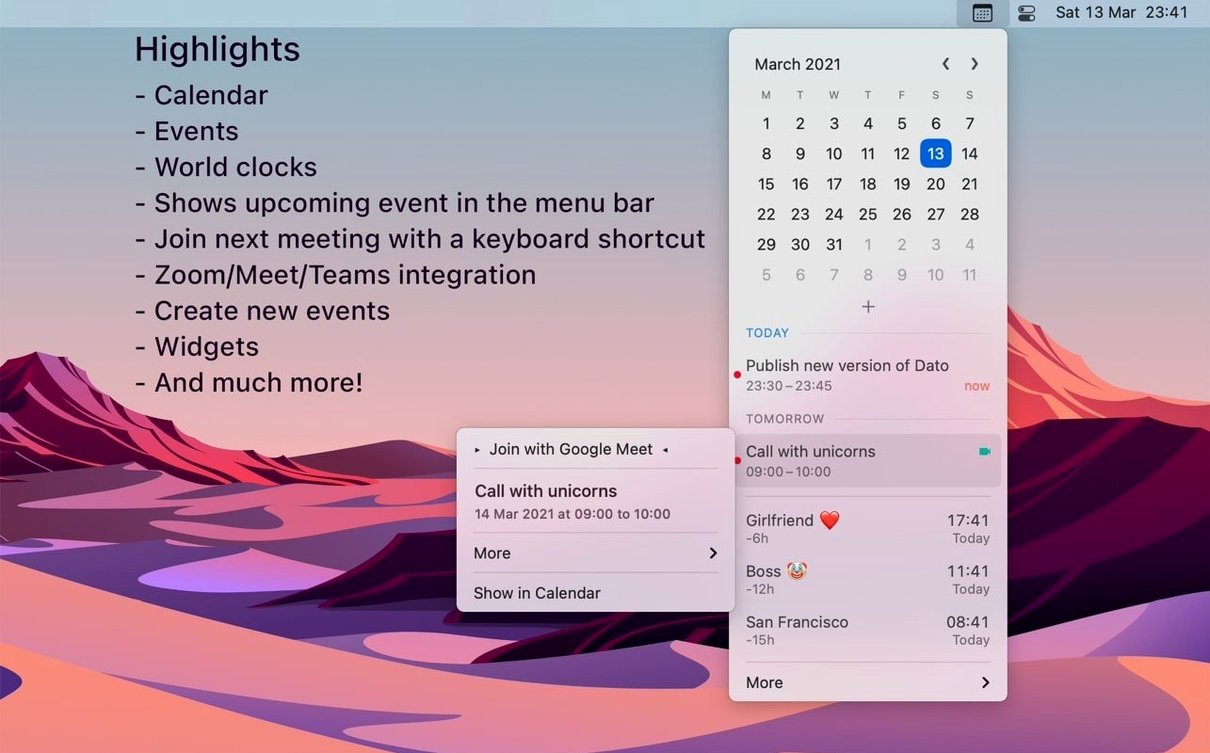
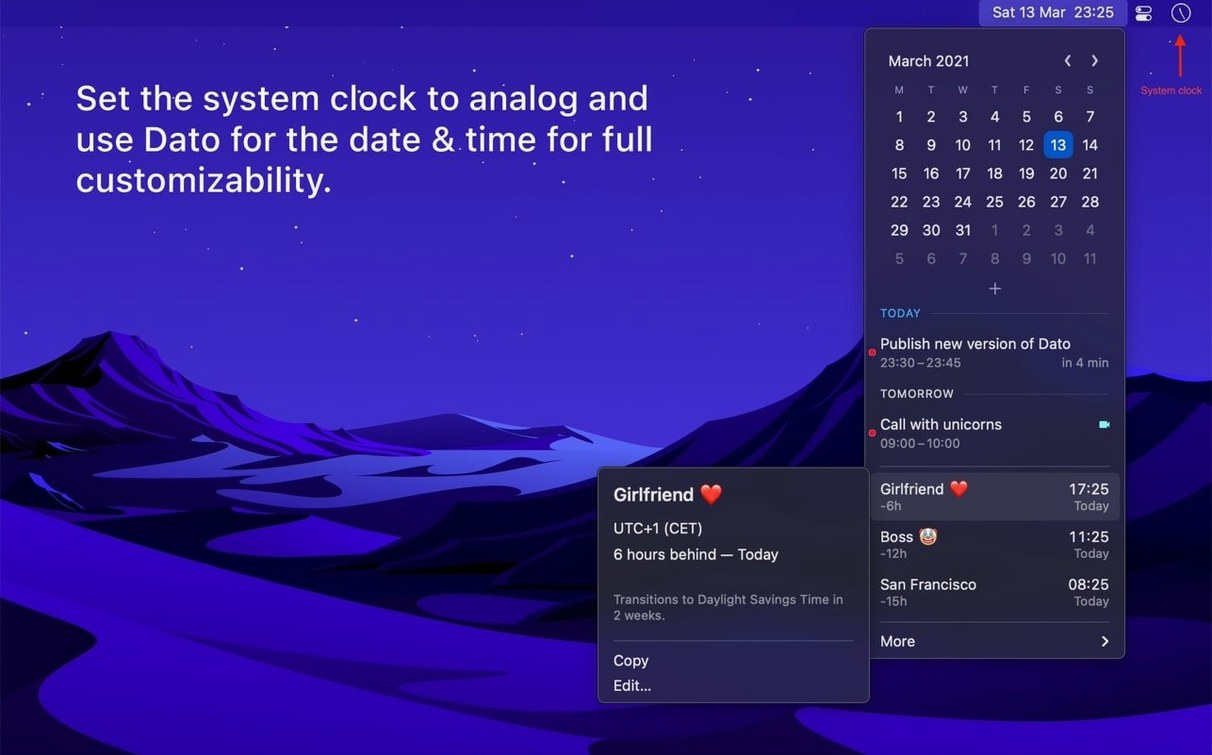
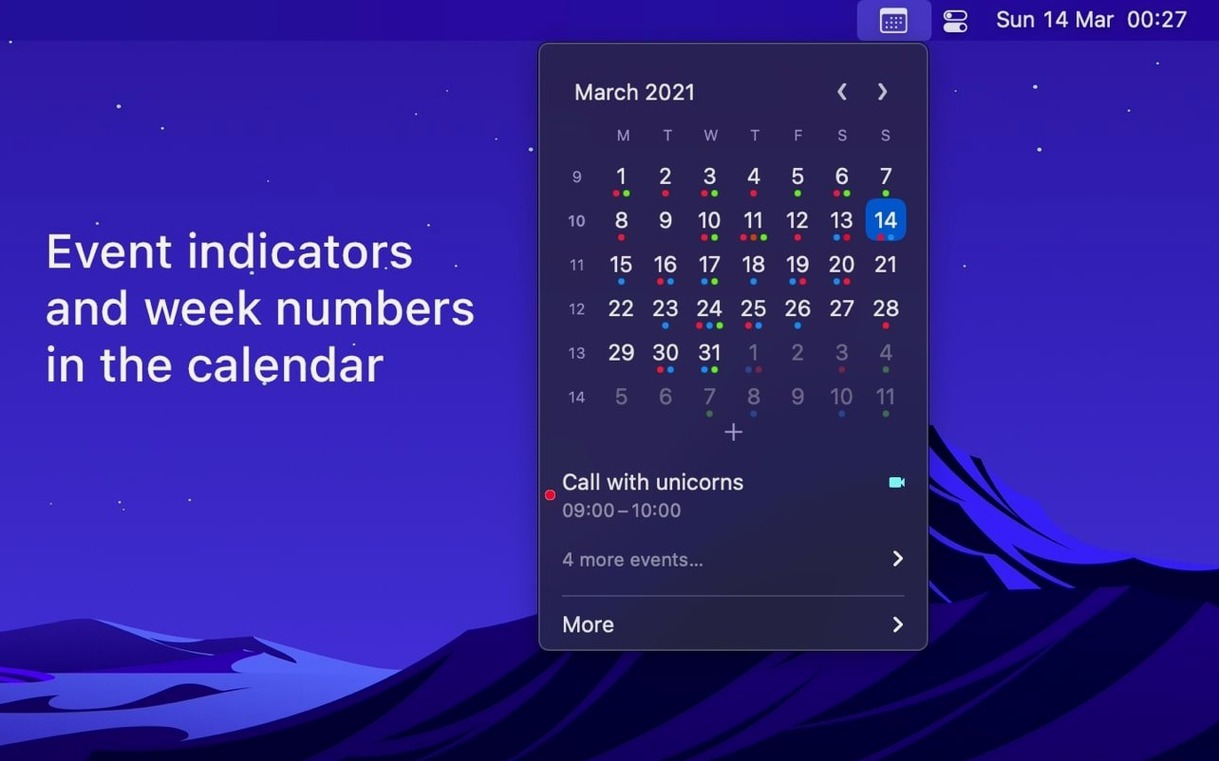
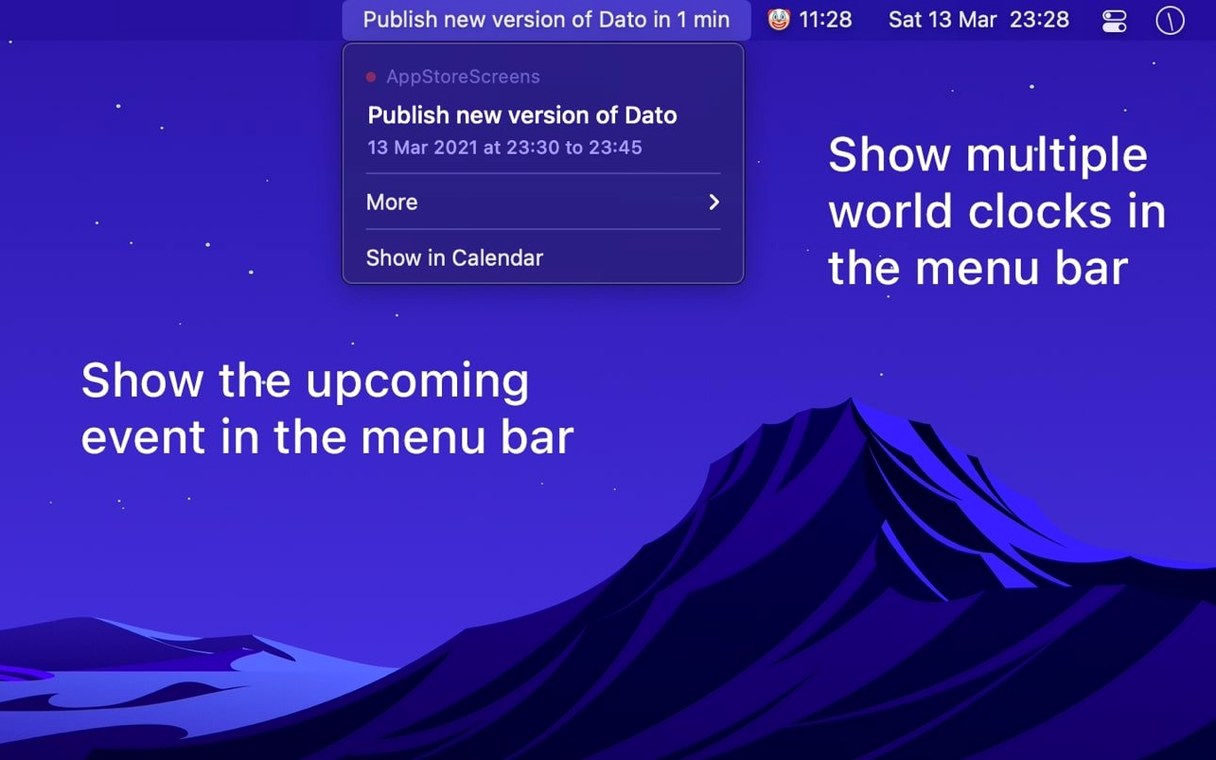
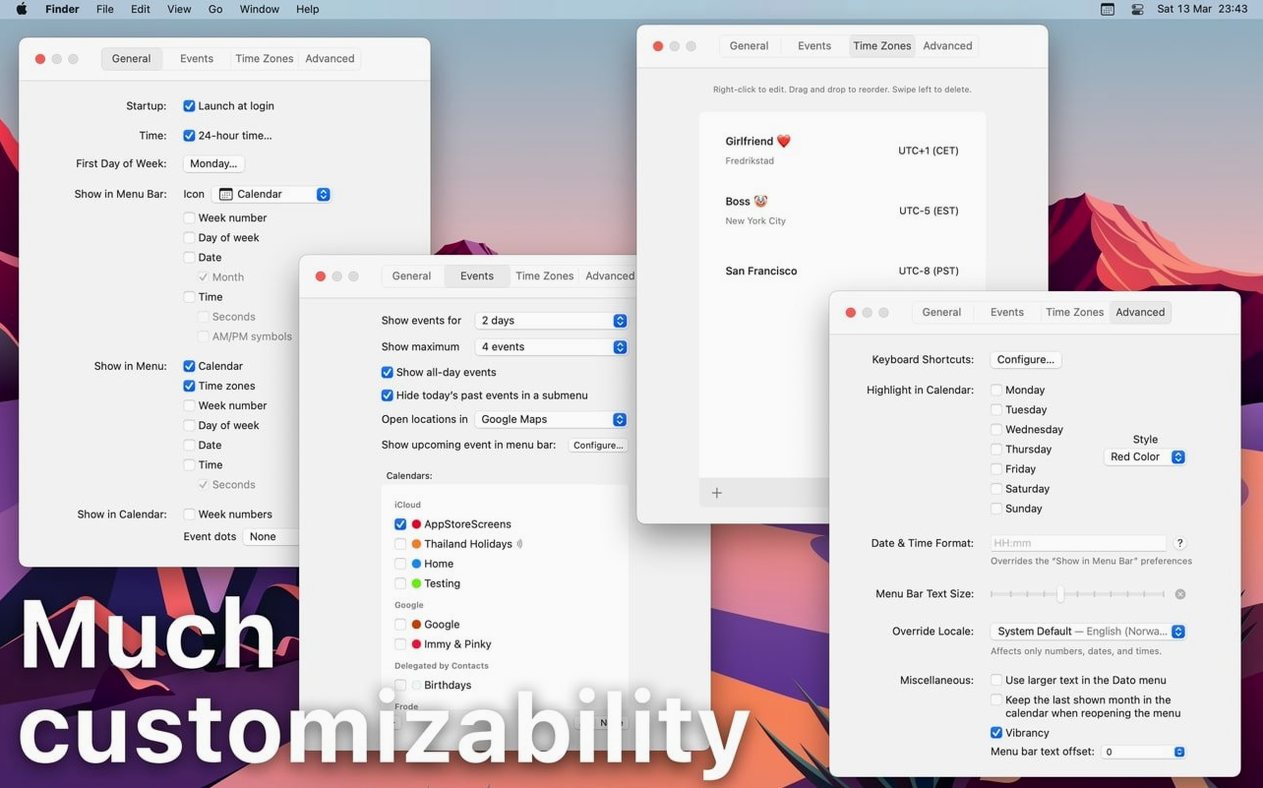
A menu bar utility that puts a local clock, a date grid, calendar events, and multiple world clocks one click away.
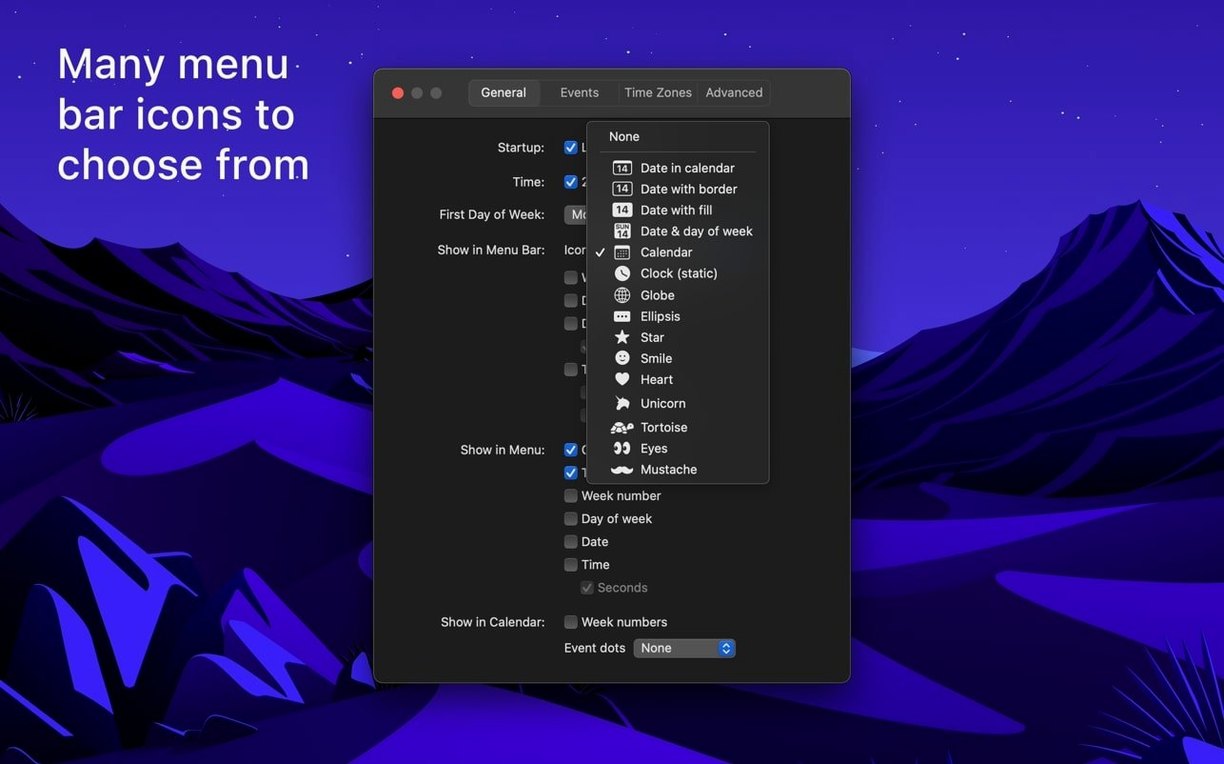
Menu bar clock — the default display shows the current time and date, but you can swap in a calendar-style icon that shows the day of the month.
Calendar pane — clicking the menu bar icon opens a small month grid with your upcoming events listed below. Selected weekdays can be highlighted, making it easier to scan for a particular day.
World clocks — add cities from an offline search of 15,000 locations. Each clock appears in the dropdown and can optionally sit in the menu bar itself. A time travel slider lets you scroll through future and past times to check offsets before scheduling.
Meeting join shortcut — a global keyboard shortcut jumps straight into the next online meeting. Zoom, Google Meet, and Microsoft Teams links are recognised. Fullscreen notifications give a clear prompt when a meeting is about to start.
Quick event creation — another global shortcut opens a small event panel. A date-and-time calculator is also included, useful for adding or subtracting durations without leaving the desk.
Where the month grid meets world clocks
Several Mac apps occupy this space, but they split along different lines. Itsycal is the most direct comparison: a free menu bar calendar with a month grid and event list. Itsycal stays deliberately minimal — no world clocks, no meeting join shortcuts, no time travel slider. Dato covers that ground and more, while keeping the same lightweight feel in the menu bar. If you only need a dropdown calendar next to the clock, Itsycal does that with less. If you want time zones and meeting shortcuts in the same small package, Dato reaches further.
Fantastical is the heavyweight alternative. Its menu bar component shows a calendar, reminders, and natural language event creation, but Fantastical is a full calendar client with a subscription model behind it. Dato works with whatever calendar accounts macOS already knows — iCloud, Google, Outlook — without pulling in a separate calendar database. That makes it lighter to run and simpler to set up, though it does not offer the deep scheduling features Fantastical is known for.
Clocker sits at the other end of the spectrum: it focuses almost entirely on world clocks and time zone conversion. Dato’s world clock feature covers similar ground — offline city search, custom labels, menu bar display — but Clocker gives you more layout options for showing multiple zones at once. If your work revolves around time zones and nothing else, Clocker may suit better. For a combined clock, calendar, and meeting tool, Dato pulls more together in one icon.
Dragging a slider to align four time zones at once
People who schedule across time zones see the clearest benefit. The time travel slider removes the mental arithmetic of offsets: drag to a future time, see what the local hour will be in three other cities, and pick a slot that works. Keeping one or two world clocks in the menu bar means you stop converting in your head throughout the day.
Remote workers with a meeting-heavy calendar will use the join shortcut and fullscreen notifications daily. The prompt appears even when Dato is in the background, and the shortcut skips the step of finding the calendar event and clicking the link. If you move between Zoom, Meet, and Teams calls, the automatic link detection covers the common ground without configuration per service.
Users who prefer to keep the menu bar clean but still want quick calendar access also do well here. Dato can replace the default clock entirely, showing a compact date or a calendar icon instead. The dropdown gives you the month view, events, and clocks without opening a separate app. It suits people who glance at the menu bar often and want more than just the time.
Choosing whether it hides Apple’s clock or sits beside it
Does it replace the built-in menu bar clock? It can, but it does not have to. Dato can sit alongside the standard clock or take its place. If you choose to replace it, you hide the system clock in System Settings and let Dato handle the display. The benefit is custom formatting: show seconds, add a date, or use a calendar icon instead of digits.
Will it work with my calendar setup? Dato reads from whatever calendar services macOS already syncs — iCloud, Google, Outlook, Exchange, and CalDAV accounts all show up. It does not create its own calendar database or require separate account sign-ins. Delegated calendars also appear, which matters for assistants and shared team schedules.
How much menu bar space does it take? Compact by design. A single icon or a short date string. If you add world clocks to the menu bar, each one adds a small label, so users with many zones may prefer to keep them in the dropdown instead. The app does not sprawl across the bar.
Does it handle offline use? The city search works offline — all 15,000 entries are stored locally. Calendar event data depends on macOS syncing, so recently cached events appear without a connection. The time travel slider and date calculator work fully offline.