Aspecten
 Download (31 MB)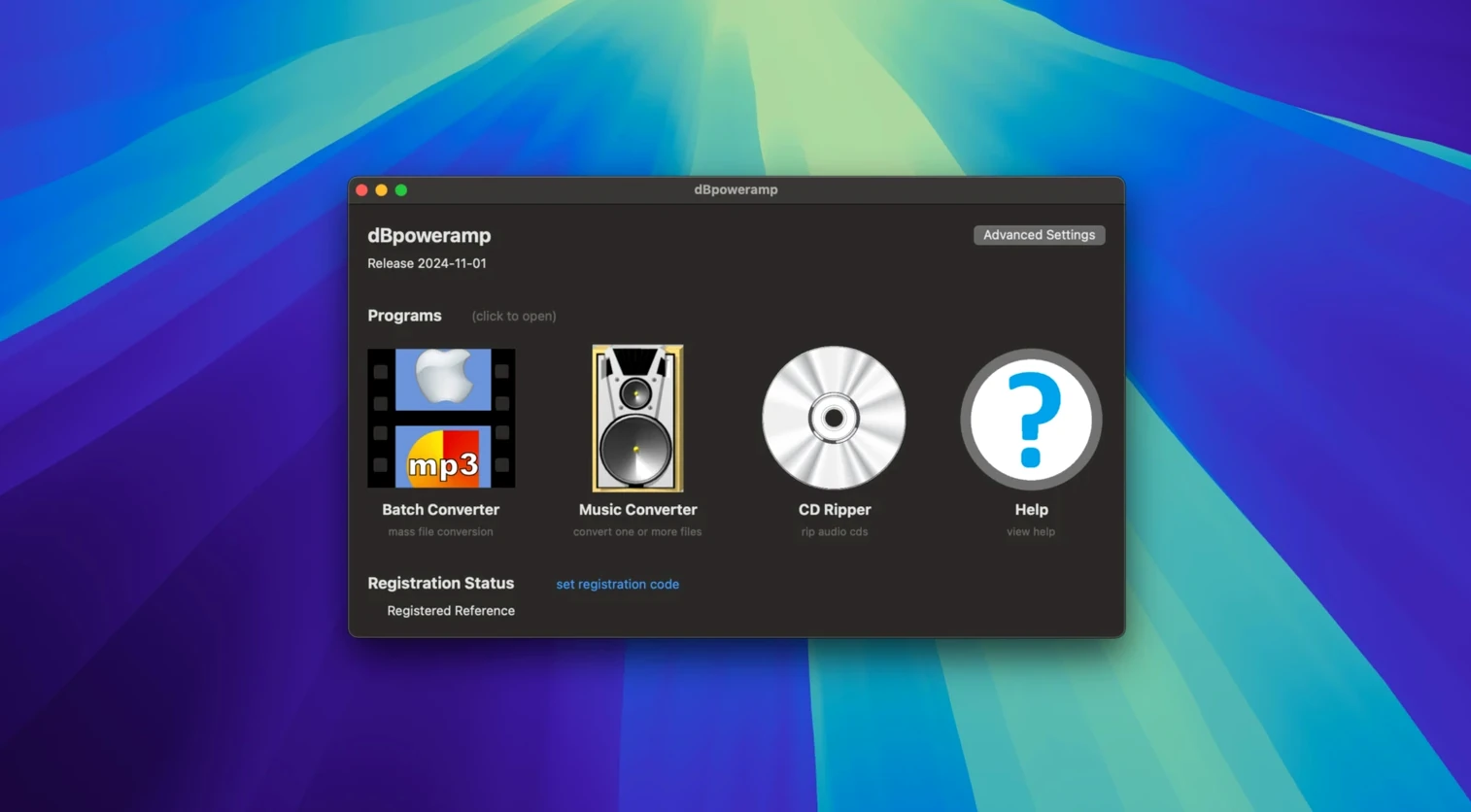
For its latest macOS release, dBpoweramp addressed a stray Intel-component warning and refined how the Edit Tags dialogue handles the Enter key while autocomplete is visible.
Finder integration — Accessible via the 'Convert with dBpoweramp' right-click option, which hands selected files directly to the converter.
Batch conversion — Multiple files can be queued and processed in one operation without opening each one individually.
ID Tag Editor — Metadata editing sits inside the app, with a recent fix for Enter key confirmation when the autocomplete list is shown.
Resampling — The current version includes refinements to the resampling routines, though the changelog does not detail the exact parameters.
Intel and Apple Silicon — The app runs natively on both architectures. A phantom warning about an Intel-only component on the latest macOS has now been removed.
A step-by-step conversion workflow
Suppose you have a folder of FLAC recordings from a field recorder — 24-bit, 96 kHz, too large for portable use. You want 320 kbps MP3 copies with consistent volume, and you want to keep the original folder structure.
Open Batch Converter from the dBpoweramp folder. In the top-left pane, navigate to the source folder. Select the files in the list (use Shift-click to pick a range). Click the Convert button in the toolbar.
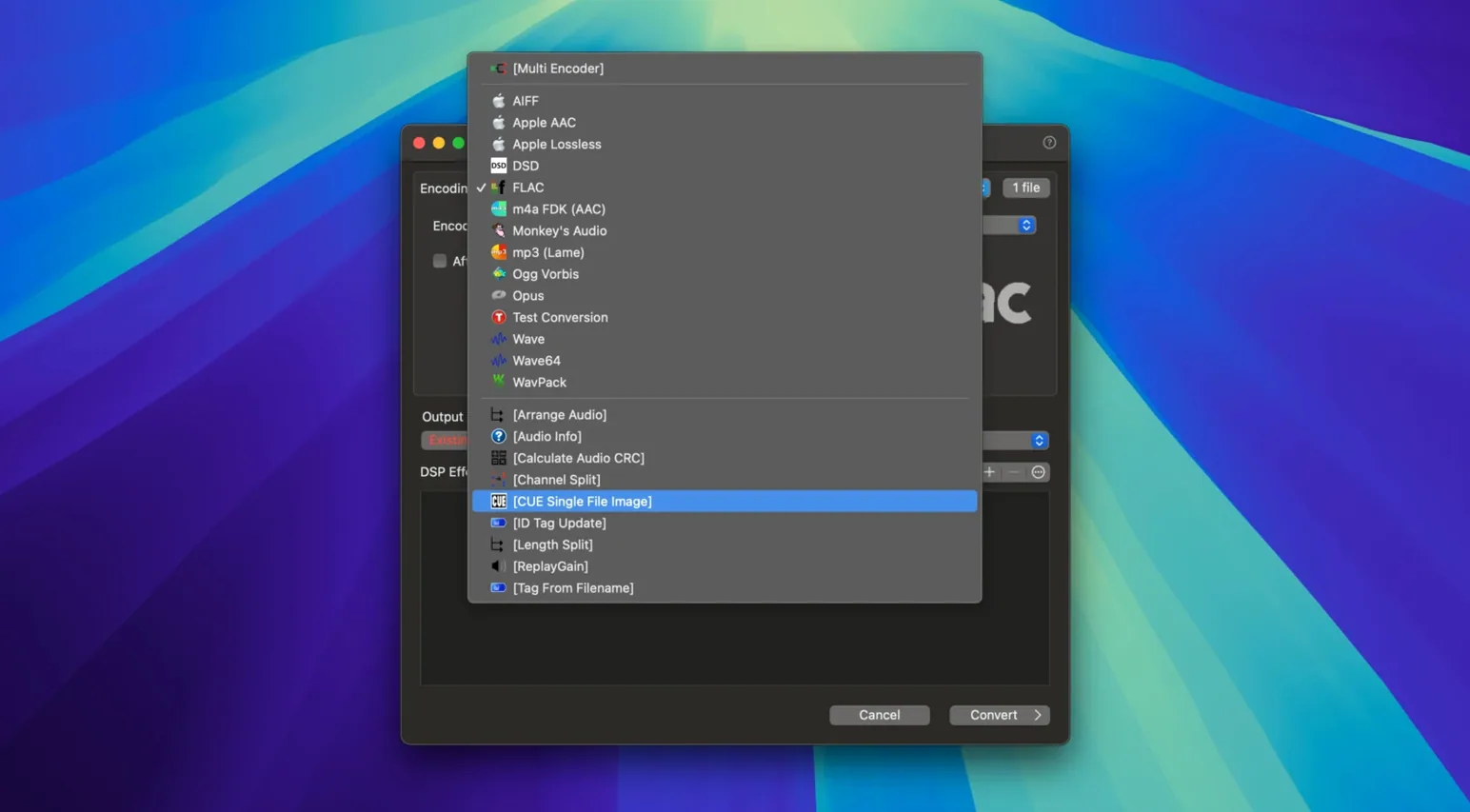
The Converting To panel appears. Pick MP3 (Lame) from the codec list. Set the encoding preset to VBR Quality and the slider to High Quality — this lands around 245–270 kbps on average, but for a precise 320 kbps target, choose CBR instead and type 320 in the bitrate field. Below the codec selection, click DSP Effects.
In the DSP tab, add Volume Normalize. The default EBU R128 target of -18 LUFS works well for music; for speech recordings, -23 LUFS is closer to broadcast norms. Add a second DSP: Bit Depth, set to 16-bit, and Resample, set to 44100 Hz. Ticking Dither inside Bit Depth softens the truncation. Drag the DSP items to reorder them — Resample first, then Bit Depth, then Volume Normalize — so the chain processes sensibly. Click OK.
In the Output To section, choose Preserve Source Path and pick a new root folder for the converted files. Tick Preserve folder structure. The original subfolder layout will be mirrored. Now click Convert. On an Apple Silicon Mac, the multi-core encoder saturates the performance cores; a hundred tracks finish in under two minutes. The ID tags, including embedded artwork, carry across without a hitch.
Right-click a batch of files to edit tags without switching tools
Several shortcuts hide in plain sight. Right-clicking a file in the Batch Converter list reveals Edit ID Tags without switching to the separate Tag Editor. You can select a dozen files, edit the Album field once, and it writes to all of them — provided the selection is homogeneous enough to make that sensible.
In the main Music Converter window, dragging a folder from Finder onto the drop area queues its entire contents, including nested folders. This is often quicker than navigating through the built-in file browser, particularly when the source material lives on an external drive whose path you already have open.
The DSP chain accepts a Delete Source File action. Place it at the end of the DSP list with care: it removes the original after a successful conversion. Used with the Preserve Source Path output option, this turns Batch Converter into an in-place format replacer — risky if you forget a backup, but efficient when converting an archive from WAV to FLAC in situ.
Another tucked-away detail: the converter remembers the last-used codec settings per format. If you routinely export Apple Lossless for your home system and MP3 for the car, you do not need to reconfigure each time — switching the codec dropdown restores your previous parameters.
An unchecked output folder leads to wild file scattering
One of the most frequent errors is overlooking the output path field. New users often leave it pointing at the source folder with Preserve Source Path unticked. The converted files overwrite nothing — dBpoweramp appends a suffix — but the resulting folder becomes a jumble of old and new formats. Always set an explicit output root, or at minimum enable Preserve Source Path so the hierarchy stays legible.
Another is assuming that the DSP Volume Normalize works like a peak limiter. It does not. EBU R128 normalisation adjusts perceived loudness across tracks without altering dynamics. A user expecting a brick-wall limiter for podcast loudness will be disappointed. For that, add the Volume Normalize (ReplayGain) variant or chain a dedicated compressor DSP if one is available for the target format.
Beginners also sometimes batch-edit ID tags without checking which files are selected. Selecting the top folder in the tree view does not automatically select its contents — you must click into the file list and pick the actual tracks. A tag edit applied to an empty or wrong selection writes nothing, and the lack of an error prompt can make the mistake invisible until playback.
macOS Finder menu not showing up until you visit Privacy & Security
A recurring snag on the latest macOS versions involves security prompts when launching the Finder integration for the first time. The contextual menu item Convert with dBpoweramp may not appear until you open System Settings > Privacy & Security > Extensions and enable the dBpoweramp Finder extension manually. After that, a restart of Finder — via killall Finder in Terminal or a logout — makes the option stick.
Another friction point: converting certain 32-bit float WAV files to MP3 can produce silence if the DSP chain lacks a Bit Depth step. The MP3 encoder expects 16-bit integer input; floating-point samples outside the ±1.0 range clip to digital zero. Inserting Bit Depth set to 16-bit (with dither) ahead of the encoder solves this cleanly.
Users of the dbpoweramp music converter mac build sometimes notice that the Batch Converter ignores files with non-ASCII characters in their names when the source drive uses a case-sensitive file system. The workaround is to rename the files — the ID Tag Editor can batch-rename from metadata, so a quick pass to sanitise filenames avoids the silent skip.
If the converter stalls on a single file in a large queue, the culprit is often a corrupted source file or an unsupported embedded cue sheet. The progress window shows which track is stuck; right-click it and choose Skip to let the rest of the queue finish. Afterwards, a dBpoweramp torrent search is a common way to source a replacement — the app itself can also attempt a re-read of the problematic file via Music Converter's single-file mode, sometimes succeeding where Batch Converter’s pipeline tripped.