Aspecten
 Download (285 MB)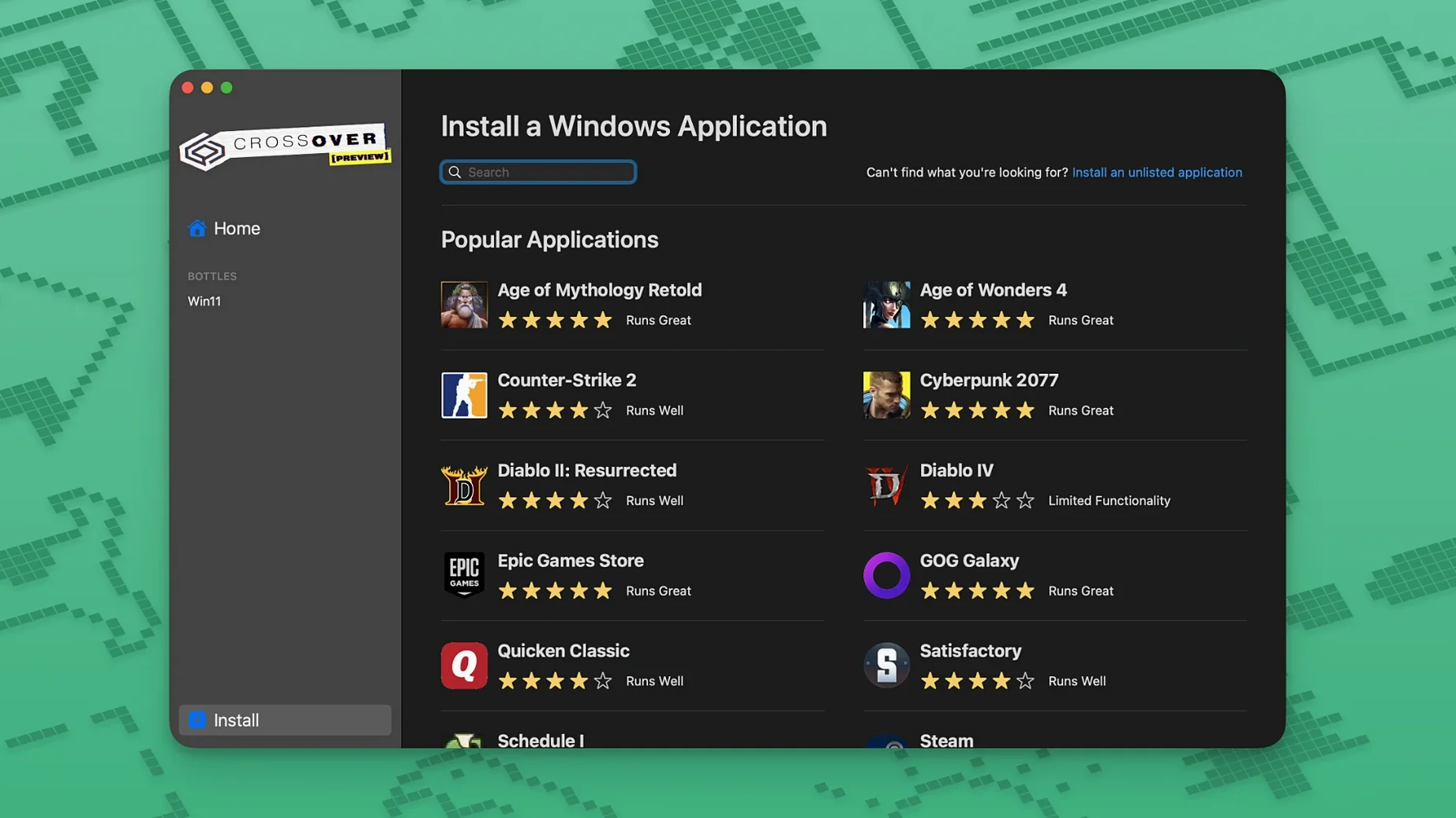
Rosetta 2 required on Apple Silicon Macs
CrossOver 26.3.0 requires an Intel-based Mac running macOS 10.15 Catalina or newer. It is not yet built for Apple Silicon natively, so M-series Macs rely on Rosetta 2 translation.
Runs a subset of Windows apps without a full VM
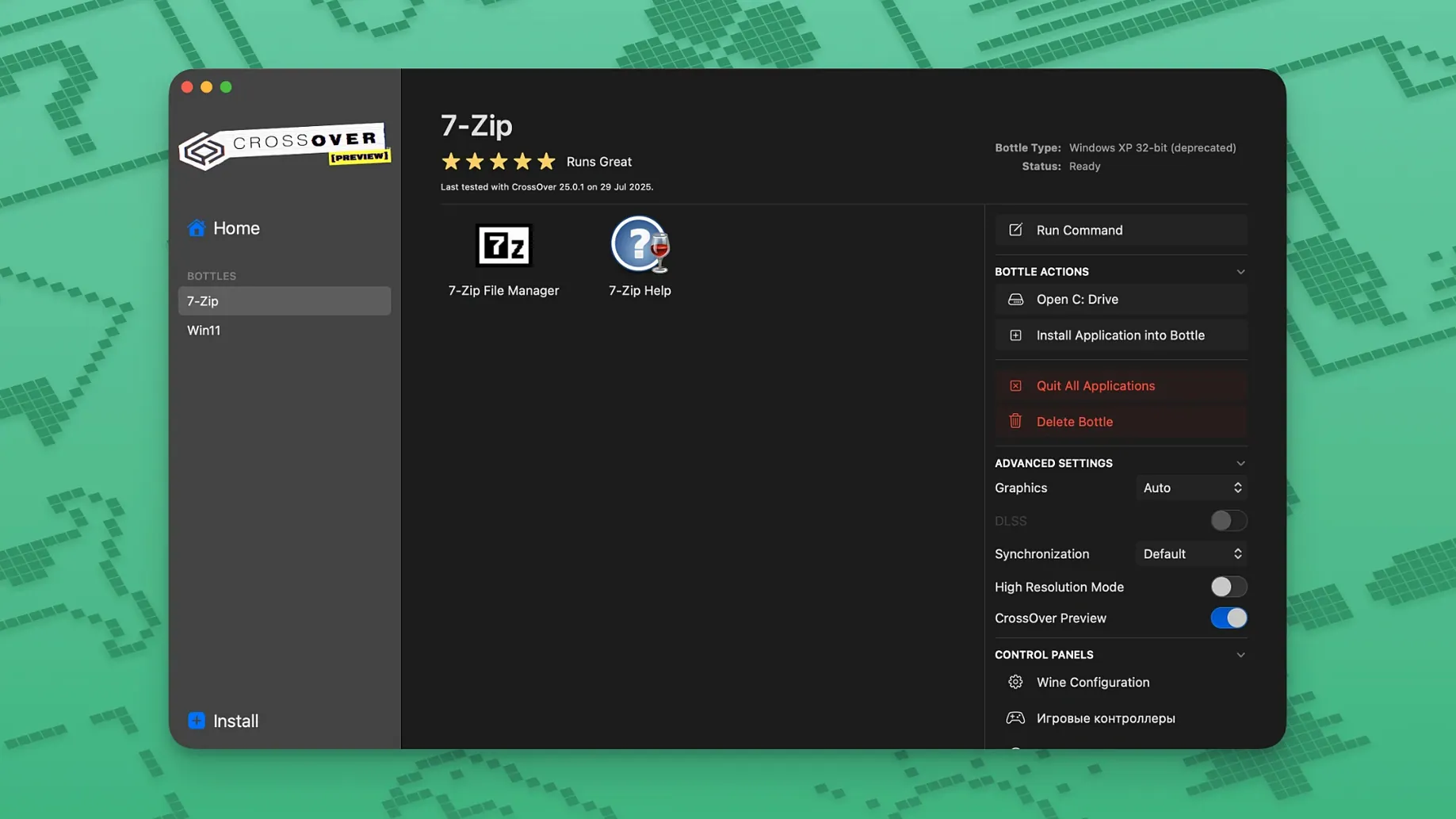
A Mac user’s toolkit already has built-in apps, specialist Mac software, and perhaps a virtual machine. CrossOver sits in a narrower gap: it runs a subset of Windows productivity tools, utilities and games directly on the desktop, without the overhead of a full Windows licence or a virtualised OS. Each Windows program lives in its own ‘bottle’ — a self-contained environment with a virtual C drive, folder structure and registry. This keeps dependencies separate and makes removing an application straightforward.
- Install CrossOver and create a new bottle, choosing a Windows version profile that suits the software you plan to run.
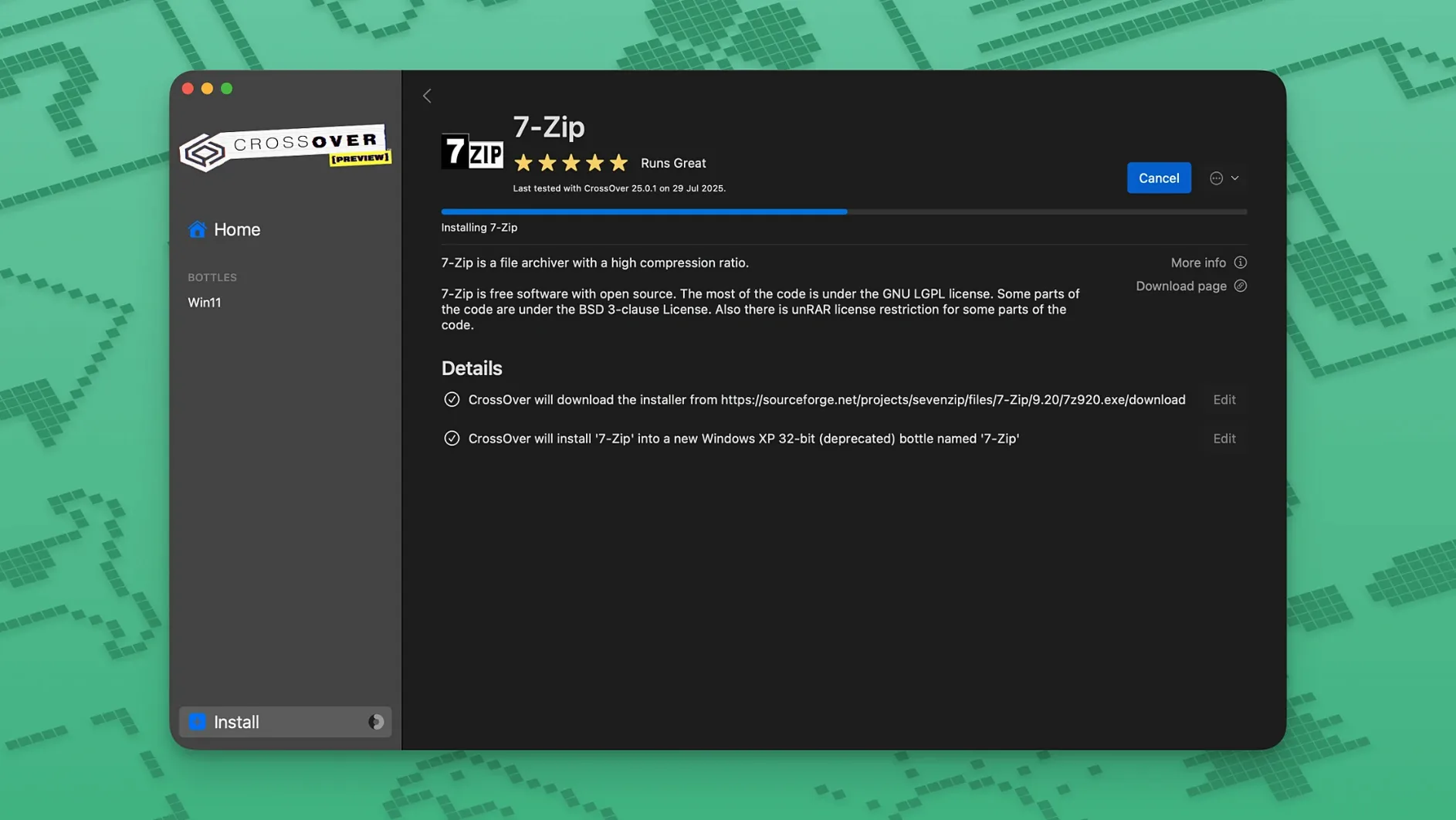
- Use the built-in installer or point CrossOver to the application’s own .exe installer file. The software installs inside the bottle just as it would on a Windows PC.
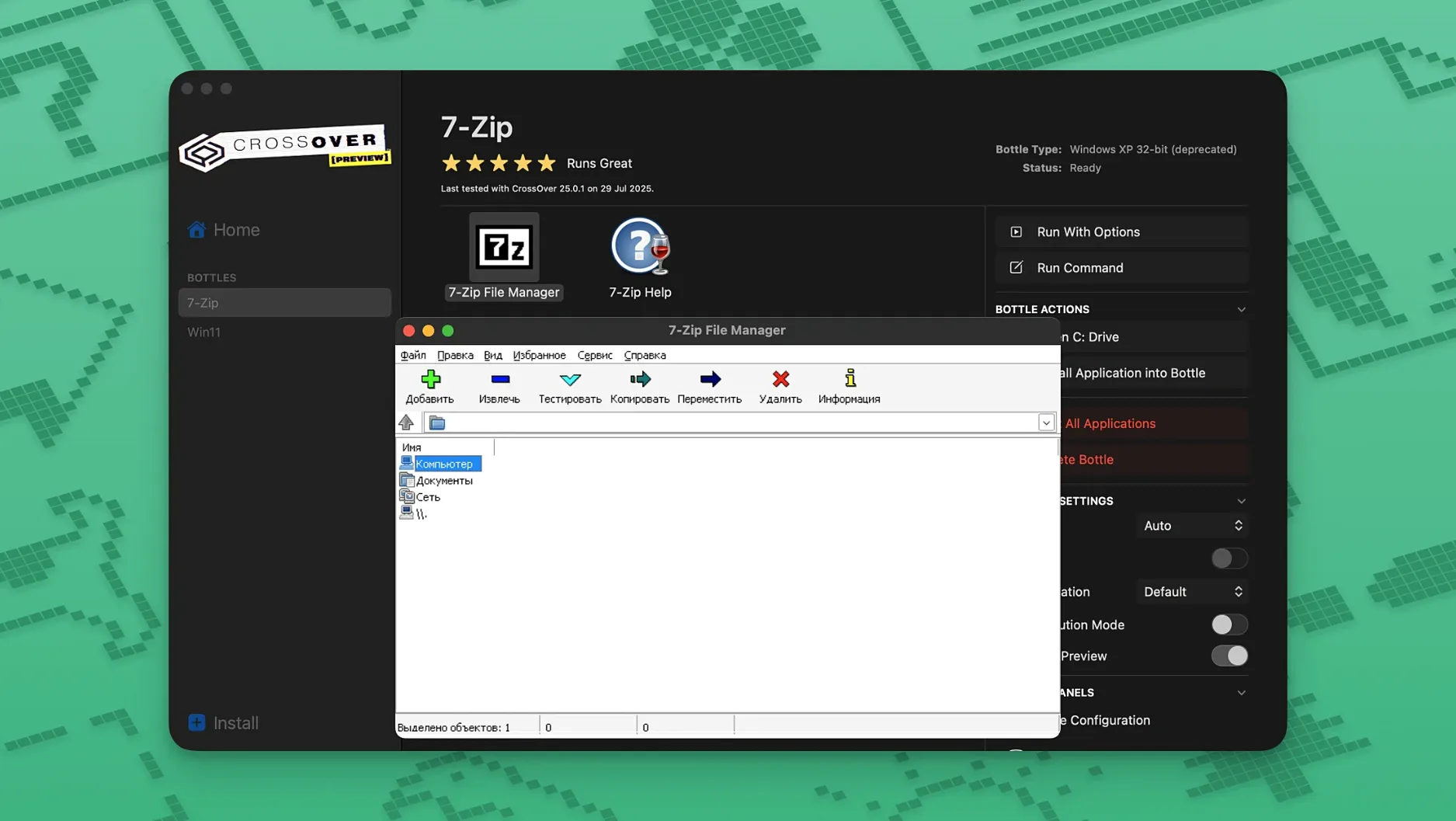
- Launch the application from the CrossOver interface or from a shortcut it places in your Mac’s Applications folder. Not every Windows program works; lighter productivity tools and well-supported games tend to fare best.
CrossOver processes run natively alongside your Mac apps, sharing the desktop and file system. It does not replace a virtual machine for broad Windows compatibility, but for the applications it does support, it feels closer to running a native Mac program.
A handful of preference tweaks for smoother daily use
CrossOver comes with reasonable defaults, but a handful of tweaks make daily use smoother. None of them require digging into Wine internals — they sit inside the main preferences and bottle settings.
Turn off automatic updates for bottles
By default CrossOver may check for updated bottle components. When a particular Windows application runs stably, an unexpected component update can tip it back into instability. Go to CrossOver → Preferences → Updates and uncheck automatic bottle updates. Apply updates manually when you actually need them.
Set a dedicated download folder per bottle
Bottles can access your Mac’s folders, but the default mapping is broad. Restrict a bottle to a single shared folder so downloaded installers and saved files stay contained. Select the bottle, click Control Panels → Wine Configuration, switch to the Drives tab, and point a drive letter at one specific Mac folder. This also prevents Windows installers from scanning your entire home directory.
Adjust DPI scaling for high-resolution displays
Windows applications often look tiny on Retina screens. Open Wine Configuration for a bottle, go to the Graphics tab, and move the DPI slider — somewhere between 120 and 168 usually works. The setting applies per bottle, so you can keep crisp scaling for a business app while leaving a game at default.
Switch renderer for graphics-heavy programs
The Graphics tab also holds a Render target dropdown. Some applications behave better with OpenGL, others with Direct3D translated via Metal. If a program draws blank windows or flickers, toggling this is a quick first test before deeper troubleshooting.
Enable verbose logging — but only when needed
CrossOver can log Wine debug output. In Preferences → General, check Enable debug logging. Leave it off for everyday use — the logs grow fast — but activate it when an installer fails or a program crashes, then check the log from the bottle’s Control Panels → View Log entry.
Launching a Windows writing tool alongside Mac apps
Here is how a routine session unfolds for someone who keeps a Windows writing tool running alongside their Mac text editor.
Morning. The Mac wakes from sleep. CrossOver is not yet open. A click on the Windows application’s shortcut in the Dock — one CrossOver placed there weeks ago — starts the session. CrossOver spins up the bottle in the background; the Windows program’s splash screen appears within a few seconds.
The application window lands on the desktop like any other Mac window. The menu bar at the top of the screen still belongs to macOS. Keyboard shortcuts that overlap with Mac conventions — Control+C versus Command+C — follow Windows rules inside the application window, which takes a moment of mental switching.
A document is open. The author types, edits, and occasionally drags a paragraph into a Mac note-taking app running alongside. The two applications share the screen, and copy-paste between them works as expected via the clipboard bridge CrossOver maintains. Plain text transfers cleanly; formatted text sometimes drops styling, so the author keeps a plain-text fallback habit.
Mid-session, the Windows application auto-saves a backup into its bottle’s virtual C:\Users folder. The author has that folder mapped to a Mac directory, so Time Machine picks it up without extra steps.
Late afternoon. The program is closed with File → Exit. The bottle idles for a moment, then CrossOver releases its resources. Nothing lingers in the menu bar, no background service remains running. The Mac behaves as if the Windows application was never there — until the next Dock click.
Installer finishes but the application never starts
CrossOver sits on a compatibility layer that does not cover every Windows API call. Certain problems appear often enough to be worth documenting.
An installer runs but the application never starts. This usually means the installer placed dependencies outside the bottle or required a Windows component CrossOver does not emulate. Solution: delete the bottle, create a fresh one, and before running the installer, use Install Software into Bottle → Runtime Support Components to add common redistributables — Visual C++ runtimes, .NET frameworks, DirectX for modern games. Pick the version the application’s documentation mentions.
Text renders as squares or missing glyphs. The bottle lacks the required Windows fonts. CrossOver can pull Core Fonts automatically: select the bottle, choose Install Software into Bottle, search for core fonts and install the package. For applications that bundle proprietary fonts, copy the .ttf or .otf files into the bottle’s drive_c/windows/Fonts folder manually.
The application launches but windows are blank or glitchy. Graphics translation is stumbling. First, toggle between OpenGL and Direct3D in the bottle’s Graphics settings. If that does not help, disable decorations — let the application manage its own window — via Wine Configuration → Graphics → Emulate a virtual desktop. Set a resolution matching your display and the flickering often subsides.
Network-dependent features fail. Some Windows applications assume a direct internet connection and trip over macOS firewall rules. Check System Preferences → Network that no proxy blocks local Wine traffic. Inside CrossOver, the bottle’s Wine Configuration → Libraries tab can override specific DLLs; adding winhttp as native sometimes restores connectivity for apps that phone home during startup.
Activation prompts reappear after a macOS update. This is tied to Gatekeeper re-checking modified binaries. Grant Terminal full disk access (System Settings → Privacy & Security → Full Disk Access), then run the license tool again from the croslic folder.
A workflow: running a Windows accounting utility from start to finish
Suppose a small business keeps its books in a Windows-only accounting program that has no Mac equivalent. The goal is to install it, point it at a shared company folder, and generate monthly reports without a Windows licence.
First, a fresh bottle. Open CrossOver, click New Bottle, name it Accounts, and select a Windows 10 64-bit profile. The bottle materialises with a clean C drive.
Before touching the installer, add the prerequisites the accounting software expects. Select the Accounts bottle, choose Install Software into Bottle, and install .NET Framework 4.8 and Visual C++ 2015–2022 runtimes. These are listed in the software’s system requirements.
Now run the installer. Click Run Command, browse to the .exe installer file on the Mac, and proceed through the wizard. Halfway through, the installer asks for a data directory — point it at a Mac folder already mapped to the bottle as drive E:\. The installer finishes and places a shortcut in the bottle.
Launch the program. It prompts for a licence key; enter it. The main window appears, connects to the company data file on E:\, and populates the dashboard. A quick test: enter a dummy transaction, save, close, reopen. The entry persists.
Now the monthly report routine. On the first of each month, open CrossOver, launch the accounting program from the Accounts bottle, and run the built-in report generator. Output a PDF to the mapped Mac folder. The PDF lands in the company’s shared drive, where colleagues open it in Preview. The whole session takes under five minutes — no virtual machine to boot, no Windows to update.
Backup is automatic. Because the bottle’s virtual C drive and the mapped data folder both sit on the Mac’s file system, Time Machine captures everything. If the bottle ever corrupts, the data folder survives independently.
The temptation to install anything into one bottle
CrossOver invites a mental shortcut: “it runs Windows software, so I can install anything.” That expectation leads to the most common beginner stumbles.
Installing a program into the default bottle. CrossOver provides a generic bottle, and newcomers often dump every Windows application into it. One misbehaving installer can corrupt shared DLLs and break programs that were previously working. Give each application — or at least each family of related applications — its own bottle. A bottle costs only disk space, and it isolates failures neatly.
Skipping runtime dependencies. On a real Windows PC, the OS quietly supplies dozens of libraries. CrossOver emulates many but not all. Beginners see an installer complete successfully — then the application crashes on launch with an opaque error. The fix is often installing the correct runtime components before the application, not after.
Expecting hardware-level performance. CrossOver translates Windows API calls; it does not virtualise hardware at the driver level. Applications that demand direct GPU access, specific USB drivers, or low-level disk operations rarely work. Games with anti-cheat systems rooted in kernel drivers are a known blind spot. Checking the CodeWeavers compatibility database before investing time avoids disappointment.
Ignoring the 32-bit versus 64-bit bottle distinction. Older Windows installers are 32-bit. If a 32-bit installer refuses to run, it is often because the bottle was created as 64-bit without 32-bit support enabled. Recreate the bottle and select a 32-bit Windows profile instead. The difference matters most for legacy business tools and games from the mid-2000s.
Closing CrossOver while a bottle is still shutting down. Some Windows applications take several seconds to release file handles after the window closes. Quitting CrossOver immediately can leave the bottle in a dirty state — registry writes incomplete, config files truncated. Give it a moment, or check the bottle status indicator before quitting the main application.
Deleting a bottle without checking for saved data. The bottle’s C drive contains the virtual My Documents, AppData and desktop folders. A beginner who uninstalls a bottle to clear space may be surprised to find their work gone. Before deleting, open the bottle in Finder (Open C: Drive in Finder from the bottle menu) and check for stray files.