Aspecten
 Download (68 MB)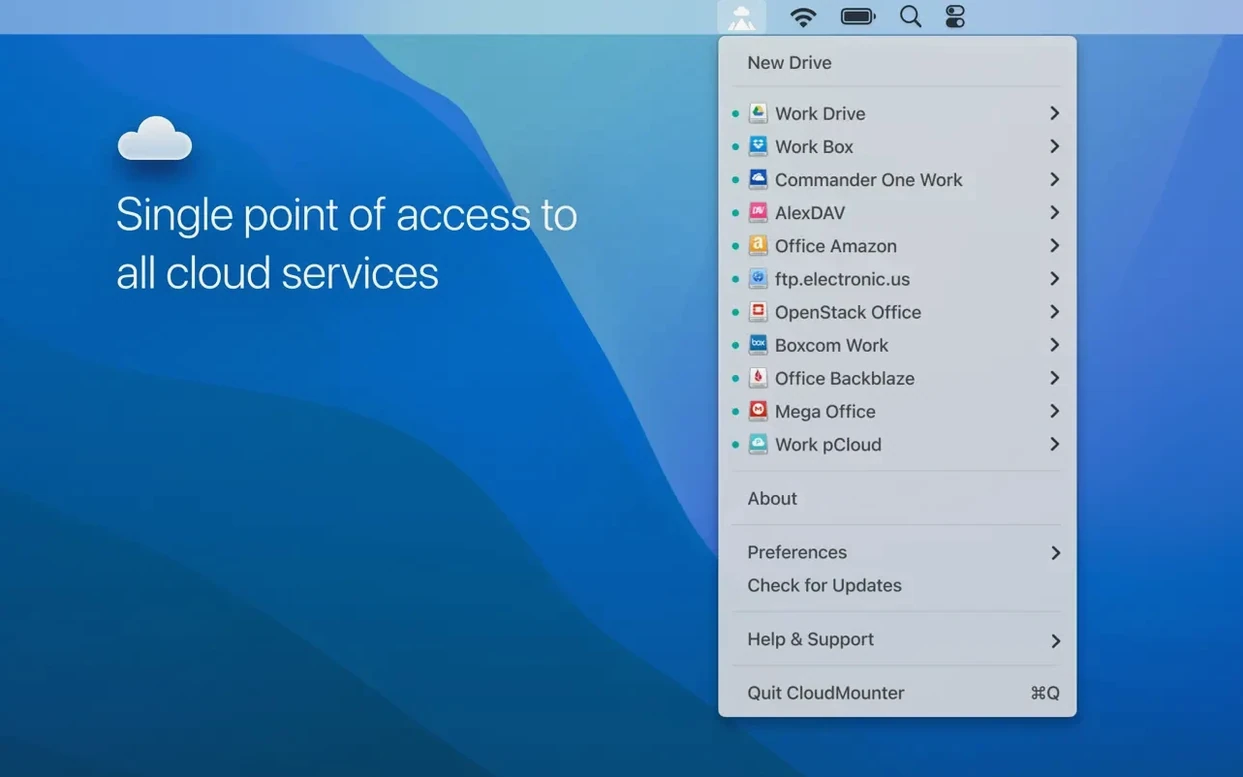
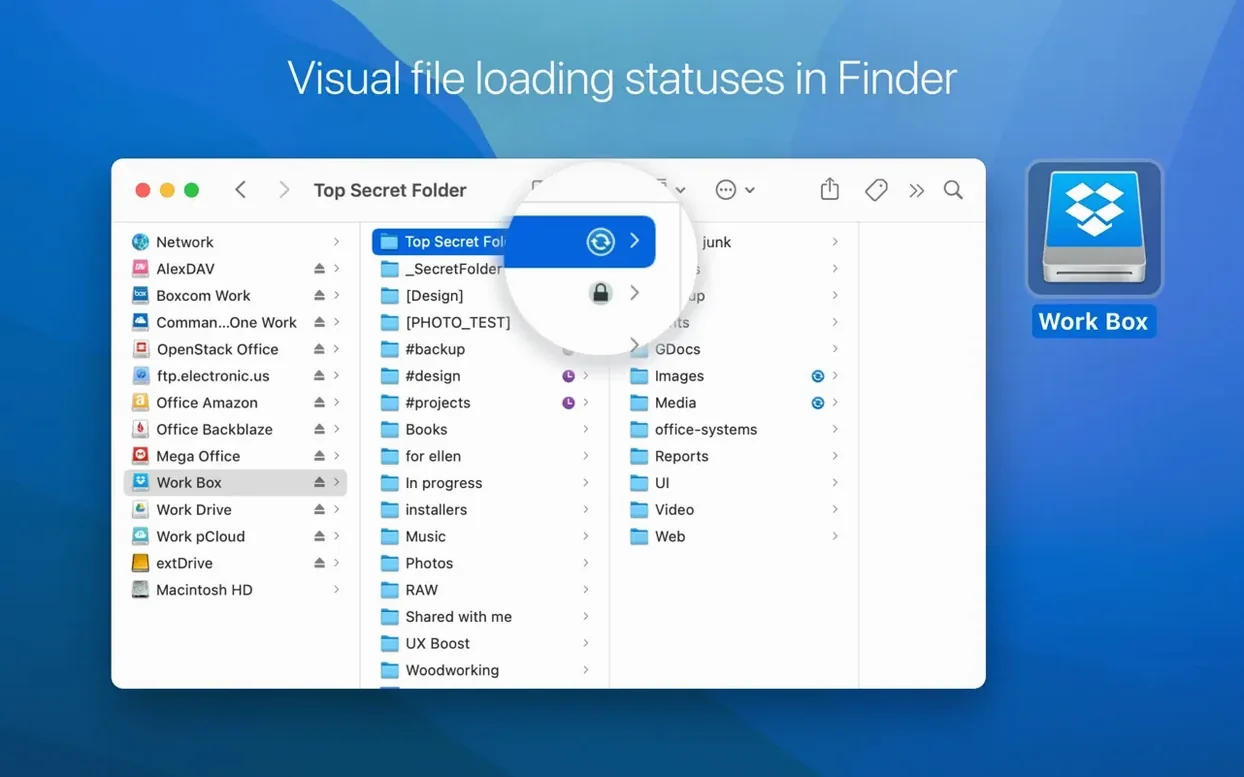
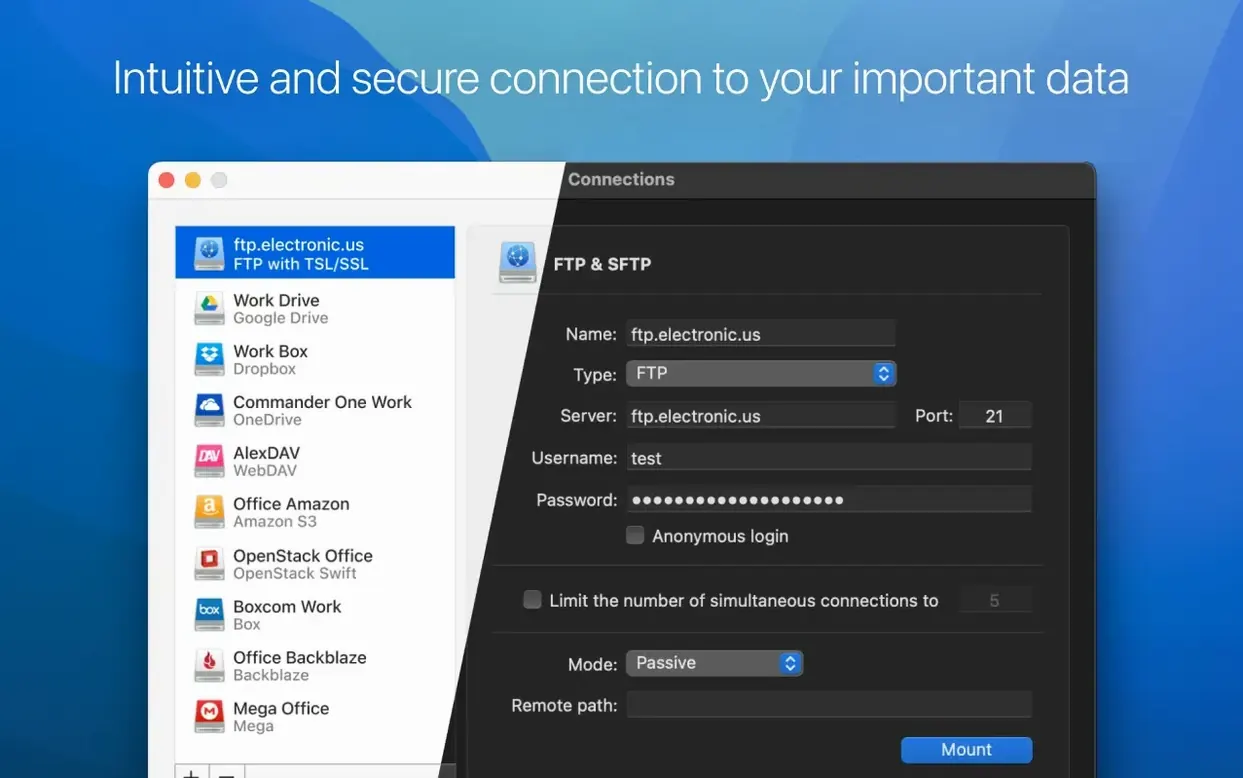
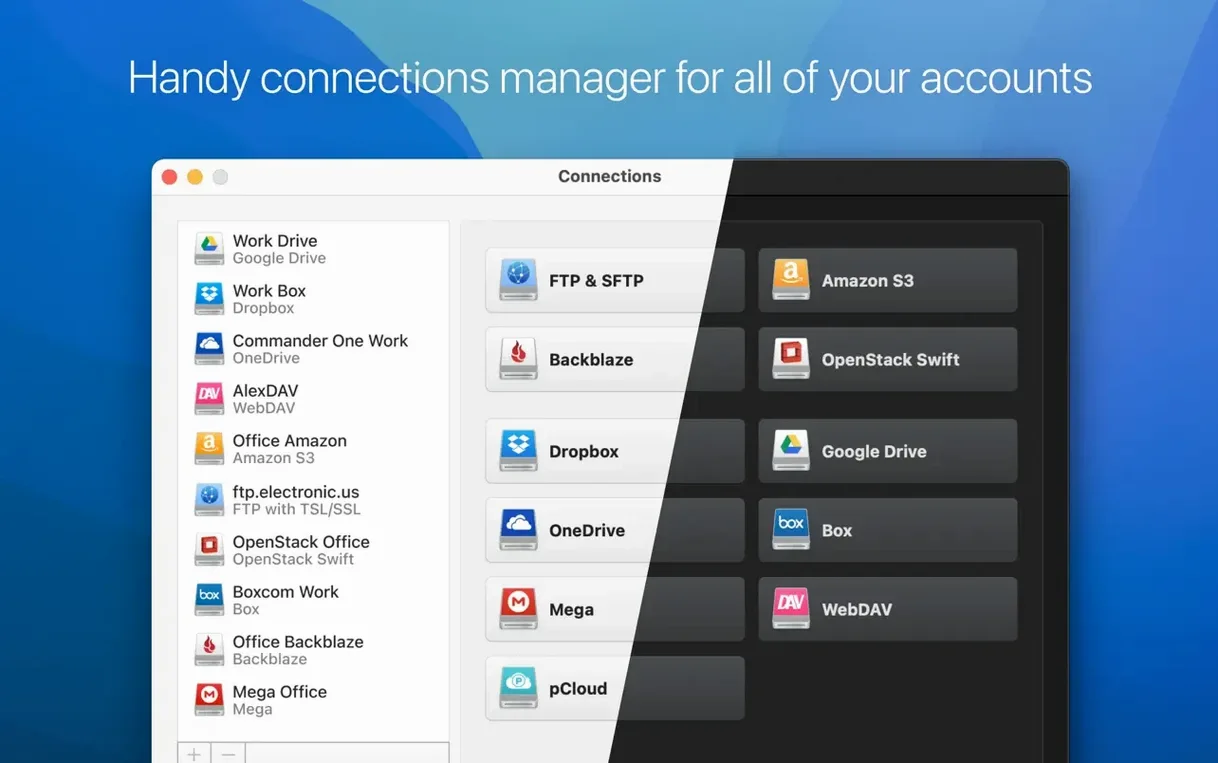
Version 4.18 supports six major protocols: Amazon S3, Backblaze B2, Dropbox, Google Drive, OneDrive, and WebDAV, plus SFTP and FTP connections. Each connection appears as a standard volume in the Finder sidebar, drawing next to no local disk space because the app does not auto-sync files.
Macs with small drives tap large cloud pools
- Macs with small internal drives that connect to large cloud storage pools.
- Working across several cloud accounts without opening a browser or a sync client for each.
- Editing remote files directly in Mac apps — text editors, image tools, audio players — as though they sat on a local disk.
- Quick drag-and-drop transfers between two cloud accounts mounted side by side.
- Transferring large files via SFTP; version 4.18 improved upload reliability for big files.
Intel-only app needs an active connection
- The app runs on Intel Macs only — Apple Silicon is not listed as a native target.
- macOS 10.14 is the minimum requirement; older systems are not supported.
- No automatic local sync means you always need an active connection to reach your files.
- MEGA connections received fixes in this release, but connection behaviour can still vary by provider.
- Local caches require attention: version 4.18 fixed download issues that appeared when the cache volume was changed.
Stale file listings got fixed
Several fixes in 4.18 target everyday workflow friction rather than flashy new features. The most noticeable improvement is the corrected file and folder listing: before the update, some directories would show stale contents or miss recent uploads from other devices. That made Finder-based work feel unreliable. After the patch, listings refresh more predictably across WebDAV and SFTP connections.
Uploading large files — think video exports or disk images — is more stable now. Earlier builds could stall partway through a transfer, especially on sluggish SFTP hosts. The improved handling keeps the progress bar moving and reduces the chance of a silent failure. Alongside that, download cancellation on SFTP connections actually works now; previously, cancelling a pull mid-transfer could leave a partial file behind without warning.
The team also addressed a cache-volume bug. If you moved the cache to an external drive and the drive was unmounted or renamed, CloudMounter could stop downloading files altogether. The fix restores normal behaviour after a cache-location change, though you still need to point the app at a volume that stays connected during sessions. MEGA connections got general reliability work, and storage-usage readouts for online connections now display correctly instead of showing zero or nonsense figures.
Workflow: editing a remote document without downloading it first
A practical scenario makes the point clearer. Say you keep markdown notes in a Dropbox folder that three colleagues also touch. You want to open one, edit it in a native Mac editor, and save it back — without a local sync client cluttering your desktop.
First, add the Dropbox account in CloudMounter’s connection pane. Pick Dropbox from the list, authenticate in the browser window that pops up, and grant access. Once the volume mounts, it appears in Finder like any external drive. Navigate to the folder holding your notes. The file listing should match what you see in the Dropbox web interface, assuming the 4.18 listing fix is doing its job.
Double-click the markdown file. It opens in your default text editor — CotEditor, Nova, BBEdit, whichever you use. Make your changes, then save normally. CloudMounter writes the modified file back to Dropbox in the background. A small status icon in the menu bar confirms the upload finished. No extra step, no manual sync, no local copy left behind. The next person who opens the file sees your edits.
If the file is large or the connection drops mid-save, CloudMounter retries rather than silently truncating the document. The 4.18 upload improvements help here. For safety, keep an eye on the status icon: a stuck spinner suggests the transfer didn’t complete, in which case saving a second time usually pushes it through.
First settings to revisit
Out of the box, CloudMounter works with defaults that suit most setups, but three preferences are worth adjusting right after installation.
Cache location. By default the cache sits in your user Library folder. If you work on a Mac with limited internal storage, route it to an external SSD with enough free space. Version 4.18’s cache fix makes this safer, but pick a volume that stays attached. If the cache drive disappears while connections are active, files that weren’t fully written can become unreachable until the drive returns.
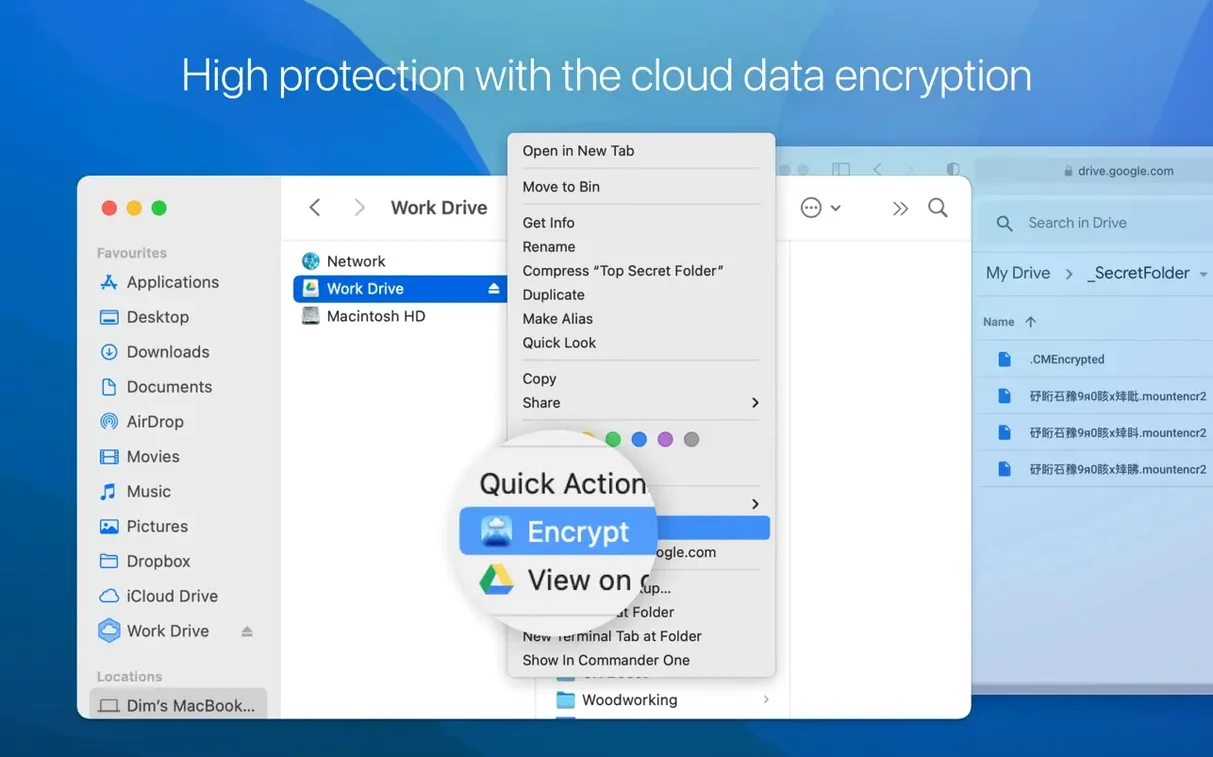
Encryption password per connection. CloudMounter can wrap cloud data in AES-256 encryption. Enable this when you mount a connection that holds sensitive material — client work, tax records, anything you would not want readable in plaintext on the provider’s side. Set a strong password and store it somewhere safe; there is no recovery if you forget it.
Mount at login. For accounts you use daily — say a company OneDrive or a personal Google Drive — check the “Mount at login” box in the connection settings. The volume appears in Finder the moment you log in, without opening the main CloudMounter window. Skip this for connections you use only occasionally, because each mounted volume adds a small background network load.
Expired tokens make volumes appear empty
One recurring frustration: a mounted volume suddenly shows as empty or hangs with a spinning wheel. In most cases, the connection token has expired. Disconnect the volume from the CloudMounter menu, then re-add it through the connection pane. The app does not always surface a clear “token expired” message, so the empty-folder symptom often masks a straightforward auth problem.
Another issue crops up when people search for a cloudmounter activation code from sketchy sources and end up with a modified binary. These copies can break Finder integration, crash on WebDAV connections, or silently corrupt the cache database. The symptoms look like bugs, but the root cause is a tampered install. A clean copy from the original disk image — the one that runs the Gatekeeper bypass step in Terminal — avoids the whole class of problems.
Some users hit slow folder listing even after the 4.18 speed improvements. The bottleneck is usually the remote service, not the app. Dropbox and Google Drive throttle listing requests when you hammer them with rapid folder navigation. Slow down, let one directory load fully before clicking deeper, and the problem eases. For FTP and SFTP connections, raising the server’s MaxClients or MaxStartups limit (if you control the host) often helps more than any client-side tweak.
Finally, a note on CloudMounter crack downloads and CloudMounter torrent packages floating around. These often bundle older builds — 4.16 or earlier — that still carry the cache bugs and broken SFTP cancellation 4.18 fixed. If you are puzzling over a bug that the release notes claim is resolved, check which build you actually have installed. The version number sits in the CloudMounter menu under “About.”