Aspecten
 Download (40 MB)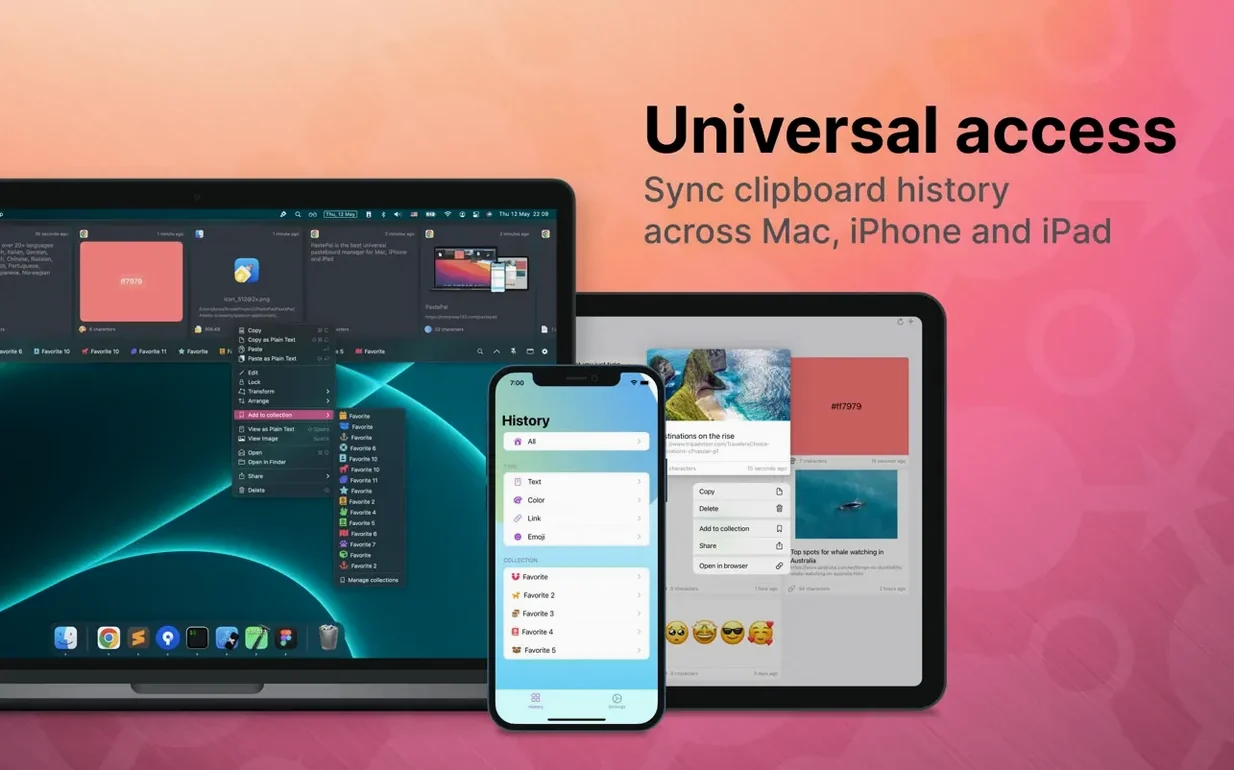
PastePal runs on any Mac with macOS 12 or later, on both Apple Silicon and Intel processors. It is a universal app, so the same clipboard manager also works on iPhone and iPad.
Side panel and filtered history browser
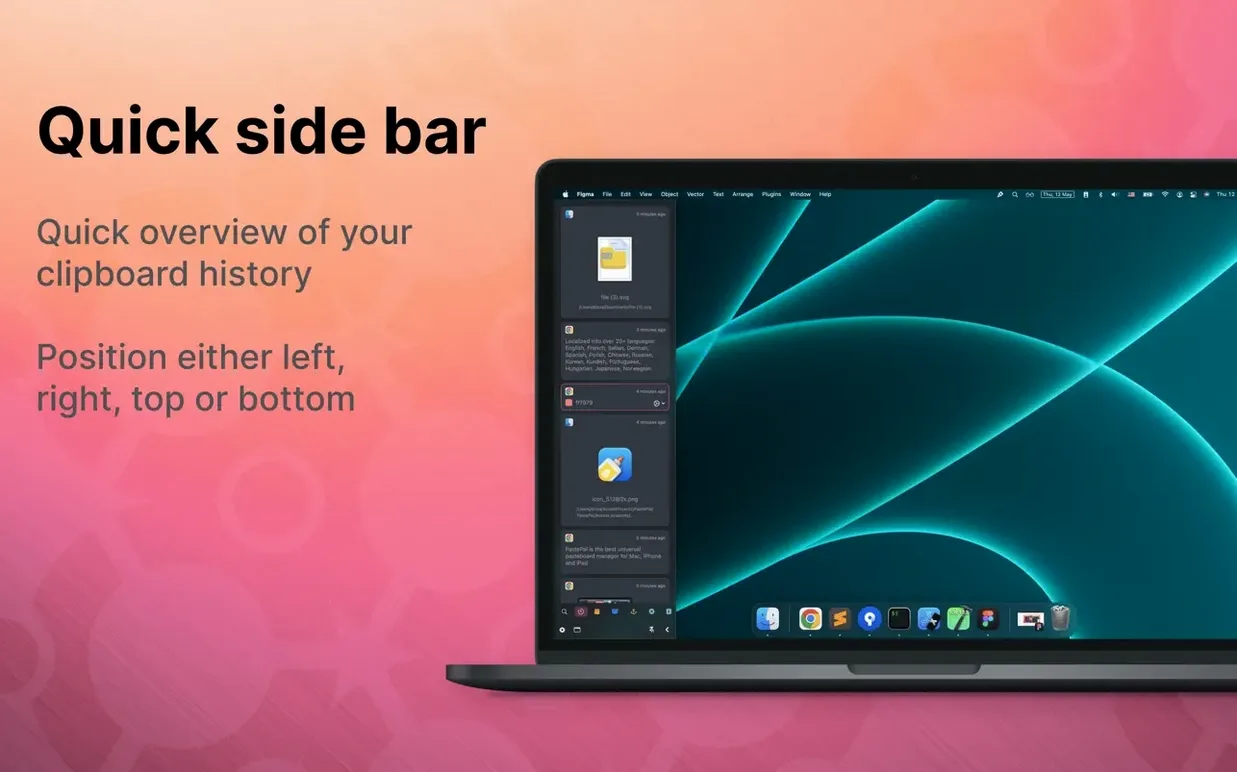
- Keeping recent clippings visible in a side window that can sit at the top, left, bottom or right of the screen.
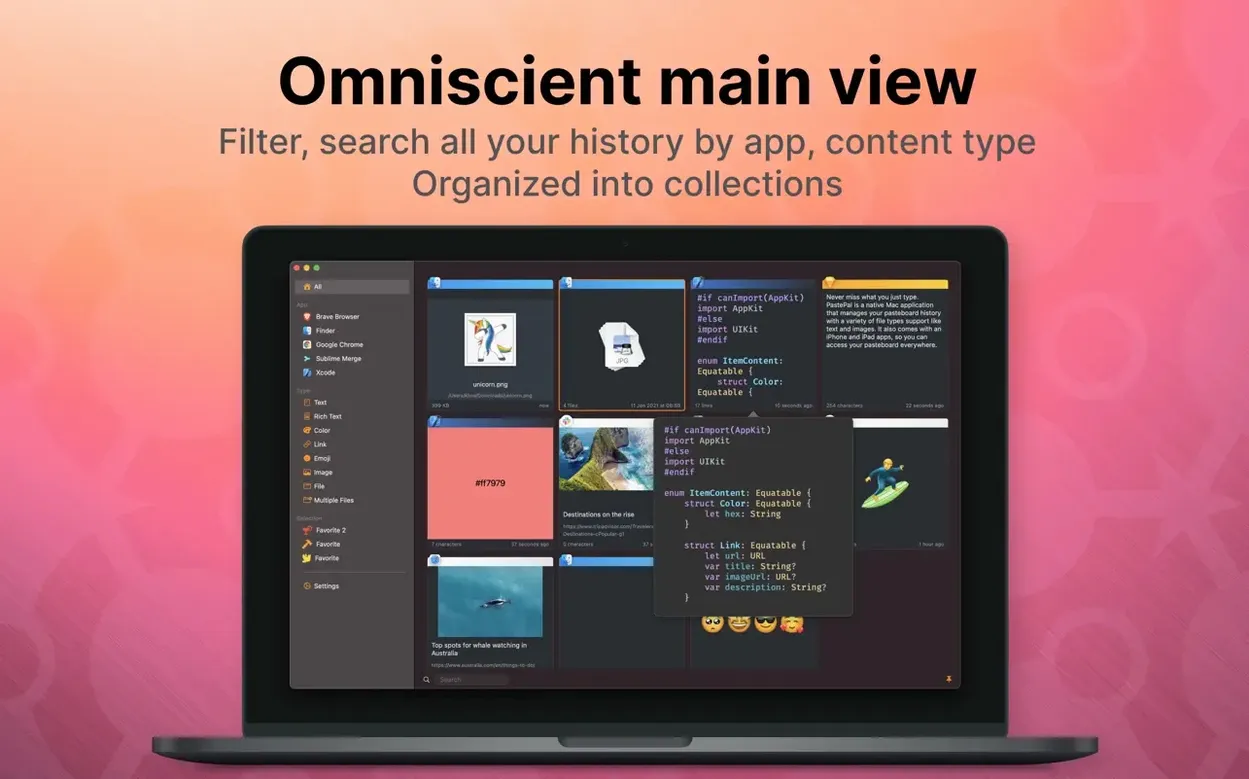
- Browsing the full clipboard history in a dedicated main window, with filters by app and content type.
- Grouping saved items into collections.
- Using iCloud sync, which can be turned on manually in Settings to share history across devices.
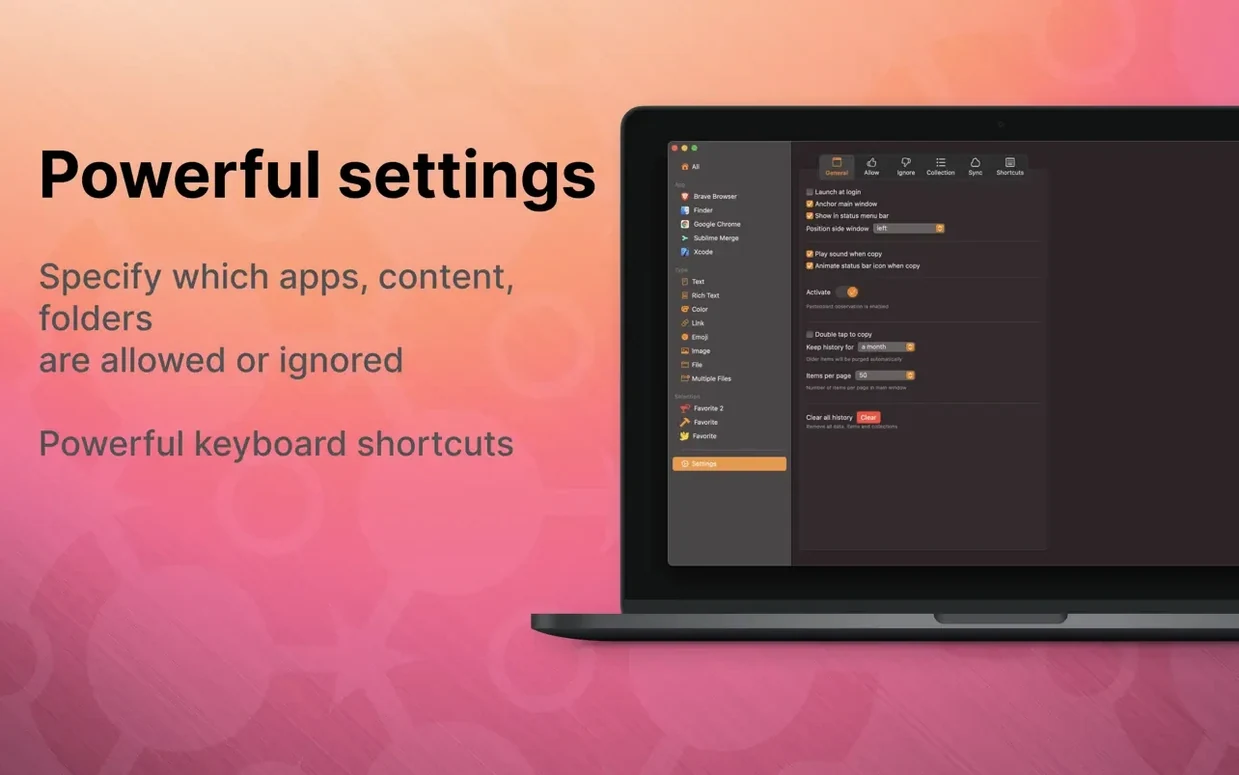
- Controlling which apps, folders and words appear in history via allowed and ignored lists.
- Accessing the manager quickly from the menu bar.
Manual iCloud sync catches first-timers
- The interface supports light and dark mode, but its appearance is consistent with standard Mac conventions — nothing unusually customised.
- iCloud sync is not automatic on first launch; it needs to be enabled by the user.
Clips gather in the background until you summon the panel
A session with PastePal usually starts in the background. You copy a few lines from a document, an address from a web page, then a code snippet from Xcode. The side window is there when you need it — set to the left edge of the screen in my case. One keystroke brings it forward, showing the last dozen items in reverse order of capture.
From there the rhythm settles. You pick an older item with the arrow keys, press Return, and it lands back in the document you were editing. No mouse, no hunting through menus. When the side window feels cramped, the main window opens to show a wider timeline, with filters available if you remember you copied something from Safari three days ago but only recall part of a word.
The session ends quietly. PastePal has been trimming history in the background according to the period set in Settings, and the side window disappears the moment focus returns to your actual work. Nothing demands attention.
Skipping the allowed list floods the history
- Not enabling iCloud sync and then wondering why the Mac history does not appear on the iPhone. The setting is manual, not on by default.
- Ignoring the allowed and ignored lists. New users often let every copied item accumulate, including password manager entries and files copied from Finder. Setting up exclusions early keeps history cleaner.
- Forgetting the side window can move. Many stick with the default position, but moving it to the bottom or right can reduce conflicts with full-screen apps.
- Using the main window for everything. The side window handles most everyday copy-paste work faster, while the main window is better for filtering and older items.
- Not setting automatic trimming. Without a time limit, history grows until it becomes harder to browse, even with pagination.
Collecting research notes for a report
Suppose you are gathering material for a report from several PDFs, a spreadsheet and two web articles. The clipboard manager approach with PastePal works like this:
- Open PastePal Settings and add the PDF reader to the allowed list, so copied excerpts are captured reliably.
- Copy passages from the PDFs. Each one appears in the side window in order.
- When you copy a figure from the spreadsheet, it joins the history as an item with a content type you can later filter by.
- Switch to the web articles. Copy three or four quotes, then open the main window to check what has been collected so far.
- Create a collection called Report sources in the main window and drag the relevant items into it.
- Open your word processor. Bring up the side window, step through the collection, and paste each item where it belongs.
The whole sequence keeps the source material out of your head and inside PastePal until the document is finished. If you notice an item you no longer need, the keyboard shortcut for deleting history items removes it without interrupting the flow.
Pick a side for the floating window
- Side window position. Choose where the window appears — top, left, bottom or right — based on where your active application keeps its own panels.
- Automatic trimming period. Set a retention time that suits how long you typically need old clippings. A week is often enough for general use; longer if you collect material over several weeks.
- Ignored list for apps. Add password managers, banking apps and anything that copies sensitive text. This prevents that material from entering history in the first place.
- iCloud sync. If you use PastePal on more than one device, switch it on in Settings. It is manual, so it will not start until you do.
- Keyboard shortcuts for the side and main windows. The defaults may conflict with shortcuts in other applications. Adjust them early so muscle memory does not form around keys you later have to change.