Aspecten
 Download (9 MB)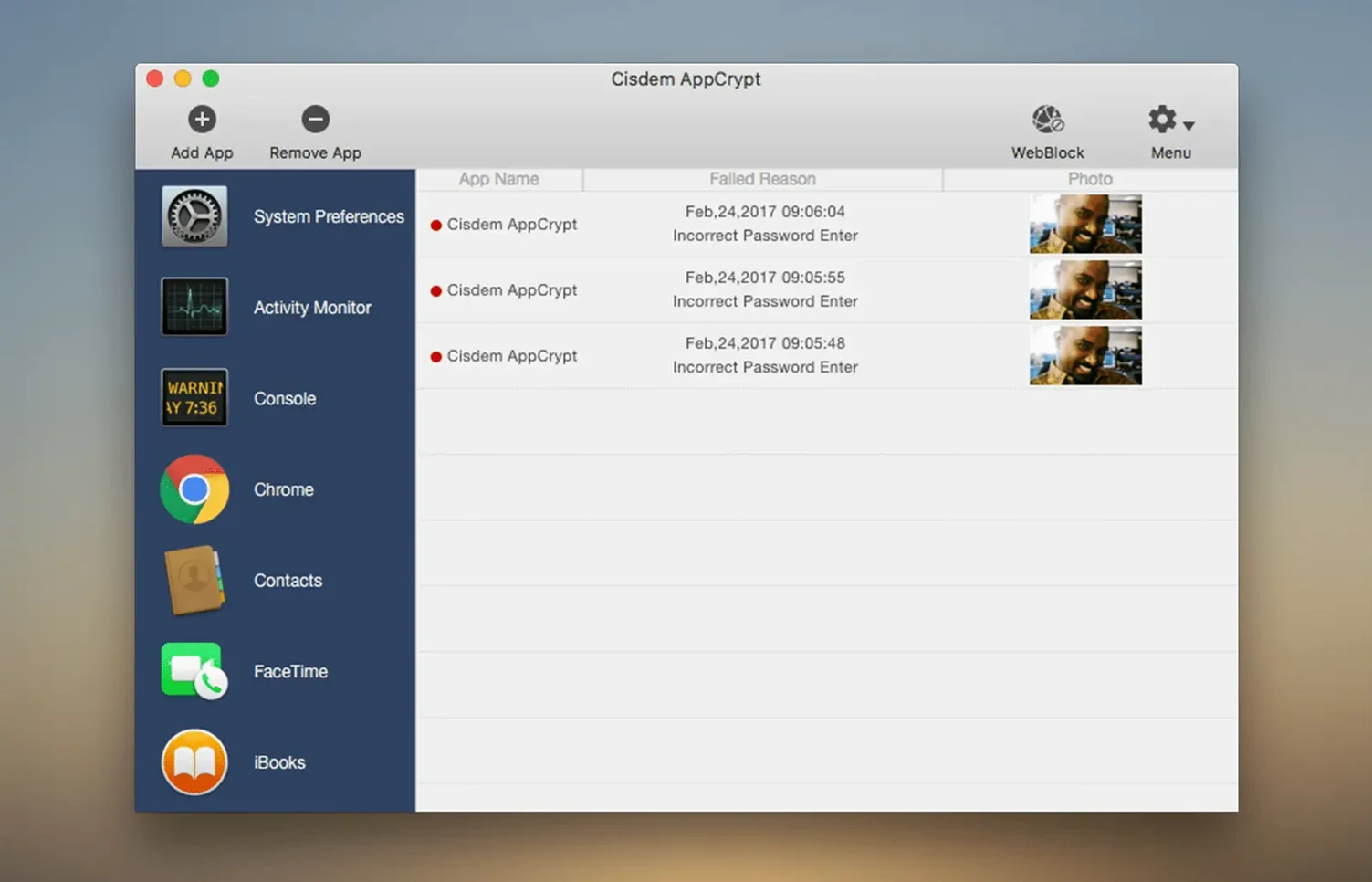
Click 'Web Block' in the sidebar and you find the controls for restricting sites across nine browsers. That is one part of what AppCrypt does; the other is locking applications behind a master password. Together they give you a way to limit what can be opened on a Mac, whether it is a game, a web browser, or a work tool.
Lock apps, block browsers, and filter websites behind one password
- Locking individual Mac applications with a single master password.
- Blocking websites in Chrome, Safari, Edge, Opera, Opera GX, Arc, Dia, Ecosia, and Brave.
- Restricting access to web browsers entirely.
- Protecting apps on a shared or work computer.
- Blocking games.
Automation permission prompt on first URL block
- Adding the first URL to the block list requests Automation permission.
- Version 7.9.1 introduced a setting to handle compatibility between new and older versions.
Gatekeeper step in Terminal makes some users pause
One thing that trips people up is the Gatekeeper step during installation. Mounting the disk image and running Open Gatekeeper friendly is straightforward enough, but the moment Terminal asks you to press Enter, a few users hesitate or close the window too soon. Let the command finish, then drag the app to the Applications folder. If you skip the Terminal step, macOS will refuse to launch AppCrypt later.
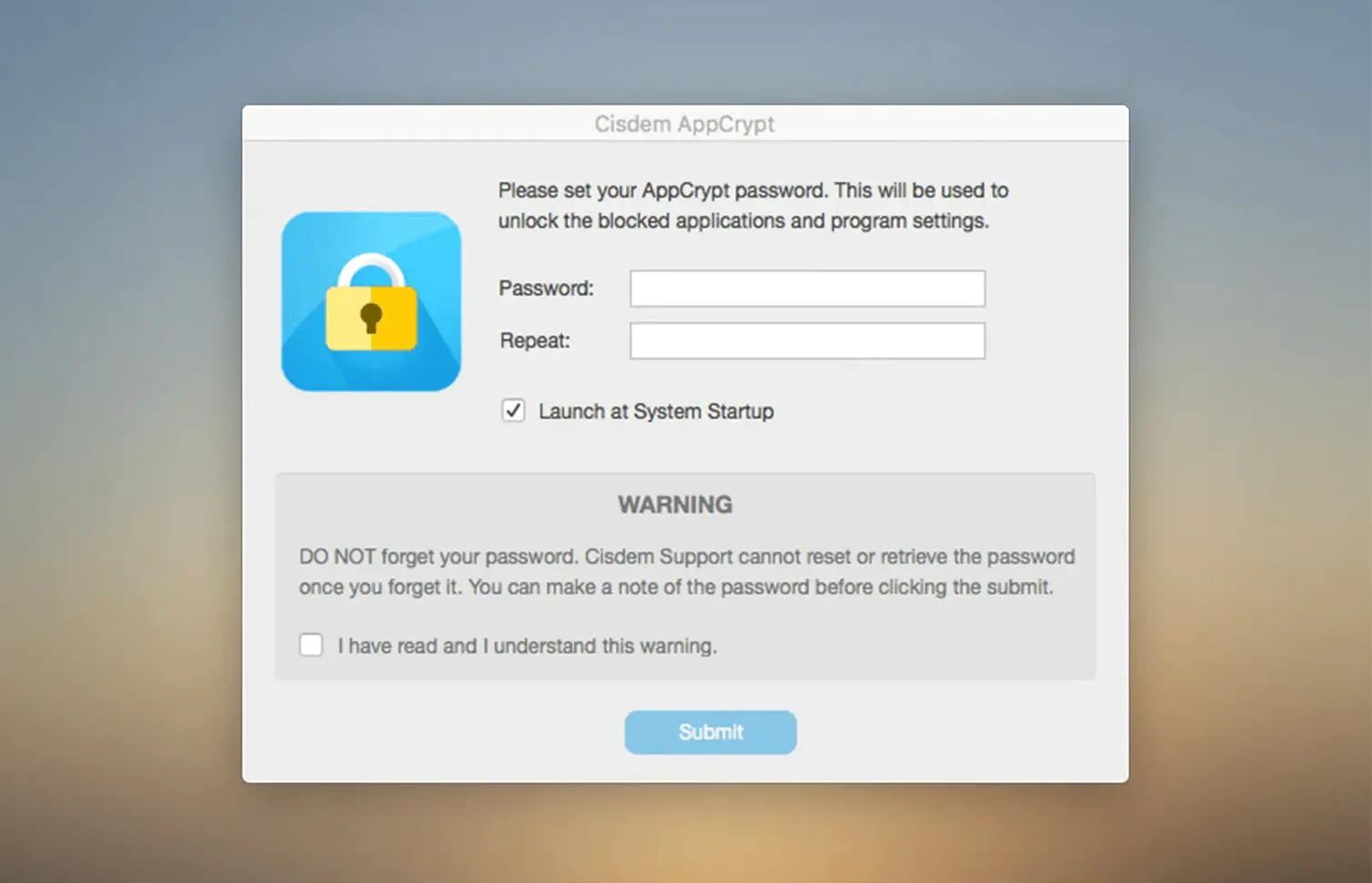
Another snag is forgetting the master password. AppCrypt does not store a recovery hint by default, and there is no backdoor. Write the password down somewhere physical before you start locking apps. If you lose it, you will need to uninstall AppCrypt — which itself can be tricky because the app locks itself by default, so you may need to quit its background process first.
The Automation permission prompt catches some users off guard. When you add the first URL to the block list, macOS asks whether AppCrypt can control Safari or Chrome. If you click 'Don't Allow' by reflex, website blocking stays inert. Fix it by going to System Settings > Privacy & Security > Automation and toggling the permission on for AppCrypt.
Locking Finder or System Settings before testing the app
Locking everything at once is a classic beginner move. People add Finder, System Settings, and Terminal to the lock list, then realise they have boxed themselves out of fixing anything. Start with one or two non-essential apps — a game or a social media client — and test the behaviour before expanding the list.
Another mistake is treating the web block as a firewall. AppCrypt blocks URLs inside supported browsers, but it does not filter network traffic. A blocked site in Chrome will still load in an unsupported browser or a browser you forgot to lock. If you need blanket blocking, lock all nine supported browsers and remove any others from the system.
Some beginners ignore the version-compatibility setting added in 7.9.1. When upgrading from an older release, mismatched preferences can make the lock list appear empty or stop blocking rules from applying. A clean reinstall — deleting the app and its preference files, then installing 7.11.0 fresh — sorts it out in most cases.
Parents use app locks and site blocks to set screen-time boundaries
Parents with younger children who share a family Mac tend to find AppCrypt immediately useful. Locking games and browsers gives you a simple way to enforce screen-time boundaries without setting up full parental-control profiles. The website block list keeps adult or distracting sites out of reach across nine browsers, which covers most of what a child would have installed.
Office users on shared machines — think of a front-desk iMac or a lab computer — benefit from the app-locking side. You can lock Mail, Messages, and financial software while leaving a browser or a calculator accessible. The master password stays with the person who sets it, so colleagues cannot casually open protected apps.
People searching for a straightforward Mac locker often look for phrases like cisdem appcrypt for mac or cisdem appcrypt mac because they want something lighter than Apple's Screen Time or MDM profiles. AppCrypt fits that niche: it does not require an Apple ID, does not sync settings across devices, and stays out of the way once configured. The lack of an admin console means it suits individual Macs rather than fleets, but for a single machine it is direct and unobtrusive.