Aspecten
 Download (53 MB)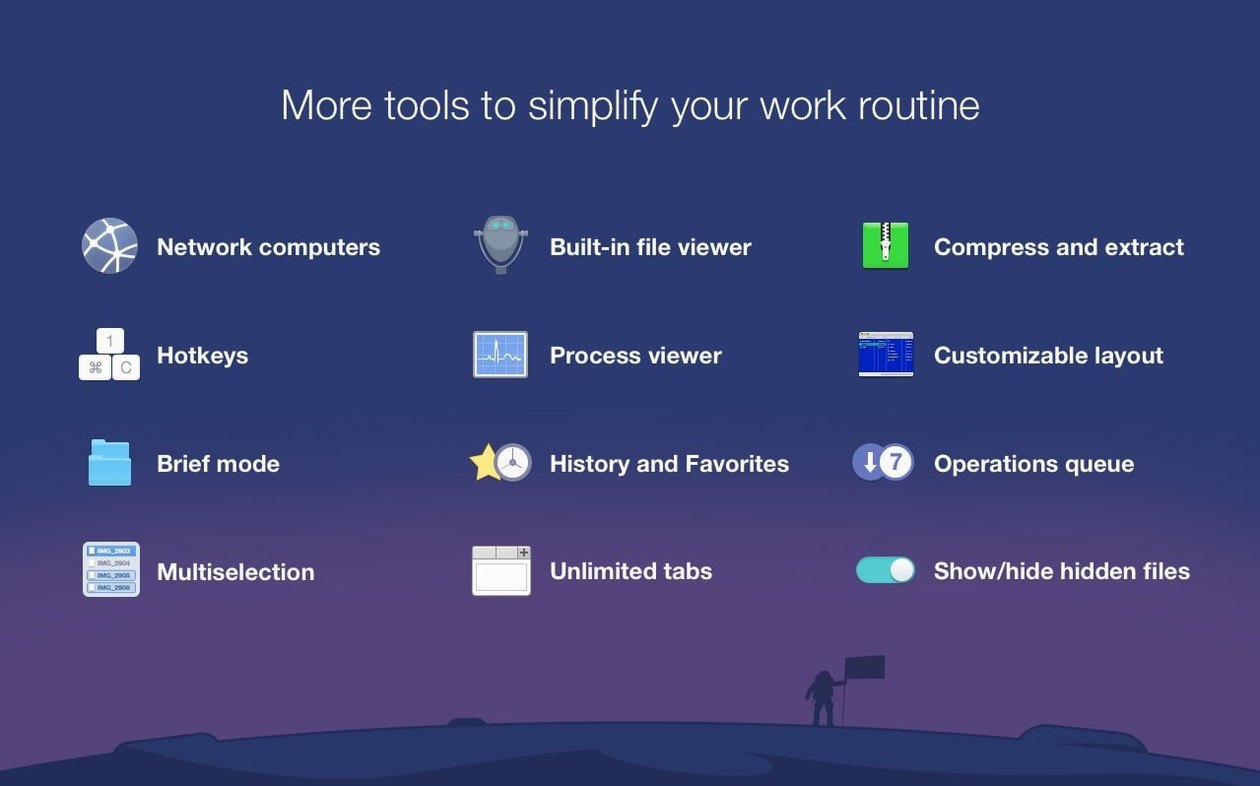
macOS Finder handles simple tasks well, but organising files across multiple folders or managing remote servers often means juggling several windows. Commander One PRO addresses that by placing two directory views side by side, so moving, copying and comparing files becomes a matter of dragging between panes rather than switching contexts.
What to know before installing
- Two-pane workflow: The dual-pane layout forms the core of the app. It surfaces hidden files with a toggle and includes a Brief Mode for scanning long lists of items quickly.
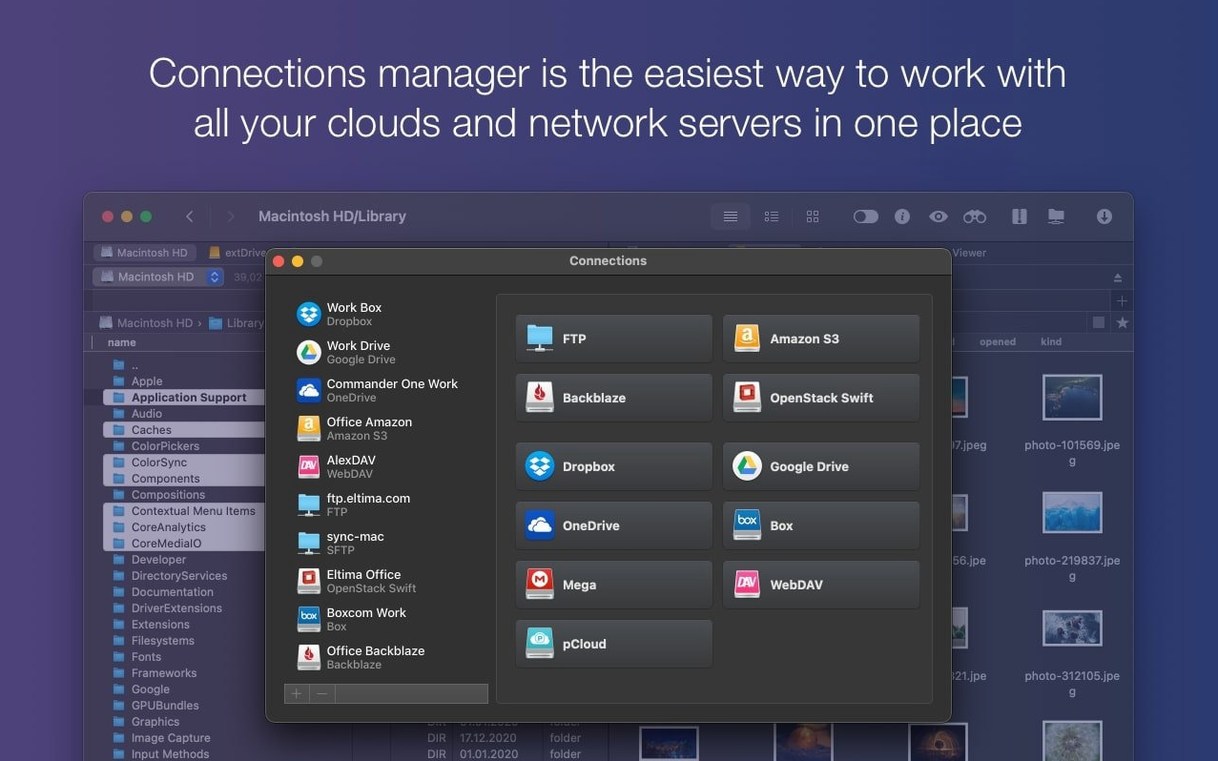
- Remote connections: FTP, SFTP and FTPS connections are handled natively. Dropbox and Google Drive accounts mount directly in the file list, treating cloud storage as local volumes.
- macOS integration: Developed in Swift, the app runs natively on both Intel and Apple Silicon Macs. System requirements start at macOS 10.13, and the interface adapts to system light and dark appearances.
Dual-pane for local, network and cloud file moves
Commander One PRO works best as a daily driver for anyone who regularly moves files between local folders, network shares and cloud accounts. It does not replace Finder but sits alongside it, offering a more direct way to manage file operations that Finder spreads across multiple windows and menu commands.
Fix cloud accounts not appearing after login
New users sometimes find that cloud accounts do not appear after entering credentials. The usual culprit is an outdated system security setting: Commander One PRO needs permission under System Preferences → Security & Privacy → Full Disk Access before it can index and display Dropbox or Google Drive contents. Granting that access and restarting the app clears the issue in most cases.
Another recurring point of confusion involves keyboard shortcuts on non-English layouts. Version 3.18.0 smoothed out hotkey handling for several layouts, but some combinations — particularly those using the Cmd key with a letter placed differently on Dutch or Hungarian keyboards — may still need manual adjustment in the app's preferences under the Keys tab. Remapping a conflicting shortcut there takes under a minute.
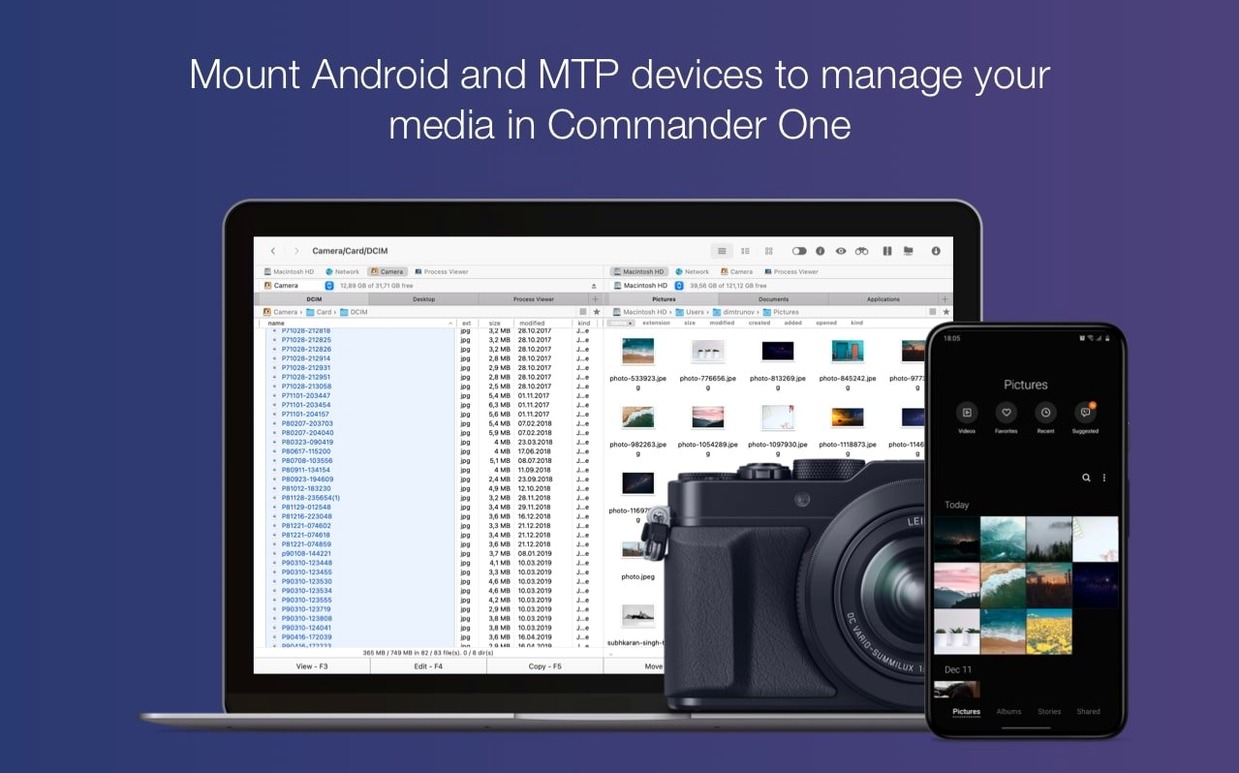
When Android or iOS devices are not recognised over USB, the problem is rarely the app itself. Commander One PRO relies on macOS recognising the device first. A check in System Information → USB confirms whether the Mac sees the phone or tablet. If it does not, a different cable or a brief toggle of the device's USB debugging or trust setting usually restores the connection, after which the app mounts it automatically.
Archive extraction can stall on large RAR files split into multiple parts. The fix is straightforward: place all parts in the same folder and open only the first archive. Commander One PRO reads the sequence and reassembles the contents. Dragging a single part to the opposite pane without its companions produces an incomplete result, which is easy to miss if the file count looks plausible at a glance.
SFTP and the local-and-remote mental model
System administrators and web developers who maintain sites over SFTP tend to settle into Commander One PRO quickly. The dual-pane layout mirrors the local-and-remote mental model they already use, and the ability to queue file transfers without opening a separate client keeps their desktop less cluttered during long deployment sessions.
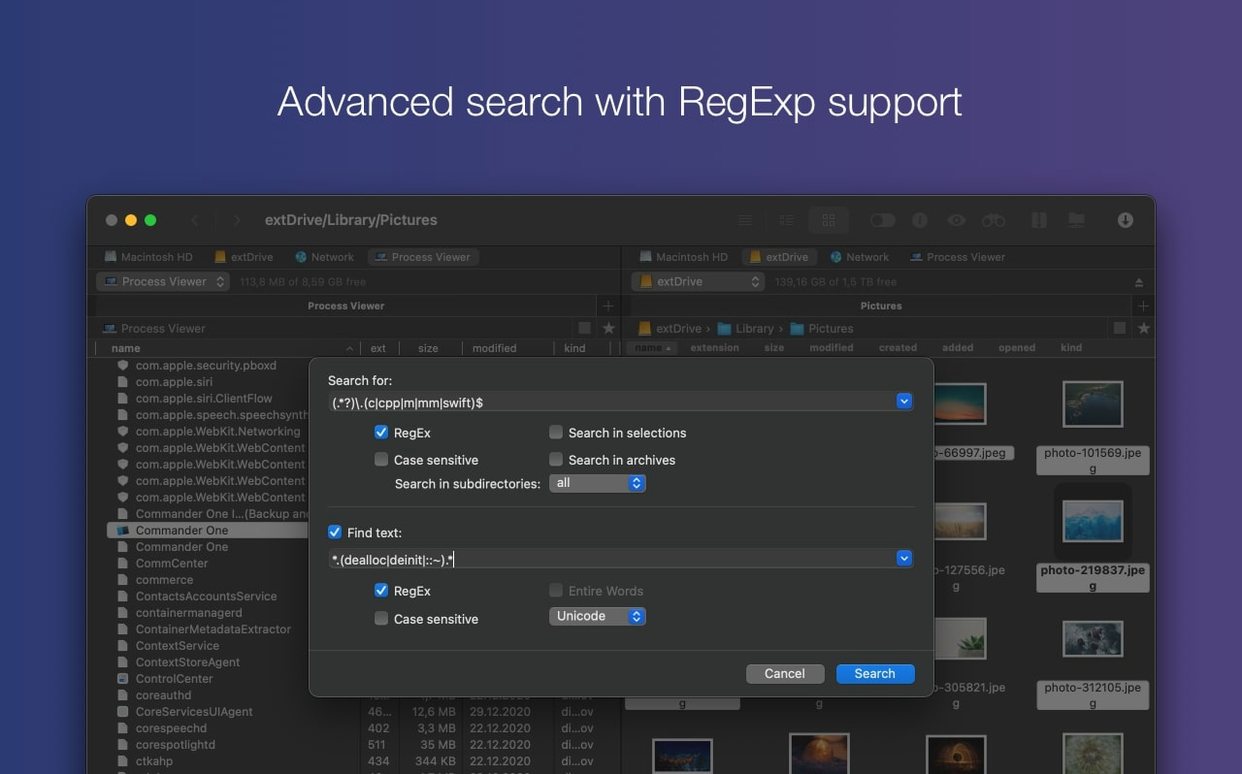
Photographers and video editors working with external drives and cloud backups also find a natural fit. A typical setup involves a working SSD in the left pane and an archive volume or S3 bucket in the right. The Brief Mode strips previews and metadata columns, leaving a dense list that makes it practical to sift through thousands of raw files in one sitting. The regular-expression search then narrows that list to a specific naming pattern without touching Spotlight.
People who maintain several cloud accounts across providers gain something Finder does not offer: a single interface where Google Drive, Dropbox and Amazon S3 sit as equals. There is no need to run separate sync clients or keep browser tabs open for each service. The app treats them as mount points, and file operations between them work the same way as local copies — drag, confirm, done.
Casual users who only browse a handful of folders per day will likely find the extra pane unnecessary. Commander One PRO adds its value where the number of file operations per hour makes Finder's single-window model a bottleneck. If you rarely move files between more than two locations, the app's strengths remain dormant.
Drag between panes no longer stutters on macOS 27
Three practical changes arrived with version 3.18.0. The macOS 27 compatibility improvement means the app no longer stutters when dragging files between panes on recent system builds — a small but noticeable fix for anyone who experienced a half-second lag before the drop registered. The hotkey correction for non-English layouts makes keyboard-driven workflows reliable again on Dutch, Hungarian and several other layouts where certain shortcuts had been ignoring input since the previous system update.
The drag-and-drop fix on macOS 27 resolved an edge case where files dragged to the desktop or to another application would occasionally fail to copy, leaving only an alias or nothing at all. That behaviour was inconsistent and hard to reproduce, but users who encountered it during busy work sessions will notice its absence immediately.
Move a batch to a remote server and cloud backup in one morning
Consider a morning where a batch of client files needs to move from a local project folder to both a remote server and a cloud backup. The left pane opens to ~/Projects/Client-Q4. A tap of Cmd+1 sets the right pane to the SFTP bookmark for the client's staging server. The connection dialogue remembers the keyfile path from last time, so entering the passphrase is the only step before the server's directory tree appears.
Hidden files are off by default, but the project folder contains a .htaccess template that needs to go up. Toggling hidden files with Cmd+Shift+. reveals it instantly. A quick select, drag across the pane boundary and release transfers the file. The progress bar sits at the bottom of the window, small enough to ignore but precise enough to show transfer speed.
With the server updated, the next task is backing up the same folder to S3. The right pane switches to the S3 connection — listed under the same connection manager as the FTP bookmarks — and the bucket structure unfolds. Rather than drag everything again, the Brief Mode in the left pane makes it easy to spot two large video files that do not need backing up. A Cmd-click excludes them from the selection, and the remaining files go across in one operation.
Between transfers, a quick Cmd+F with the regex pattern invoice_.*\.pdf pulls up all invoices in the current folder and subfolders. The results populate in a flat list, so renaming the batch to include today's date is a matter of selecting all and using the multi-rename tool — a feature that lives under the File menu and works with tokens for date, counter and original name.
The session wraps with the Process Viewer, opened from the Window menu, to check why the Mac's fan spun up during the S3 upload. The list shows a background sync process from another app consuming CPU, unrelated to Commander One PRO, which sits idle at under two percent. That confirmation is enough to close the app and return to other work, knowing the morning's file operations have finished cleanly.