Aspecten
 Download (11 MB)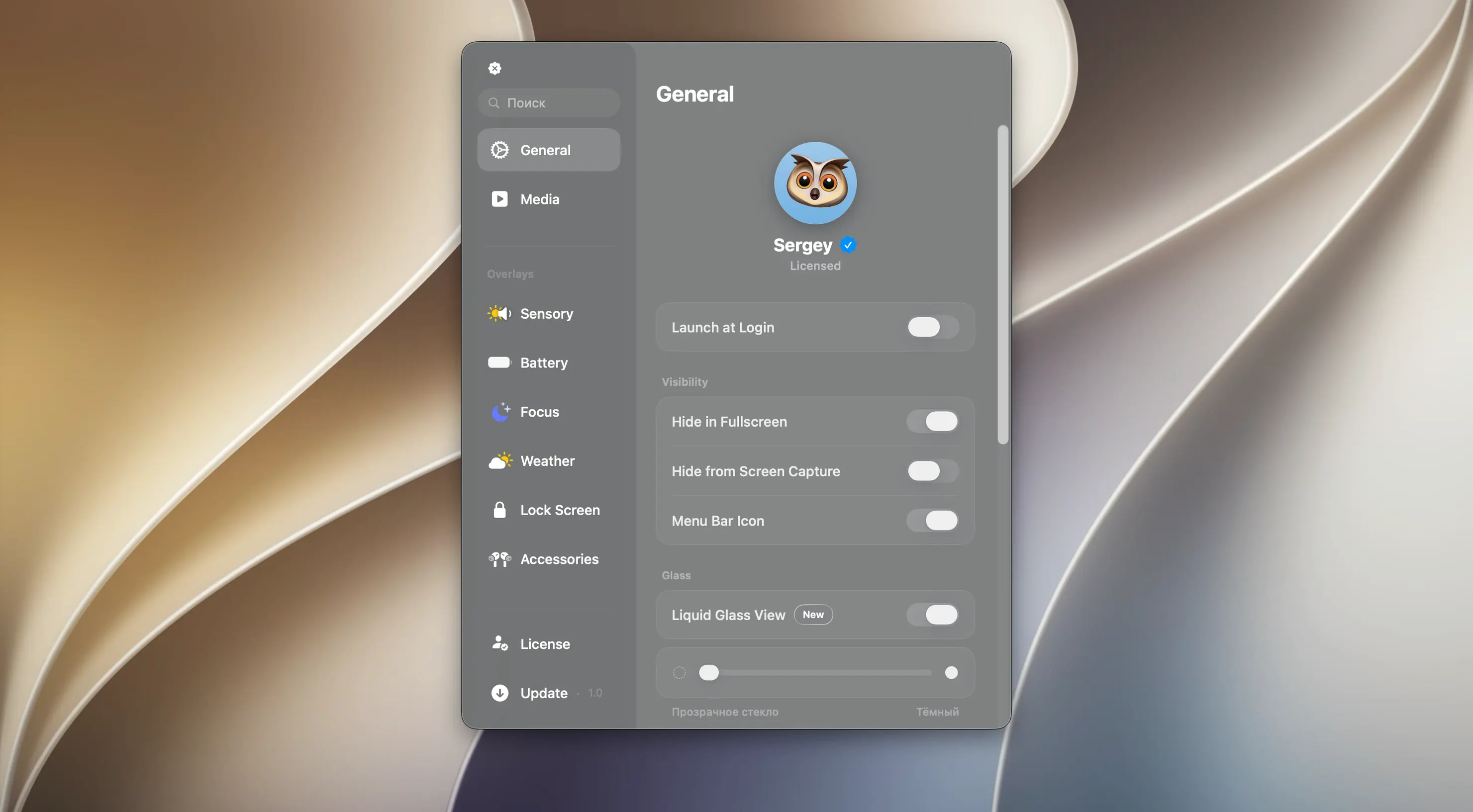
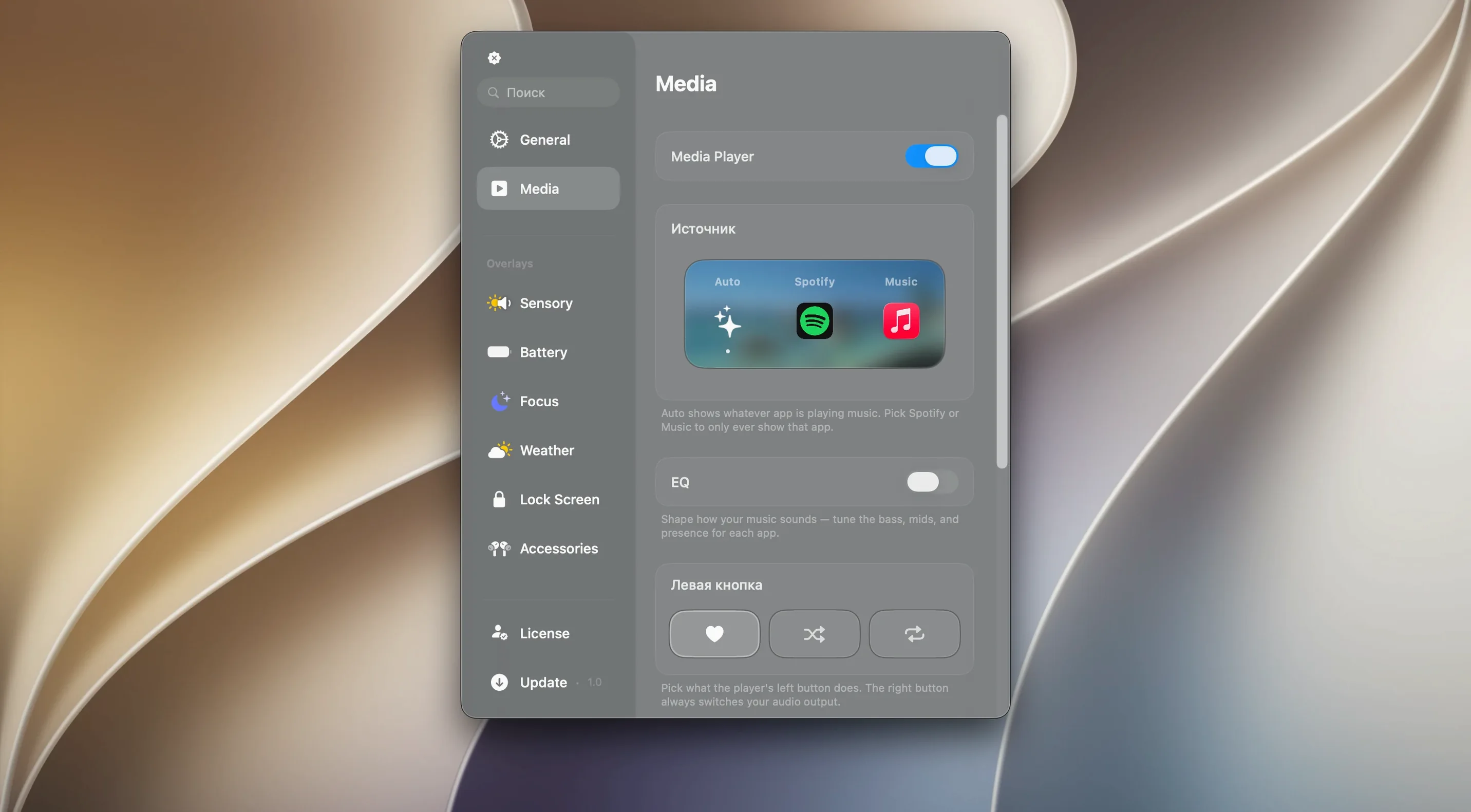
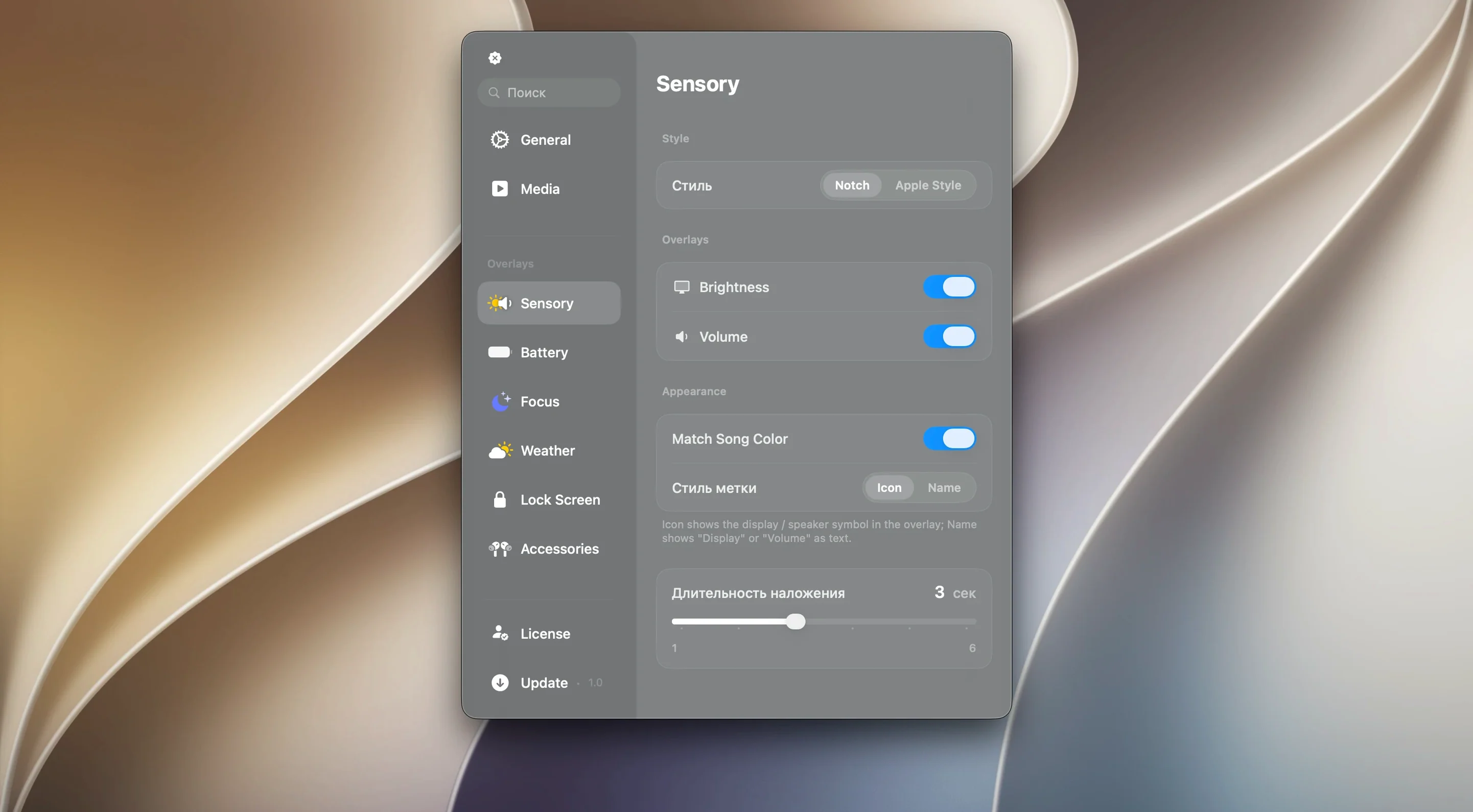
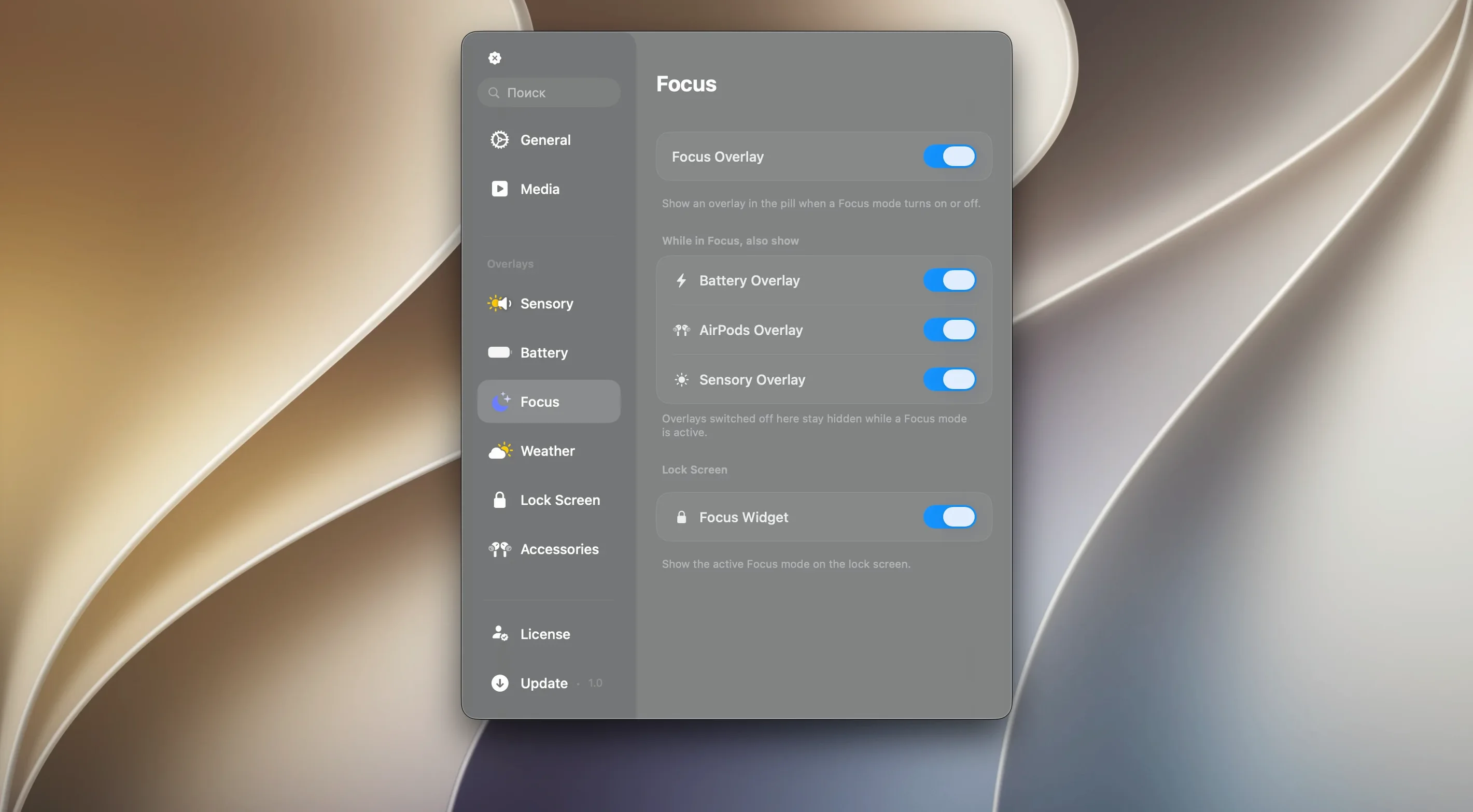
Tap the Now Playing controller in the panel and it expands to show album art and a scrubber, all without pulling you out of the app you are in. That is the kind of interaction Canopy builds its case on — small surface, quick glance, immediate response.
What an experienced user can tune
- Panel behaviour per app — decide which applications send alerts to the panel and which stay silent, so the strip stays useful rather than noisy.
- Position override — the panel lives in the menu bar on a notchless Mac or tucks into the notch on a MacBook Pro, but you can pin it to a fixed location if you prefer consistency across screens.
- Click-through zones — set whether a single tap opens the full widget or passes the click to the window behind it, useful when the panel sits over a toolbar you still need to reach.
Works the same on an iMac as a MacBook Air
Because Canopy asks for no notch, it works on a desktop Mac with an external display just as it does on a MacBook Air. The panel draws from the menu bar, not from hardware, so an Intel iMac and an Apple Silicon MacBook Pro get the same set of controls. The localisation is English only, which keeps the interface tight and the preferences window free of unused language assets. If you already run a handful of menu bar utilities, Canopy slots in without shifting the spacing much — it occupies a fixed-width strip that respects the left-to-right order you have arranged.
You tap the timer, it pushes back with a focus block
You sit down with a coffee and wake the Mac. Canopy's panel is already in the menu bar, showing a small timer you set yesterday — 4 minutes left on a focus block. You tap it once and the timer expands into a ring with pause and reset controls. No window opens, no Dock icon bounces. You let it run down while clearing email.
Mid-morning, a Slack message arrives. The panel lights up briefly with a sender name and a two-line preview, then shrinks back to its resting state. You click the preview and Canopy pulls Slack forward, right to the thread. Later, while editing a document, you swipe the panel sideways to reveal the music controller. The track title scrolls once, then holds. A tap pauses playback; a long press skips to the next track. The whole exchange takes three seconds and your fingers never leave the keyboard for long.
By lunch the panel has handled five notifications, two timer completions and a calendar alert, none of which stole focus or stacked up in Notification Centre. You glance at it between tasks the way you check a dashboard, not a to-do list.
Workflow: controlling playback during a presentation
You are running a design review over a video call, sharing your screen. Background music is playing from the Music app, low enough that only you hear it. A colleague asks a question and you need to pause the track without fumbling for the Music window or revealing your personal playlist on the shared display.
You move the pointer to the menu bar. Canopy's media module shows the current track name. A single tap pauses playback. The panel updates to show a play icon, confirming the pause. You answer the question, share a Figma link, then tap the panel again to resume music — all without shifting windows or breaking screen sharing. The entire interaction stays inside the menu bar strip, invisible to everyone on the call.
After the meeting, you swipe the media module left to reveal the volume slider. Two quick drags lower it for the afternoon. No need to open Control Centre or reach for keyboard keys you have remapped.
Long-press adds 60 seconds without leaving your flow
A few details in Canopy reward the habit of hovering and swiping rather than clicking:
- Long-press on the timer adds 60 seconds without opening the full widget — handy when a focus block ends just as you hit a flow state.
- Swipe down on any notification dismisses it immediately, while a swipe up stores it for later review in the panel's history drawer.
- Option-click the panel toggles Do Not Disturb for Canopy only, leaving system notifications untouched. Good for deep work stretches where you still want calendar pings from the Mac itself.
- The Liquid Glass background picks up the dominant colour of the screen content behind it, shifting subtly as you switch from a dark code editor to a light spreadsheet. No configuration needed — it follows the display's colour profile.
- Media scrubber precision improves when you drag vertically away from the panel before moving horizontally, which switches to a finer scrubbing rate for long tracks or podcasts.
- Click-through zones can be narrowed per edge. If your browser tabs sit just below the menu bar, set the bottom 4 pixels of the panel to pass clicks through — the rest stays interactive.
None of these appear in a tutorial window. They reveal themselves through repetition, which suits the kind of user who learns a tool by using it rather than by reading about it.
Designers, writers and devs who stay full-screen
The Mac user who benefits most from a canopy mac setup is someone who already keeps one hand on the trackpad and hates switching contexts for small actions. Designers, writers and developers who work full-screen in a single app tend to notice the panel first — it lives in the one screen edge they never cover with a window. For them, a canopy download mac is less about adding features and more about removing the small friction of opening Notification Centre or switching to the Music app.
Users on a MacBook Pro with a notch find the integration particularly natural. The panel nestles into the space either side of the camera cutout, using screen area that would otherwise sit empty. On a canopy for mac install without a notch — an iMac, a Studio Display, a Mac mini — the floating widget at the top of the screen serves the same role but sits a few pixels lower, clear of the menu bar itself. Both layouts feel intentional rather than bolted on.
If you run a canopy mac free trial, the first thing you learn is whether you are a glance-at-the-menu-bar person or a Notification Centre person. The former group keeps Canopy; the latter tends to forget it is there. That divide says more about the user than the app. Canopy does not demand attention. It waits for the moment a quick tap saves a longer detour, and over a working week those moments add up.