Aspecten
 Download (19 MB)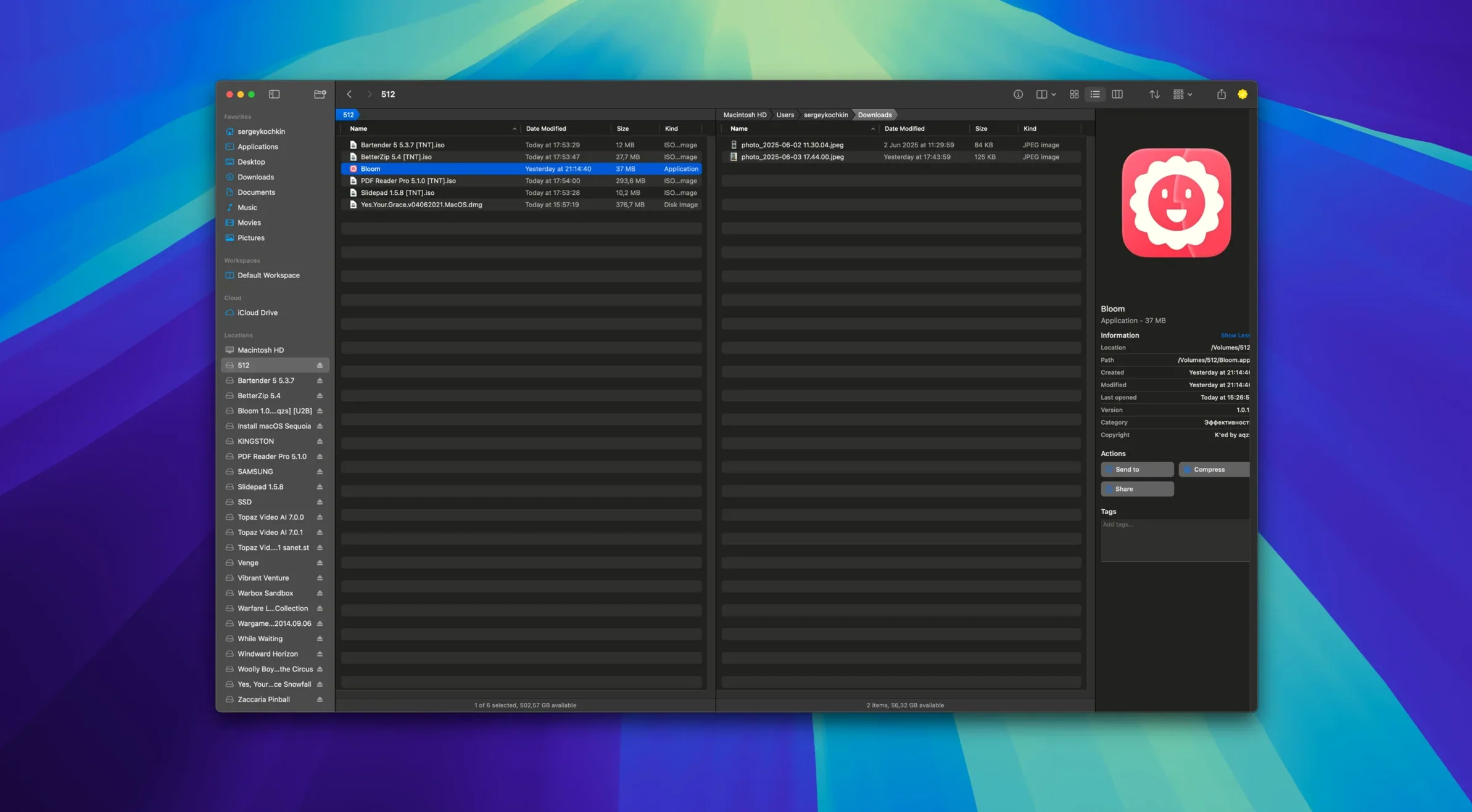
If you use Finder every day, you know its edges — places where searching feels slow or where visualising disk clutter means switching to another utility. Bloom sits in that gap. It is a standalone file manager built by INCHMAN1900, and it reshapes a handful of file-browsing tasks around a workspace you can arrange to suit the way you work.
What it does differently
Bloom can preview the contents of archives without extracting them, so checking what is inside a zip or tarball becomes a single click rather than a small side project. It also handles tag management directly and lets you refresh search results with ⌘R — a small touch that keeps a long browsing session flowing. Disk usage gets a treemap view, which makes it easier to spot which folders are eating space without switching to a dedicated disk analyser. Search is location-aware: you can search by keyword inside predefined folders, not just everywhere-at-once.
A file manager that skips Finder’s friction points
The app runs on Apple Silicon and Intel Macs, requires macOS 14 or later, and integrates with iCloud Drive. It is not a Finder clone that tries to replace every last feature. Instead it focuses on a few high-friction areas — archive inspection, search refinement, workspace layout — and leaves the rest to the system. That makes it a practical sidearm for anyone who regularly moves between archives, tags and deep folder scans, and who would rather keep those actions inside one window.
How Bloom fits with other apps and macOS features
Bloom does not fight the system. It reads iCloud Drive folders directly, so files you store there appear in the same tree as local ones, with no special setup. Tags you create or edit in Bloom sync back to Finder and show up in Spotlight searches. That means you can tag a batch of research PDFs inside Bloom and later pull them up with a standard Finder tag filter or a tag: Spotlight query — the metadata flows both ways.
Terminal users get a small but useful handoff: right-click any folder and Bloom can launch a shell session with that folder as the working directory. It opens macOS Terminal with the path already set, which saves the usual cd typing when you need to run scripts or inspect dotfiles. Preview works with the built-in Quick Look engine for common formats, so text files, images and PDFs under 10 MB render without launching a separate viewer.
Where it stays out of the way is file associations. Bloom does not try to become the default handler for file types. Double-clicking a document still opens your regular app — Preview, Pages, VSCode, whatever the system has assigned. That keeps it as a browsing layer rather than a replacement for dedicated editors.
Turn on auto-resizing columns for nested folders
The default layout is a full window with sidebar and preview pane, but a few adjustments make it feel more responsive for daily use. First, turn on automatic column resizing if you often switch between deeply nested folders and shallow ones — columns snap to fit their content instead of keeping a fixed width. Second, set the treemap view to scan your home folder but exclude ~/Library; scanning that system directory bloats the view with cache files you rarely need to act on.
Portal mode is off by default and it is worth binding to a shortcut. When you toggle it, Bloom shrinks to a compact window with no sidebar or preview — essentially a floating file grid. From there you can pin it above other windows or dock it to a screen edge. This works well when you are dragging files between apps and want a small, always-visible drop target without the full interface getting in the way.
The task scheduler is another section to configure early. By default it waits for confirmation before running batch operations. If you regularly run the same renames or image conversions at the end of a project, switching a few scheduled actions to run at a set time removes the need to babysit progress bars.
Drag-and-drop feels different because undo is always watching
The most common slip is treating Bloom like a Finder window and expecting drag-to-move behaviour to be identical. Bloom records each operation for undo, which Finder does not do, but that also means batch moves are queued differently. Dragging a folder into another without pausing to check the destination path can trigger a merge you did not intend — and while undo is available, reversing a merge of fifty files is messier than cancelling a single copy.
Another early stumble involves the archive preview. Clicking a zip file shows its contents inline, which makes people assume extraction has already happened. It has not. Bloom reads the archive index without unpacking it, so you still need to use the extract command to get usable files. Dragging a file from the preview pane to your desktop copies nothing — it only shows what is inside.
New users also overlook the undo panel itself. Bloom logs each operation, but the list is not exposed unless you open it from the menu. Someone who moves a folder, renames it, then decides the old name was better will sometimes repeat the rename manually instead of stepping back through the recorded action. Checking the undo log before redoing work by hand is a habit worth forming early.
Pin a Portal window for quick drag-and-drop
Start by setting up two or three workspace layouts. One for general browsing with the sidebar and preview pane visible, one Portal window pinned to the bottom-right corner of the screen for quick drag-and-drop, and one treemap view pointed at your largest external drive. Switching between them shows you where Bloom feels faster than Finder and where it does not add much.
Use the advanced rename tool on a small test folder first. Regular expressions are powerful but a malformed pattern applied to a deep folder tree can create a mess. Pick ten files, try a pattern that reorders date stamps or replaces underscores with spaces, and check the preview before committing. Once you trust the syntax, scale up to larger batches.
For image work, the convert-and-optimise feature is a quiet time-saver. Dragging a folder of screenshots into Bloom and running an optimisation pass — resizing to a set width, converting PNG to JPEG at a quality you choose — handles what would otherwise mean opening Preview or an image editor for each file. Set up a scheduled task for this if you take screenshots regularly and want them compressed at the end of each day.
Finally, integrate the instant-jump shortcut into muscle memory. Press ⌘⇧⏎ and type a system location — ~/Documents, /Applications, an external volume name — to jump there without clicking through the sidebar. In the first few days it feels like a novelty; after a week it becomes the main way you move between distant folders.