Aspecten
 Download (61 MB)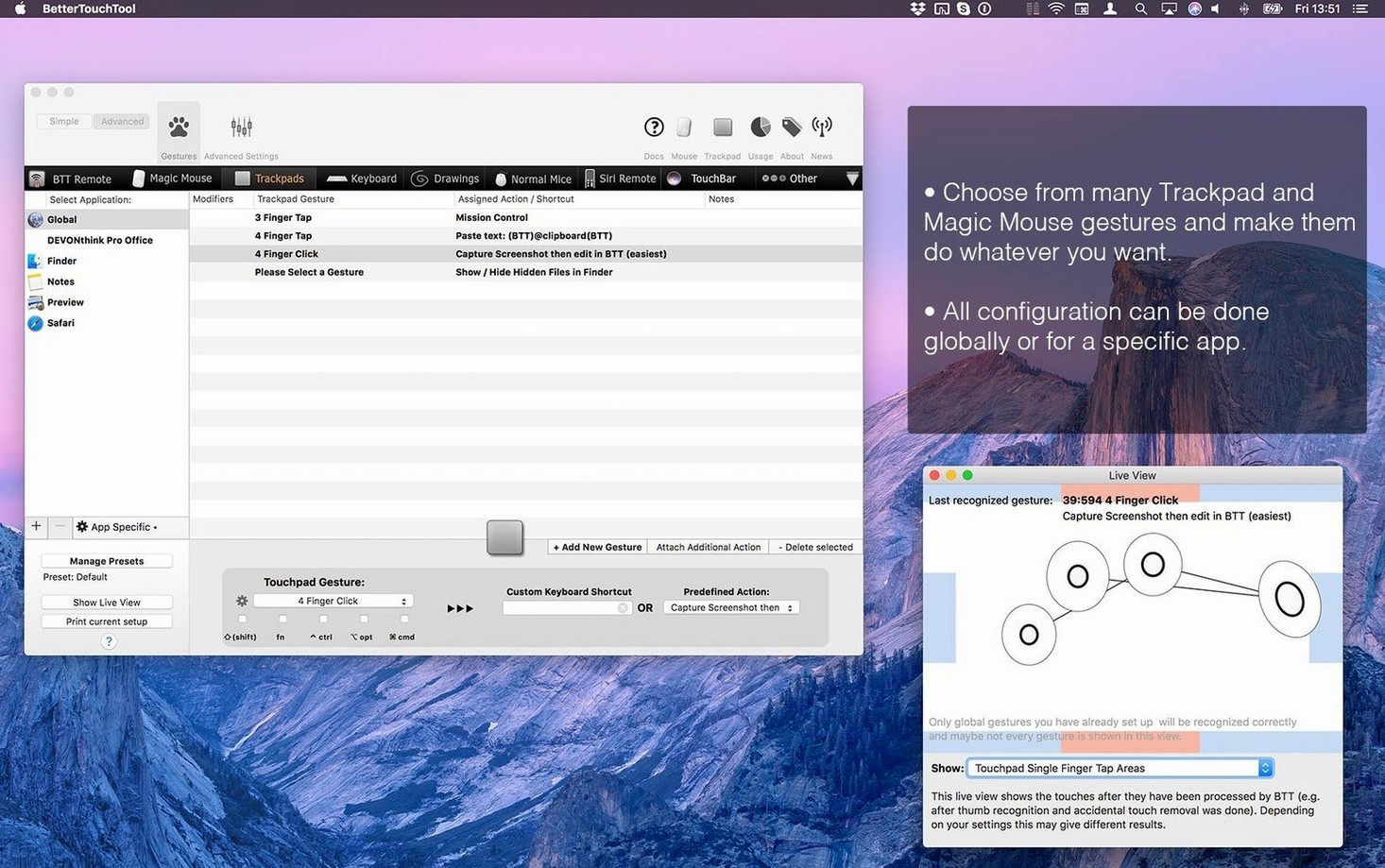
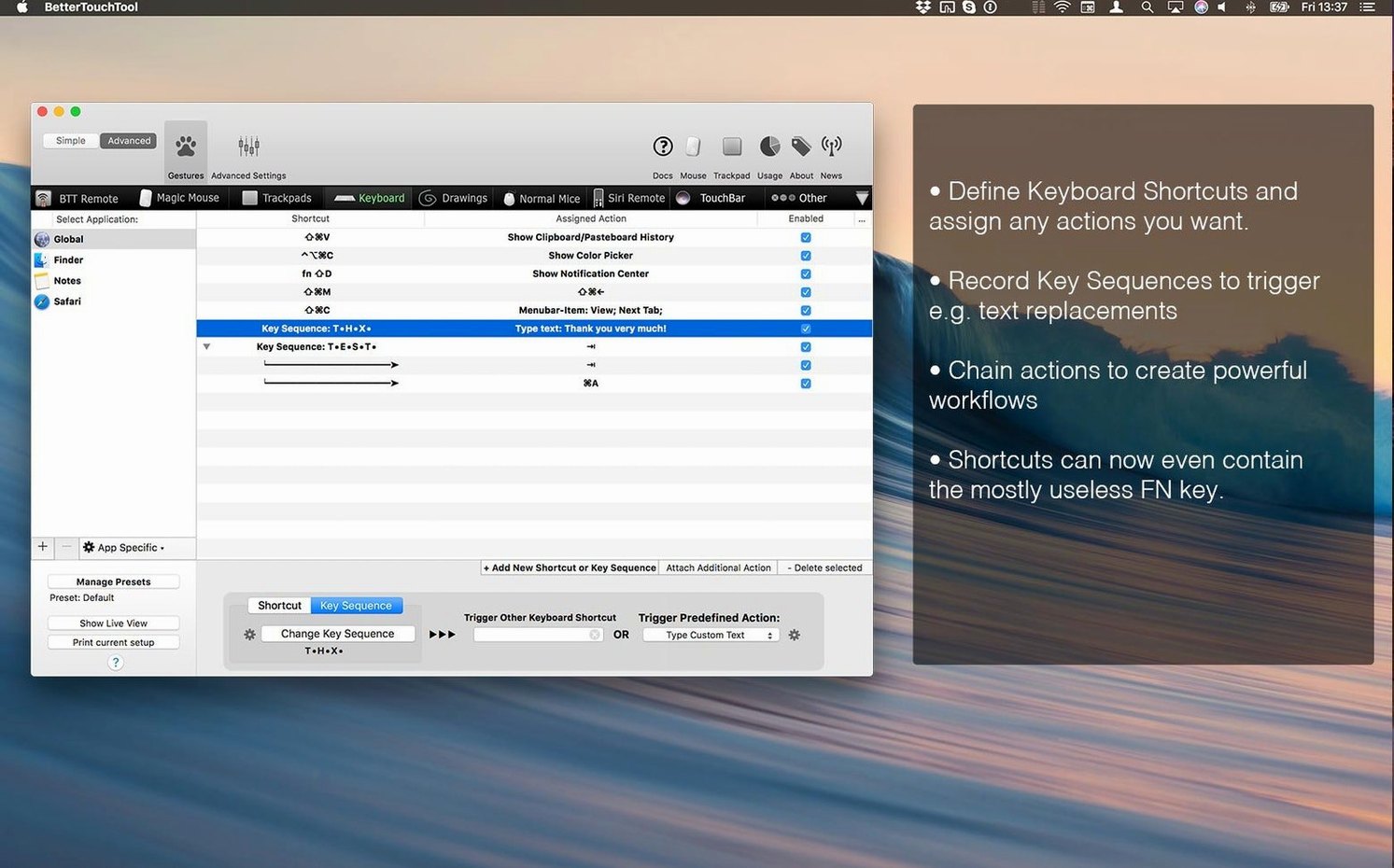
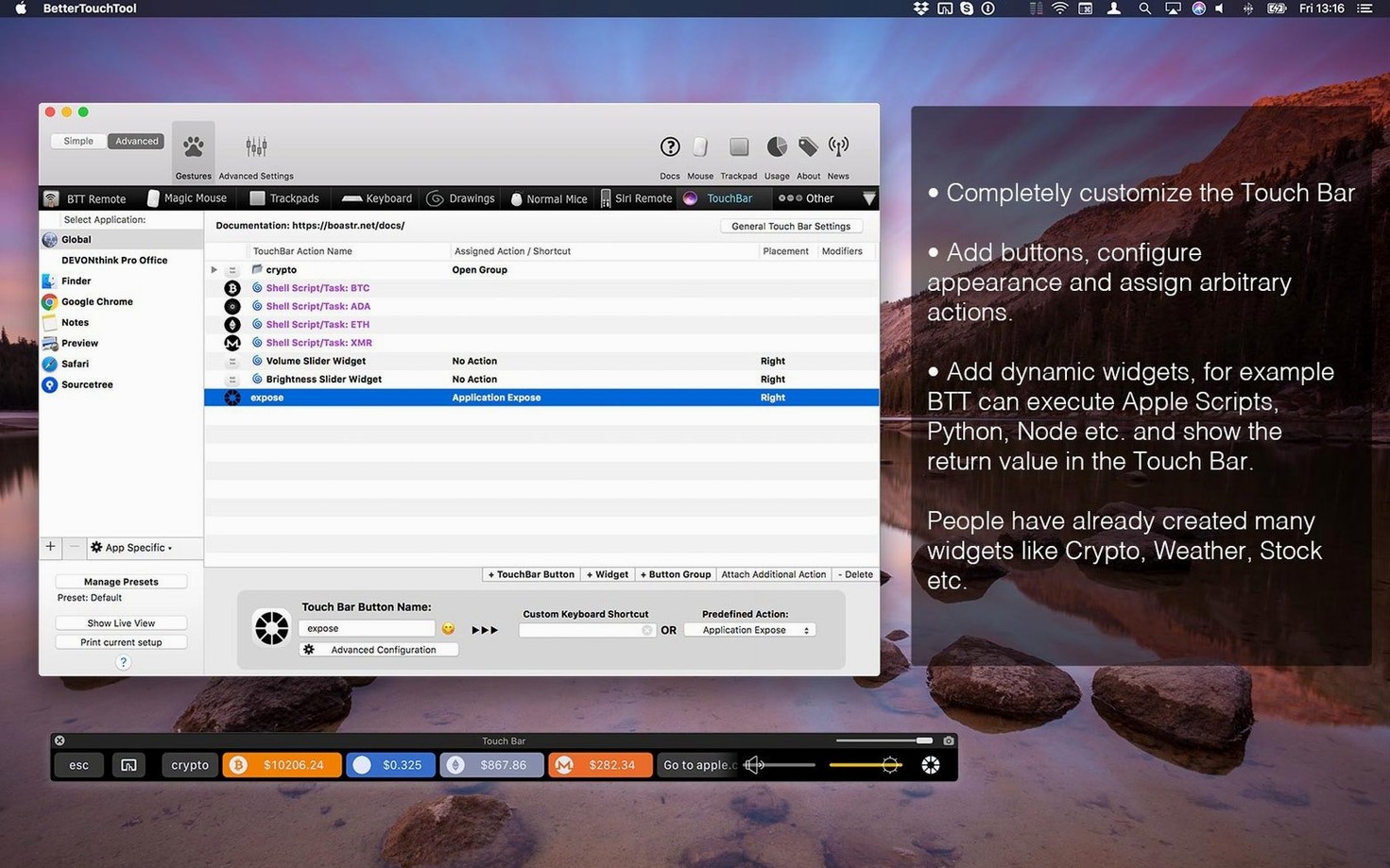
A standard Mac gives you a fixed set of trackpad gestures and keyboard shortcuts. If your fingers want a three-finger swipe to do something else, or a corner click to trigger a script, the system alone won't oblige. BetterTouchTool fills that gap. It lets you assign actions to almost any input — trackpad, mouse, keyboard, Touch Bar — and tie them to the whole system or to individual applications.
| Detail | Note |
|---|---|
| Developer | Andreas Hegenberg |
| Version | 6.726 |
| Input devices | Trackpad, Magic Mouse, normal mouse, keyboard, Siri Remote, Apple Remote, Touch Bar |
| Architecture | Apple Silicon and Intel |
| Minimum OS | macOS 10.15 |
People often wonder what the app actually extends. It builds on every input method macOS recognises and adds a layer where you define what a gesture or key press means. A two-finger tap can open a URL. A corner click can paste a saved text snippet from the built-in clipboard manager. You can set per-application rules, so the same shortcut pastes plain text in a text editor but acts as a formatting command in a design tool.
When a gesture does nothing, start in System Preferences
One early headache is permission prompts that appear without explanation. BetterTouchTool needs accessibility access to watch keystrokes and simulate input, and screen recording permission for the screenshot tool and window snapping. When a gesture does nothing, check System Preferences → Security & Privacy → Privacy → Accessibility. If BetterTouchTool is listed but unchecked, tick it. If it is missing entirely, drag the app into the list from Finder. A relaunch is sometimes required before the setting sticks.
Another snag is conflicting shortcuts. If you assign ⌘⇧4 to a custom action, macOS still intercepts it for screenshots. The workaround is to unbind the system shortcut first — Apple's Keyboard → Shortcuts pane lets you disable individual system bindings — or pick a chord that isn't already claimed. BetterTouchTool has no built-in conflict detector, so keeping a mental map of what the system and other utilities reserve saves frustration.
Touch Bar users occasionally see widgets vanish after a macOS update. This happens because the Touch Bar server restarts and BetterTouchTool's widget process sometimes fails to reattach. Opening the app's Touch Bar settings and toggling "Enable Touch Bar support" off and on again restores the widgets. If that fails, quitting both BetterTouchTool and the TouchBarServer process via Activity Monitor forces a clean reload.
Trackpad gesture recognition can feel imprecise when tip-tap gestures are set too sensitively. The fix is on the trackpad configuration panel: increase the "Tap count" threshold or widen the "Movement tolerance" slider. For drawing gestures, recording a couple of variations of the same shape improves recognition accuracy more than any software setting.
The lightweight daemon you won't feel running
Will it slow my Mac down? Not in any way you are likely to notice. The app runs a lightweight daemon that listens for input events and executes actions. On a Mac that meets the macOS 10.15 baseline, the CPU footprint stays under 1% during normal use. Spikes occur only when processing complex scripts or rendering large image overlays in the screenshot editor. If you run dozens of heavily scripted widgets on the Touch Bar, there is a small but measurable battery cost on laptops.
Does it work alongside Karabiner-Elements or Keyboard Maestro? Yes, but order matters. If two utilities try to remap the same key chord, the last one to grab the event wins. A practical approach is to let one tool own keyboard work and the other handle gestures and the Touch Bar. Many users run Keyboard Maestro for macros and BetterTouchTool for trackpad and mouse customisation without conflict, as long as shortcut overlap is kept to a minimum.
Can I take my settings to another Mac? The app stores everything in a single .bttpreset file. Export it from the Presets menu, move it to the new machine, and import. Licences and activation details are handled separately, inside the package. Presets carry all gestures, shortcuts, clipboard history and widget layouts.
What about the bettertouchtool torrent or better touch tool mac crack versions people mention? They circulate online, and the app's design is deeply tied to macOS permissions and code signing. An unsigned or tampered build requires you to manually grant accessibility access through System Preferences > Privacy & Security, otherwise gestures will silently do nothing. The package you have includes the activation steps needed to get everything working smoothly.
A three-finger swipe down opens your whole workspace
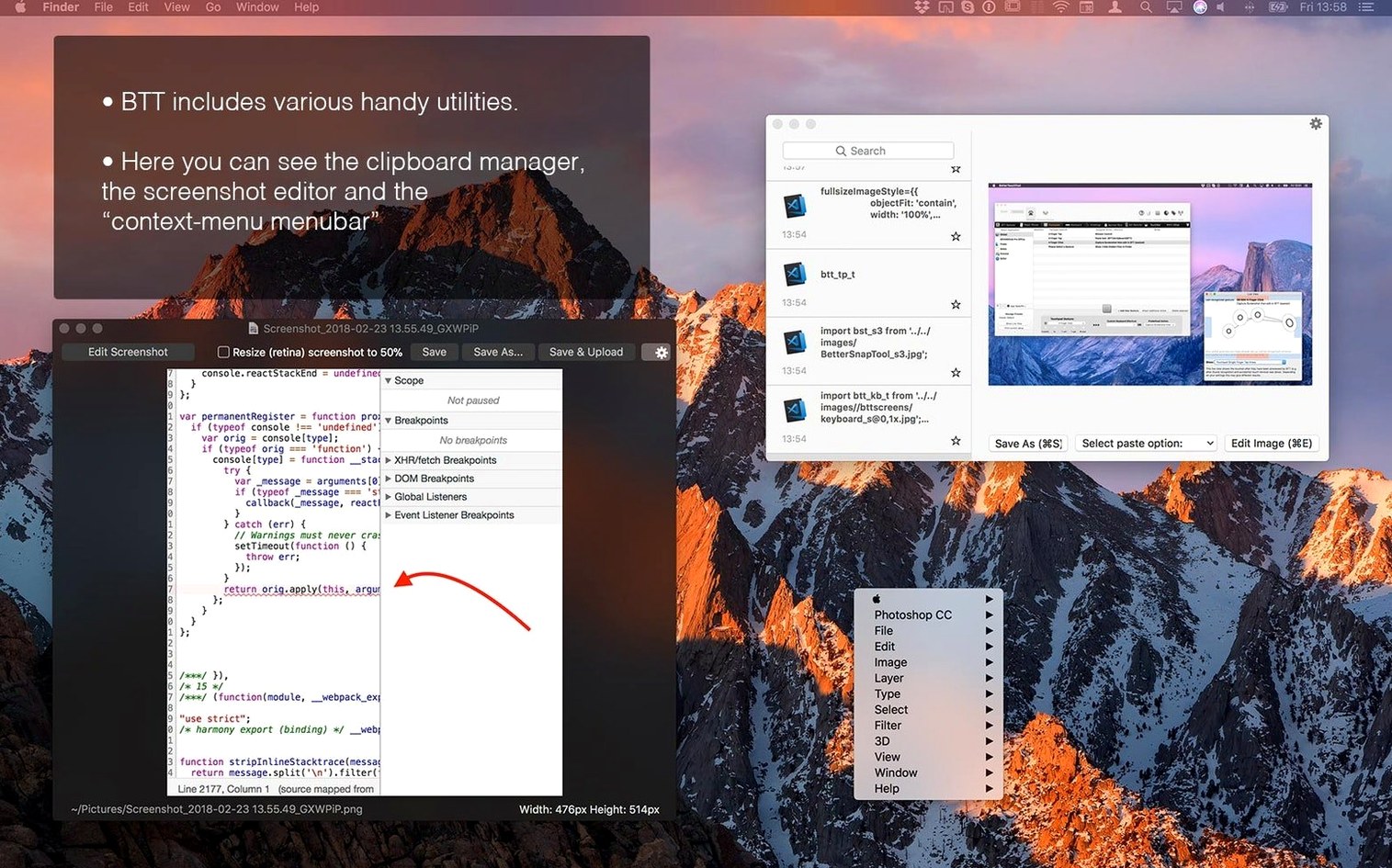
You sit down with a MacBook Pro, an external Magic Trackpad, and a few applications open: Safari, Mail and a text editor. The session starts with a three-finger swipe down on the trackpad — you set it to trigger the built-in screenshot tool. A capture region crosshair appears. You drag over a portion of a webpage, release, and the on-the-fly editor opens with arrows, boxes and a text tool. You annotate the image, then hit ⌘↩ to copy it to the clipboard instead of saving a file.
Next, a two-finger force click on a link in Safari. You assigned this to "Open URL in background tab", so the page loads without stealing focus. You keep reading while the new tab builds.
You switch to the text editor. A corner click in the top-right of the trackpad surface pastes a saved response template from the clipboard manager — one of twelve snippets you keep pinned. The same corner click in Mail triggers a different action: it opens a new message window with a pre-filled recipient address, because the gesture is tied to an application-specific rule.
On the Touch Bar, a custom widget shows the current time, CPU temperature and a small play/pause button for Music. A longer widget strip includes an AppleScript-backed button that opens your current Finder window in Terminal. You tap it, and a shell opens at the right path.
Later, you pick up the Siri Remote to control a presentation. The remote's play/pause button is remapped to advance slides in Preview. A long press sends ⌘B to blank the screen. You set both actions once and they just work, no additional configuration before the meeting.
Too many four-finger swipes lead to accidental triggers
The most common misstep is over-assigning gestures. A trackpad has a limited physical surface, and mapping four-finger swipes in every direction, plus tip-taps, plus corner clicks, plus drawing gestures creates a web of overlapping triggers. The result is accidental activation — a three-finger swipe right interpreted as "next tab" when you meant a diagonal drawing gesture. Start with two or three global gestures and add one at a time, testing each for a day before adding the next.
Another mistake is ignoring application targeting entirely. New users often define all actions globally, then wonder why the same shortcut behaves unhelpfully in a different program. A ⌘T remap that opens a terminal window is useful globally for some people, but in a browser it breaks the "new tab" command. Flipping the assignment to only apply in Finder and the desktop avoids that.
Beginners also treat the clipboard manager as passive storage. They paste a few items, never open the clipboard panel, and miss that pinned clippings survive reboots. Setting up five or six pinned items — an email signature, a standard reply, a code template — saves more time than any gesture shortcut.
Finally, people sometimes record drawing gestures too loosely. A lazy circle drawn once will not match a tighter circle drawn later. Recording the same shape three or four times with slight variations teaches the recogniser what you mean. The extra minute spent on recording pays off every time the gesture fires correctly.
Firing HTTP requests and URL schemes from a trackpad gesture
BetterTouchTool sits between the hardware and the operating system's event queue, which means it works alongside most software without conflict. It can trigger AppleScript and JavaScript for Automation, open custom URL schemes, and fire HTTP requests. This makes it a bridge: a trackpad gesture can send a command to OmniFocus via its URL scheme, toggle a HomeKit scene through a shell script, or append a line to a text file in Dropbox.
With Shortcuts.app on newer macOS versions, the relationship is indirect. BetterTouchTool cannot run a shortcut directly, but it can call a URL scheme that Shortcuts registers, or trigger a shell command that invokes the shortcuts run CLI tool. A Touch Bar button labelled "Wrap Up Day" can chain a Shortcut that closes apps, logs time and sets the Mac to Do Not Disturb.
The clipboard manager integrates with the system pasteboard transparently. Copy something anywhere — Finder, Xcode, a web form — and it appears in the clipboard list. The screenshot tool, meanwhile, behaves like a lightweight alternative to CleanShot or Snagit. It lacks scrolling capture and video recording, but the on-the-fly annotation tools cover arrows, rectangles, text overlays and pixelation, which is enough for quick bug reports and documentation.
Window snapping, another included feature, fills a gap that macOS still only partially addresses. Dragging a window to a screen edge resizes it to half or quarter of the display. It is not as fluid as Magnet or Rectangle, but it is included and configurable, so users who install BetterTouchTool for gestures often uninstall their dedicated window manager.
The app also pairs naturally with automation tools. A bettertouchtool gesture can fire a Keyboard Maestro macro, which in turn runs a multi-step sequence across several applications. The two tools are not competitors; they handle different layers of the interaction stack. BetterTouchTool owns the physical input, and the other tool owns the workflow logic. When they work together, the user never touches a keyboard shortcut at all.