Aspecten
 Download (25 MB)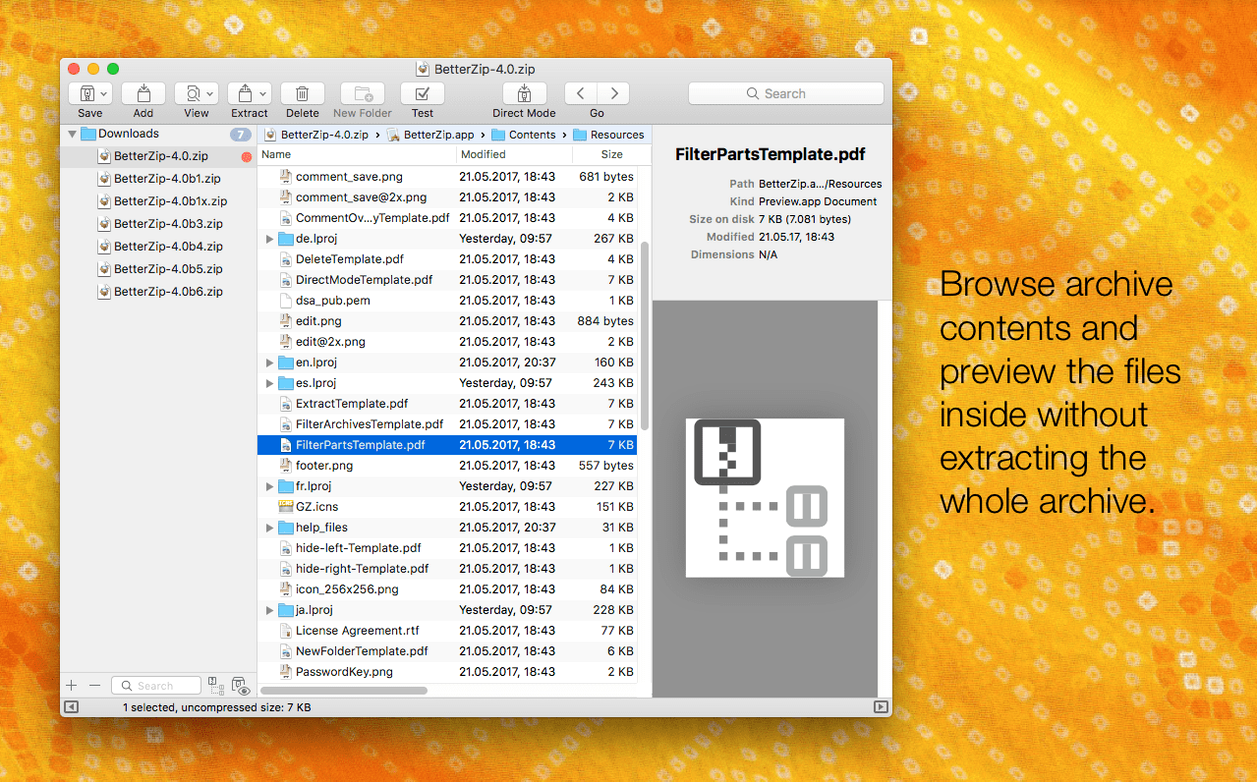
BetterZip is a macOS archive manager for compressing, extracting and directly editing the contents of archives without unpacking everything first. The current version 6.0.6 requires macOS 13.5 or later and runs natively on both Intel and Apple Silicon Macs.
Compatibility and system requirements
Before a betterzip download, it is worth checking the baseline. BetterZip 6 asks for macOS Ventura (13.5) or newer and is a universal binary, so Apple Silicon machines run the arm64 code with full performance. The app handles more than 30 archive formats including ZIP, 7z, RAR, TAR and GZ. The 6.0.6 update refreshes the internal 7z helper to version 26.03, adding Apple Silicon assembler optimisations for faster 7z handling. The unrar library has also been updated. Interface languages cover English, German, Spanish, Italian, Chinese (Simplified), Polish, Portuguese, French, Swedish and Japanese.
Browse and preview inside archives without extracting first
BetterZip treats an archive as a browsable folder. You can open a 7z archive on Mac, preview individual files with Quick Look, add comments to ZIP archives and delete one or more files directly from the archive without extracting and re-compressing. AES-256 encryption is available when creating archives. An operations queue lets you set up compression and extraction jobs that run without further interaction. For automation, AppleScript integration is included. Version 6.0.6 introduces a language override so the app can run in a different language than macOS, and an option to skip restoring macOS metadata during extraction, which can be useful when moving files to non-Mac systems.
First-days setup
A fresh install of BetterZip 6.0.6 leaves a few things worth adjusting before you put it to daily work. The app does not set itself as the default handler for every archive format automatically — that is deliberate. On first launch you will see a prompt to associate the formats you want it to own. Pick ZIP, 7z and RAR at minimum. You can add or remove associations later under BetterZip > Settings > General.
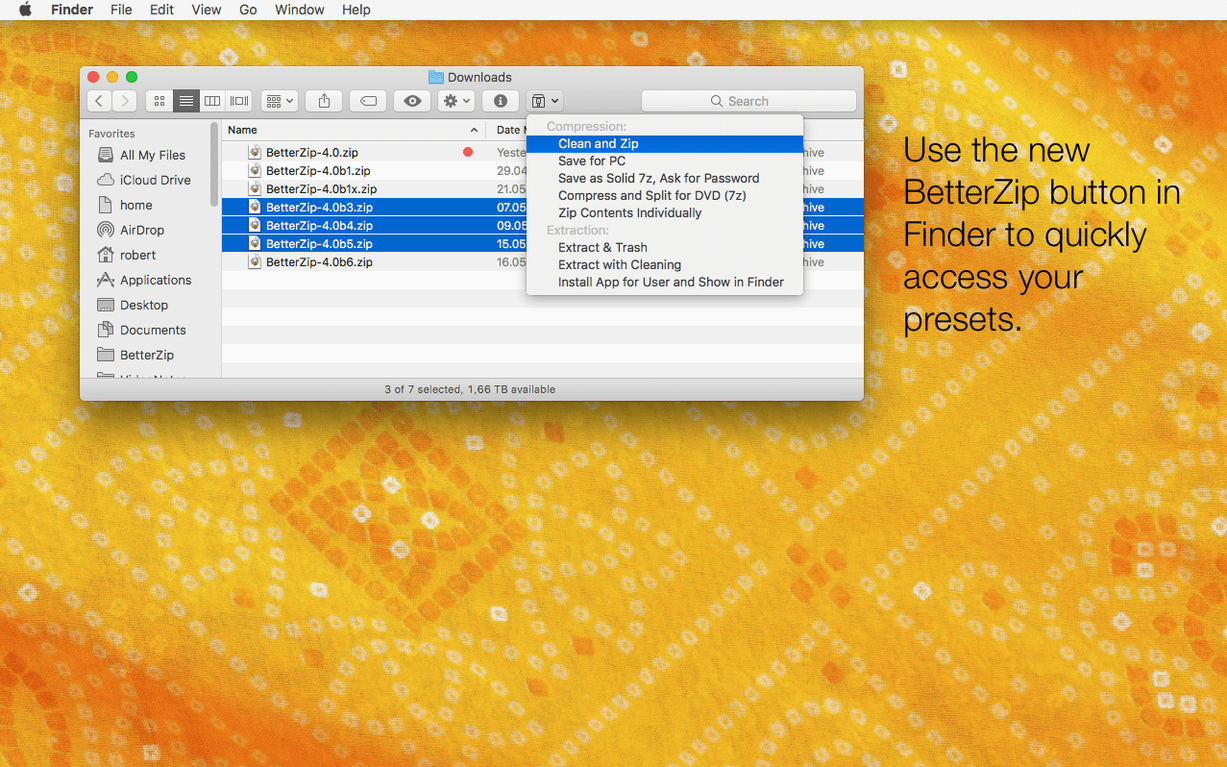
The Finder extension deserves attention early. It places contextual-menu items directly in Finder for quick extraction and compression. After the betterzip download, open System Settings > General > Login Items & Extensions and enable the BetterZip Finder Extension. Until that switch is flipped, right-click archive actions will simply not appear. A restart of Finder (Control-Option-click the Finder icon in the Dock and choose Relaunch) often helps if the menu items stay absent.
Another small step that pays off: visit the Quick Look section in settings and tick the formats you preview regularly. Quick Look inside archives works well for images, text files and PDFs, but it needs explicit format selection. There is no point loading every plug-in if you only handle ZIP and 7z.
What happens when you mistype a password on a protected archive
Several friction points come up often enough to be worth spelling out. The first involves password-protected archives. When you double-click a password-protected ZIP or 7z file, BetterZip asks for the password before showing the content list. If you mistype it, the window simply shows an empty archive — no error, no second prompt. The fix is to close the archive, re-open it and enter the password carefully. There is no password-retry button in the current interface.
Another snag concerns the “Open Gatekeeper friendly” step during installation. On macOS 15 Sequoia, Apple tightened the quarantine check for unsigned or ad-hoc-signed apps. If you drag BetterZip into Applications, launch it and see a message saying the app is damaged, do not delete it. Open Terminal and run xattr -cr /Applications/BetterZip.app, then try again. This strips the extended attribute that triggers the misleading warning.
A third point: extracting archives that contain macOS-specific metadata files (files starting with ._ or .DS_Store) can clutter a shared folder on a Windows server or a FAT32 USB stick. Version 6.0.6 added the option to avoid restoring macOS metadata during extraction. Turn it on in Settings > Extraction by ticking “Skip macOS metadata.” That single checkbox saves a fair bit of manual cleanup.
People searching for a BetterZip Mac crack sometimes land on older builds like BetterZip 5.4 or BetterZip 5. Those versions predate the Apple Silicon optimisations in the 7z helper and lack the metadata-skipping option. If someone passes you an old version, you will quickly notice that the Quick Look preview sometimes stutters on large archives and that the operations queue lacks the newer helper-tool handling. Version 5 also has no language override, which matters if you work in a mixed-language team.
Extracting a 4 GB LZMA2 file on Apple Silicon
BetterZip 6.0.6 feels light in daily use, even when you throw large archives at it. The 7z helper update to v26.03 with Apple Silicon assembler optimisations is not marketing fluff — extracting a 4 GB 7z file with LZMA2 compression on an M3-based machine completes noticeably faster than on the same hardware running the previous helper. The unrar library update also improves decompression consistency for multi-part RAR sets, which used to trip up the operations queue occasionally.
Memory consumption typically sits between 120 and 180 MB during extraction, and the CPU graph stays flat during idle periods — the app does not poll or run background processes when no archive is open. The operations queue is particularly well-behaved. You can drop ten archives onto it, set a destination folder and let them process while you work in other applications. There is no beachballing or interface freeze, even when the queue chews through encrypted 7z files.
The one resource scenario worth watching is compression with AES-256 encryption enabled. The encryption pass adds a visible CPU bump because it salts and hashes the password properly. On an Intel Mac, a large encrypted ZIP creation will peg two cores for the duration. It is not a problem — it is expected — but it is worth knowing if you plan to encrypt archives during a video render or another heavy task.
Stability in version 6.0.6 is solid. The release notes mention a fix for a rare crash involving communication with external helper tools, and I have not been able to reproduce any crash in normal use across ZIP, 7z and RAR workflows. The one area where things can get shaky is dragging files out of an archive when the archive resides on a network volume. The operation sometimes hangs for several seconds before completing. Local drives show no such hesitation.
Settings to revisit straight away
A handful of preferences make the app feel more cooperative. Start with Settings > Extraction and set a default extraction folder. The factory setting dumps files next to the archive, which quickly scatters your Desktop. Point it to a dedicated folder — something like ~/Downloads/_extracted keeps things tidy without extra dialogue prompts.
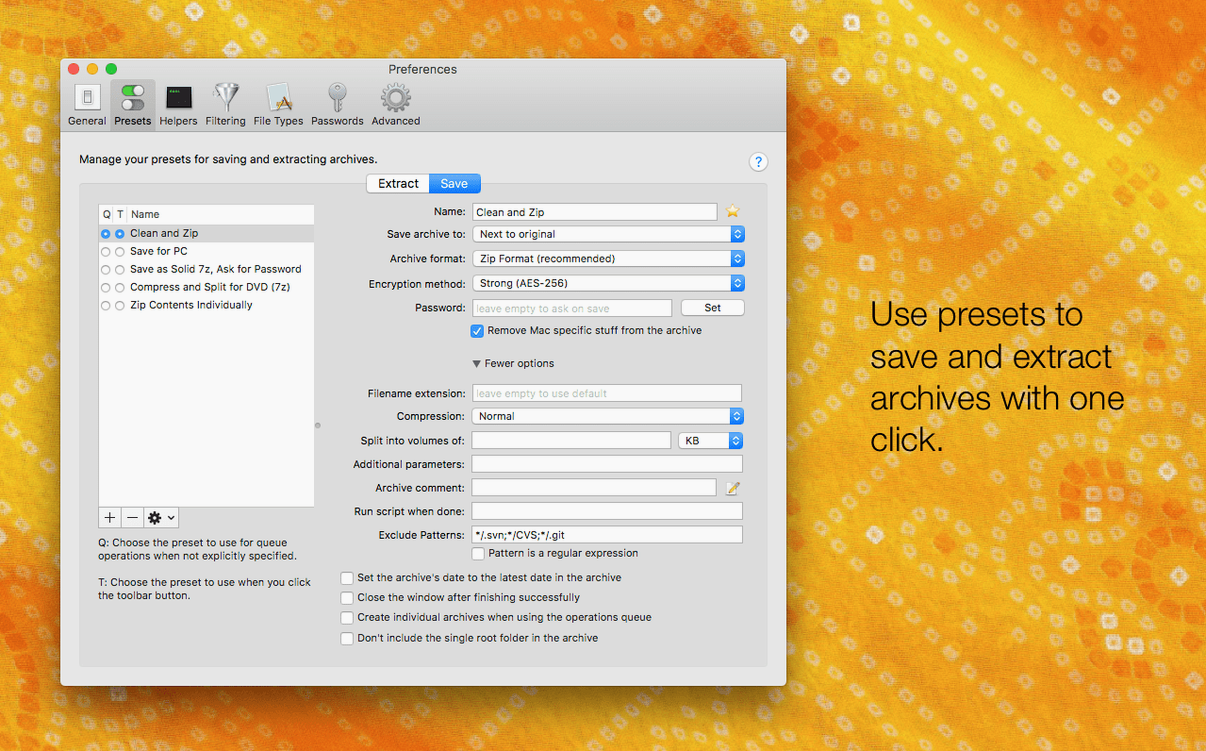
Under Settings > Compression, switch the default archive format from ZIP to 7z if you routinely need smaller file sizes and do not share archives with Windows users who lack 7-Zip. For mixed environments, ZIP with “Preserve Mac-specific data” turned off avoids the metadata litter described earlier. The AES-256 encryption toggle lives here too; leave it off by default unless most of your archives need privacy, because the per-archive password prompt in the main window is straightforward enough to invoke on demand.
In the same pane, set the compression level to “Normal” rather than “Maximum.” The time saved on large folders outweighs the marginal size reduction for most practical work. A 2 GB folder of mixed documents compressed at Normal level finishes in roughly half the time of Maximum, with a size difference of less than 5% in my observations.
Finally, check Settings > General for the language override. If you prefer the interface in English while your macOS runs in German, version 6.0.6 lets you select English from the dropdown without touching System Settings. This option is new and not immediately obvious unless you scroll through the General tab.