Aspecten
 Download (16 MB)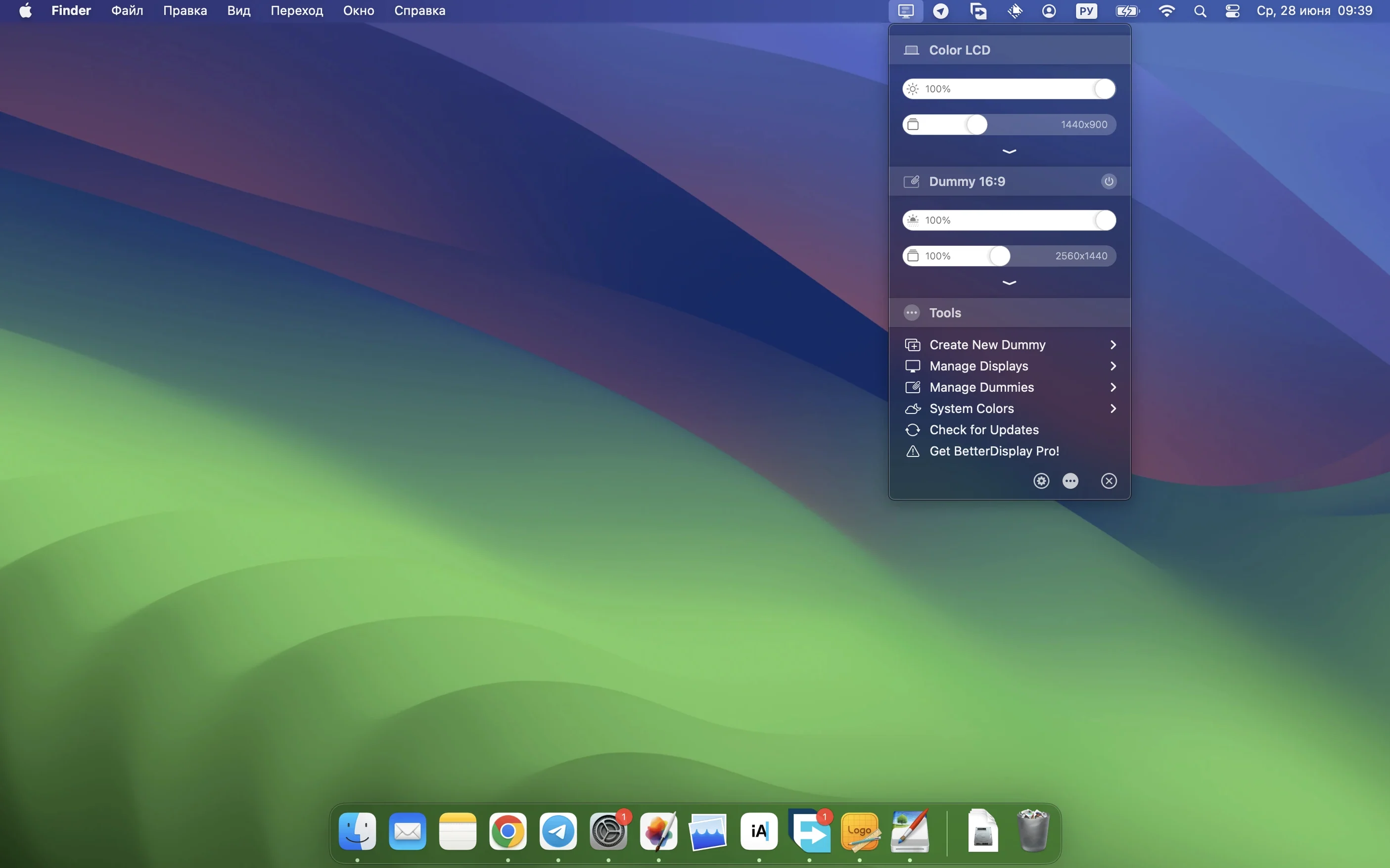
People who run multiple monitors, mix resolutions, or want finer control over their Mac’s built-in screen often end up here. BetterDisplay Pro is a display manager that replaces the system’s limited scaling options with flexible HiDPI resolutions, per-display brightness, colour adjustments and virtual screens.
The app also handles configuration overrides, so a display that the system identifies incorrectly can be nudged into the right resolution or colour profile and made to stay there. DDC control lets you adjust hardware brightness and contrast on supported external monitors without reaching for their physical buttons. Version 5.0.6 brings faster multi-display DDC control and a simplified device configuration setup.
Unlocking extra HiDPI scaling steps for 4K and 5K displays
- Anyone using a 4K or 5K display who finds Apple’s default scaling options too coarse. BetterDisplay Pro offers a wider set of HiDPI resolutions.
- Multi-monitor setups where each screen needs its own brightness, colour profile or arrangement rules.
- Users who want virtual displays—dummy screens the system treats as real—for screen sharing, testing or specific layout needs.
- People who value hardware-level adjustments: DDC control, XDR/HDR brightness up to the panel’s limit, and full black dimming on supported displays.
- Colour-conscious work that benefits from custom 3D LUTs and advanced image adjustments.
The interface mirrors the feature depth, so expect a learning curve
- The feature set is deep. Picture-in-picture windows, stream video filter automation and HDMI-CEC control are present, but the interface can take time to learn.
- DDC control depends on the display’s firmware. Some monitors ignore certain commands or respond slowly even with the faster multi-display handling in the latest release.
- Virtual displays and configuration overrides occasionally need re-applying after a macOS update.
A 4K monitor looks soft at certain scaling steps
A few patterns show up regularly once people start adjusting displays beyond the system defaults. One is a 4K monitor that looks soft or slightly blurred at a particular scaling step. The HiDPI resolution list can be long, and not every entry maps cleanly to the panel’s native pixel grid. Switching to a resolution that is an even divisor of the native one—halving both dimensions, for instance—nearly always sharpens text. The app’s flexible scaling means you are not stuck with the handful of options macOS offers by default, but it also means you need to check which steps are integer-scaled and which rely on interpolation.
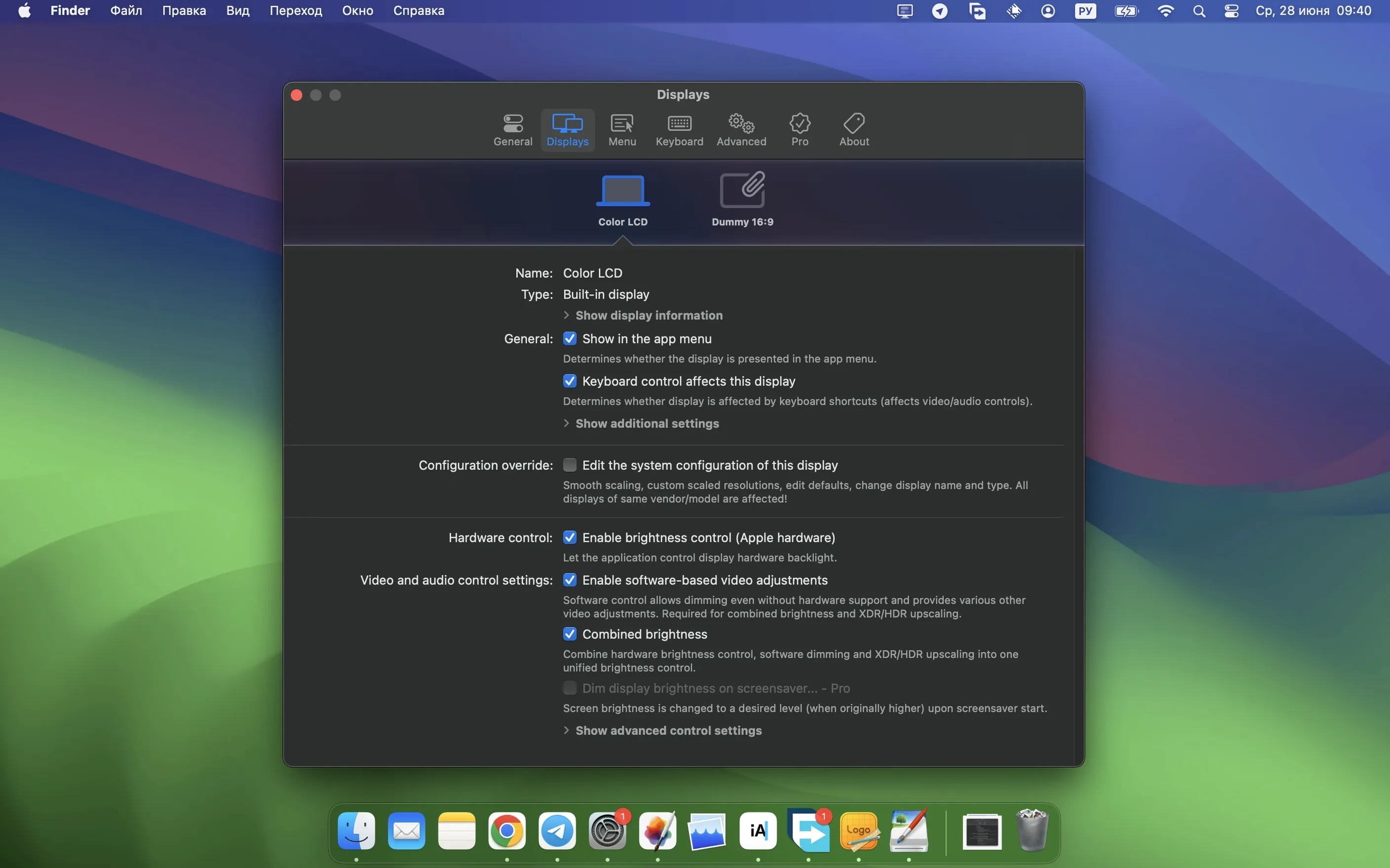
Another frequent hiccup: brightness sliders that do nothing for an external display. That usually points to DDC not being enabled for that particular monitor, or the display simply not supporting the DDC commands BetterDisplay sends. The device configuration panel added in version 5.0.6 makes this easier to diagnose: you can enable or disable DDC per display and see immediately whether the hardware responds. If the slider stays dead, try a different input cable—DisplayPort and USB‑C tend to carry DDC more reliably than HDMI on some older monitors.
Virtual displays disappearing after a restart is less common now, but still happens when macOS reassigns display IDs after a system update. Recreating the virtual screen usually takes under a minute, and the arrangement rules you set for it survive the recreation. If you rely on a specific virtual display for screen sharing, it is worth checking it still exists before joining a call.
Colour profiles sometimes shift when a monitor wakes from sleep. The custom 3D LUT and colour adjustments are applied by BetterDisplay, not by the system, so a brief flicker or a delay in loading the profile after wake is normal. If the profile fails to load entirely, toggling the display’s configuration override off and on again in the menu bar restores it without a full app restart.
Multi-display brightness adjustments now happen nearly in unison
The jump to version 5.0.6 tightened a few things that had been rough edges. Multi‑display DDC control is measurably faster: adjusting brightness on three external monitors now happens nearly in unison rather than one after another with a noticeable lag. That makes a difference when ambient light changes and you want all screens to dim or brighten together.
Sharpening effects were reworked and can now be pushed harder without introducing obvious haloing. On a matte 4K panel running at a non‑native HiDPI step, the stronger sharpening helps text edges feel crisp even when the underlying scaling is doing fractional pixel mapping. It is a subtle change, but once you notice it, the previous ceiling on sharpening feels restrained by comparison.
The stream video filter automation is a quieter addition. If you route a display’s output through a streaming tool or a capture card, you can now attach image adjustments that kick in only when that stream is active. It keeps the local display looking natural while the streamed output gets its own colour and contrast treatment. Setting it up takes a few minutes the first time, but it removes the need to manually switch profiles before and after streaming sessions.
Device control configuration, which previously lived in several separate panes, is now gathered into one simplified panel. For anyone who switches between laptop‑only, one external display and a full desk setup, the new layout cuts the time spent re‑configuring which display gets DDC, which gets software brightness and which uses HDMI‑CEC.
Dial in one display completely before touching the others
Start with one display. Pick the screen you use most and spend ten minutes walking through its configuration tabs: resolution, brightness control method, colour adjustments. Getting one display dialled in teaches you the layout of the settings panels faster than trying to configure three at once.
Set the menu bar icon to show a brightness slider and the current resolution. That tiny dropdown becomes the quickest way to tweak brightness or switch scaling without opening the full app window. The icon’s appearance is configurable, and a simple numeric readout of the current HiDPI step prevents guesswork when you experiment with new resolutions.
For external monitors, enable DDC first and test it before layering on colour adjustments. If DDC works, hardware brightness and contrast are faster and smoother than software adjustments. If it does not, the app falls back to software brightness automatically, but knowing which path is active prevents confusion when a slider behaves differently than expected.
Create one virtual display early, even just as a 1080p dummy screen. Having it ready saves time later if you need a fixed‑resolution canvas for screen sharing or want to test how an app behaves with a secondary display present. The virtual display appears in the system’s display arrangement panel and can be positioned anywhere relative to your physical screens.
If you use a MacBook Pro with an XDR display, experiment with the HDR brightness upscaling setting. It pushes the panel beyond the standard brightness ceiling in HDR content, and the difference in a brightly lit room is visible. Turn on full black dimming at the same time—it keeps blacks deep when the backlight is running hot.
Adds flexible HiDPI scaling to the hardware brightness DDC mix
BetterDisplay Pro versus Lunar
Lunar focuses heavily on hardware brightness and contrast via DDC, and it does automatic brightness syncing based on an ambient light sensor or the system clock. BetterDisplay Pro covers that ground but adds flexible HiDPI scaling, virtual displays, picture‑in‑picture windows and 3D LUT support. If you only need DDC brightness control with adaptive syncing, Lunar is more single‑minded. If scaling, colour work and virtual screens matter alongside brightness, BetterDisplay Pro covers more ground without asking you to install a second utility.
BetterDisplay Pro versus MonitorControl
MonitorControl is a lightweight open‑source tool for DDC brightness and volume control on external displays. It does that job well and stays out of the way. BetterDisplay Pro does everything MonitorControl does and then extends into scaling, display overrides, virtual screens and image adjustments. The trade‑off is complexity: MonitorControl is a single‑purpose app that takes seconds to understand, while BetterDisplay Pro has a learning curve that matches its wider scope. For someone who only wants keyboard shortcuts for external brightness, MonitorControl is the simpler choice. For anyone who also wants finer resolution control or virtual displays, BetterDisplay Pro removes the need for multiple utilities.
BetterDisplay Pro versus SwitchResX
SwitchResX has been the go‑to for custom resolutions and display overrides on macOS for years. It lets you define arbitrary resolutions, refresh rates and colour depths, and it can inject EDID overrides. BetterDisplay Pro matches most of that resolution‑override capability and wraps it in a more modern interface, then adds DDC control, HDR brightness handling, virtual displays and picture‑in‑picture. SwitchResX remains extremely granular for resolution tinkerers who want to define every timing parameter, but BetterDisplay Pro covers the practical scaling and override needs of most users while bundling brightness and colour tools that SwitchResX does not attempt.
A floating picture-in-picture window tucked in the menu bar
The picture‑in‑picture window for any connected display is tucked away in the menu bar dropdown. Right‑click a display name and choose to open it as a floating window. That window stays on top of other apps and can be resized and positioned anywhere. It is handy for keeping an eye on a rendering output, a full‑screen media player or a secondary machine connected via capture card.
Keyboard shortcuts for brightness and contrast are customisable per display. If you have a keyboard with a numeric pad, assigning DDC brightness up and down to two keys gives you hardware‑level control that works even when the display’s OSD is locked. The shortcut configuration panel also supports AppleScript triggers, so you can tie display adjustments to automation workflows.
HDMI‑CEC control is a niche feature but a satisfying one. If your external display supports CEC, BetterDisplay can turn the monitor on and off or switch inputs via the menu bar. It means a single click can power down all your displays when you step away, without reaching for remote controls or physical buttons.
The configuration override panel has a “reapply on wake” toggle that is off by default. Turning it on prevents a monitor from reverting to a wrong resolution or colour profile after the Mac wakes from sleep. It is a small checkbox that solves one of the most persistent annoyances with multi‑monitor Mac setups.