Aspecten
 Download (31 MB)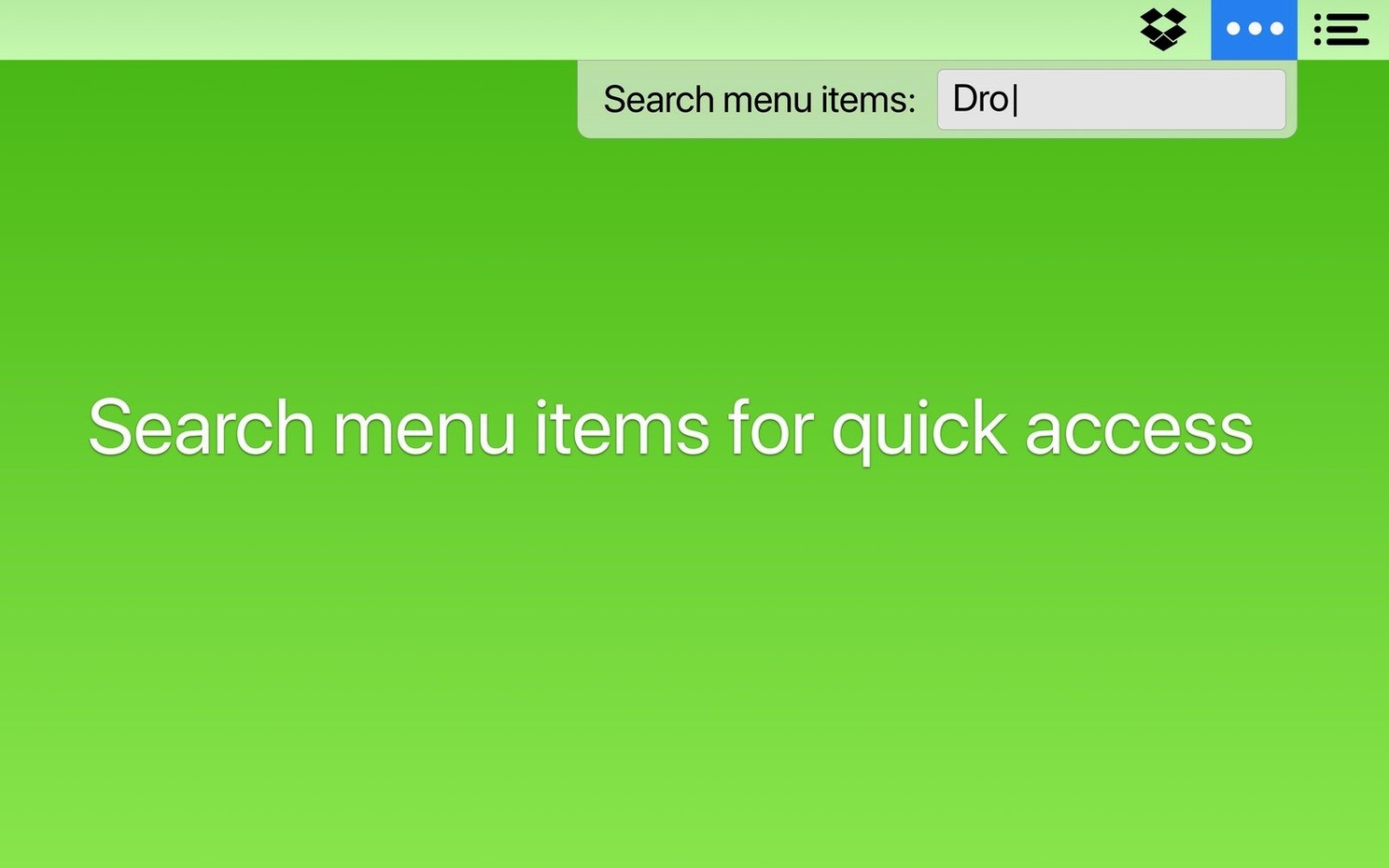
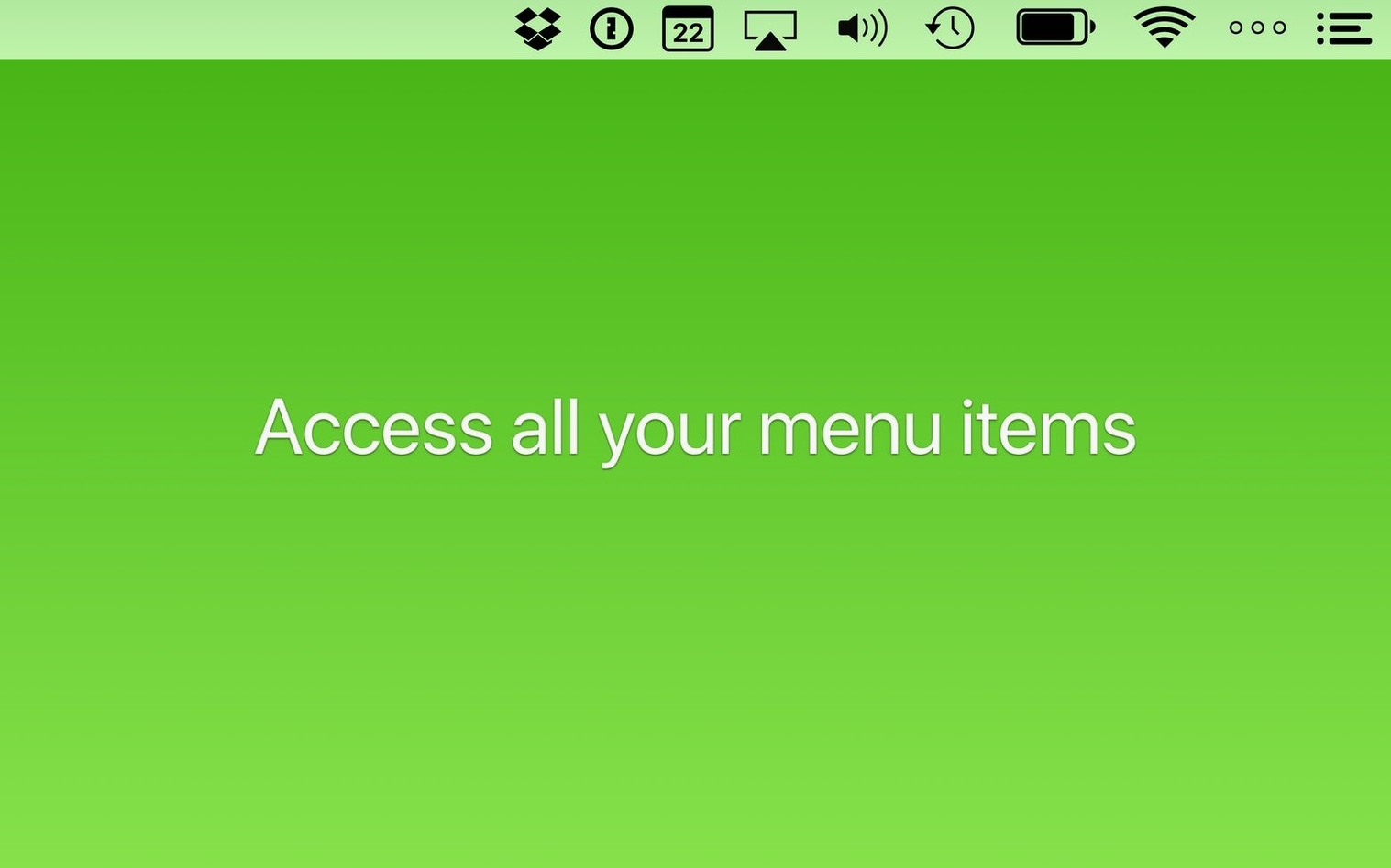
Version 7.0.4 addresses two practical irritants: items that failed to appear after launch, and spacers that shifted position following a restart. For someone new to the utility, the first sensible steps are about establishing order and reducing visual noise.
Show and hide with triggers
Trigger — a condition that reveals an item
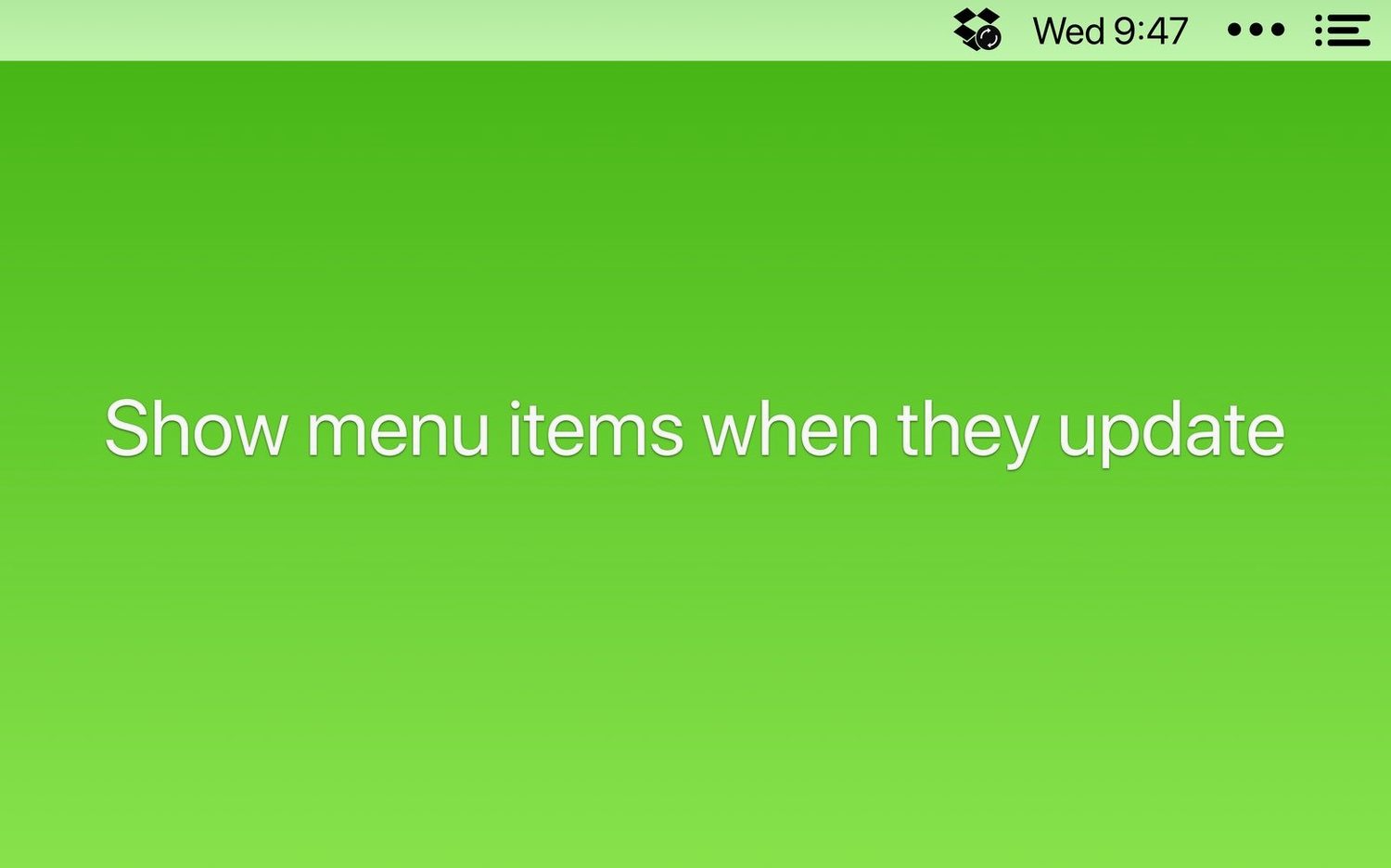
Rather than everything sitting permanently in the bar, you can set an icon to appear only during an update, a sync or an error state. This keeps the menu bar quiet most of the time without losing awareness when something actually needs attention.
Rearrange by dragging
Order — the left-to-right sequence of icons
System items sit on the right, third-party apps fill the rest. Bartender lets you alter that sequence directly. Drag an icon to a new position and it stays there, which matters most when muscle memory for a particular spot has already formed.
Keyboard navigation
Arrow keys — move focus without the mouse
Press the arrow keys to step through the hidden items, then Enter to select. A small thing, but useful when the trackpad is out of reach or the bar is dense enough that clicking precisely feels slow.
Hide the Bartender icon itself to reclaim menu bar space
A few details in Bartender sit just outside the obvious path through its preferences. Noticing them early saves small amounts of friction that accumulate over a working day.
Hide the Bartender icon itself — once the bar is arranged, the utility's own dot or icon can vanish. In the General pane, tick Hide Bartender icon. The app keeps running; you reach it later via a keyboard shortcut or by launching it again. One less pixel in the bar.
Search by typing a name — the Bartender Bar opens with a search field at the top. Typing two or three letters of an app name filters the icons to that single match immediately. It is quicker than arrow-keying through a dozen items when you know exactly which one you need.
Command-drag to move system items — a handful of macOS icons resist ordinary dragging. Holding the Command key while dragging them in Bartender's layout view often succeeds where a plain drag does not. The behaviour is not labelled in the interface, but the developer acknowledges it works.
Show for updates works for more than cloud-sync apps. Any utility that changes its icon briefly — a clipboard manager during a copy, a backup tool during a snapshot — benefits from the trigger. Set it once and the icon surfaces only while the action is live, then retreats.
A clean menu bar from login, with only Wi‑Fi and battery visible
Picture a Tuesday morning. The Mac wakes, sixteen menu bar icons load. Without Bartender, eight of them sit permanently visible because no native macOS control hides them. With Bartender in place, the session unfolds differently.
The bar starts clean: Wi‑Fi, battery, clock, and a single cloud-sync icon set to show during syncing. A small dot sits at the edge of the bar — the Bartender indicator, though most users hide even that after the first week.
You press Control‑B (a shortcut you set the day you installed version 7.0.4). The Bartender Bar drops down beneath the menu bar, displaying fourteen hidden icons in their fixed order. Muscle memory sends your eyes to the third position, where a screen-capture utility sits. Arrow down, Enter. The app's menu opens; you pick a region-capture mode. The bar retracts.
Mid-morning, a backup tool begins its hourly snapshot. Its icon appears in the main bar — a trigger set to Show when updating. You glance at it, note the progress arc, and carry on. Once the snapshot finishes, the icon disappears. No click was needed.
Later, a messaging app receives a file. Its icon stays in the hidden bar, but a small notification badge on the dot (if you left the dot visible) tells you something changed. Press Control‑B, spot the app with the blue pip, press Enter to bring its window forward. Three seconds from noticing to acting.
By lunch, you have not manually dragged a single menu bar icon. The bar stayed readable, and nothing you needed was more than a keystroke away.
Assign a keyboard shortcut before you arrange anything else
Fresh from download, Bartender works with sensible defaults, but three adjustments shift it from useful to invisible-in-a-good-way.
Set a keyboard shortcut immediately. In Preferences > General, assign a combination you will not clash with. Control‑B is common, but Option‑Space or Shift‑Control‑M work equally. Avoid reserving something you use in a text editor. The shortcut calls both the Bartender Bar and the Command Bar, depending on the next tap.
Switch the menu bar spacing. In the Appearance tab, Spacing defaults to standard. Changing it to Compact pulls icons slightly closer together, reclaiming a few millimetres of bar width. On a thirteen-inch screen, the difference matters when five or six items stay visible.
Decide on the dot early. The small indicator that signals hidden content can be set to three states: always visible, visible only when items are present in the hidden bar, or fully hidden. The middle option gives a gentle nudge without permanent clutter. Many people land there and never revisit the setting.
One setting to leave alone initially: the Trigger sensitivity slider. It controls how long an update must last before an icon appears. The default of one second catches most genuine updates without false positives from a flickering badge. Tweak it only if an app's brief icon change keeps surfacing annoyingly.
Switching between a large desk display and a thirteen‑inch laptop
Consider a freelance illustrator who moves between a studio desk with a large display and a café table with a thirteen-inch MacBook Air. Menu bar space is plentiful at the desk and scarce on the laptop. Bartender bridges the two contexts without constant reconfiguration.
At the studio, the illustrator keeps colour‑picker, font manager and a Wacom status icon visible. A cloud‑sync tool, two messaging apps, a clipboard manager and a VPN indicator stay in the Bartender Bar. The bar itself holds ten hidden items, none needed during a drawing sprint.
When the same MacBook opens in a café, the smaller screen makes the visible set feel crowded. The illustrator presses the keyboard shortcut and drags the font manager into the hidden bar — a ten‑second adjustment, no preference pane required. For the rest of the afternoon, only the colour picker and tablet icon sit in the main bar. Cloud‑sync surfaces briefly when files save; the VPN icon appears only while connected. The menu bar stays at six visible items, entirely readable.
Back at the studio the next morning, the font manager is dragged out again. Bartender remembers the arrangement per context, because the change was not a reset but a manual move. The app does not impose a single fixed layout; it allows the user to reshape the bar as needs shift, which suits a portable workflow better than a rigid rule set.
For someone searching phrases like bartender 6 free or bartender 6 download to test the concept on an older Mac, version 7.0.4 carries the same workflow forward but runs without the screen-recording permission that earlier versions sometimes relied upon. That removal alone makes the setup feel lighter on a machine that travels.
Trigger menu bar layouts directly from a Shortcut
Bartender does not replace any app; it organises the access points to them. Its design choices mean it cooperates with several parts of macOS rather than fighting them.
Shortcuts integration arrives via app intents. A Shortcut can toggle the Bartender Bar, show or hide a specific item, or switch between preset layouts. Someone who already uses Shortcuts to set up a morning workspace — opening Mail, Things, and Safari in a specific arrangement — can add a step that reveals the three menu bar icons needed for that task and hides the rest. The intent is called Show Menu Bar Item and accepts the app name as a parameter. It works without opening Bartender's own window.
Command Bar and Spotlight share a conceptual similarity: type a name, get an action. Bartender's Command Bar (invoked by pressing the shortcut twice, or set separately) lets you type an app name and press Enter to reveal it in the menu bar or open its menu directly. It is narrower than Spotlight — it only searches menu bar items — but faster for that single purpose because it returns results with no file or web clutter.
macOS Control Centre coexists peacefully. Bartender treats Control Centre modules like any other menu bar item: you can hide the whole Control Centre icon or keep it visible. The modules inside — Wi‑Fi, Bluetooth, Sound — remain accessible through the Bartender Bar if you hide the main Control Centre icon. Tapping Bluetooth inside the Bartender Bar still opens the native macOS pane; Bartender does not re‑implement system controls, it just moves the entry point.
Menu bar–only apps are where Bartender earns its keep most visibly. Utilities that live exclusively in the menu bar — clipboard managers, snippet keepers, time trackers, VPN clients — can all be tucked into the hidden bar. They continue to function, their background processes unaffected. A clipboard manager still captures every copy; a time tracker still logs minutes. Only their icon presence changes. This matters for anyone who has tried to solve menu bar crowding by quitting genuinely useful tools.
Some users coming from earlier versions may search for bartender mac crack or bartender 5 crack out of habit, and version 7.0.4 strips away the permission complexity that made older versions feel intrusive. It does not require screen recording approval, which was a sticking point for privacy‑conscious setups. The app now requests only the accessibility permission that most menu bar utilities need. That single change improves how it sits alongside macOS security prompts and MDM profiles on managed Macs.