Aspecten
 Download (5 MB)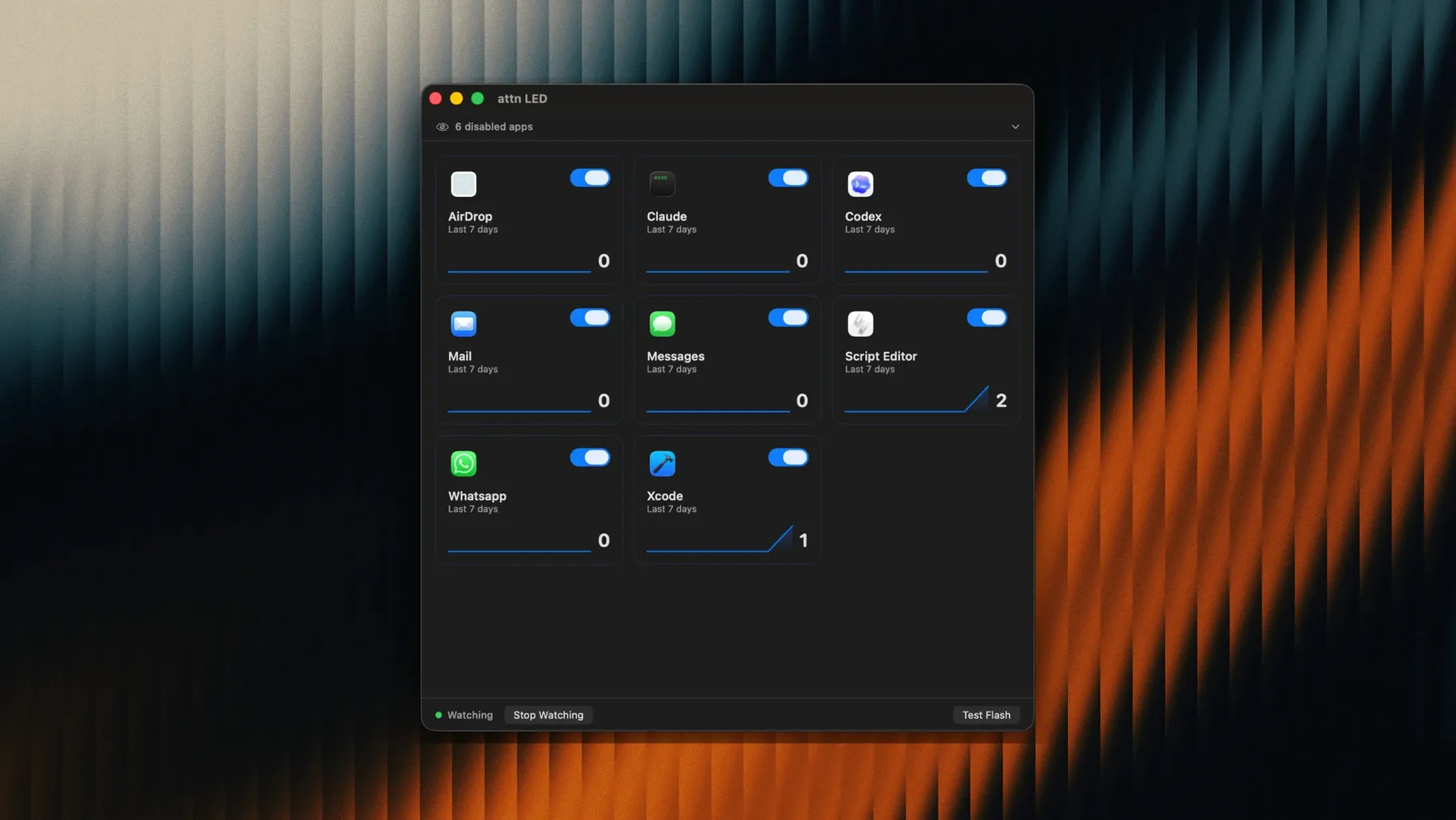
Keeping notifications silent while staying reachable often means keeping one eye on the screen. attn LED approaches the problem differently: it turns the camera LED on your MacBook into a visual signal you can notice from across the room. No sounds, no banners—just a blinking green light that persists until you open the app that triggered it.
| Detail | Value |
|---|---|
| Version | 1.0 |
| macOS | 12 or later |
| Architecture | Apple Silicon, Intel |
| Languages | English |
| Key requirement | MacBook with camera LED |
The app is built around Focus and Do Not Disturb sessions. You choose which applications—Slack, Mail, Messages, Discord, Teams, Telegram, and others—can trigger the LED. When a notification arrives from a selected app, the camera light starts blinking and keeps going until you open that application. During FaceTime calls and video conferences, the blinking pauses automatically, so it never interferes with the camera feed itself. Version 1.0 runs on both ARM and x86 64-bit Macs and asks for macOS 12 Monterey or newer. The interface is straightforward: pick your apps, enable the behaviour, and the LED does the rest.
When the LED stays dark after install
A few situations can trip up a fresh install of attn LED, usually around permissions and expectations about how the LED behaves. The most frequent issue is the LED not blinking at all after setup. In nearly every case, the culprit is the Accessibility permission. macOS treats the camera LED control as an accessibility feature, so the app needs explicit approval under System Settings > Privacy & Security > Accessibility. If attn LED is listed there but unchecked, toggle it on. If it is not listed at all, quit the app, re-open it, and the system should prompt you—though sometimes the prompt hides behind other windows.
Another point of confusion involves the app's relationship with Focus Mode. attn LED reads from the macOS notifications database via FSEvents rather than intercepting notifications directly, which is how it works around Focus Mode limits. The trade-off is that a notification must actually reach the Mac's notification centre for the LED to react. If you have a Focus mode set to silence notifications from a particular app entirely—not just hide them—attn LED will not see the event and the light stays off. Check that the apps you have selected inside attn LED are still allowed to deliver notifications in your Focus settings.
The blinking behaviour itself can surprise people who expect a single flash. The LED keeps blinking until the related app is brought to the foreground. If you glance at the MacBook, see the blink, but do not open the app, the blinking continues indefinitely. That is by design, but it is worth knowing so you do not mistake it for a stuck indicator.
Curating the app list to avoid false triggers
Right after you grant permissions, there are two settings that shape how attn LED fits into a workday. The first is the app list. The default behaviour attempts to detect apps with notification activity automatically, which is convenient but can lead to noise from apps you do not consider urgent. Spending a minute on the app selector—removing anything non-essential and keeping only Slack, Messages, or your on-call alerting tool—makes the LED meaningful rather than just busy.
The second is less obvious: whether to keep the LED active during specific hours. attn LED does not ship with a scheduling control of its own, but you can pair it with macOS Shortcuts or a Focus schedule to quit and launch the app at set times. For people who want the LED only during deep-work blocks in the morning, a simple Shortcut that quits attn LED at lunch and relaunches it the next day keeps the behaviour contained without manual toggling.
Bringing preferences back without a Dock icon
Because attn LED has no Dock-lingering interface, a few interaction details only surface with use. The first is that opening the app—even when it is already running—brings the preferences window back to the front. That window doubles as a quick way to check which apps are currently monitored without digging through System Settings.
The second convenience relates to video calls. The automatic pause during FaceTime, Zoom, Teams, and Webex calls works without configuration, but the detection method looks for active camera use at the system level. If you use a virtual camera or a capture card that does not register the built-in camera as active, the LED may continue blinking during a call. Tapping the menu bar icon to temporarily disable attn LED—or setting up a Shortcut that quits it when your video-conference app launches—is a reliable fallback.
Keyboard-centric users will notice there is no global hotkey for toggling attn LED on and off, but the app responds well to AppleScript. A one-liner tell application "attn LED" to quit can be bound to a launcher like Raycast or Alfred, effectively creating a shortcut to silence the LED without mousing.
MuteKey lights the camera LED for mute status
attn LED sits in a small category of tools that repurpose Mac hardware indicators for notifications. The closest comparison is MuteKey, an app that lights up the camera LED to show whether your microphone is muted during calls. MuteKey is narrower in scope—it is a mute-status indicator, not a notification relay—but it shares the same hardware trick. If your need is purely a glanceable mute light, MuteKey fits better. If you want notifications from Slack or Mail to pull your attention without a screen, attn LED covers that ground.
Another adjacent tool is Haptics, a Mac utility that sends notification taps through the trackpad's Taptic Engine when certain apps alert you. Haptics is tactile rather than visual and stays local to the machine, which means you have to be touching the MacBook to feel it. attn LED works at a distance—useful if you have stepped away from the desk and the blinking light catches your eye from across the room.
BannerBuddy takes a different route: it places a small, always-on-top notification window in a corner of the screen that stays visible even in full-screen Focus sessions. Where BannerBuddy keeps a visual element on the display, attn LED removes the on-screen component entirely and moves the signal to the hardware bezel. The choice between them depends on whether you find an on-screen banner more distracting than a physical blink. For people who already use Do Not Disturb to eliminate screen clutter, attn LED preserves the clean display while still delivering a persistent, hard-to-miss cue.